Appearance
Hanshow Templater 2.7.0 User Manual
V1.0.0
Document Code:
HS-TEMPLATER-V270001
ABOUT THE DOCUMENT
Thank you for using Hanshow Templater ESL template tool.
This document guides how to use Templater 2.7.0, helping users get started quickly and successfully make exquisite ESL templates quickly.
Please read this document carefully before using Templater, as well as understand the items mentioned in the document, and retain the document for subsequent use or for the next owner.
TARGET USERS
This document provides engineers with the necessary data and instructions for making template. Users have to master the basic knowledge on Java and Web software development. It is applicable for the following engineers:
• Technical support engineer
• After sales engineer
• Testing engineer
SYMBOL DESCRIPTION
| Icon | Description |
|---|---|
| △ | Information indicated with this icon should be paid special attention to by the reader. |
| 📖 | Information indicated with this icon is the explanation on the formal text for the readers to comprehend the text better. |
| [X-X] | It means special noun definition is provided here. |
EXPLANATION OF TERMS
| Terms | Expanded form | Description |
|---|---|---|
| Templater | Templater ESL template tool | An online visual design tool for multi-size ESL templates applied in various store scenarios, as well as effectively managing ESL templates in the form of projects. |
| All-Star | All-Star IoT Application Platform | Hanshow’s new generation smart ESL and application management platform, which can effectively manage user devices and product information and synchronize information to customer stores. |
| Aurora | Aurora digital marketing system | Manage store LCD ESLs and marketing placement business. |
| PriSmart | PriSmart Smart Retail System | Manage all store product data and issue price update command, as well as support multi-store management. |
| ESL-Working | ESL-Working System | Manage all the APs and ESLs in store, and 3.0 and above supports multi-store. |
| AP | Wireless Access Point | Access point, also called ESL controller, is used for the data transmission and interaction of controlling information between ESL-Working and ESL. |
| ESL | Electronic Shelf Label | Used for displaying product information like promotion information, price and grade, etc. |
1 Overview
Templater is an online visual design tool for multi-size ESL templates applied in various store scenarios, as well as effectively managing ESL templates in the form of projects.
2 Template making process

Figure 2-1 shows the template making process:
Log in → Create a project → Create templates → Set the scenario → Release
Figure 2-1 Template making process
2.1 Login
Follow the steps below:
- Visit the website http://templater.hanshow.com in the browser address bar. The login page is shown in Figure 2-2.
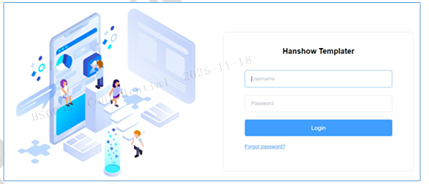
Figure 2-2 Login page
△ Notice: There are multiple sets of environments around the world, please contact technical support to obtain the corresponding addresses.
- Enter username and password, click Login, you will be redirected to the Project List page, as shown in Figure 2-3:
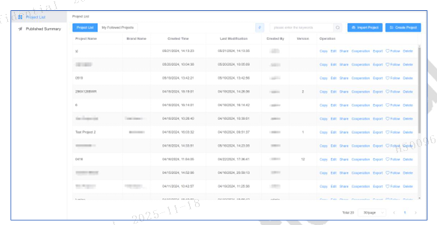
Figure 2-3 Project List
2.2 Create a project
Follow the steps below:
- Click Create Project on right.
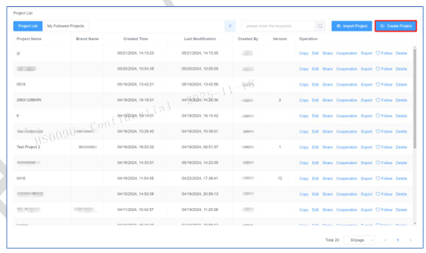
Figure 2-4 Create a project
Enter the basic information of the project. Project Name is required, no more than 128 characters. Select the ESL type used in this project on right, click Save.
If it is a key project, recommend to click Follow to follow it.
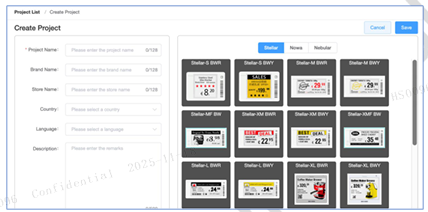
Figure 2-5 Create a project
2.3 Create a template
Follow the steps below:
- On the Project List, find and click the corresponding project, and click Display, as shown in Figure 2-6:
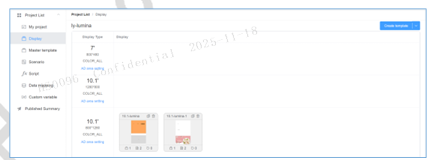
Figure 2-6 Template design
- Click Create template. Fill in the new ESL template information, click Save, as shown in Figure 2-7:
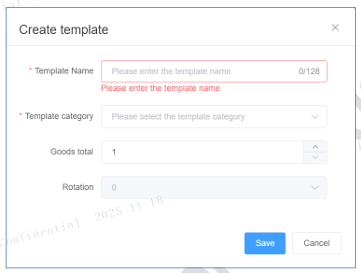
Figure 2-7 Template information
△ Notice: Temp Name and Template category with "*" are required. Template Name is limited to Chinese or English numbers, middle dash "-", or underline "_". Other special characters are invalid.
- New template will be displayed on the homepage. Click this template to open template-editing page.
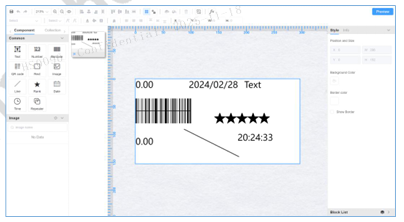
Figure 2-8 Template-editing page
2.4 Set a scenario
Follow the steps below:
As shown in Figure 2-9, click Scenario on left, there is a default standard scenario in the initial design. Go to the scenario interface to associate with template to be designed.
As shown in Figure 2-10, click ▢ to select the ESL template to be displayed.
Add the corresponding template according to scenario requirements such as promotion, member (Logic is configurable).
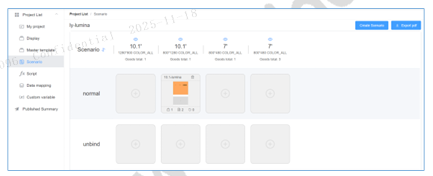
Figure 2-9 Select a template-1
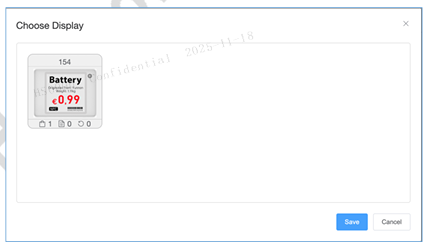
Figure 2-10 Select a template-2
2.5 Release
There are 2 methods to release ESL templates to your business systems: you can either Release to PriSmart (i.e. one-click release), or Generate version, then upload into the system.
2.5.1 One-click release
2.5.1.1 One-click release to PriSmart
EPD template should be released using the Release to PriSmart. As shown in Figure 2-11, click to open the Publish page.
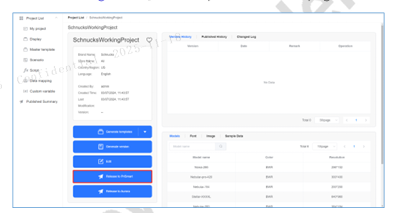
Figure 2-11 Click “Release to PriSmart”
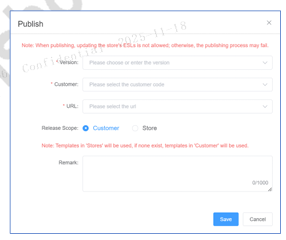
Figure 2-12 Publish page
• Version: ▸ Supports selection of already generated versions from the list. ▸ You can enter a version that doesn't exist in the list. Once selected, this version will be generated first and then applied directly.
• Customer: Select the customer code to publish.
• URL: Select the system URL for the customer to be published.
• Release Scope: ▸ Customer: Template is published across the entire customer. ▸ Store: A list of stores is displayed below, where users can select the store(s) they wish to publish to; by default, users are not allowed to select the parent organization of the store. If necessary, please contact Hanshow technical support to enable this feature.
▸ Usage Scenarios: ◆ If the customer level is published first, all stores use the customer level template. ◆ If the store level is subsequently published, those stores will use it, while the others will continue to use the customer level template. ◆ If the customer level is published again later on, all stores will switch to the most recently published template. ◆ And so on, with each new publication overriding the previous ones.
• Remark: Fill in the remarks section for this publication.
△ Notice: Users who want to use the “Release to PriSmart” feature need to contact technical support to enable releasing permissions first.
- Release result
After release, a popup will appear on the page showing the progress of the release, which is divided into "Publishing", "Succeeded/Failed", as shown in Figure 2-13:
Figure 2-13 Publishing ESL templates
• Publishing: Clicking "X" moves the progress display to the bottom left corner of the page.
• Succeeded: Click "X" to close.
• Failed: Clicking "X", the progress moves to the bottom left corner of the page, as shown in Figure 2-14, it displays specific error messages. These error messages will disappear after the next release; otherwise, they will be displayed at the bottom left corner every time you enter the page.
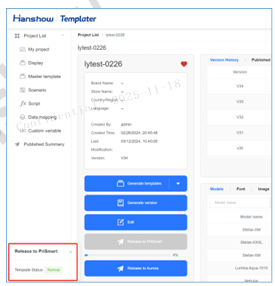
Figure 2-14 Click "X" to move the publishing process into the lower left corner
2.5.1.2 One-click release to Aurora
LCD Template should be released using the Release to Aurora, opening the Publish popup window, as shown in Figure 2-15:
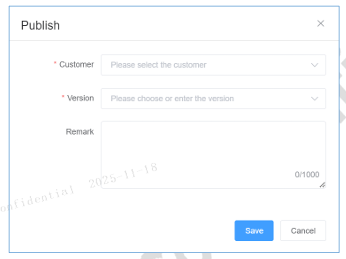
Figure 2-15 Publish page
• Customer: Select the merchant to which you want to release.
• Version: ▸ Version: Supports selection of already generated versions from the list. ▸ You can enter a version that doesn't exist in the list; once selected, this version will be created first and then used immediately.
• Remark: Fill in the remarks for this release.
△ Notice: Users who want to use the "Publish to Aurora" feature need to contact Hanshow technical support to enable releasing permissions, and the template tool must be integrated with All-Star.
2.5.2 Create a version and manually upload to the system
Follow below steps:
- As shown in Figure 2-16, click Generate Version in project list to generate a ZIP package in which contains the entire project.
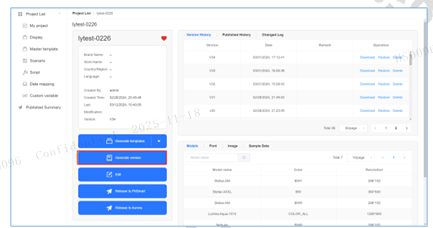
Figure 2-16
▣ Note: The generated ZIP package contains the uploaded images for the template project, fonts and JSON files.
Download the ZIP package.
Upload the package to business system.
3 My project
3.1 Project list
3.1.1 Entry
Click Use Now in homepage.
On the top right corner, hover over at the user icon and click My project from the dropdown box, as shown in Figure 3-1:
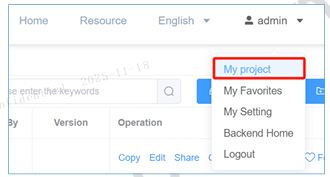
Figure 3-1 My project entry
3.1.2 Project list page
Project Data Source: Created by user + shared by others + cooperated with others.
• Filter: On the project list page, enter keywords in the right-side input box to search (supports project name and brand project keyword search), with support for fuzzy search, as shown in Figure 3-2:
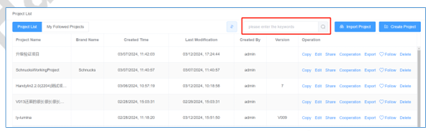
Figure 3-2 Project search
• Sort: Click ▾ to select a sorting mode, and projects will be sorted according to the chosen mode, as shown in Figure 3-3:
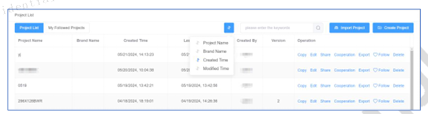
Figure 3-3 Project sorting
• Import Project: ▸ Import a project by uploading a file. Cross-environment import is supported. The uploaded file must be Exported from a project, not a Downloaded version. ▸ Click to open the import project pop-up window, select the file to upload, and the project will be automatically imported after the upload is complete.
• Create Project: Same section Create a project.
• Copy: Clicking the Copy button will create a new duplicate; the two projects are independent of each other.
• Edit: Click to edit the basic project information, including project name and products included in the project.
• Share: Create a copy and share it with someone else. ▸ Find the project you want to share in the project list. Click Share, enter the usernames to share with in the popup, and click Save. ▸ The copied project information will appear under the shared user's account and is not affected by operations on the original project file.
• Cooperation: Invite others to maintain the template together.
▸ Enter a username or user email, add a cooperator; multiple cooperators can be added, as shown in Figure 3-4:
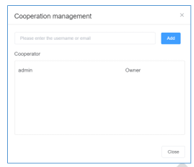
Figure 3-4 Cooperation management page
• Export: Export the current project. The exported file can be imported across environments by using the Import Project feature.
• Follow: Click the Follow button to follow the project. Followed projects can be viewed in My Followed Projects, as shown in Figure 3-5:
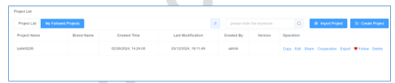
Figure 3-5 Click “Follow” to generate “My Followed Projects”
• Delete: Delete this template from the current user account; a secondary confirmation popup is shown as in Figure 3-6:
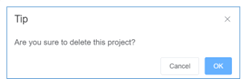
Figure 3-6 Deletion prompt page
▸ OK: Deletes this project.
▸ Cancel: Abandon deletion.
△ Note: Once deleted, it cannot be restored. Use with caution.
3.2 Project Management
3.2.1 Entry
From the homepage, click on a project to enter its details and manage it, including:
My project, Display, Master template, Scenario, Script, Data mapping, Custom variable.
3.2.2 Project details
As shown in Figure 3-7:
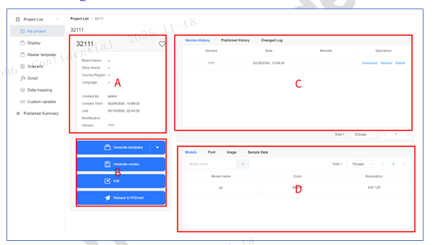
Figure 3-7 My project details page
• Project Details: As in area A of the above figure, displays basic project information such as name, brand, etc.
• Project Operations: As in area B of the above figure, perform some operations on the project. ▸ Generate templates: Click to export the latest file of the current project. This file is a complete project that can be used directly; clicking the ▾ arrow allows you to export templates by product series.
▸ Generate version: Create a new version, requiring entry of a version number and notes. Below, a list of changes for this version is displayed, as shown in Figure 3-8:
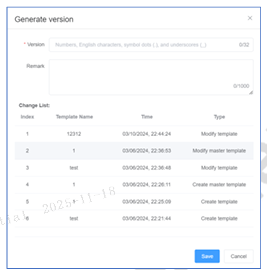
Figure 3-8 Generate version page
▸ Edit: Click to edit basic project information, including project name and the products included in the project.
▸ Release to PriSmart: Refer to the One-click release to PriSmart section.
▸ Release to Aurora: Refer to One-click release to Aurora section.
• Published history: As shown in area C of Figure 3-7, displays the history of generated versions, including version number and creation time, with operations available for each version.
• Download: Download the version file, which can be directly used in the corresponding business system.
• Restore: Restore using the current version; after restoring, a new project identical to the version will be created, as shown in Figure 3-9:
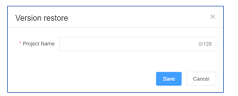
Figure 3-9 Version restore page
▸ Project Name: The name of the restored project.
▸ Save: Perform the restore; once executed, a new project will be created.
▸ Cancel: Abandon restoration.
• Delete: Delete the current version; deletion is only executed after clicking to confirm twice, as shown in Figure 3-10:
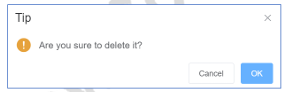
Figure 3-10 Confirm to delete the current version
• Published history: Displays the history of version releases, including the published version number, time, publisher, customer released to, scope of stores released to, and release notes, as shown in Figure 3-11:
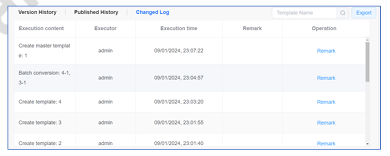
Figure 3-11 Published history page
• Changed Log: Shows the operation records for the current project, including the content of the operation, the person who carried it out, and the time it was performed, as shown in Figure 3-12:
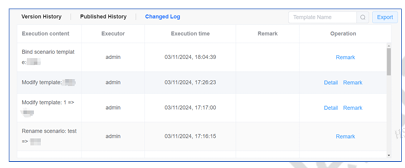
Figure 3-12 Changed log page
▸ As shown in Figure 3-13, adjustments made to the template's content will display operation details. Clicking on the details allows you to view the specific changes made to the template.
Figure 3-13 Operation Log Details Page
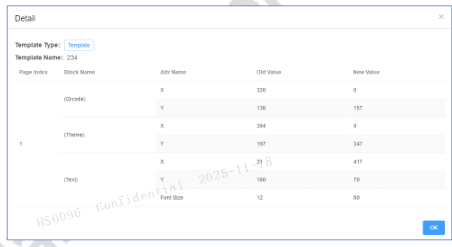
▸ The changed log shows information about components that have changed in this save, the attributes of the components that have changed, the old values, and the new values.
• Export: Exporting the operation details will automatically download an Excel file.
• Models: Displays the product types included in the current project, with each type showing product name, color, resolution, as shown in Figure 3-14:
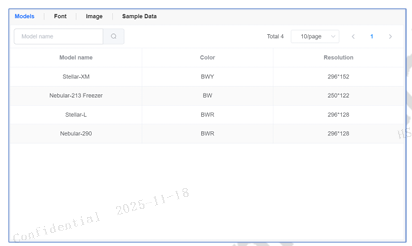
Figure 3-14 Models page
• Font: Displays the fonts included in the current project, with each font’s name, file name, and delete option, as shown in Figure 3-15:
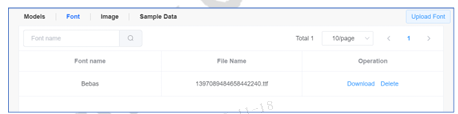
Figure 3-15 Font page
▸ Upload: Supports fonts in OTF format. Click to select the relevant font file for uploading; please ensure you upload fonts that are legally licensed.
▸ Delete: Removes this font from the project. Note that if the font is currently being used, deleting it may affect the template rendering results.
• Image: Displays the images included in the current project, showing each image's thumbnail, number of times it’s referenced, image name, and operations, as shown in Figure 3-16:
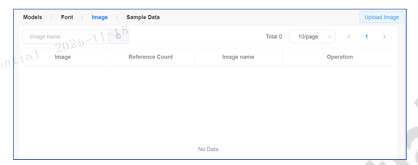
Figure 3-16 Image page
▸ Download: Download the image to your local device.
▸ Rename: Change the image's name; names cannot be modified after the image has been referenced.
▸ Delete: Remove the image from the project; images cannot be deleted after being referenced.
▸ Upload: Click to upload images; supports JPG, JPEG, PNG, BMP formats. The size is recommended not to exceed the resolution of the ESL.
• Sample Data: Sample data is used for template previews; the list displays the sample data included in the current project, with each showing sample name, record count, and operations.
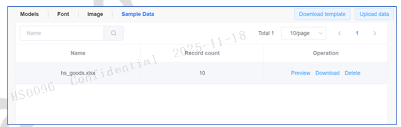
Figure 3-17 Sample Data Page
▸ Preview: Open preview popup to see a preview of the sample product data.
▸ Download: Download the sample data.
▸ Delete: Delete sample data.
▸ Download Sample Data Template: Download the template, and maintain data according to the headers provided in the template.
▸ Upload Sample Data: Upload sample data to the project for use during template previews.
3.2.3 Display
3.2.3.1 Display
Displays all templates included in the project, arranged by ESL type, resolution, and size, as shown in Figure 3-18:
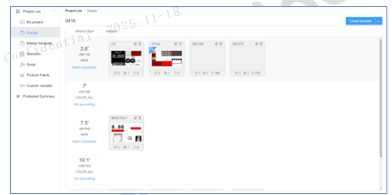
Figure 3-18 Display page
Batch Conversion: This function allows you to batch convert templates of one ESL series into another series (the original template is retained, and new ones are generated). For example, converting a black-and-white template into a four-color template of black, white, red, and yellow, as shown in Figure 3-19:
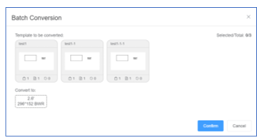
Figure 3-19
• Template to be Converted: Select the template to be used for conversion.
• Convert to: Choose the ESL series to which it will be converted.
• Confirm: Execute the conversion to create a new set of templates.
Create template: Create a template, as shown in Figure 3-20:
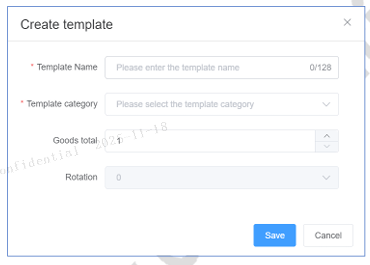
Figure 3-20 Create template page
• Template Name: The name of this template.
• Template category: The ESL product that the template is adapted for.
• Goods total: The number of goods contained in the template.
• Save: Proceed with creation; Cancel: Abandon creation.
• After creation, it will appear on the right side of the corresponding product. Clicking the thumbnail will allow you to perform Draw a template.
3.2.3.2 AD area setting
△ Notice: This feature is applicable only for Hanshow Lumina ESLs.
Ad area: On the template, a specific area is designated as the advertisement. The content displayed in this area is controlled by Lumina's AD publish function. For example, it can display images, videos, and support carousels; The setup steps are as follows:
- As shown in Figure 3-21, select your project, click Display, and then click on AD area setting at the ESL requiring the marketing template setup.
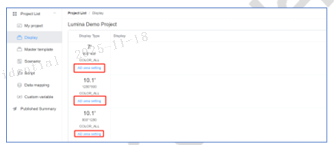
Figure 3-21 Entry to AD area setting page
- As shown in Figure 3-22, set the starting points X, Y, length (W), and width (H) for the AD area. X/Y usually starts from 0,0, while W/H should be based on actual dimensions, such as if the setting is 800x450, then the resolution of subsequently deployed contents should be 800x450.
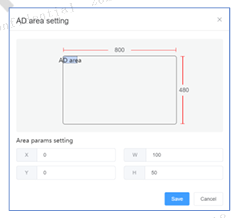
Figure 3-22 AD area setting page
After saving, the configuration of the AD area is complete. To use it on a particular template, refer to the contents below.
- Click the template that will use the AD area to enter the template editing page. As shown in Figure 3-23:
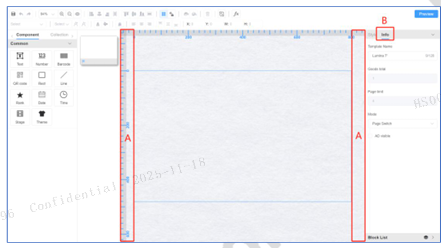
Figure 3-23 Template editing page
Click area A on both sides of the template canvas to open the template's properties box and switch to the information below (area B in the above figure).
• Template Name: The name of the current template.
• Display AD area: Checking this option enables it, and unchecking disables it. When enabled, configure the following parameters.
• AD area: The starting point coordinates X, Y of the AD area.
• AD area Type + AD visible: Set the default AD area content; LCD ESLs play the default content when there is no marketing task deployed.
▸ Type: Choose between image and video, which is the type of the default AD area content.
▸ Stage: Select the specific content by clicking to open the content selection popup below.
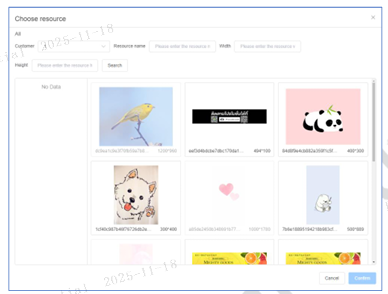
Figure 3-24 Select resource page
▸ Customer: Select from which customer's content library to filter (note that this refers to the customer under the username).
▸ Resource name: Enter the resource name for filtering.
▸ Width/Height: Enter the width/height of the resource resolution for filtering.
▸ Folder (left side): The hierarchy of the customer's materials, which can be clicked to access the corresponding files.
▸ Content (right side): Click to select this content.
▸ Confirm: Confirm the use of a certain content.
▸ Cancel: To give up the selection.
• Product video rotation: Configure whether the product videos automatically carousel with the content in the AD area.
▸ Count: Set the number of goods to participate in the carousel. For example, in a 3-product template, setting it to 2 means only the videos of the first two goods will rotate with the AD area content.
3.2.4 Master template management
Meaning: Set up a master template that can be directly referenced within templates. Adjustments to this master template automatically synchronize to the corresponding templates.
Master template management is generally consistent with section Display, as shown in Figure 3-25:
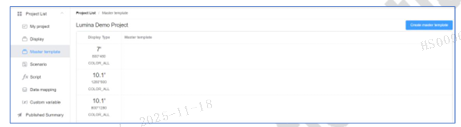
Figure 3-25 Master template management page
• Master templates can be created for specific sizes and colors.
• Click on a master template to enter master template page.
• Master templates created here can be seen in use within section Area B-master template area.
• Master templates do not support AD area.
• Master templates editing page: the button to update the thumbnails of associated templates is shown in the red box in Figure 3-26:
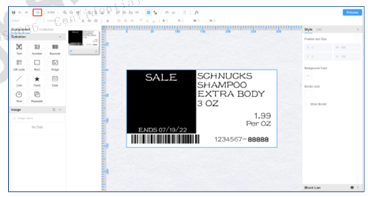
Figure 3-26
Update Associated Template Thumbnails: Generally, when a master template is edited, the thumbnails of the templates referencing the master template are automatically updated. In special cases where they are not updated or the update is delayed, you can manually trigger an update by clicking a button. Clicking the button will open an update pop-up, as shown in Figure 3-27:
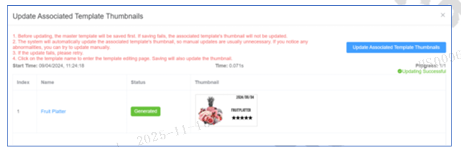
Figure 3-27
• Update Associated Template Thumbnails: Click to perform the update. The templates referencing the master template and the result of each template thumbnail update will be displayed below.
3.2.5 Scenario
A project contains many templates, which are associated through various scenarios. These scenarios can be categorized as Normal, Promo, Member, Unbind, and so on. When using a template, users need to select a specific template for a certain size ESL within a particular scenario. The final set of templates that a project can use is the sum of all templates that can be selected across all scenarios.
Scenario page are shown in Figure 3-28:
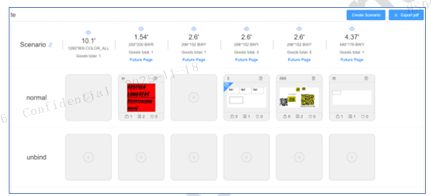
Figure 3-28 Scenario page
• By default, the Normal and Unbind scenarios are displayed.
• Create Scenario button: Opens a dialog where you can enter a scenario name to create it.
• Available operations icons in a scenario: Rename, Delete, Add rules.
▸ Rename: Modify the scenario name.
▸ Delete: Deletes the scenario; however, deleting a scenario does not delete the templates in it.
▸ Script: Add logic to the scenario, e.g.:
◆ if **saleMode==1** triggers this scenario;

◆ whereas **saleMode==2** triggers another scenario. For logic
  details, see chapter *Script*.
• Clicking the "+" opens a dialog to choose display for that scenario, displaying the templates associated with it, as shown in Figure 3-29:
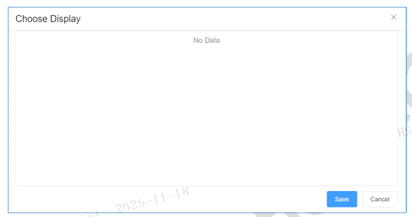
Figure 3-29 Choose Display page
• After adding templates to a scenario, clicking the  icon on a template allows for its removal from use.
•  Scenario Preview: Preview the scenario by selecting sample data to determine which scenario the sample data satisfies. As shown in Figure 3-30, the sample product ultimately fits the Normal scenario with 12.3-inch size. For detailed preview functionality, refer to section 4.11 Preview.
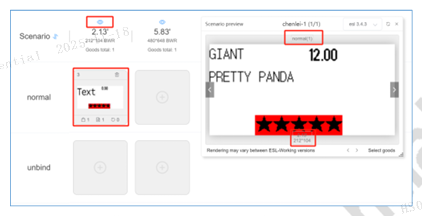
Figure 3-30 Template preview page
•  Scenario Sorting: Click to adjust the display order of scenarios. As shown in Figure 3-31, you can drag the added scenarios up or down, and the order will be effective after saving.
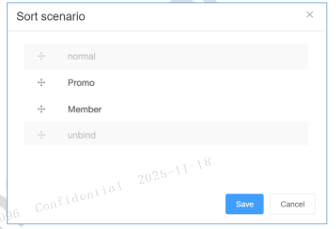
Figure 3-31 Sort scenario page
• Normal scenario: Usually serves as a default scenario and is used when not overridden by logic.
• Unbind scenario: The unbinding scenario for goods, where the template corresponding to this scenario is displayed after an article is disassociated.
3.2.5.1 Future Page Scenario Settings
△ Notice: Supported by EPD products, not supported by Lumina. The future page is an advanced feature that relies on several prerequisites. It is recommended to consult technical support before use.
Final effect of future page: Customers can pre-load future information (such as future product prices) onto the ESLs. When the specified time arrives, the ESLs automatically display the information, achieving a precise, timed price change.
Prerequisites for setting up future pages: When creating templates, set the future page, and bind product fields to future fields within the future page. Templates for each scenario should already be selected appropriately.
A Future Page button will be displayed for the product, as shown in the figure below.

Figure 3-32
Future Page Setting Popup:
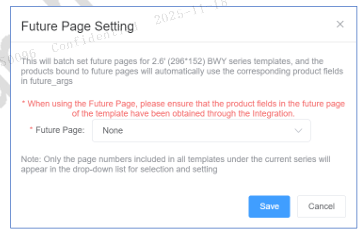
Figure 3-33
• Future Page: Select which page will be the future page. The selectable pages are the ones that are common across all templates. Once set, these pages will be treated as future pages.
3.2.6 Global Scripts
Global scripts are used to add user-defined logic into the ESL templates. If users have added JavaScript scripts to the project, they can reference these scripts within the templates under the project.
The Global Script page is shown in Figure 3-34:
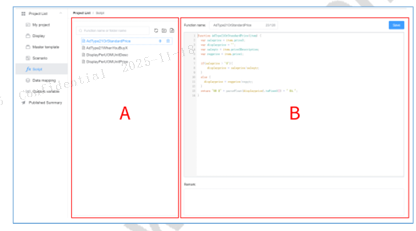
Figure 3-34 Global script page
• Area A displays all global scripts. Scripts can be placed into folders, and folders support multiple levels.
• Create a folder: ▸ Click to create a folder; enter the folder name at the top right of Area B, then click save to make it effective. ▸ After selecting a folder and clicking "New", the new folder will be created within that directory.
• Create a script: ▸ Click to create a script; enter the script name at the top of Area B, write the specific code in the middle code box, and put remarks in the notes area below; after completing these steps, click save to make it effective. ▸ If you select a folder before creating, the script will be stored in that folder.
• Referencing a global Script: In the JavaScript input box, you can reference scripts by pressing Ctrl+/ as shown in Figure 3-35:
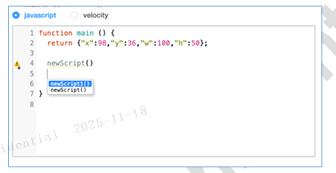
Figure 3-35 Global script referencing
3.2.7 Data mapping
Each project comes with a set of predefined product fields. When these fields are not sufficient to meet the user's needs for describing products, users can add some custom fields.
The Data mapping management page is shown in Figure 3-36:
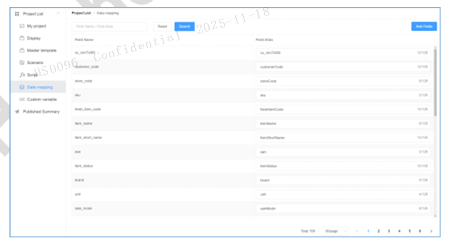
Figure 3-36 Data mapping management page
• Adding Fields: Click Add Fields to add custom fields, which opens a pop-up window below as shown in Figure 3-37:
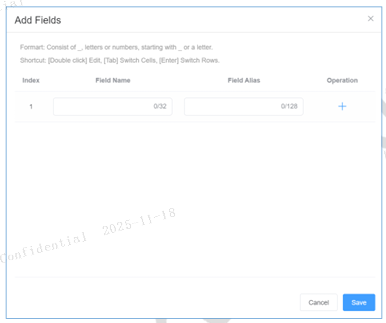
Figure 3-37 Add custom fields
▸ Enter the Field Name and the Field Alias.
▸ Supports adding multiple fields at once.
▸ Click “+” to add a new row, “-” to delete a row.
▸ Double-click a field to enter edit mode, press enter to finish editing, tab to switch between cells.
• Field Name: Ensure this name is consistent with the field naming in the article database; manually added fields will use this name for searching.
• Field Alias: The field name seen in the data associating area of the canvas page.
3.2.8 Custom Variable
Users can create custom variables to associate with multiple fields, which can then be bound to these custom variables during data association.
The custom variable management page is as shown in Figure 3-38:
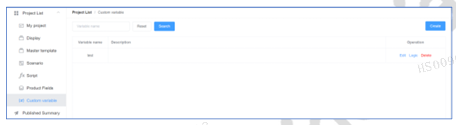
Figure 3-38 Custom variable management page
The page list displays all existing custom variables.
• Create variable: Click to add a new custom variable.
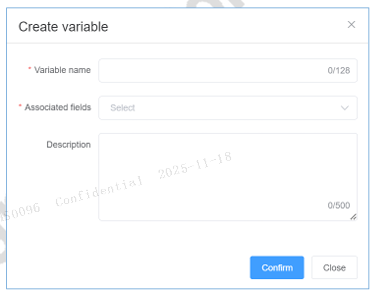
Figure 3-39 Create a custom variable
▸ Variable Name: The name of the variable.
▸ Description: Add a text description explaining the function of the variable.
• Each custom variable can be edited, have logic applied, or be deleted.
▸ Edit: Open the edit box to adjust the variable configuration.
△ Notice: Variable name and Description can be edited, but Associated fields must be modified through logic.
▸ Logic: Open the logic edit box to edit the logic of the custom variable, as shown in Figure 3-40:
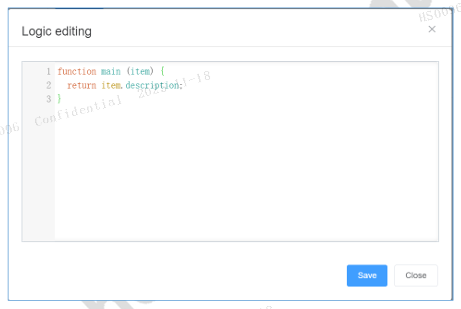
Figure 3-40 Add custom variable logic
▣ Note: ▸ The above logic will be added by default and can be adjusted. ▸ Note that all fields are strings; if a numerical value is needed, please convert the type first.
▸ Delete: Open a confirmation dialog box and confirm to delete the custom variable.
4 Draw a template
This chapter elaborates how to draw an ESL template. Canvas is as shown in Figure 4-1:
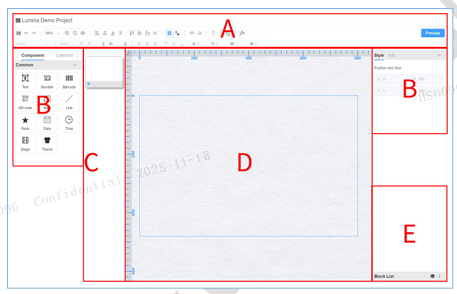
Figure 4-1 Template canvas page
4.1 Area A - Quick Actions
The top of Figure 4-1 displays the project name, with other quick actions as follows:
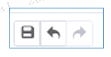
Figure 4-2 Quick actions area-1
• Save: Save the template changes;
• Undo: Return to the previous step;
• Redo: Go forward to the step after undo.
Figure 4-3 Quick Action Area-2
• The proportion of the template area to the canvas area; click to select a value from a list;
• Zoom In: Enlarge the visible area of the template;
• Zoom Out: Reduce the visible area of all templates;
• Reset Viewport: Center the template within the canvas and automatically adjust the display ratio.
Figure 4-4 Quick Action Area-3
• Distribute/Align: Align or distribute the selected components to the left, center horizontally, right, distribute horizontally, top, center vertically, bottom, or distribute vertically.

Figure 4-5 Quick Action Area-4
• Guidelines: Click to show/hide guidelines; once shown, guidelines can be dragged out from the left side or top of the canvas, and multiple guidelines can be added;
• Guideline Lock: Click to lock/unlock the guidelines; when locked, guidelines cannot be moved or added.
Figure 4-6 Quick Action Area-5
• Move to Top Layer: Move the selected component to the very top layer;
• Move to Bottom Layer: Move the selected component to the very bottom layer.

Figure 4-7 Quick Actions - Delete
Delete: Remove the selected component.

Figure 4-8 Quick Actions - Add Script
• Add scripts to the template, add template global variables, config, components, etc., as shown in Figure 4-9:
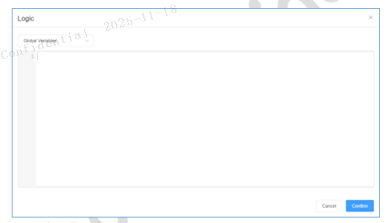
Figure 4-9 Adding Script Logic

Figure 4-10 Quick Action Area-6
• Font selection: Select the font used by the component.
• Font size selection: Select the font size used by the component, with a dropdown list showing common sizes; support input when these are not sufficient. Font sizes can include .5 increments.
• Increase font size: Increase font size by +1.
• Decrease font size: Decrease font size by -1, cannot decrease below 0.5.
• Content color: Choose the color of the component, with available colors supported by the ESL.
• Background color: Choose the background color of the component, with available colors supported by the ESL.
• Reverse display: Swap the values of the content color and background color.
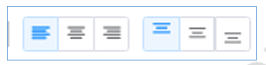
Figure 4-11 Quick Action - Content Alignment
• Alignment of component content: left-aligned, centered horizontally, right-aligned, top-aligned, vertically centered, bottom-aligned.

Figure 4-12 Quick Action-Adjust Component Coordinate
• Enter the X-axis and Y-axis coordinates for the component; the coordinate values must be within the range of the ESL, and input is not possible if it exceeds this range.
• Enter the length and width of the component; length and width values must be within the range of the ESL, and input is not possible if it exceeds this range.
• Preview button: For a preview of the template-related content, please refer to the content in the Preview section.
4.2 Area B-components
• How to use components: ▸ Clicking on a component automatically adds it to the template with coordinates at 0,0. ▸ Dragging a component into the template places it at the specified position within the canvas.
4.2.1 Common Properties of Components
• Position and Size: ▸ Displays the X, Y coordinates of the component within the template, as well as its length (W) and width (H).
•  Rule: Click to enable logic; after enabling, the relevant values will be determined by the logic set inside.
4.2.2 Template Properties
Properties are divided into Style and Info sections.
• Style ▸ Position and Size: The position is at 0,0 and the size corresponds to the template resolution, which cannot be adjusted. ▸ Background Color: Click to modify the overall fill color of the template; the available colors are those supported by the ESL. ▸ Border Color: Click to change the template border fill color; the available colors are those supported by the ESL. ▸ Display Border: Toggle the border display on/off; when enabled, the border color comes into effect.
• Info ▸ Template Name: Edit the name of the current template.
▸ Goods total: Displays the number of products supported by the template, which cannot be adjusted later once selected during creation.
▸ Storage Pages: Displays the maximum template supported number of pages.
4.2.3 Text
Properties are divided into Style, Text, and Data sections.
• Style: ▸ Position and Size: Refer to the Common Properties of Components section. ▸ Background Color: Click to modify the overall fill color of the component; the available colors are those supported by the ESL. ▸ Anti-Aliasing: This feature allows for smoother transitions between the edges of text color and the background below. ◆ Auto: The algorithm automatically decides whether to enable anti-aliasing based on the text color and background color. ◆ Enable: Turns on anti-aliasing. ◆ Disable: Turns off anti-aliasing. ▸ Preview: Please view the effect of anti-aliasing through the preview.
△ Notice: This option is visible only for supported products.
▸ Rotation: Supports four rotation angles: 0°, 90°, 180°, and 270°. ▸ Show Border: Once enabled, displays a border around the component and supports some conditional border properties, such as: ◆ Border Width: Set the border width. ◆ Border Type: Normal Border: The actual border width matches the design. Narrow Border: The actual border width is set to half of the specified width. ◆ Border Radius: Adjust the curvature angle of the border, note that this is controlled by two separate parameters. ▸ Background Transparency: When enabled, the component background becomes transparent, showing the color of the underlying components.
• Text: ▸ Text Content: The value of the component; if associated with an article field, then it displays the value of that field, otherwise it shows the text content. ▸ Line Break Character: Recognizes this symbol within the text to perform line breaks; this needs to be enabled to take effect. ▸ Word Wrap: Supports word wrapping in English/French/German; contact technical support for specific word wrap rules. ▸ Font Size Range: Set the maximum and minimum range for the font size.
△ Notice: ◆ This takes effect only when line breaks are enabled. ◆ It compares with the text's font size and uses the larger one, e.g., if the text's font size exceeds the maximum value, it will use the text's font size; if it's smaller, it will use the maximum value from the range.
▸ Content Color, Background Color, Inverse Display: Set the color of the text, the background color of the text, and reverse the two colors.
▸ Bold, Italic, Underline, Strikethrough, Automatic Line Wrapping: Enable text bold, italic, underline, strikethrough, and automatic line wrapping when the text exceeds one line.
△ Notice: If the font name contains "italic" or "bold", do not apply bold or italic again.
▸ Alignment settings: Left align, center horizontally, right align, top align, vertically center, bottom align: Set the text alignment both horizontally and vertically.
▸ Font settings: ◆ Font selection dropdown: Supports auto keyword matching based on input content. ◆ Font size dropdown: Set the font size; supports auto keyword matching based on input content; if there is no match, it can be set directly to the input value; the granularity of values is 0.5. Other decimal inputs will automatically change to *.5. ◆ +/-1: Each click increases or decreases the font size by 1. ◆ Rule: After enabling, use code logic to control the above properties.
▸ Line spacing: Set the line spacing for the text.
▸ Auto scaling: Automatically scale within the component's size range without distortion, stop shrinking/zooming when width or height limit is reached.
▸ Width scaling: The height remains unchanged, and the width shrinks/zooms to fit the component's width.
▸ Width compression: The height remains unchanged, and when the width does not fit entirely, it shrinks to fit the component's width.
▸ Height stretching: The width remains fixed while the height, if not fully displayed, shrinks to fit the component's height. This should be used in conjunction with width compression and width scaling.
△ Notice: If auto-scaling, width scaling, width compression, and height stretching are not enabled, and the text content exceeds the area of the component, the exceeding part will not be displayed.
▸ Space-based line breaking: Support line breaking at spaces within the text when a single line cannot display all content; note that this requires automatic line wrapping to be enabled first.
• Data ▸ Data Binding: ◆ 'None' indicates no binding. ◆ Select the article field you wish to bind from the dropdown box; the dropdown supports auto keyword matching based on input content. ▸ Logic: After enabling, use code logic to control the properties of data binding. ▸ Display: Enable/disable the component's visibility on the canvas, which does not affect template logic.
4.2.4 Number
Properties are divided into three parts: Style, Text, and Data.
Style
Position and Size
Refer to section Common Properties of Components.Background Color
Click to change the overall fill color of the component; selectable colors are those supported by the ESL.Inversion Mode
- Layer inversion: The entire component's background is filled with the background color.
- Content inversion: Only the background part of the numbers within the component is filled with the background color.
⚠ Notice: There will be a difference between the size range of the number's background part and the entire component's background.
Background Transparency
The background is transparent.Auto Compression
When the font size exceeds the width/height, it automatically compresses the width/height.Width Stretching
The width stretches to match the component's width.
⚠ Notice: If auto compression and width stretching are not enabled, and the number content exceeds the component area, rendering will fail.
- No Padding
When enabled, numbers aligned to the top/bottom will be closer to the border's top/bottom edges.
Text
Value
The numerical value of the component. If bound to a product field, it displays the bound value; otherwise, it shows the input numerical value.Content Color / Background Color / Inversion
Set the color of the numbers, the color of the number’s background, and invert these two colors respectively.Decimal Positioned
Bottom, Right, or Top Right: Sets the position of the decimal part inside the number.Alignment
Left Align, Center Horizontally, Right Align, Top Align, Vertically Center, Bottom Align:
Set the alignment of the number both horizontally and vertically.Signs
- Sets the symbol to display when the number is positive.
- Sets the negative sign to display when the number is negative.
- Fixed prefix content added before the number.
- Thousand separator for numbers (e.g., if set to ",", then 12999 is displayed as 12,999).
- Decimal point symbol (e.g., if set to ",", then 129.99 is displayed as 129,99).
- Fixed suffix content added after the number.
- Rule: After enabling, the above parameters are controlled through code logic.
- Prefix: The prefix must be added at the symbol place to take effect.
Text (continued)
- Prefix
- Set bold, italic, underline, and strikethrough for the prefix symbol.
- Set alignment: top align, vertically center, bottom align.
⚠ Notice: If the font name includes italic or bold, do not apply bold or italic again.
- Font Settings
- Font selection dropdown: Supports auto keyword matching based on input content.
- Font size dropdown: Supports auto keyword matching; if no match, values can be entered directly.
- Granularity: 0.5
- Other decimals automatically round to *.5
- +1 / -1: Each click increases or decreases font size by 1.
Integer Part
- Set bold, italic, underline, and strikethrough for the integer part.
⚠ Notice: If the font name includes italic or bold, do not apply bold or italic again.
- Font: Same as described in Font settings.
- Rule: After enabling, parameters are controlled through code logic.
Decimal Fraction Part
- Set bold, italic, underline, and strikethrough for the decimal fraction.
⚠ Notice: If the font name includes italic or bold, do not apply bold or italic again.
- Font: Same as described in Font settings.
- Rule: When activated, parameters are controlled through code logic.
Suffix
- Set bold, italic, underline, and strikethrough for the suffix.
- Alignment behavior:
- If aligned with integer: decimal point is placed at the bottom-right corner of the integer.
- If aligned with decimal: decimal point is placed at the bottom-left corner of the decimal.
⚠ Notice: If the font name includes italic or bold, do not apply bold or italic again.
- Font: Same as described in Font settings.
- Rule: When activated, parameters are controlled through code logic.
Decimal Places
- Set the number of decimal places.
- Excess digits are handled according to the rounding method.
Number Characters
Define how Arabic numerals (0–9) are displayed.
- Examples: Roman numerals, Chinese numerals, etc.
Rounding Mode: Options include rounding outwards, rounding inwards, rounding up, rounding down, rounding half-up (traditional rounding), and banker's rounding.
Data
- Data Binding: Refer to the Data Binding section.
4.2.5 Barcode
The attributes are divided into three parts: Style, Text, and Data.
Style
- Location and Size: Refer to section Common Properties of Components.
- Background Color: Click to change the overall fill color of the component; selectable colors are those supported by the ESL.
- Text Position: Set the position of the barcode displayed on the component, with options being None/Top/Bottom.
- Rotation: Supports four rotation angles: 0°, 90°, 180°, and 270°.
- Background Transparent: When selected, the component background becomes transparent.
Text
- Text: The value of the component, which displays the value of an associated article field, or the content entered if not associated.
- Content Color, Background Color, Inversion: Set the color of the text, the color of the text background, and invert these two colors respectively.
- Bold, Italic: Enable bold and italic text.
⚠ Notice: If the font name includes italic or bold, do not apply bold or italic again.
- Data
- Data Binding: Refer to the Data Binding section.
4.2.6 QR code
The properties are divided into three parts: Style, Text, and Data.
Style
- Location and Size: Refer to section Common Properties of Components.
- Background Color: Click to change the overall fill color of the component; selectable colors are those supported by the ESL.
- Rotation: Set the overall rotation angle of the component, with options being 0°, 90°, 180°, or 270°.
- Background Transparent: When selected, the background of the component becomes transparent except for the QR code value area.
Text
- Alignment: Same as described in section Alignment Settings.
- Font: Same as described in Section Font settings.
- Encoding Format: Set the encoding of the barcode, such as CODE128, etc.
- Barcode Height: Set the height of the barcode, ensuring it does not exceed the component's own height.
- Auto Scaling: When enabled, the barcode will fill the entire area of the component.
- Width Insufficient Show Strikethrough: When enabled, if the component width is insufficient for the barcode width, a strikethrough will be displayed.
Data
- Data Binding: Refer to the Data Binding section.
Text
- Text Content: The value of the component, which will display the value of a bound product field if there is one, or else it will show the input content.
- Content Color, Background Color, Inversion:
Individually set the color of the text, the color of the text background, and invert these two colors. - Alignment: Same as described in section Alignment Settings.
- Encoding Format: Set the encoding of the QR code, such as QR code or DataMatrix.
- Auto Scale: When enabled, the QR code will fill the entire area of the component.
Data
- Data Binding: Refer to the Data Binding section.
4.2.7 Rectangle
The properties are divided into two parts: Style and Data.
Style
- Location and Size: Refer to section Common Properties of Components.
- Content Color, Background Color, Inversion:
Individually set the color of the rectangle's border, fill color, and invert these two colors. - Border Width: Set the width of the rectangle's border.
- Border Radius: Adjust the radius of the border's curvature. Note that this is controlled by two parameters.
- Background Transparent: When selected, the rectangle's fill area becomes transparent.
Data
- Visible: Toggle the component's visibility on the canvas on or off, does not affect template logic.
4.2.8 Image
Properties are divided into style and data.
⚠ Notice: This component is only applicable to EPD; Lumina products do not have this component.
Style
- Content color, background color, inversion: Set the image's color, fill color, and image inversion respectively.
- Position and size: See 4.2.1 for common component properties.
- Rotation: Set the overall rotation angle of the component, with options being 0°, 90°, 180°, or 270°.
- White transparent: The white areas in the image become transparent.
- Background Color: The inherently transparent areas of the image remain transparent.
- Auto scale: Resize the image to fit the size of the component.
- Image dithering: Removes other colors in the image, retaining only those supported by the ESL, while also adding a dithering effect to make the image display more layered.
- Filter: As shown in Figure 4-13, the system provides several filter options:
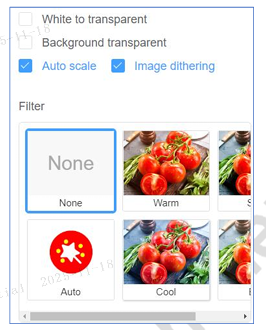
Figure 4-13
- None: Indicates that filters are not supported.
- Warm Light, Strong Light, etc.: Different filter effects that can be chosen based on your needs.
- Auto: The algorithm automatically assigns an appropriate filter based on the image.
- After selecting a filter, the effect will automatically refresh on the canvas.
⚠ Notice: Not all products currently support filters. If you cannot see the filter option or want to know which specific products support filters, please contact technical support.
- Data
- Data Binding: Refer to the Data Binding section.
4.2.9 Line
Properties are divided into style and data.
Style
- Location and Size: Refer to section Common Properties of Components.
- Content color, background color, inversion: Set the color of the straight line, fill color for the blank area in the component, and inverse the two colors respectively.
- Connection type: Set the angle of the straight line, including options such as top-left to bottom-right / top-right to bottom-left, etc.
- Line width: The width of the straight line.
- Background Color: When selected, the blank area of the component is transparent.
Data
- Display: Turn on/off the component's rendering on the canvas, does not affect the template logic.
4.2.10 Rank
Properties are divided into style, text, and data.
Style
- Location and Size: Refer to section Common Properties of Components.
- Background color: Click to modify the overall fill color of the component; selectable colors are those supported by the ESL.
- Rotation: Set the overall rotation angle of the component, with options being 0°, 90°, 180°, or 270°.
- Show border: Refer to the Show Border section.
- Background Color: When selected, the area within the pentagon stars is transparent.
Text
- Rank Value: The value of the component. If it is associated with an article field, it displays the value of that field; otherwise, it displays the input content.
- Content color, background color, inversion: Set the border color and fill color of the pentagon stars respectively, with an option to invert the two colors.
- Alignment: Same as described in section Alignment Settings.
Data
- Data Binding: Refer to the Data Binding section.
4.2.11 Date
Properties are divided into style, text, and data.
Style
- Location and Size: Refer to section Common Properties of Components.
- Background color: Click to modify the overall fill color of the component; selectable colors are those supported by the ESL.
- Background transparent: When selected, the background area of the component is transparent.
Text
- Date: Component value. If it is bound to a product field, it displays the field value; otherwise, displays the input content.
- Content color, background color, inversion: Set the border color and fill color of the pentagon stars respectively, with an option to invert the two colors.
- Bold, Italic: Enable bold and italic formatting.
⚠ Notice: If the font name includes italic or bold, do not apply bold or italic again.
Alignment: Refer to section Alignment Settings.
Font: Refer to the Text section.
Date Format: Options include YMD / MDY / DMY, as well as the date separator.
Time Zone: Choose the relevant time zone; the timestamp will be displayed according to the selected time zone.
Data
- Data Binding: Refer to the Data Binding section.
4.2.12 Time
Properties are divided into style, text, and data.
Style
- Location and Size: Refer to section Common Properties of Components.
- Background color: Click to modify the overall fill color of the component; selectable colors are those supported by the ESL.
- Background transparent: When selected, the background area of the component becomes transparent.
Text
- Time: The value of the component. If it is bound to a product field, it displays the value of that field; otherwise, it displays the input content.
- Content color, background color, inversion: Set the border color and fill color of the pentagon stars respectively, with an option to invert the two colors.
- Bold, Italic: Enable bold and italic formatting. Note:
⚠ Notice: If the font name includes italic or bold, do not apply bold or italic again.
Alignment: Refer to section Alignment Settings Section.
Font: Refer to the Text section.
Time Format: Options include 24-hour or 12-hour formats, as well as the separator between time elements.
Time Zone: Choose the relevant time zone; the timestamp will be displayed according to the selected time zone.
Data
- Data Binding: Refer to the Data Binding section.
4.2.13 Repeater
⚠ Notice: This component is only applicable to EPD; Lumina products does not have this component.
📘 Note:
- Used when creating templates for multiple products. For example, when creating a template for two products, if each product's template layout and logic are completely identical, then you only need to draw one product, and the other one will be generated automatically.
- After adding the component, double-click to enter edit mode, where you can add related components. Once added, the other products will automatically include these components.
Properties are divided into style and data.
Style
- Location and Size: Refer to section Common Properties of Components.
- Spacing (Horizontal/Vertical): Set horizontal and vertical spacing between products.
- Repeat direction: Set the arrangement of multiple products, either horizontally or vertically.
- Wrap: Whether to wrap when the products cannot fit in a single line.
Data
- Display: Turn on/off the component's rendering on the canvas, does not affect the template logic.
4.2.14 Stage
⚠ Notice: This component is only applicable to Lumina; there is no such component for EPD.
Properties are divided into style, action, and data.
Style
- Location and Size: Refer to section Common Properties of Components.
Action
📘 Note: Add bound field to the component, details are as follows:
- Adding resource: If you need to add a layer based on changes in articles, click Add resource to add a layer. If there is no need for changes based on articles and only a static content is required, there's no need to click Add resource; you can directly select the static content in the data section.
⚠ Notice: Only one layer can be added, and the playback duration will use the default value. The logic for multiple layers is being phased out gradually, and related carousels will be automatically handled in Aurora.
Static/dynamic resources:
- Dynamic: Choose this if it needs to change according to the product.
- Static: You can first select a static resource, add a content in the content path, and then switch to dynamic resources, so there's a canvas preview image.
Resource type: Set whether the content is an image or a video.
Goods item: Which product the content is bound to.
Bind Data: Select the field to bind.
If using the product image/video bound in Aurora, please select the resource field.
Binding a non-resource field will directly read the value in the field.
None: Represents not binding to any product field.
Resolution: Set the resolution of the content.
Sequence: Default is 1, no need to process further.
Data
📘 Note: Add a default content for scenarios where the default content is displayed.
When a product is bound to the “resource” field, but there are no contents for the product in Aurora.
Only one fixed content needs to be added; no action is required in the animation section, just add a content directly in the data section.
- Resource type: Choose the type for the default content, either an image or a video.
- Resource url: Click to open the content pop-up window and select contents from the Aurora content library (approved ones).
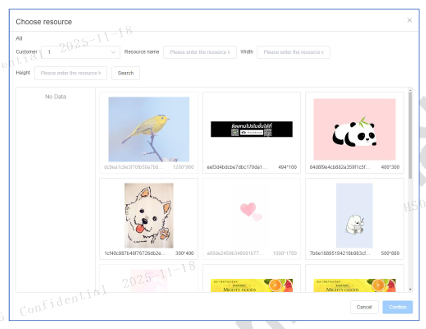
Figure 4-14 Material Library Page
- Customer: If the user has permissions for multiple customers, they can select one of them.
- Resource Name: Search by content name.
- Width, Height: Search by the content's resolution.
- The left side displays folders from the Aurora content library; you can click to open them.
- The middle shows thumbnails of the contents; click to select.
- Rule: Add related logic control to the content.
- Default preferred:
- Enable default priority: If the content type is set to video in the action section, and the Aurora article does not have a bound video, the default content will be displayed.
- Disable default priority: If the content type is set to video in the action section, and the Aurora article does not have a bound video, it will first check if there is a bound image in Aurora. If there is, it will display the article image; if not, it will display the default content.
4.2.15 Theme
⚠ Notice: This component is only applicable to Lumina; there is no such component for EPD.
⚠ Notice: The template tool defines what skins are available and sets default skin materials, enabling Aurora to perform theme changing operations.
Properties are divided into style and data.
Style
- Location and Size: Refer to section Common Properties of Components.
Data
- Theme mark: Choose a theme. This mark is maintained in the backend, and Aurora will use this mark to perform theme changing operations.
- Resource type: Only images are supported; video is being gradually phased out and should not be selected.
- Resource url: Choose a content to be used as the default theme.
4.2.16 Special Component Property: Blending Colors
⚠ Notice:
- EPD components have a blending color property; Lumina does not.
- Not all EPD products support color blending, and the supported options may vary across different products. If you do not see the blending color option for your product or have any questions, please contact Hanshow technical support.
Blending Colors: (Every area where color can be selected will allow for this choice)
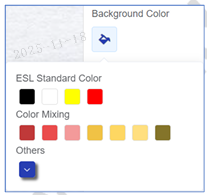
Figure 4-15
- ESL Standard Colors: The colors supported by the electronic shelf labels.
- Blending Colors: Extended colors by Hanshow, created through algorithmic blending.
- Others: Users can open the color palette to freely select colors, as shown in the image below.
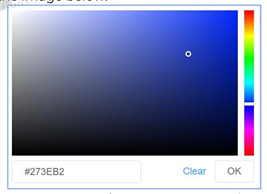
Figure 4-16
4.3 Area B-collection
📘 Note:
- You can select components on the canvas and right-click to add them under My Favorites.
- The favorites area displays all the content saved by the user, which can be clicked for use.
- Favorites are stored at the user level and can be used across different projects.
- Favorites can be managed through grouping; a user can have multiple groups and save favorites under the corresponding group.
Details included in favorites are as shown in Figure 4-17:
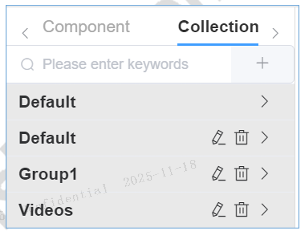
Figure 4-17 Favorites Page
- Supports keyword search.
- “+” Clicking this allows you to add a new group.
- Each group can display or collapse, showing the content collected under that group when expanded, with an option to add it to the canvas.
- Each group can be renamed or deleted.
4.4 Area B-master template area
📘 Note
A master template is project-level component.
Master template creation refer to the section Master template management.
Clicking on a master template can add it to the canvas, but master templates can only be viewed on the canvas and cannot be modified. Modifications are made in the Master template, and any changes will be synchronized across all templates that reference the master.
The resolution and color of the master must match those of the template to be referable.
Master template
- Divided into "Referenced" and "Unreferenced" parts.
- Referenced Area: Displays all referenced master templates; clicking on a thumbnail allows you to stop using it.
- Unreferenced Area: Displays all master templates that have not been referenced; clicking on a thumbnail allows you to reference it.
4.5 Area B-Images
📘 Note
The image area displays public images + project upload images.
Images
- Click on a thumbnail to add it to the canvas.
- Supports image name search.
4.6 Area C-multiple page management area of the template
4.6.1 Multiple template pages (ESL)
Templates support multiple pages; for specifics on how each page is displayed on the ESL, please contact Hanshow technical support for details.
“+”: Click to add a new blank page. The number of pages supported by the template is determined by the ESL model; for details, please contact Hanshow technical support.
Default Page: On the left side above represents hidden pages, and below indicates the default page. Normal ESLs display the default page. You can click inside the red box to switch between the default page and hidden pages.
Delete a page: Click inside the left red box to delete the current page.
⚠ Notice: Deleting a page cannot be undone, so please handle with caution.
- Copy a page: click the copy icon to copy the page.
4.6.2 Multiple template pages (Lumina)
📘 Note: The creation of multiple pages for Lumina is consistent with the EPD multi-page process described in 4.6.1 Multiple template pages (ESL).
Special Characteristics: Lumina multi-page has two modes: Carousel and Page Switching.
- Page Switching: Functions similarly to EPD, where hidden pages are not displayed by default and are only shown when switched to as needed.
- Carousel: Cycles through the content of multiple pages.
How to Enable: In the info – Mode dropdown box, select the carousel mode for multi-page cycling, as shown in Figure 4-18.
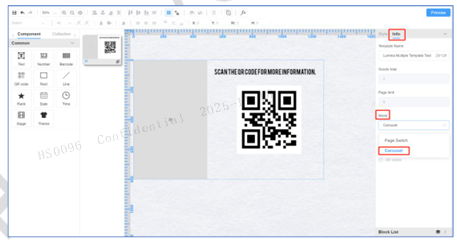
Figure 4-18
- Time: The time each page remains displayed.
4.7 Area D-Canvas
📘 Note
- The canvas displays all the components added to the template.
- After selecting a component, you can move its position and adjust the size of the component.
- On the left side and the top of the canvas, you can drag guide lines onto the canvas from the rulers.
- After selecting a component, right-clicking the mouse will bring up common operations for the component as follows:
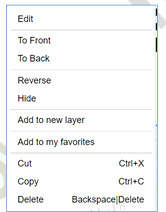
Figure 4-19 Canvas Common Operations
Edit: Adjust the content of the component.
To Front: Move the component to the uppermost layer.
To Back: Move the component to the bottom layer.
Reverse: Invert the color and fill color of the component.
Show Border: Display the border of the component.
Hide: Hide the component on canvas; this does not affect actual rendering.
Add to new layer: Create a new layer and add the component to it.
Add to my favorites: Add it to favorites.
Cut/Copy/Delete: Cut, copy, or delete the component. After copying, you can paste and use it on other canvases.
4.8 Area E-block list
Displays all components included in the template.
- You can drag up or down to adjust the layering order of the components.
- Click the “Add layer” icon and components can be dragged into this layer.
- These components are used to display/hide, name, copy, and delete components.
- These components are used to display/hide, name, copy and delete layers, adding the entire layer to My Favorites, and adding logic control to the layer.
In the following subsection, we will continue to show you how to add code logic within the component list.
4.8.1 Add rule
📘 Note
- The display and calculation of components on the template are controlled through the Add rule.
- Writing code logic requires certain technical abilities, and the template supports two languages: JavaScript and Velocity.
Add rule component supports simple calculation methods, as shown in Figure 4-20.
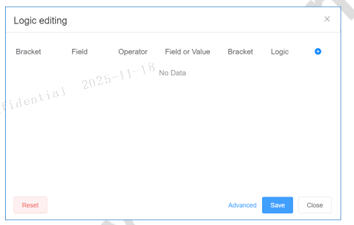
Figure 4-20 Logic Editing Page
Click on Advanced to enter code writing, as shown in Figure 4-21.
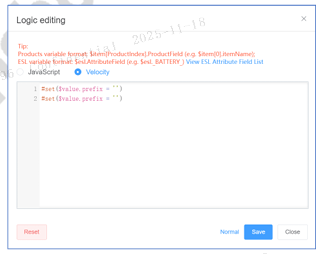
Figure 4-21 writing code in advanced mode on the logic editing page
You can switch between JavaScript/Velocity programming languages.
After completing the logic adjustment, click “Save” to apply. The JavaScript editing page is as shown in Figure 4-22.
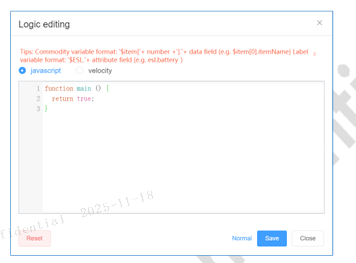
Figure 4-22 Writing Logic Using JavaScript Language
4.8.1.1 JavaScript Debugger
In all areas where JavaScript input is supported, there is a Debug button that allows for the quick execution of JavaScript code. The entry point is shown in Figure 4-23:
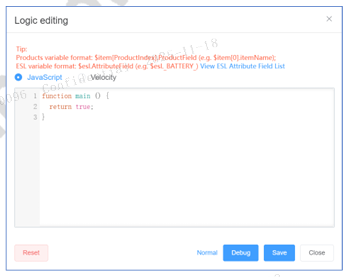
Figure 4-23
Click the Debug button to open the debug popup, as shown in Figure 4-24:
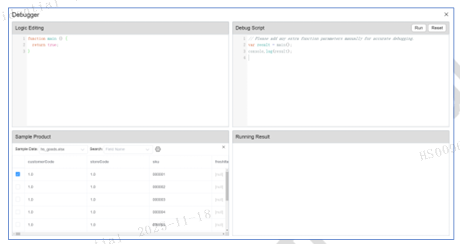
Figure 4-24
- Logic Editing: Write your code here.
- Debug Script: Execute the methods written using JavaScript.
- Sample Product: When referencing a product in your code, you can adjust the product data in the sample product area.
- Running Results: Displays the outcome of running the JavaScript code.
4.9 Preview
Note
- After completing the design of all templates, it is necessary to preview them to verify their correctness.
- If there are errors during preview, a popup window will display the errors on the page. If you have doubts about the errors, please contact Hanshow technical support for assistance.
- The preview uses product data and the template for rendering, and the rendering result may be affected by the ESL-Working version. Please select the actual ESL-Working version you are using for the preview. If in doubt, contact Hanshow technical support for assistance.
The preview page is shown in Figure 4-25:
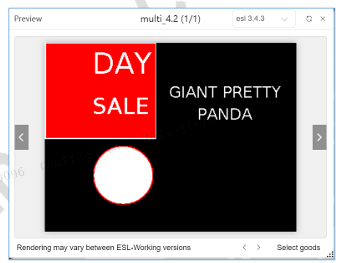
Figure 4-25 Template preview page
- esl 3.4.3: The upper right corner displays the ESL-Working version number, which you can click to switch.
- Refresh: Refresh the preview image.
- Close: Exit the preview.
- If there are multiple pages, you can switch between them left and right by clicking the ◀ / ▶ icons.
- There may be differences in the preview images across different ESL-Working versions.
- After adjusting the preview popup, the preview image will automatically zoom in or out.
⚠ Notice: Zooming in/out does not change the resolution of the preview image; it only enlarges/reduces the display.
- Clicking on the preview image will display it in full screen.
- Select goods: Select goods. Refer to the content of the Preview-sample data selection section.
- Icon: You can drag to resize the preview box.
- In the preview popup, the preview image is automatically zoomed in or out based on the size of the popup or displayed according to the template’s resolution, according to the setting in My Settings → Preview Size.
4.9.1 Preview-sample data selection
Note
- After completing the template design, if you want to see the actual rendering result for a particular goods, you need to select a sample data for the preview.
- Sample data is project-level, and for managing sample data, refer to the content in the Sample Data chapter.
As shown in Figure 4-26, select a sample data on the preview page.
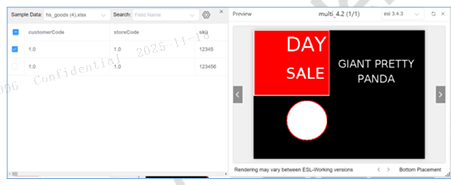
Figure 4-26 Selecting Sample Data on the Preview Page
- Sample Data: Displays the data collection included in the project; sample data can be switched for use.
- Search: After selecting a field, the focus moves to that field.
- Column Settings: Edit the column data included in the sample data.
- Clicking on a cell allows you to edit its content by opening an editing popup window, as shown in Figure 4-27:
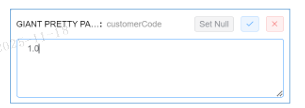
Figure 4-27 Editing Content by Clicking on a Cell
- The original field value is displayed by default, and it can be adjusted directly.
- Set Null: Change the value to Null.
- Save/Discard: Save or discard this adjustment.
- Drag to resize the popup window.
- Check the box to toggle the selection of the sample goods; switching goods will automatically trigger a render.
5 Published summary
Note
- Displays a summary of the history of releases made by the current user to PriSmart.
- Data is displayed store by store.
Published Summary
- Shows store information, customer information, project information, project version, and publish time for each release.
- Supports search by store code, store name, and store group.
- The list is sorted by default in reverse chronological order of release time and supports manual adjustment.
Sorting options include ascending/descending order by store code, store name, and store group.
6 User settings
6.1 My Setting
Accessed by clicking on the username >> My Setting, as shown in Figure 6-1.
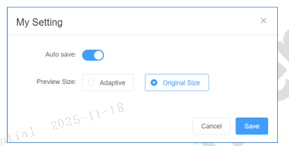
Figure 6-1 My Settings Page
- Auto save: When enabled, operations on the canvas will automatically be saved; otherwise, they will not save.
- Preview Size:
- Adaptive: The preview popup in section 4.9 Preview will automatically scale the preview content according to the size of the popup window.
- Original Size: The preview content matches the resolution of the ESL. If it exceeds the size of the preview popup, you can drag it up, down, left, or right.
6.2 Language
Accessed by clicking on the language option, as shown in Figure 6-2.
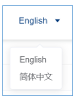
Figure 6-2 Click to Switch Language
6.3 Logout
Logout by clicking on the username >> Logout, after which you will be redirected to the login page.
7 Script
The normal mode is shown as shown in Figure 7-1.
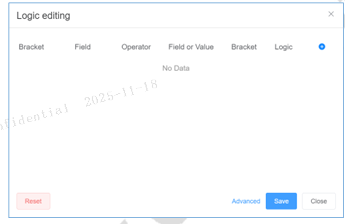
Figure 7-1 Script Editing - Normal Mode Page
- JavaScript: Supports standard JavaScript language, for more information refer to the official documentation.
- Velocity: Supports standard Velocity language, for more information refer to the official documentation.
- Hanshow will maintain a library of common JavaScript and Velocity scripts. For details, please contact Hanshow technical support to obtain them.
8 Notice
When creating ESL templates, please pay attention to the following:
- The effects on the template canvas may differ slightly from the final rendered result. The ultimate display effect of all templates is determined by the template itself, the choice of sample data, and the ESL-Working version. The final effect can be checked using the preview feature; for more information on previews, refer to the content in the Preview chapter.
- For additional precautions, please contact Hanshow technical support to obtain more information.
9 Field definitions
| Field name | Chinese | Definition |
|---|---|---|
| summary | 商品概要 | Summary |
| sku | 商品编码 | Article Number |
| itemName | 商品名称 | Name |
| ean | 商品条形码 | GTIN |
| updateDate | 最后更新时间 | Last Update Time |
| createDate | 创建时间 | Creation Time |
| updateRecord | 更新历史记录 | Update History |
| itemStatus | 商品状态 | Status |
| unit | 单位 | Unit |
| brand | 品牌 | Brand |
| placeOfOrigin | 产地 | Place of Origin |
| qrCode | 二维码 | QR Code |
| grade | 等级 | Grade |
| level1CategoryName | 一级分类名称 | Level 1 Category Name |
| level1CategoryCode | 一级分类编号 | Level 1 Category ID |
| level2CategoryName | 二级分类名称 | Level 2 Category Name |
| level2CategoryCode | 二级分类编号 | Level 2 Category ID |
| level3CategoryName | 三级分类名称 | Level 3 Category Name |
| level3CategoryCode | 三级分类编号 | Level 3 Category ID |
| level4CategoryName | 四级分类名称 | Level 4 Category Name |
| level4CategoryCode | 四级分类编号 | Level 4 Category ID |
| level5CategoryName | 五级分类名称 | Level 5 Category Name |
| level5CategoryCode | 五级分类编号 | Level 5 Category ID |
| supervisionHotline | 监督电话 | Hotline |
| pricingStaff | 计价员 | Pricing Staff |
| promoReason | 促销原因 | Promotion Reason |
| promoFlag | 促销标识 | Promotion Flag |
| shelfCode | 货架编号 | Shelf ID |
| shelfTier | 货架层 | Shelf Tier |
| shelfColumn | 货架列 | Shelf Column |
| displayLocation | 摆放位置 | Location |
| supplierCode | 供应商编号 | Vendor ID |
| supplierName | 供应商名称 | Vendor |
| storageLife | 保质期限 | Expiration Date |
| manufacturer | 生产商名称 | Manufacturer |
| manufacturerAddress | 生产商地址 | Manufacturer Address |
| rsrvTxt1 | 保留字段1_文本 | Reserved Field 1(Text) |
| rsrvTxt2 | 保留字段2_文本 | Reserved Field 2(Text) |
| rsrvTxt3 | 保留字段3_文本 | Reserved Field 3(Text) |
| rsrvTxt4 | 保留字段4_文本 | Reserved Field 4(Text) |
| rsrvTxt5 | 保留字段5_文本 | Reserved Field 5(Text) |
| rsrvTxt6 | 保留字段6_文本 | Reserved Field 6(Text) |
| rsrvTxt7 | 保留字段7_文本 | Reserved Field 7(Text) |
| rsrvTxt8 | 保留字段8_文本 | Reserved Field 8(Text) |
| rsrvTxt9 | 保留字段9_文本 | Reserved Field 9(Text) |
| rsrvTxt10 | 保留字段10_文本 | Reserved Field 10(Text) |
| price1 | 价格1 | Price 1 |
| price2 | 价格2 | Price 2 |
| price3 | 价格3 | Price 3 |
| price4 | 价格4 | Price 4 |
| price5 | 价格5 | Price 5 |
| price6 | 价格6 | Price 6 |
| price1Description | 价格1描述 | Price 1 Description |
| price2Description | 价格2描述 | Price 2 Description |
| price3Description | 价格3描述 | Price 3 Description |
| price4Description | 价格4描述 | Price 4 Description |
| price5Description | 价格5描述 | Price 5 Description |
| price6Description | 价格6描述 | Price 6 Description |
| customerCode | 客户编号 | Customer ID |
| storeCode | 门店号 | Store ID |
| delayPush | 延迟更新标识 | delayFlush |
| status | 状态 | status |
| updateMode | 更新模板 | Update Template |
| seeHistory | 查看 | View |
| freshItemCode | 生鲜商品码 | Fresh Food Barcode |
| itemShortName | 商品简称 | Short Name |
| saleMode | 销售方式 | Sale Mode |
| specification | 规格 | Specification |
| packSize | 箱规 | Pack Size |
| description | 描述 | Description |
| supervisedBy | 监制单位 | Supervised by |
| promoDateFrom | 促销开始时间 | Promotion Start Time |
| promoDateTo | 促销结束时间 | Promotion End Time |
| promoTimeFrom | 促销开始时段 | Promotion Start Period |
| promoTimeTo | 促销结束时段 | Promotion End Period |
| vipDateFrom | 会员促销开始时间 | VIP Promotion Start Time |
| vipDateTo | 会员促销结束时间 | VIP Promotion End Time |
| vipTimeFrom | 会员促销开始时段 | VIP Promotion Start Period |
| vipTimeTo | 会员促销结束时段 | VIP Promotion End Period |
| inventory | 库存 | Inventory |
| safetyStock | 安全库存 | Safety Stock |
| dms | 日均销售数量 | Average Daily Sales Volume |
| todaySalesQty | 当日销售数量 | Sales Volume on the Day |
| cumulatedSalesQty | 累计销售数量 | Cumulative Sales Volume |
| shelfQty | 陈列量 | Shelf Volume |
| onOrderQty | 在途订单数量 | Quantity of Orders in Transit |
| expiryDate | 过期日 | Expiration Date |
| shelfLife | 已上架时间 | Shelf Life |
| ingredientTable | 配料表 | Ingredients |
| memberPoNUMBERS | 会员编号 | Member ID |
| rsrvDec1 | 保留字段1_小数 | Reserved Field 1(Decimal) |
| rsrvDec2 | 保留字段2_小数 | Reserved Field 2(Decimal) |
| rsrvDec3 | 保留字段3_小数 | Reserved Field 3(Decimal) |
| rsrvDec4 | 保留字段4_小数 | Reserved Field 4(Decimal) |
| rsrvDec5 | 保留字段5_小数 | Reserved Field 5(Decimal) |
| rsrvInt1 | 保留字段1_整数 | Reserved Field 1(Integer) |
| rsrvInt2 | 保留字段2_整数 | Reserved Field 2(Integer) |
| rsrvInt3 | 保留字段3_整数 | Reserved Field 3(Integer) |
| rsrvInt4 | 保留字段4_整数 | Reserved Field 4(Integer) |
| rsrvInt5 | 保留字段5_整数 | Reserved Field 5(Integer) |
| rsrvBlob | 保留字段_长文本 | Reserved Field (Blob) |
| others | 其他 | Other |
| goodsInfoTitle | 商品信息 | Article Info |
| bindEslTitle | 绑定价签 | Tie Pricing Sign |
| updateCount | 更新次数 | Number Of Updates |
| failureReason | 失败原因 | Reason For Failure |
| updateTime | 更新时间 | Update Time |
| changedFields | 变更字段 | Changed Fields |
| beforeChange | 变更前 | Before Change |
| afterChange | 变更后 | After Change |
| eslHistory | 价签历史 | ESL History |
| additional | 课组名 | Class Name |
| memberPoints | 会员积分 | Member Points |
| template | 模板 | Template |