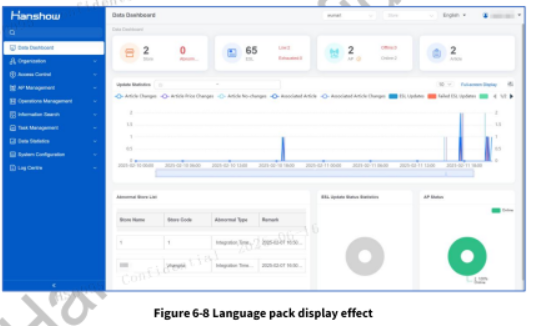
Appearance
Hanshow PriSmart 2.6.15 User Manual
V1.0.0
HS-PRISMART- V261501
STATEMENT
This document and all its contents contained remain the proprietary material of Zhejiang Hanshow Technology Co., Ltd. (Hanshow) and are protected by Chinese laws and Applicable international conventions on copyrights. Any reproduction, transmission, disclosure, revision, modification or use otherwise of this document or the whole or part of its contents, in whatever form and by whatever means, is not permitted without prior express written authorization from Hanshow. Offenders will be liable for any and all damages caused by their offence hereof and will be subject to all remedies that Hanshow is entitled to seek under Applicable laws.
⚠ NOTICE
**Your purchase of products, services, or features should be governed by the commercial contract and terms of Hanshow Technology Co., Ltd., and all or part of the products, services, or features described in this document may not be within the scope of your purchase or use. Unless otherwise provided in the contract, Hanshow Technology Co., Ltd. makes no explicit or implied representations or warranties concerning the content of this document.**Due to product upgrades or other reasons, the content of this document will be updated periodically. Unless otherwise agreed upon, this document serves only as a usage guide, and all statements, information, and recommendations contained herein do not constitute any explicit or implied warranty.
ABOUT THE DOCUMENT
Thank you very much for using Hanshow PriSmart Smart 2.6.15 Retail System.
Please read this document carefully before using this product, retain the document forsubsequent use or for the next owner. If the instructions contained in this document areinsufficient to resolve issues that occur during device operation or maintenance, pleasecontact Hanshow Technical Customer Service Center (China: 400-0365-305; Benelux: +800-808-36000; France: 0800-90-2530; Germany/Poland: +800-836-86836; USA: 001-866-9570989;Australia: 0061-1800-953008) directly, we will provide you with multi-channel technicalservices.
TARGET USERS
This document provides engineers with the necessary data and instructions for usingPriSmart 2.6.15. Users must master the basic knowledge on Java, Web software developmentand others. It is Applicable for the following engineers:
● Testing engineers
● Technical support engineers
● After sales engineers
● Installation engineers
SYMBOL DESCRIPTION
| Icon | Description |
|---|---|
| ⚠ | Information indicated with this icon should be paid special attention to by the reader |
| 📖 | Information indicated with this icon is the explanation on the formal text for the readers to comprehend the text better |
| [X-X] | It means special noun definition is provided here |
EXPLANATION OF TERMS
| Acronym | Expanded form | Description |
|---|---|---|
| AP | Wireless Access Point | ESL controller |
| ESL | Electronic Shelf Label | ESL |
| ESL-Working | ESL-Working System | Manages all the APs and ESLs in store. ESL-Working 3.0 and higher versions support multi-store management. |
| HAPP | Hanshow Access Point Proxy | |
| PriSmart | PriSmart Smart Retail System | Manages all store article data and sends ESL updates |
| Repush | Repush data | Repush product data to ESLs |
1 Overview
PriSmart Smart Retail System (hereafter referred to as PriSmart) is a new generation ofHanshow smart electronic shelf label (ESL) management platform. PriSmart can effectivelymanage customers’ store articles, prices, and inventories, and can accurately synchronize allinformation to customers’ stores anywhere in the world in real time.
1.1 Design Concept
PriSmart uses the industry-leading modular design concept to meet requirements of variousorganizations in various sizes. PriSmart provides a standardized interface. Customers do notneed to transform their existing ERP systems. Just in accordance with PriSmart interfacespecifications, article data will be pushed to PriSmart and system integrations will becompleted. Moreover, PriSmart will automatically and correctly send article data tocustomers’ different stores.
1.2 Functions
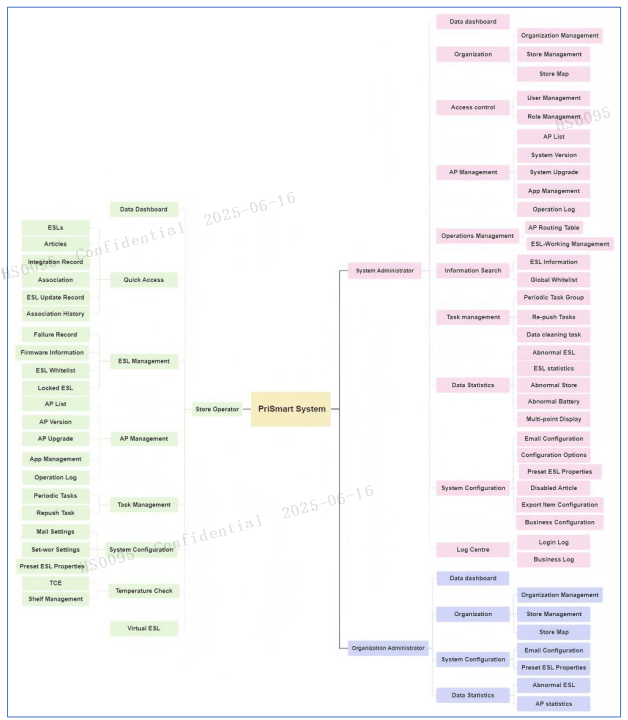
Figure 1-1 shows the functional structure of PriSmart
1.3 Features
PriSmart has the following features:
● Ease of use
The software is designed to meet needs of different users, providing user-friendly interface, practical query function, and efficient operations. With the convenient functional design, users can quickly get started with the operations, therefore the training cost is reduced.
● Advancement
PriSmart uses internationally advanced and mature technology, making the design more reasonable and advanced. In consideration of ESL characteristics and under the premise of ensuring system practicality, PriSmart uses advanced software and hardware environment.
Regarding the software development, PriSmart strictly follows the standards of software engineering and object-oriented theory to ensure the advancement of the system. PriSmart supports continuous iteration and optimization to maintain optimal structure, in order to meet technical requirements of different customers.
● Expandability
PriSmart has excellent expandability. With the continuous development of Internet technology, the system can be smoothly upgraded to meet cAPacity requirements of different organizations in different sizes. The system can be expanded horizontally or vertically on multiple levels and dimensions.
● Stability
The system is a high concurrency processing system that can handle multiple tasks simultaneously. In the event of unexpected circumstances, the system can quickly handle and give error messages, and can be recovered in a timely manner to reduce unnecessary losses. The system can work stably for a long time to avoid high maintenance cost.
● High availability
The system supports excellent cluster architecture. A single point of failure will not affect the overall service, which ensures high system availability.
● High concurrency
The system uses advanced Internet distributed architecture to handle massive data simultaneously, which greatly improves system performance.
1.4 Application Scenarios
PriSmart supports two deployment scenarios: local deployment and cloud deployment.
1.4.1 Local Deployment
In local deployment, PriSmart and ESL-Working are both deployed on the local store server. The services required by PriSmart (such as Kafka) are also most deployed on single server. The store can be managed through web browser, smartphones, or PDA devices, as shown in Figure 1-2.
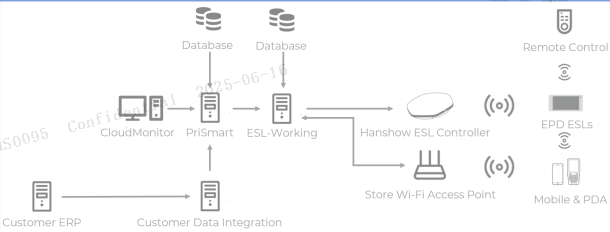
Figure 1-2 Local deployment
1.4.2 Cloud Deployment
Cloud deployment is used for multi-store or headquarter deployment. APs and ESL-Workings are deployed on store servers. ESL-Working can also be deployed on the headquarter server. PriSmart used centralized headquarter or cloud deployment, and controls the ESL-Working of each store to send data like article price to ESLs. PriSmart can assign independent access permission to each store and check the system status of each store. PriSmart supports cluster deployment, and can be expanded horizontally. Supporting services need to be deployed together with PriSmart deployment. Cluster deployment can be used, as shown in Figure 1-3.
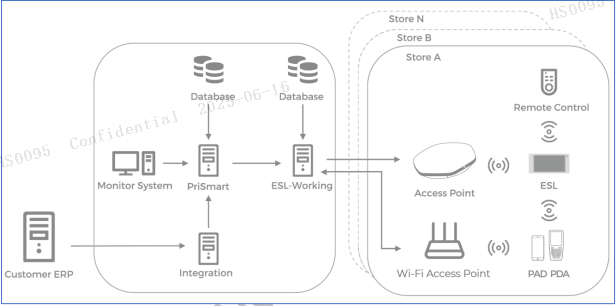
Figure 1-3 Cloud deployment
2 Getting Started with Operations
This chapter walks through the preparatory works before diving into PriSmart.
2.1 Prerequisite
The PriSmart system must be successfully installed before you access to the PriSmart URL in a web browser, and please don’t forget to upload your License file. For information about the application and activation process of license file, please contact Hanshow technical support team. For information about PriSmart installation and access, see Hanshow PriSmart 2.6.15 Cluster Deployment Guide. On the upper-right corner, click on the “About PriSmart”, as shown in Figure 2-1:
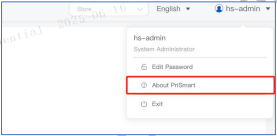
Figure 2-1
Click on “Upload license file” so that the license page will popup. Drag a valid license file into the popup or select it from the local machine. Check the “I have read and agree to the License Agreement” checkbox and click “Confirm”, as shown in Figure 2-2:
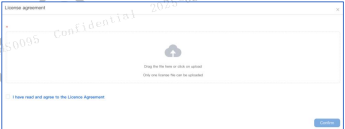
Figure 2-2
⚠Notice: A user without valid license file can get a free 30-day trial, during which a trial user is allowed to create 1 store and 1 ESL-Working (bound up to 10 ESLs). After the trial, users will be requested to upload a valid license file, otherwise the system will not be usable.
2.2 Sign In
On the sign-in page, enter your user name and password, and then click Sign in, as shown in Figure 2-3.
For system administrator account, the default user name is customer ID-admin, and the initial password is 000000.
Login now includes a CAPTCHA, and the CAPTCHA must be entered correctly to successfully log in. Clicking on the CAPTCHA refreshes it. The CAPTCHA can be disabled, depending on customer requirement.
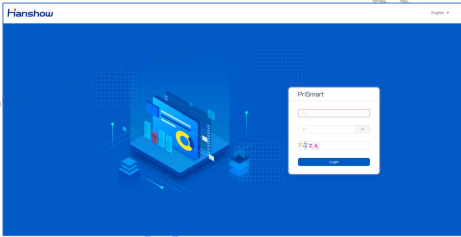
Figure 2-3 PriSmart sign-in page
First login requires password change. If it is the user’s first login, they need to change their password before they can proceed. By default, the new password must consist of 6–18 characters and include a combination of English letters, numbers, and special characters.
*📖 Note: special characters ~, !, @, #, $, %, ^, &, , (, ), _, +, -, =, {, }, |, /, ], [, ;, ‘, :, “, ,, ., / are all characters under the English input method and do not include the Chinese pause mark ‘、’.
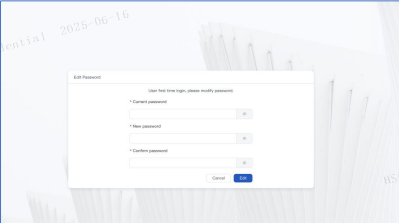
Figure 2-4
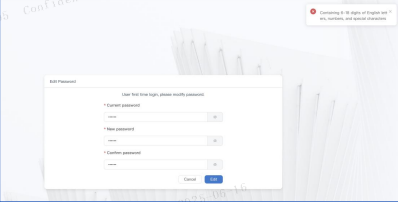
Figure 2-5
Account lockout feature: After entering the account password incorrectly 3 times in a row, the account will be locked for 60 seconds, preventing login. Only after the lockout period has passed can re-login be attempted. Both the number of lockout attempts and the lockout duration can be configured.
⚠ Notice: After the 90-day password expiration, if a backend administrator resets the password, the system will consider the password to have been changed. Consequently, users logging in will no longer be subject to the mandatory 90-day password change feature. However, the feature for mandatory password changes every 90 days does not include PDA accounts and does not affect PDA account logins.
● If you sign in with a system administrator account, the customer homepage opens, as shown in Figure 2-6.
● A new search feature is added into the menu, as shown in Figure 2-7:
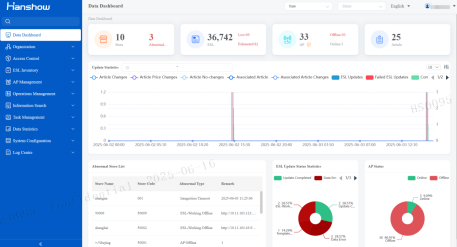
Figure 2-6 Customer homepage
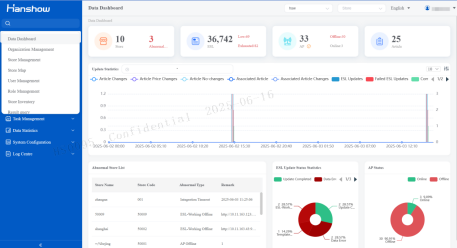
Figure 2-7 Menu search feature
The customer homepage shows the statistical data for all stores of the customer.
➤ Article changes: Indicates the number of articles that have been changed in article information, including the changes from article integration, PDA and webpage operations.
➤ Article price changes: Indicates the number of changes on article prices (field value changes of price1–price6), including the changes from article integration, PDA and webpage operations.
➤ Article no-changes: Indicates the number of articles that have no information change, including the no-change information from article integration, PDA and webpage operations.
➤ Associated article changes: Indicates the number of associated articles in all the stores of the current customer.
➤ Associated article: Indicates the number of information changes on the associated articles, including the changes from article integration, PDA and webpage operations.
➤ ESL updates: Indicates the number of ESL updates.
➤ Failed ESL updates: Indicates the number of failed ESL updates.
➤ Completed ESL updates: Indicates the number of completed ESL updates.
➤ Associated ESLs: Indicates the number of associated ESLs.
➤ Disassociated ESLs: Indicates the number of disassociated ESLs.
➤ ESL updates by PDA: Indicates the number of ESL updates performed with PDAs.
➤ ESL updates by Integration: Indicates the number of ESL updates performed by integration.
➤ ESL updates by webpage: Indicates the number of ESL updates performed on webpage.
● If you sign in with a store operator account, the homepage for the corresponding store opens, as shown in Figure 2-8. The store homepage shows store ESL status summary, ESL-Working status, integration status, and AP status. Clicking the statistical fields or numbers will go to the corresponding association or ESLs page. You can click the IP address of an AP to go to the sign-in page of the AP.
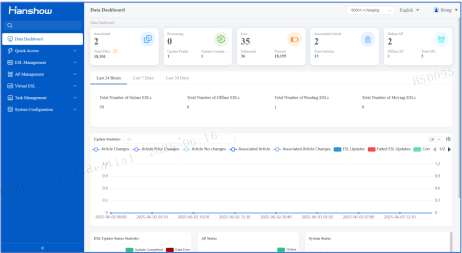
Figure 2-8 Data dashboard subpage
📖 Note: Clicking the statistical fields or numbers will go to the association or ESLs page of the corresponding ESLs. If a search is conducted on the page, the page will display the search result instead of the statistical data.
2.3 Edit Password
In the upper-right corner, you can click Edit password from the drop-down menu for your user name, and then edit your password, as shown in Figure 2-9 and Figure 2-10.
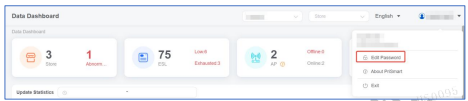
Figure 2-9 Click Modify password
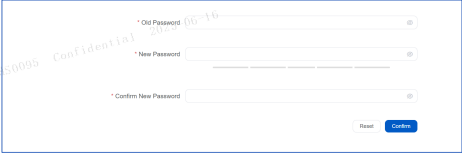
Figure 2-10 Modify password
2.4 Exit
To sign out, click the Exit from the drop-down menu for your user name, as shown in Figure2-11.
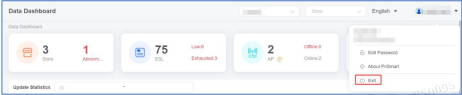
Figure 2-11 Signout
If the current account is a system administrator account, to go to the customer homepage from a store page, clear the store selection, as shown in Figure 2-12.
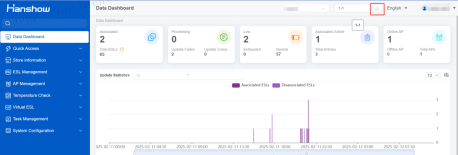
Figure 2-12 Clear store selection
2.5 Switch Stores
As shown in Figure 2-13, in the upper-right corner, click the store selection drop-down list to show all the stores that your account can manage, and select one of the stores so that you can switch to the store’s perspective. The store homepage opens, as shown in Figure 2-14. All article and ESL information displayed on the store homepage is for the store you selected.
⚠Notice: Please note that disabled stores will not appear in the list at the top right corner. If you want to view data for disabled stores, you need to check in the store list.
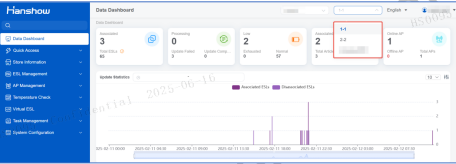
Figure 2-13
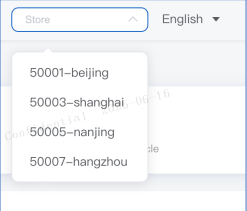
Figure 2-14 Select a store
2.6 Select Language
You can select your preferred system display language.
In the upper-right corner of the system page, select a language from the language box, as shown in Figure 2-15. The system display language will be switched to the selected one. Google Chrome always uses the first language in its settings, so the language selection in PriSmart doesn’t take effect in Chrome. You can set your preferred language as the first language in Chrome settings. Currently, PriSmart commercial release provides support for Simplified Chinese, English, English (US), French, Spanish, German, and Japanese. If you need other languages, please refer to the multilingual configuration module.
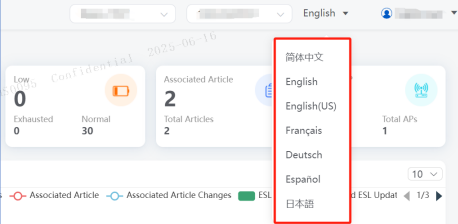
Figure 2-15 Select system display language
3 System Administrator Operations
This chapter describes the operations a system administrator can perform in the system.
3.1 Organization
On the navigation pane for the customer, click Organization.
3.1.1 Organization Management
A system administrator can manage all organizations and stores of the customer. Organization Management supports the management of stores by organizations. One or more organizations can be created for the customer. Each organization can contain one or more child organizations. When adding a store, an organization can be selected for the store. An existing store can also be assigned to an organization, so that stores can be managed by organizations. Up to 10 levels of sub-organizations can be created.
3.1.1.1 View Organization Information
On the navigation pane for the customer, click Organization, and then click Organization Management. The Organization Management page opens and display the organization list and information, as shown in Figure 3-1. The Ungrouped organization is the default organization, and no operation is allowed for it. Stores that are created without being assigned to a group will be automatically categorized under Ungrouped by default.
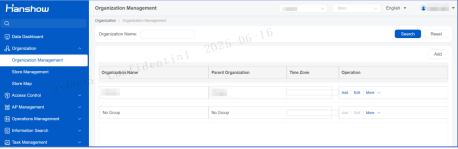
Figure 3-1 Organization Management page
3.1.1.2 Search Organizations
On the Organization Management page, enter the search criteria, and then click Search, as shown in Figure 3-2.
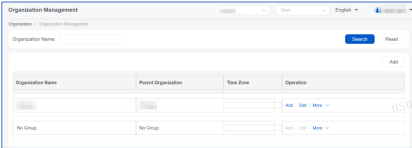
Figure 3-2 Search organizations
3.1.1.3 Add an Organization
On the Organization Management page, click the Add button above the organization list or Add in the row of an organization, to open the Add dialog box, as shown in Figure 3-3 and Figure 3-4. The organization created by clicking the Add button above the organization list is a level-1 organization; the organization created by clicking Add in the row of an organization is the suborganization of the organization in the row.
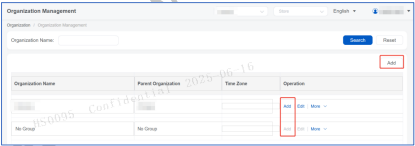
Figure 3-3 Single Click Add
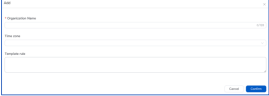
Figure 3-4 Add an organization
● Organization name: Required. The name of the organization. Child organizations under different parent organizations can have the same name. Organization name cannot contain special characters or specific keywords.
● Time zone: Optional. The organization can be set with one or more time zones, which can be selected for the organization’s stores.
● Template rule: Optional. Organization-level template rule. If a store has not been set with store specific template rule, the store will use the template rule of its organization.
3.1.1.4 Edit an Organization
On the Organization Management page, in the row of the organization you want to modify, click Edit to open the Edit dialog box, as shown in Figure 3-5 and Figure 3-6. The information that can be edited is the same as that described in Add on Organization.
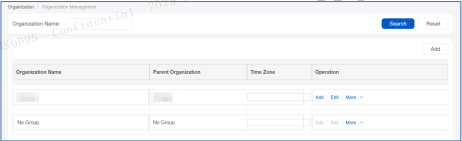
Figure 3-5 Edit an organization–1
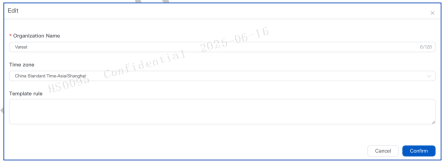
Figure 3-6 Edit an organization–2
3.1.1.5 Configure an Organization
On the Organization Management page, in the row of the organization that you want to set, click Configure to open the Configure page and set the organization parameters, as shown in Figure 3-7. If a store has no store specific settings, it will use the settings of its organization.
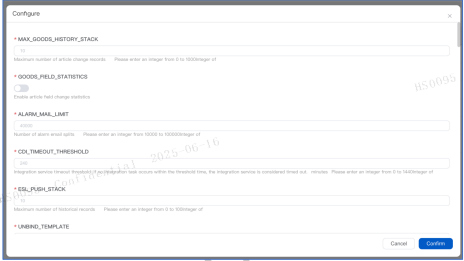
Figure 3-7 Organization settings
3.1.1.6 Delete an Organization
On the Organization Management page, in the row of the organization you want to delete, click Delete to open the confirmation dialog box, as shown in Figure 3-8. Click Confirm to confirm the deletion.
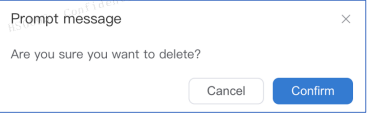
Figure 3-8 Delete dialog box
Organizations in the following cases cannot be deleted directly:
● An organization that contains one or more stores cannot be deleted directly. Before deleting it, remove the stores from it.
● An organization that has been assigned to users cannot be deleted directly. Before deleting it, remove it from the users’ organization assignment.
● An organization that has scheduled tasks cannot be deleted directly. Before deleting it, remove the scheduled task from it.
3.1.2 Store Management
Store Management includes viewing or editing store information, adding and searching stores, setting up organizations, recording ESL quantities, and enabling or disabling stores. For better customer management, stores can be assigned to organizations. A store can only be assigned to one organization.
Store information includes connection status and communication test, which can be used to test communications between a store and ESL-Working.
When a store is disabled, the store cannot be used and all operations for the store cannot be performed.
When adding or editing store information, you can assign a time zone to the store. If a store is assigned with a time zone, the page switch task, flash task, set-work task, and forced refresh task for the store will be executed according to the time zone.
Store Management data are essential system data and are required for many basic operations. Therefore, general Store Management operations do not include deletion of stores.
If a store wants to enable the store whitelist feature, it can click More to display Allow ESL Configure, and then click “Confirm” to complete the operation.
3.1.2.1 View Store Information
On the navigation pane for the customer, click Organization, and then click Store Management. The Store Management page opens, as shown in Figure 3-9.
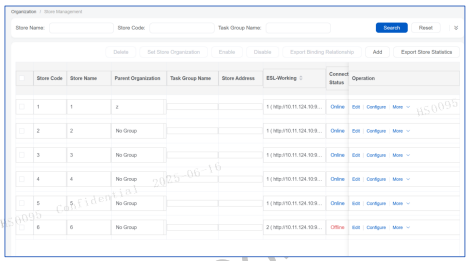
Figure 3-9 Store Management page
3.1.2.2 Search Stores
On the Store Management page, enter the search criteria, and then click Search. As shown in Figure 3-10, you can search stores by various conditions such as store name and store code.

Figure 3-10 Search stores
3.1.2.3 Add A Store
On the Store Management page, click Add to open the Add dialog box, as shown in Figuren 3-11 and Figure 3-12. The required fields are marked with asterisk “*”. Virtual ESL can be created to utilize the virtual ESL feature when the store is a virtual store.
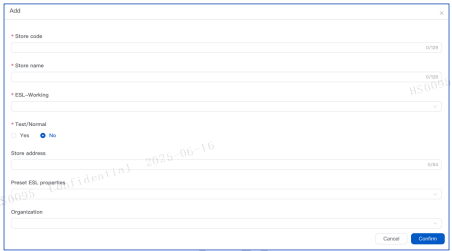
Figure 3-11 Add a store – 1
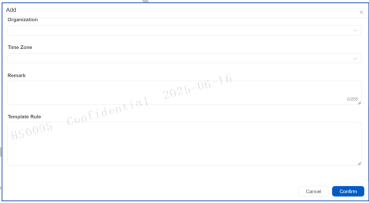
Figure 3-12 Add a store – 2
● Store code: Required. The globally unique ID of the store
● Store name: Required. The globally unique name of the store
● ESL-Working: Required. The system will automatically recommend ESL-Working address according to your system capacity.
● Test/Normal: Default value is set to “No”. When set to “Yes”, the store will be a virtual store that can utilize virtual ESL(s). Thus, please remember to remove those previously enabled virtual ESL(s) when setting to “No” from “Yes”. Note that only a test store is allowed to create and maintain virtual ESLs.
● Store address: Optional. The physical address of the store
● Organization: Optional. The organization of the store
● Time zone: Optional. The store’s time zone, which can be selected from the time zones specified for the customer
● Store status: Optional. The status information of the store
● Remarks: Optional. Remarks for the store
● Template rule: Optional. The template prefix can be set according to the article properties. The coding language used here is MVEL.
● Store AP connection address settings: To set the address, port and whether to use SSL for the store AP, turn on the Store AP connection address settings option.
● Store network settings: To set the store network, turn on the Store network settings option.
3.1.2.4 Edit Store Information
On the Store Management page, in the row of the store you want to modify, click Edit to open the store information editing dialog box. The information that can be edited is the same as that described in Add A Store.
3.1.2.5 Delete A Store
To delete a store, the following conditions must be met:
- There are no available APs for the store.
- The store has been disabled.
- The store has no associating relationships.
To ensure security, a password needs to be entered when deleting a store. For password configuration, check the "Require confirmation password to delete stores" configuration.
item in the business configuration. The store can only be deleted after the correct password is entered.
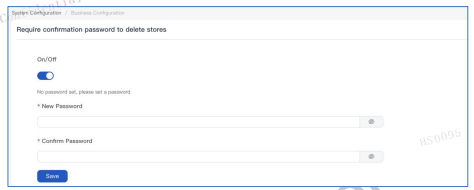
Figure 3-13
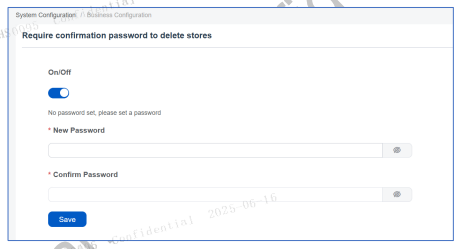
Figure 3-14
3.1.2.6 View Store Status
On the Store Management page, in the row of the store that you want to view status for, click Manage to open the store status page, as shown in Figure 3-15. The AP status summary the
store APs and corresponding IP addresses. You click the IP address of an AP to go to the sign- in page of the AP.
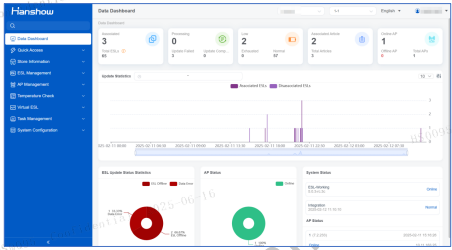
Figure 3-15 View store system status
3.1.2.7 Assign Stores to Organizations
On the Store Management page, select the check boxes of the stores you want to categorize into one organization, and then click Set store organization to open the Set store organization dialog box, as shown in Figure 3-16. The organization assignment can be changed after a store has been assignment to an organization.
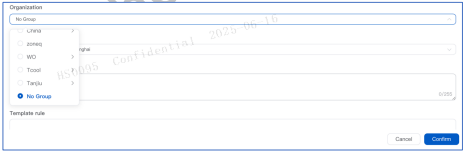
Figure 3-16 Set store organization dialog box
3.1.2.8 Edit Store Settings
On the Store Management page, in the row of the store that you want to view settings for, click Settings to open the store settings dialog box, as shown in Figure 3-17. You can view or edit the System Configuration for the store.
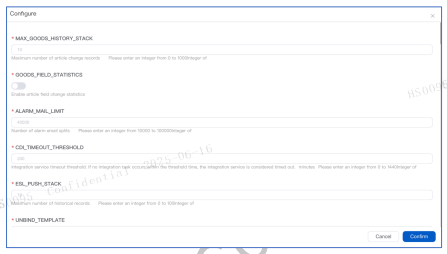
Figure 3-17 Store configuration dialog box
3.2 Access Control
On the navigation pane for the customer, click Access control.
3.2.1 User Management
User management includes viewing, adding, editing, searching, and deleting users, resetting user passwords, and assigning stores and permissions to users. A user can be assigned with one or more stores, and one or more role permissions. This function is usually Applicable to system administrators. Users can view user information after signing to the system.
3.2.1.1 View User Information
On the navigation pane for the customer, click Access control, and then click User management. The User management page opens, as shown in Figure 3-18. You can add, edit,
or delete store users (PDA users in the stores), or change passwords for users. This function is only available to the system administrators. Other accounts cannot see this function.
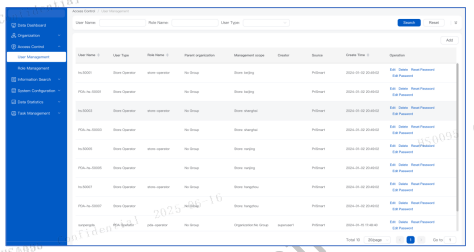
Figure 3-18 User management page
3.2.1.2 Search Users
On the User management page, enter the username, character name, select user type, and select the organization to which the user belongs, then click Search. Fuzzy search of username and character name is supported.
3.2.1.3 Add A User
On the Users page, click Add to open the Add dialog box, as shown in Figure 3-19. Enter the user name, select the user type, role name, organization, and store for the user, and then click Confirm to add the user.
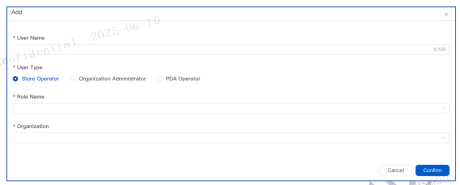
Figure 3-19 Add user dialog box
Available user types include:
● Store operator: A store operator can manage the assigned stores.
● Organization administrator: An organization administrator can set time zone and template rule and edit organization settings for the assigned organization.
● PDA operator: A PDA operator can only sign in to PDAs, not PriSmart. A PDA operator account can only manage one store. A PDA operator account assigned to multiple stores cannot sign in to PDAs and the setting for the account should be changed to assign to only one store.
The initial password for a newly created user account is 000000. To change password for a user, on the User management page, in the row of the user, click Change password to change the password. In the Store Management subpage, relevant content can be searched or filtered in search bar.
3.2.1.4 Edit User Information
On the User management page, select the user you want to edit, and then click Edit. You can edit the store and user right settings for the user. The user name and user type cannot be changed.
3.2.1.5 Delete A User
On the User management page, select the user you want to delete, and then click Delete. A confirmation dialog box opens. Click Confirm to confirm the deletion. Users cannot be deleted in batch.
3.2.1.6 Edit Password
As shown in Figure 3-20, on the User Management page, select the user you want to change password for, and then click Edit Password. A dialog box opens. Set the new password and click Confirm. The prerequisite is that the password must meet the rules. If not, a prompt will be given to the user in the upper-right corner.
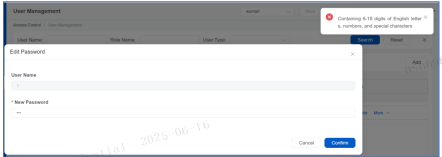
Figure 3-20
3.2.2 Role Management
Role management includes viewing, adding, editing, deleting, and searching roles. Usage of each basic system function requires a specific permission. A role can be set with various permissions to support functions. Users in the role are granted with those permissions, so users can view or perform all operations granted by the permissions they have. Users cannot view or perform any function corresponding to a permission they don’t have.
3.2.2.1 View Role Information
Click Role Management under Access Control in the navigation bar to enter the role management page. You can add, modify, and delete roles. This functional module is only visible to the system-predefined user 'admin' and invisible to other logged-in users, as shown in Figure 3-21 Figure 3-22 Search roles.
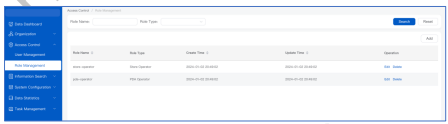
Figure 3-21 Roles management
3.2.2.2 Search Roles
On the Role management page, enter the role name or type, and then click Search, as shown in Figure 3-22. Fuzzy search is supported.
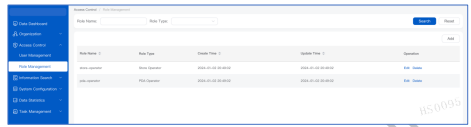
Figure 3-22 Search roles
3.2.2.3 Add A Role
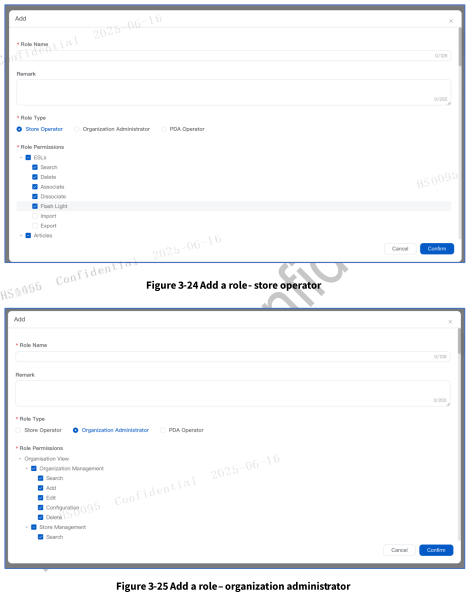
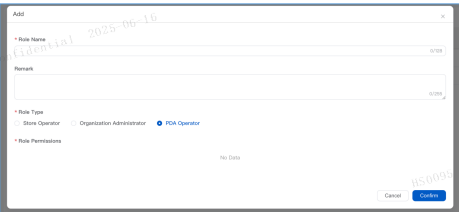
On the Role management page, click Add to open the Add dialog box, as shown in Figure 3-23. Enter the role name, select user permission, and then click Confirm. The role name must be unique.
⚠️Notice: If you want to manage the permissions of HandyLink, you need to turn on the permission access switch in the business configuration function. For details, please refer to the "System Configuration - Business Configuration - HandyLink" section.
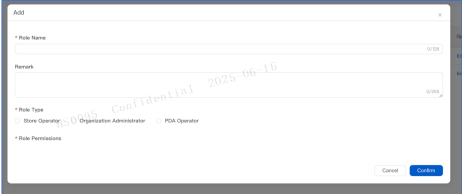
Figure 3-23 Add role dialog box
3.2.2.4 Edit A Role
On the Role management page, in the row of the role you want to edit, click Edit. Edit the role on the dialog box, and then click Confirm. As shown in Figure 3-27:
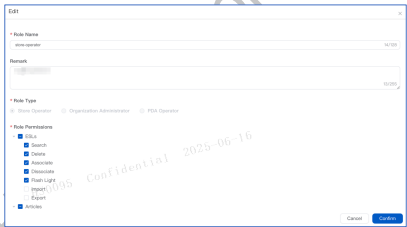
Figure 3-27
3.2.2.5 Delete A Role
On the Role management page, in the row of the role you want to delete, click Delete. A confirmation dialog box opens. Click Confirm to confirm the deletion. Roles cannot be deleted in batch. If there are users assigned to the role, the role cannot be deleted.
3.3 AP Management
The AP management function is a set of operations including comprehensive monitoring, configuration, maintenance, and upgrading of the customer's APs. It aims to ensure the stable and efficient operation of APs and provide users with premium communication services.
3.3.1 AP List
.png)
Figure 3-28 AP List
3.3.1.1 AP Search
Supports queries based on store, MAC, serial number, version, display ID, assignment status, online status, channel, hardware type, and gateway generation (protocol type).
The MAC address supports two types of connectors, ':' and '-', and also supports fuzzy search.
3.3.1.2 Delete an AP
To delete an AP means removing the AP from the database. When the AP has a normal heartbeat and can report data, the AP data can still be seen in the AP list.
3.3.1.3 Remove an AP
The removal function changes the assigned AP to an unassigned state without deleting it from the database. For example, if an AP is in Store A, after removing it from Store A, the AP status becomes unassigned, and the store information to which the AP belongs is cleared. The AP cannot be found by querying through Store A.
Only APs in the assigned state can be operated with the removal function.
3.3.1.4 AP Configuration
This function is unique to the fifth-generation PRO AP. If non-pro APs are selected, the configuration button will be grayed out and cannot be clicked.
3.3.1.5 AP Assignment
Only APs in the unassigned state can be assigned. Select the AP and the store to which it will be assigned to complete the assignment. The AP will then change to the assigned state.
3.3.1.6 Change Display ID
Modify the number displayed on the store AP. You can click the Change Display ID button to make the change, as shown in Figure 3-29.
If you submit without changing the content when changing the display ID, a prompt "The display ID has not changed" will appear. If the ID you are changing to already exists for another AP, the ID of the existing AP will be changed to the ID of the currently modified AP.
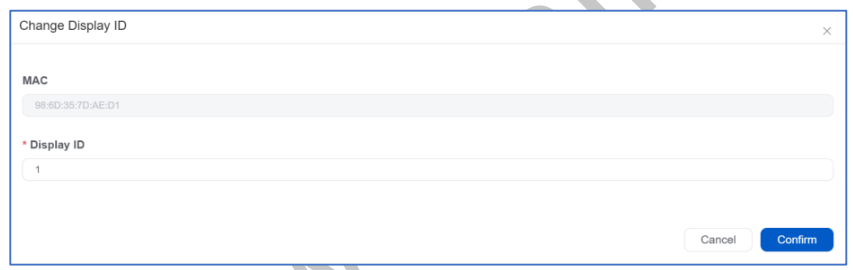
Figure 3-29 Change AP Display ID
⚠Notice: The function of changing the display ID requires the ESL-Working version to be ESL-Working 3.0.5 or above.
3.3.1.7 Replace an AP
Click the Replace button in the corresponding row of the table, select the AP to be replaced with, and you can replace the MAC of the lower-version AP with the content of the selected higher-version AP. A higher-version AP cannot be replaced by a lower-version one.
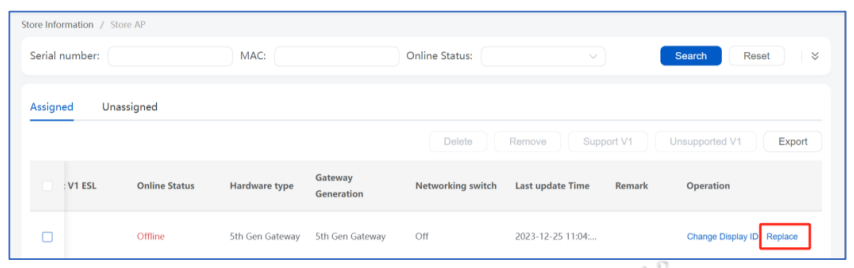
Figure 3-30 AP Replacement
⚠Notice: The replacement function requires the ESL - Working version to be above ESL- Working 3.0.1.
3.3.2 AP Version
This is where the AP upgrade package and the AP’s version (not the sub-application version) are uploaded.
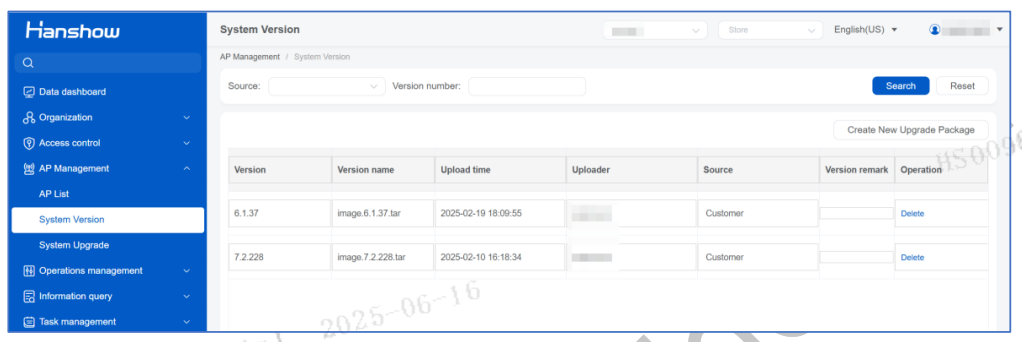
Figure 3-31 AP Version
3.3.2.1 Create New Upgrade Package
Select to upload the upgrade package, and the version number will be automatically parsed. The version description is not required. After clicking OK, all stores under the customer can use this upgrade package to upgrade the APs (APs that meet the upgrade conditions).
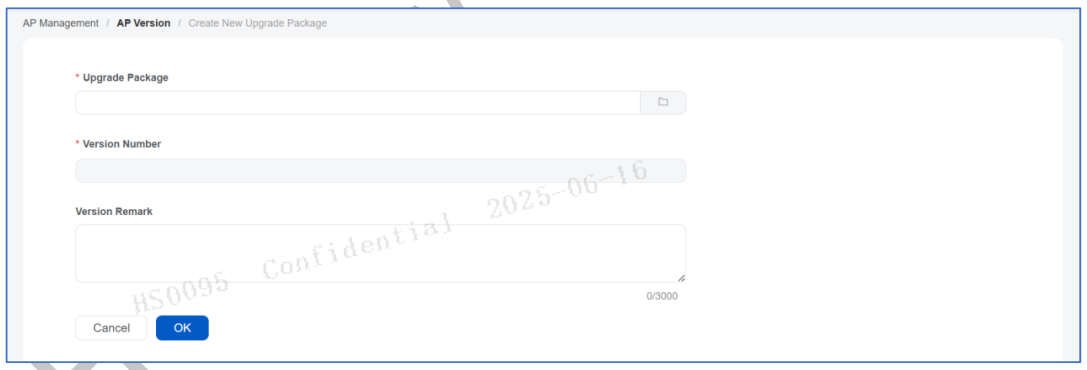
Figure 3-32 Create New Upgrade Package
3.3.3 AP Upgrade
The AP upgrade function only supports the upgrade of APs using Hanshow fifth-generation protocol. The upgrade function for third-generation protocol APs cannot be completed in the PriSmart system.
3.3.3.1 Upgrade Plan List
You can view the upgrade progress and status of the upgrade plan.
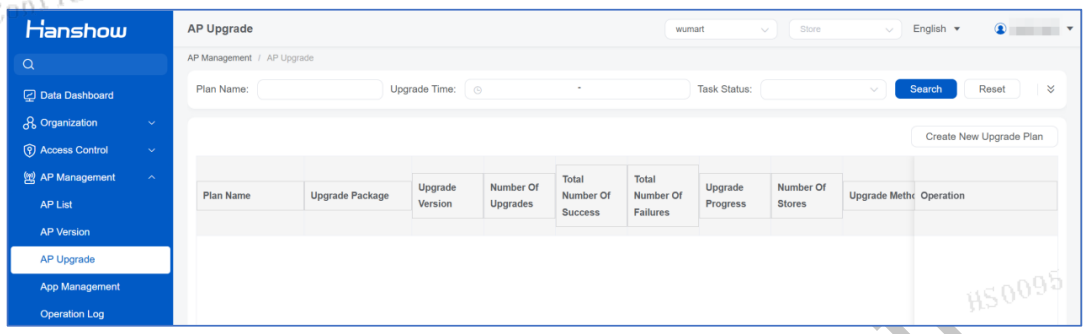
Figure 3-33 Upgrade Plan List
3.3.3.2 Create New Upgrade Plan
The plan name is required. After selecting the upgrade package, the APs that can be upgraded will be automatically filtered.
After selecting the APs to be upgraded, you can choose the upgrade method, either execute immediately or execute at a scheduled time. Different stores will execute according to the time zone of the store.
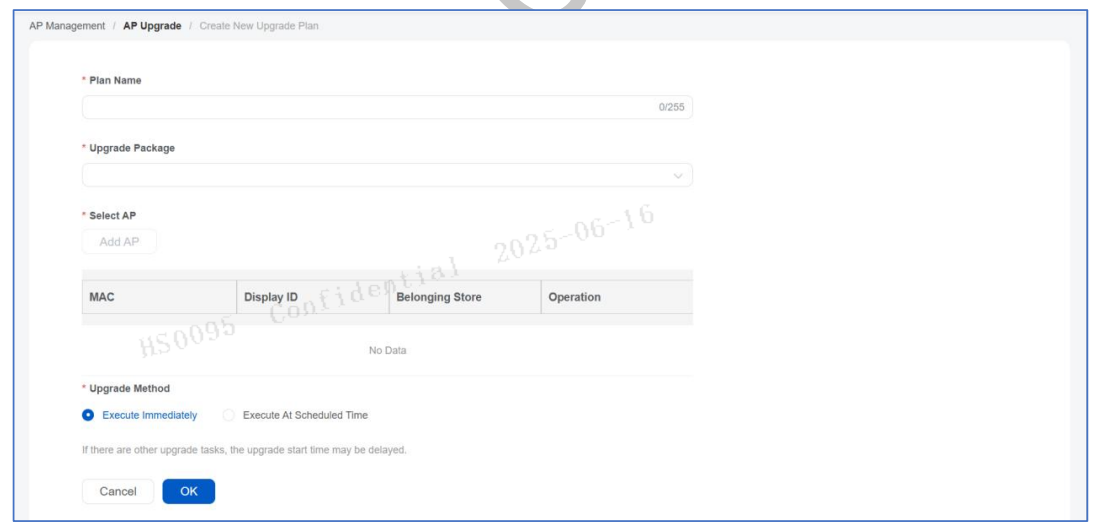
Figure 3-34
3.3.4 Application Management
Application management is dedicated to the management of sub-applications for 5th- generation Pro APs. This function is not supported by non-Pro APs. Sub-applications can be restarted, enabled, disabled, and upgraded.
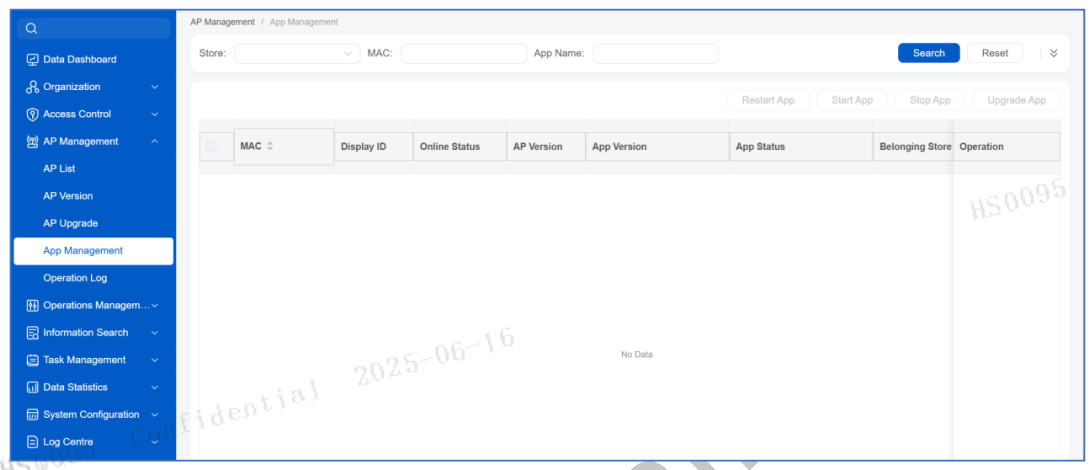
Figure 3-35
3.3.5 Operation Logs
Operation logs record the operational records of each AP.
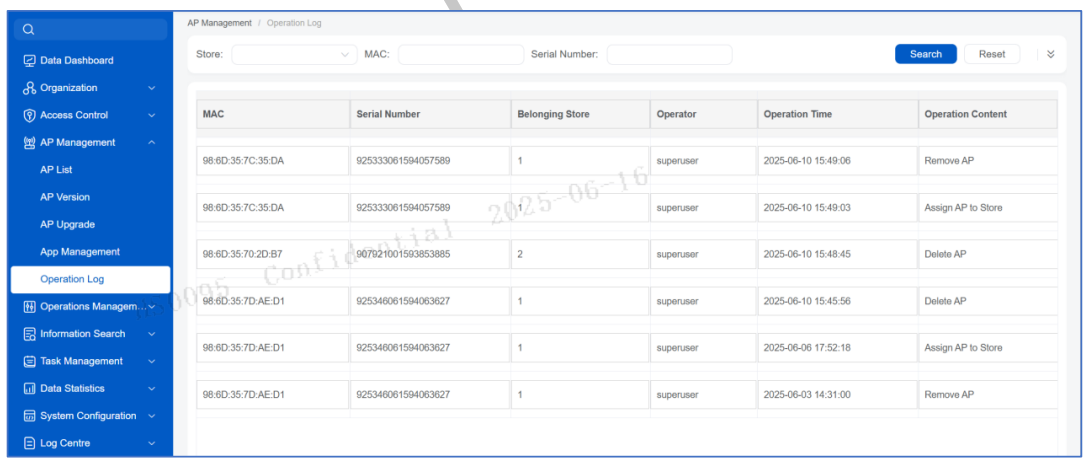
Figure 3-36
3.4 Operations Management
3.4.1 AP Routing Table
The AP routing table function synchronizes the relationship between APs and stores to HAPP. After importing the relationship between APs and stores, the AP automatically changes to the assigned state, eliminating the need to perform the assignment operation on the AP list page. Users can download the imported example files by clicking the Import button.
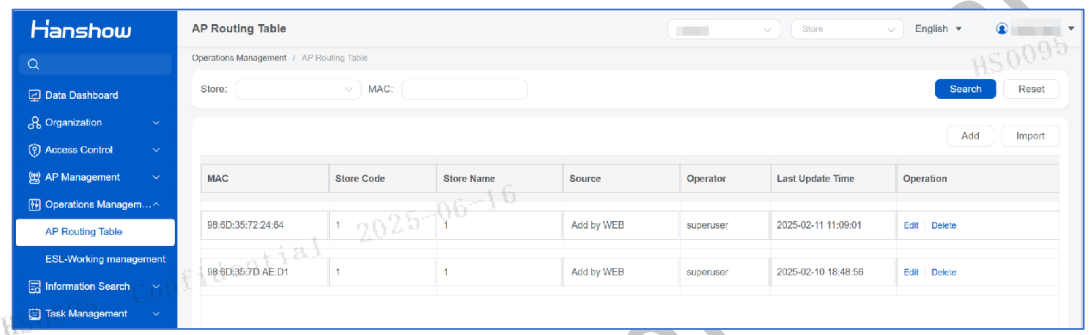
Figure 3-37 AP Routing Table
3.4.2 ESL-Working Management
With the ESL-Working Management function, Customer can manage ESL-Working.
On the navigation pane for the customer, click System Configuration, and then click ESL- Working Management. The ESL-Working Management page opens and shows the status of ESL-Working, as shown in Figure 3-38. Users can also view the ESL mounting capacity of the current ESL-Working, the total mounted ESL quantity and the quantity of assigned stores.
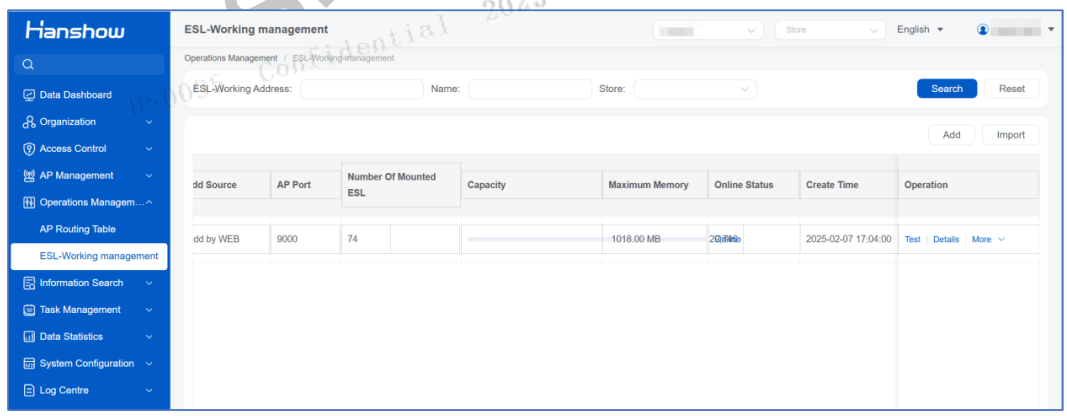
Figure 3-38 ESL-Working List
3.4.2.1 Add an ESL-Working
On the ESL-Working Management page, click Add to open the Add dialog box, as shown in Figure 3-39. Enter the ESL-Working name, address, and other information of the ESL-Working.
The Auto Assign function is enabled by default. When creating a store, ESL-Working that supports auto assign will, based on the load-balancing mechanism, automatically recommend the ESL-Working suitable for that store. This intelligent operation effectively avoids potential errors in manual assignment, ensuring a more efficient and accurate store- creation process.
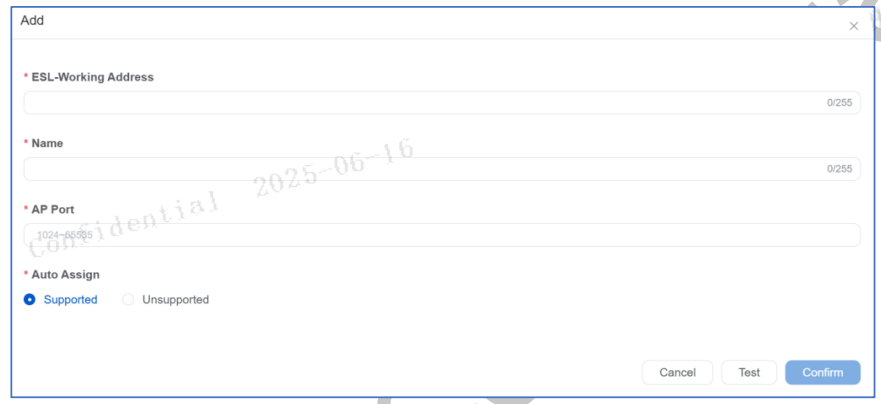
Figure 3-39 Add ESL-Working dialog box
3.4.2.2 Edit an ESL-Working
On the ESL-Working Management page, in the row of the ESL-Working you want to edit, click Edit. Edit the name, address, or other information of the ESL-Working.
3.4.2.3 Delete an ESL-Working
On the ESL-Working Management page, in the row of the ESL-Working you want to delete, click Delete to delete the ESL-Working.
3.4.2.4 Assign an ESL-Working
On the ESL-Working Management page, in the row of the ESL-Working you want to assign, click Assign, there will be a risk prompt. After confirming the risk indicated in the prompt, an assigning pop-up window will appear. After checking the risk notification, select the store you want to assign to the ESL-Working, and then click Confirm, as shown in Figure 3-41.
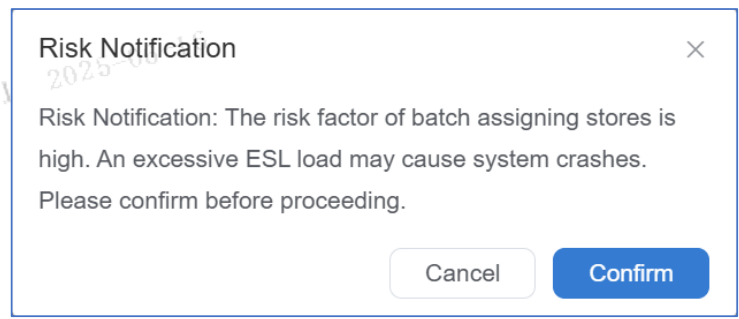
Figure 3-40 Risk Prompt
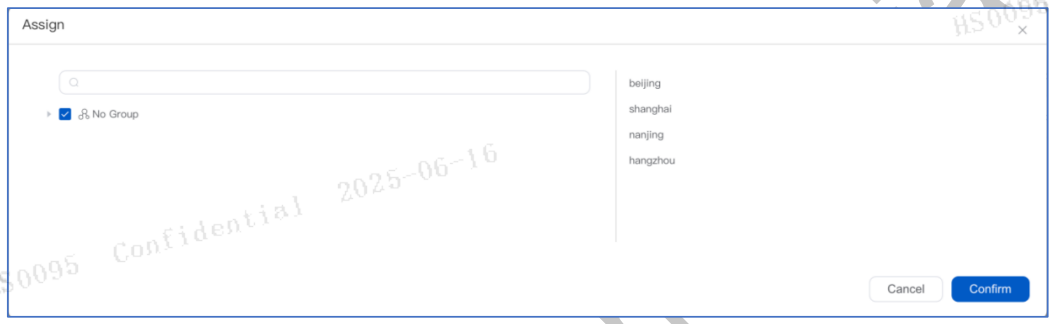
Figure 3-41 Assign ESL-Working dialog box
3.4.2.5 View ESL-Working Details
On the ESL-Working Management page, in the row of the ESL-Working you want to view, click Details to view the details of the ESL-Working.
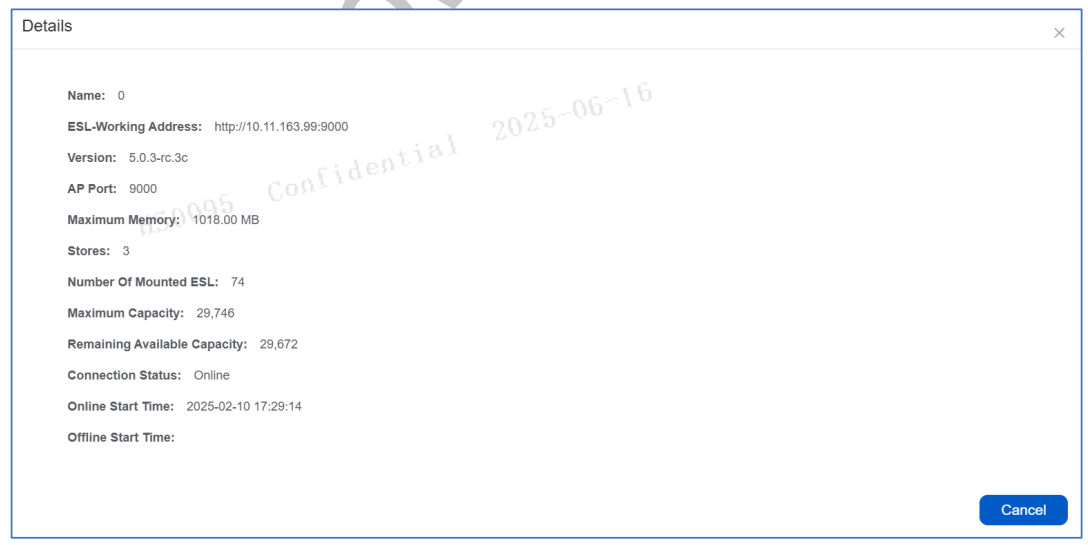
Figure 3-42 View ESL-Working Details
3.5 Information Search
Click Information Search in the navigation bar.
3.5.1 ESL Information
The ESL information function allows you to query the store where an ESL is located and its basic attributes based on the ESL ID. This function can be used to check if an ESL has been mis-assigned to different stores, that is, whether the same ESL appears in multiple stores. Only exact queries are supported here.
Click ESL Information under Information Search in the navigation bar. On the ESL information page, you can query the final status of an ESL in all stores according to its internal code, as shown in Figure 3-43:
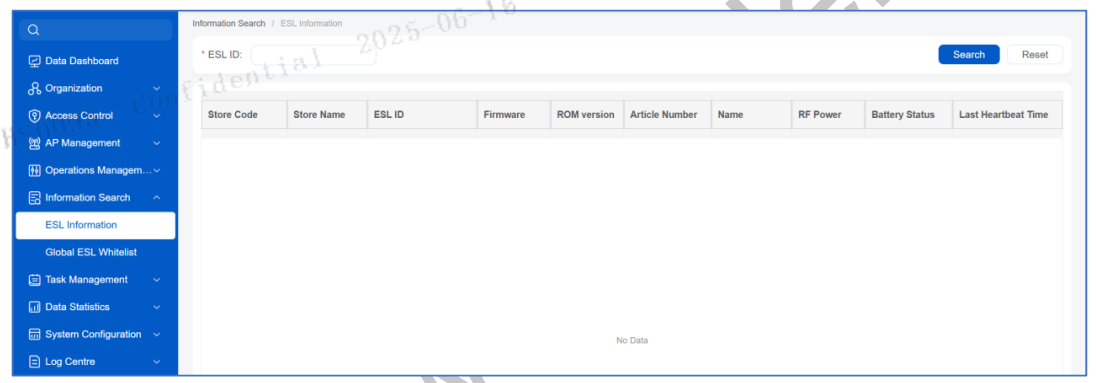
Figure 3-43 ESL Information
3.5.2 Global ESL whitelist
The global ESL whitelist is the ESL whitelist data at the customer level. If a customer enables the whitelist function (when a store has not enabled the ESL whitelist function), the store will use the global ESL whitelist function. This way, instead of each store maintaining its own whitelisted ESL data, only one public whitelist data needs to be maintained.
The global ESL whitelist function provides features such as enabling and disabling the global ESL whitelist, importing data, deleting imported data, and clearing non-whitelisted ESLs.
3.5.2.1 Enable/Disable the Global ESL whitelist
Click the Global ESL whitelist function, and a pop-up window for enabling it will appear. Select the stores that will use the global ESL whitelist and click Confirm to save.
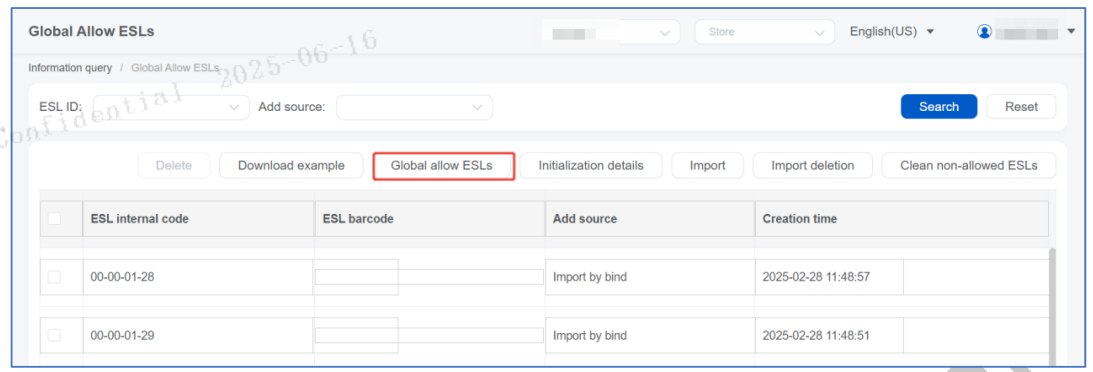
Figure 3-44
Global whitelist data can be automatically added by syncing shipping data from Hanshow's HIM system, reducing the complexity of manual whitelist maintenance. HIM shipping data synchronization applies to global-level whitelists only, and cannot sync store-level whitelists. The sync frequency can be set to daily, weekly, or monthly, which can be configured based on the customer’s replenishment frequency.
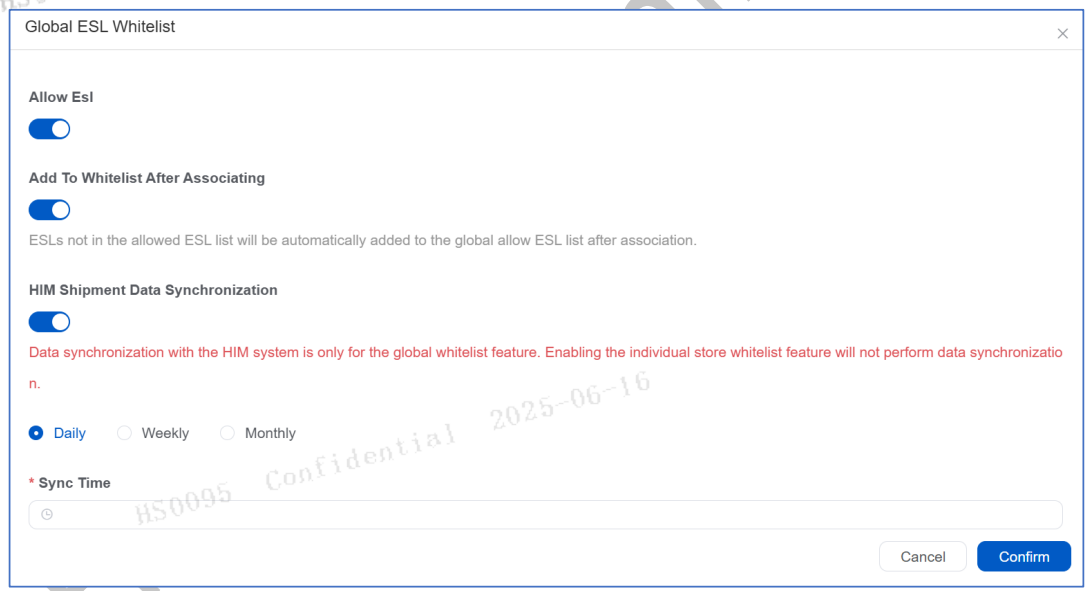
Figure 3-45
⚠ Notice: The "Add to Whitelist after Associating" function allows ESLs not in the whitelist to be automatically added during association. If this function is disabled, ESLs not in the whitelist cannot be associated.
3.5.2.2 Import
Import: Supports importing files in CSV and TXT formats. There is a requirement for the file size, which cannot exceed 50MB. Files larger than 50MB cannot be uploaded.
To help you get started quickly, we provide a sample file for download. By referring to the sample file, you can easily understand how to import the whitelist and ensure a smooth and error-free usage process.
3.5.2.3 Delete
Delete allowed ESLs. When deleting an allowed ESL, the ESL information in the ESL information page will be deleted synchronously.
3.5.2.4 Import and Delete
The function of batch deleting allowed ESLs is provided.
3.5.2.5 Clear Non-allowed ESLs
Delete ESL data that is not in the allowed ESLs list. After deletion, these ESLs will not be displayed on the ESL information page and the data dashboard page.
⚠Notice: Deleting an allowed ESL will delete the ESL information and disassociate the association between ESL and article. The deletion record of the ESL will be reflected in the operation log.
3.6 Task Management
3.6.1 Periodic Task Group
Periodic task group feature is used for defining customer-level task groups, each task group contains one or more timed task(s). Each task group can be assigned to one or more store group(s). To prevent conflict, one store group can only be assigned to one task group.
Periodic task group subpage, as the entry, provides a list view for viewing customers’ task group(s). In the list you can add, edit, assign, manage tasks in task group, or disable task.
On the navigation pane for the customer, single click the Periodic task group in the Task Management to view customers’ task group list, as shown in Figure 3-46.
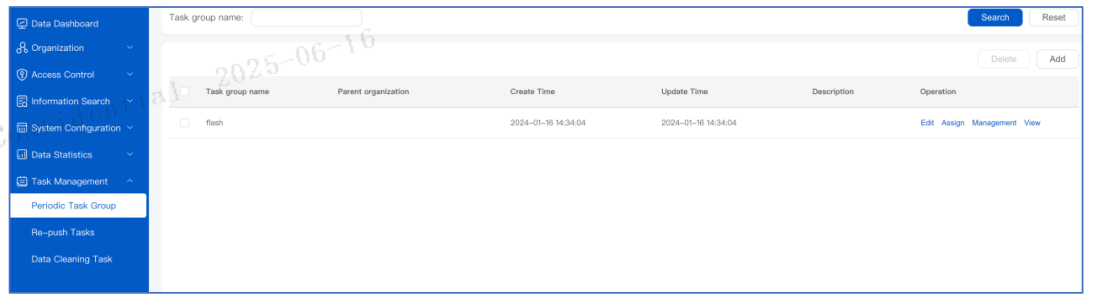
Figure 3-46 Periodic task group
3.6.1.1 Add/Edit Task Group
Single click Add to create a new task group. Single click Edit in task group row to modify task group name and remarks, as shown in Figure 3-47.
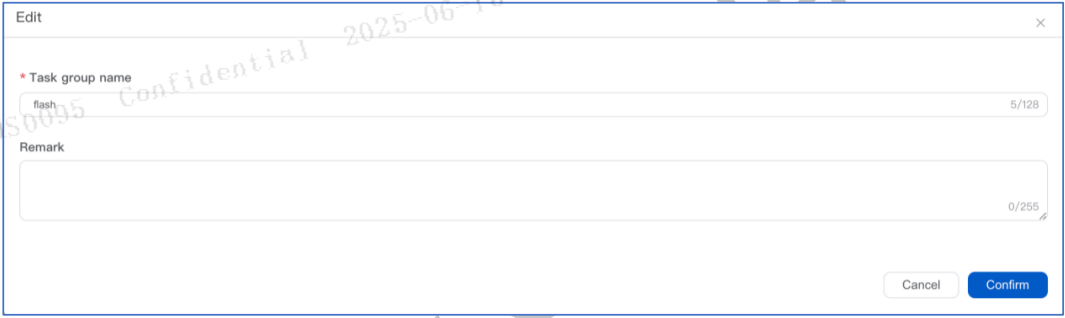
Figure 3-47 Add a task group
3.6.1.2 Delete A Task Group
Select the task group that you want to delete, then single click Delete, as shown in Figure 3-48. In the popup, single click Confirm to delete a task group, as shown in Figure 3-49.

Figure 3-48 Delete a task group
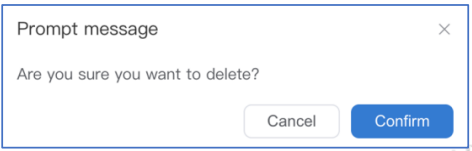
Figure 3-49 Confirm to delete
3.6.1.3 Assign Task Group
Check the box of the task group you want to assign, then click Assign to enter the Assign popup. The smallest unit for task group assignment is a store group, if the current store group has been assigned to another task group, then the box is already checked. In case you want to reassign it, uncheck the box, and then reassign it, as shown in Figure 3-50.
Single click the icon behind a store group to view the stores under current store group, the digit at the end indicates number of stores in current store group, as shown in Figure 3-51.

Figure 3-50 Assign store group(s)
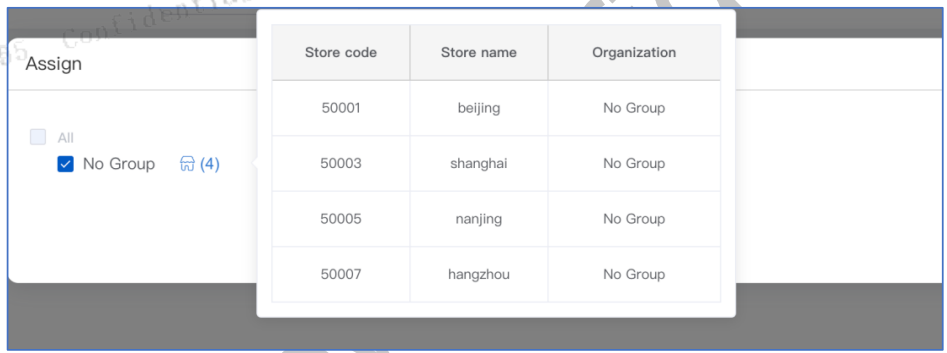
Figure 3-51 View an assigned store
3.6.1.4 View Task Group Details
In the Periodic task group subpage, single click View to view the basic information of a task in the popup, as shown in Figure 3-52, click View in the popup, you can view the details of a specific tasks, as shown in Figure 3-53.
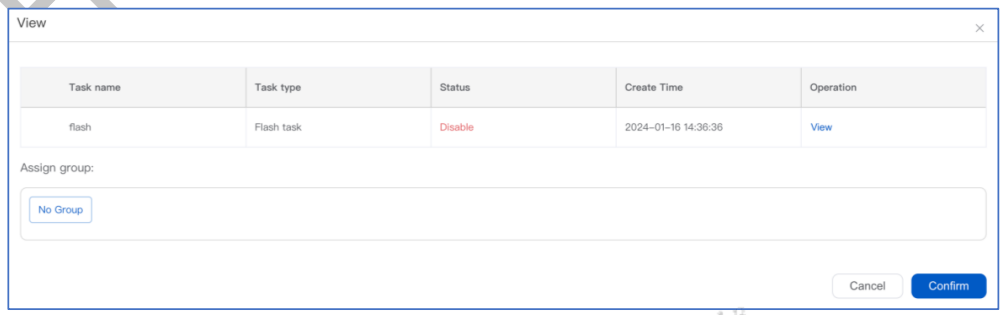
Figure 3-52 View a task group
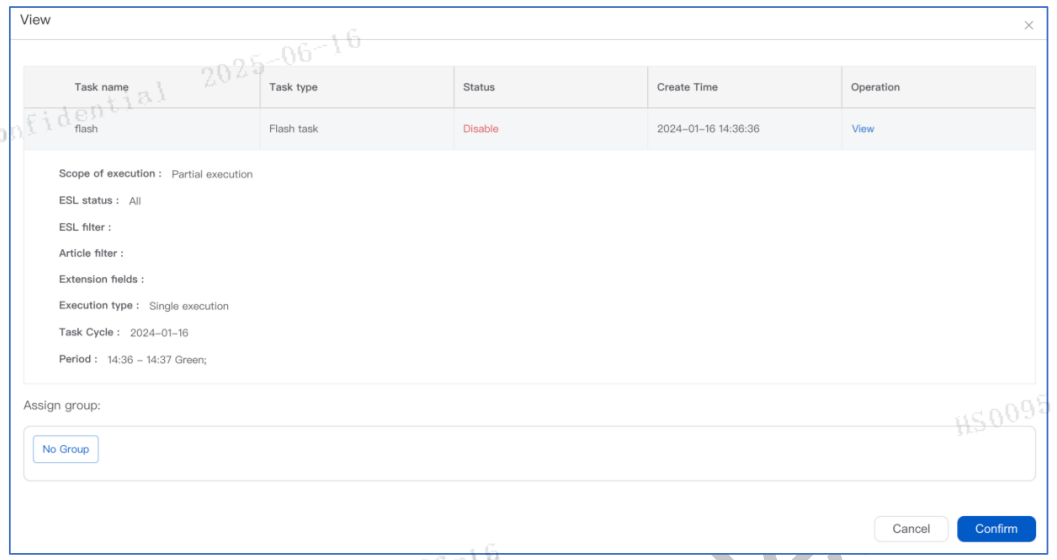
Figure 3-53 View task details
3.6.1.5 Manage Task Group
In the Periodic task group subpage, single click Management to enter current task group, view task detail list, execute View, Edit, Delete, Disable etc. operations, as shown in Figure 3-54.

Figure 3-54 Task group list
3.6.1.6 Add Task into Task Group
In the detail of period task group subpage, you can add 3 different types of tasks: flash task, page switch task and forced refresh task. Single click the Add Flash task, Add page switch task and Add forced refresh task respectively to add these tasks, as shown in Figure 3-55, Figure 3-56 and Figure 3-57.
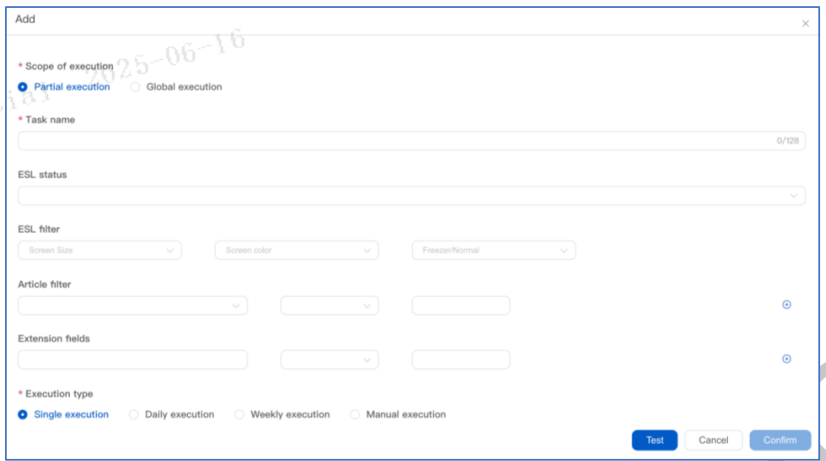
Figure 3-55 Add flash task
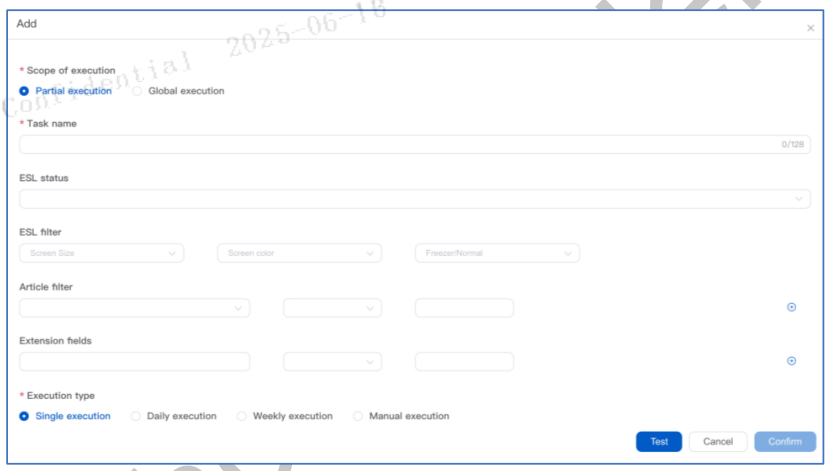
Figure 3-56 Add page switch task
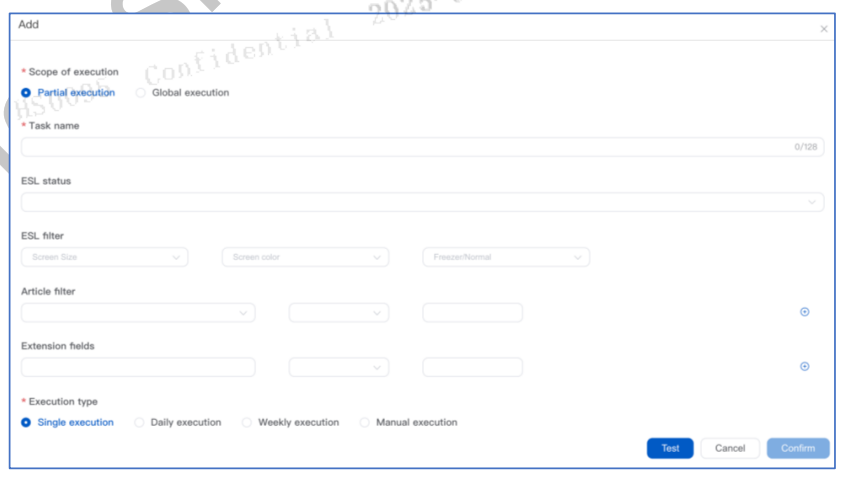
Figure 3-57 Add forced refresh task
Specific rules for adding tasks please refer to the workflow in Store Task section.
Click Edit in the Detail of periodic task group subpage to edit the task.
In task group list, single click Edit to edit task details, single click Delete to delete this task.
3.6.1.7 Enable/Disable A Task
In the Detail of periodic task group subpage, in a task row, single click Enable/Disable to enable/disable this task, as shown in Figure 3-58.
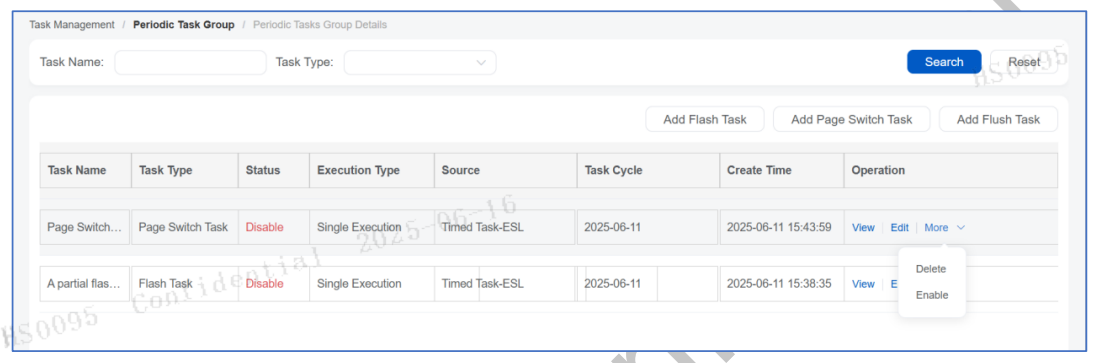
Figure 3-58 Enable/Disable tasks
3.6.2 Repush Task
Repush task feature is used for defining customer-level repush tasks, you can set different execute conditions and methods to each repush task. Repush task can be executed at specified time.
Repush task subpage, as the entry of repush task feature, displays repush tasks in a list, users can add, assign, edit and view task details, tasks also can be enabled/disabled.
On the navigation pane for the customer, single click the Repush task in the Task Management to view customers’ repush task list, as shown in Figure 3-59.
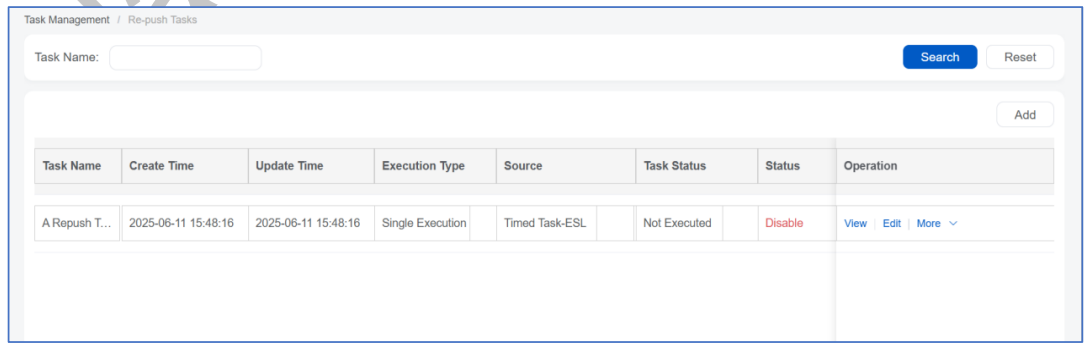
Figure 3-59 Repush task list
Tasks can be fuzzy searched in the search bar at the top left of the Repush task subpage.
Single click the digit displayed in the Assigned store(s) column in repush task list, so that a pop-up named Store execution detail will emerge to display store details, as shown in Figure 3-60. By single clicking a row in the Store execution detail popup, the page will jump to the Associating information subpage under Quick Access.
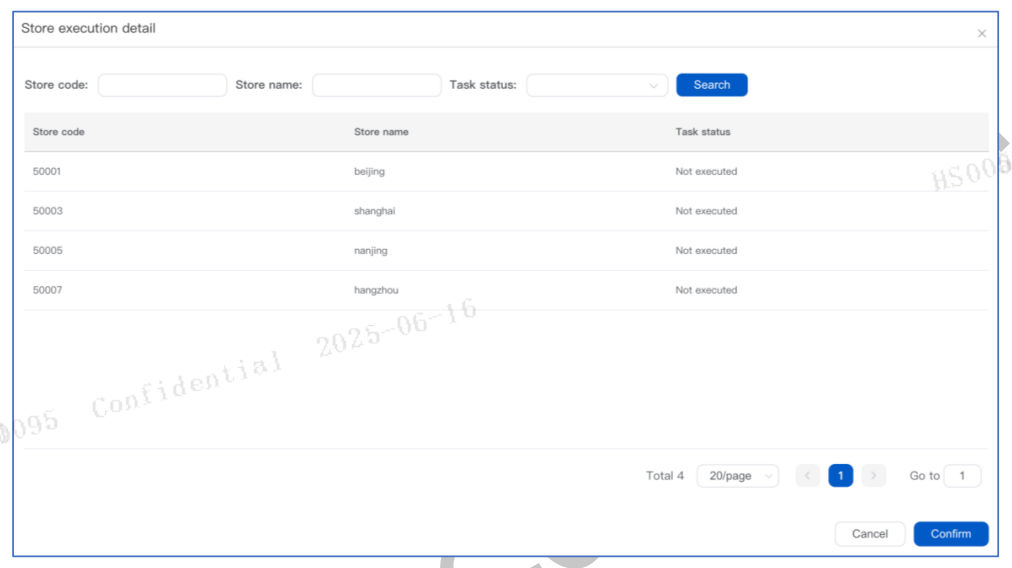
Figure 3-60 Store execution detail subpage
3.6.2.1 Add
Single click Add in the top right of Repush task subpage to add a repush task in the popup, as shown in Figure 3-61.
⚠️ Notice: Please note that repushing daily and weekly can place a high load on the system, which may result in slower updates. Use this function with caution.
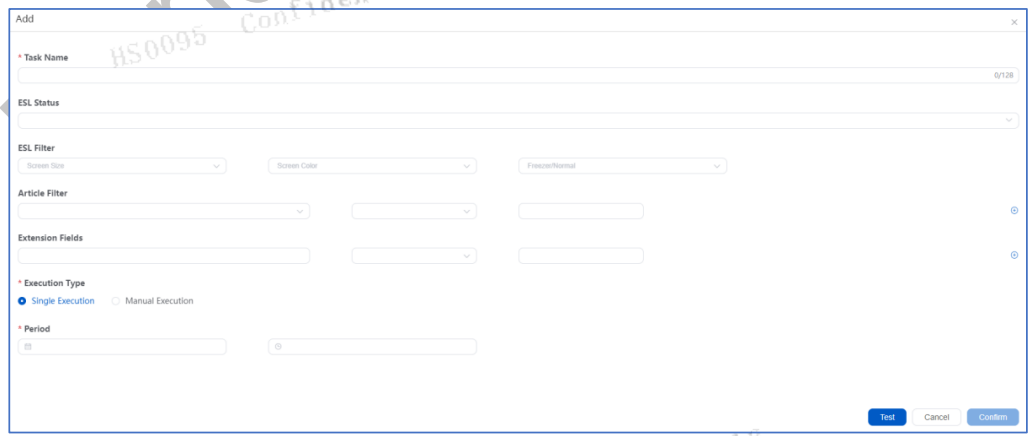
Figure 3-61 Add repush task popup
3.6.2.2 Edit
Single click Edit at the end of target repush task row to edit task contents.
3.6.2.3 Delete
Single click Delete at the end of target repush task row to delete the corresponding task.
3.6.2.4 Enable/Disable
Single click the Enable/Disable at the end of target repush task row to enable/disable corresponding task.
3.6.2.5 Assign
Single click the Assign at the end of target repush task row, so that a popup will emerge, in which you can check the box to assign the task to a store, as shown in Figure 3-62.
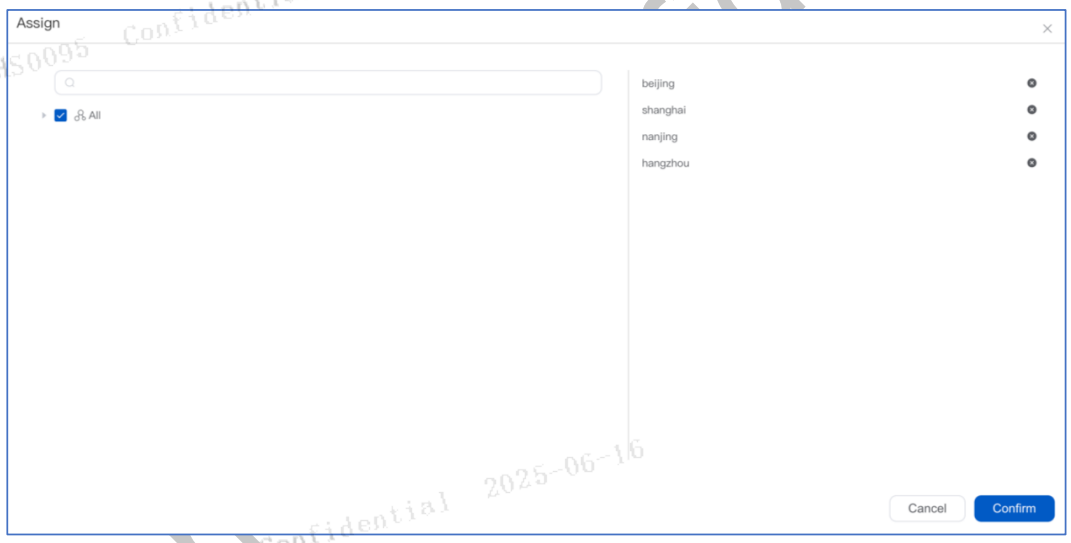
Figure 3-62 Assign repush task
3.6.3 Data Cleaning Task
The data cleaning task is used to clean up duplicate ESLs, that is, when the same ESL ID exists in multiple stores (caused by not timely processing the allocation of ESLs between stores).
- Cleanup logic: Determined by the last heartbeat time of the ESL in the store and whether there is a binding relationship to qualify for deletion.
- For example: Consider the scenario where the same ESL appears in three different stores as shown in the table below. In this case, the ESL from Store A would be deleted while retaining the ESLs for Stores B and C. When the ESL binds in Store B, the binding relationship in Store A will automatically be cleared by the system. Therefore, since the ESL in Store A has no binding relationship and has the earliest last heartbeat time, it meets the conditions for deletion.
| ESL ID | Store A | Store B | Store C |
|---|---|---|---|
| Last heartbeat time | 2023-10-11 | 2023-10-13 | 2023-10-13 |
| Binding time | 2023-10-11 | 2023-10-12 | No binding relation |
In the following example scenario, ESLs in Stores A, B, and C are deleted, while the ESL in Store D is retained. This is because Store D's last heartbeat time and binding relationship occur later than those in Stores A, B, and C, leading to the conclusion that the final usage of the ESL is associated with Store D. ESLs from Stores A, B, and C will be deleted, and a record of these deletions will be logged.
| ESL ID | Store A | Store B | Store C | Store D |
|---|---|---|---|---|
| Last heartbeat time | 2023-10-11 | 2023-10-13 | 2023-10-13 | 2023-10-14 |
| Binding time | 2023-10-11 | 2023-10-12 | No binding relation | 2023-10-15 |
⚠ Notice: The data cleaning task only deletes the ESL data that has no association and exists in multiple stores. Only one data cleaning task can be created. A new data cleaning task can only be created after the existing one is deleted.
3.6.3.1 Add a Data Cleaning Task
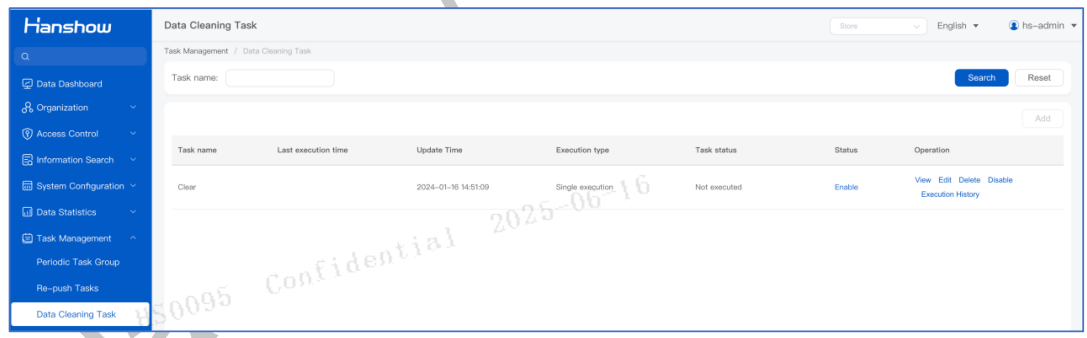
As shown in Figure 3-63, when adding a data cleaning task, the task name, execution method, and execution time are required fields. The default state of a newly created task is disabled. If activation of the task is required, it must be enabled manually.
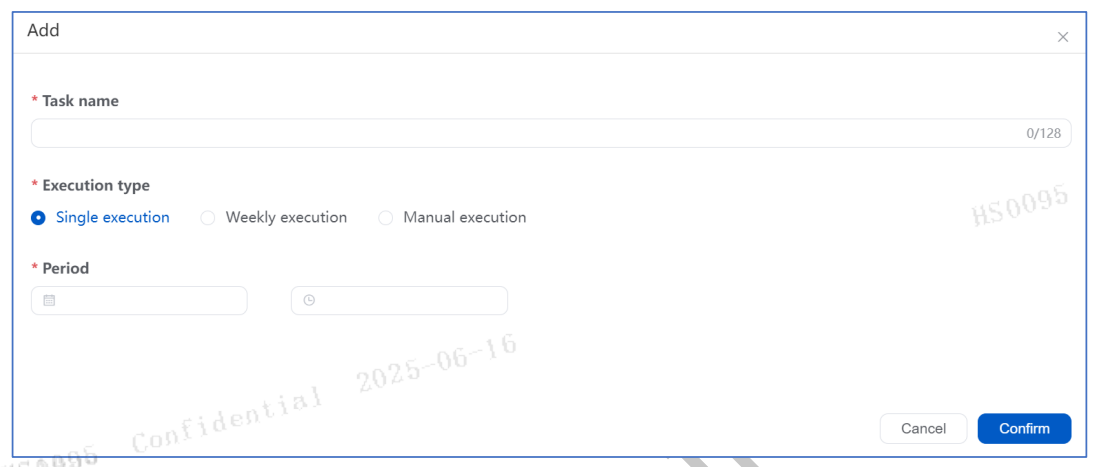
3.6.3.2 View a Data Cleaning Task
Click View to see the current task, as shown in Figure 3-64.
3.6.3.3 Edit a Data Cleaning Task
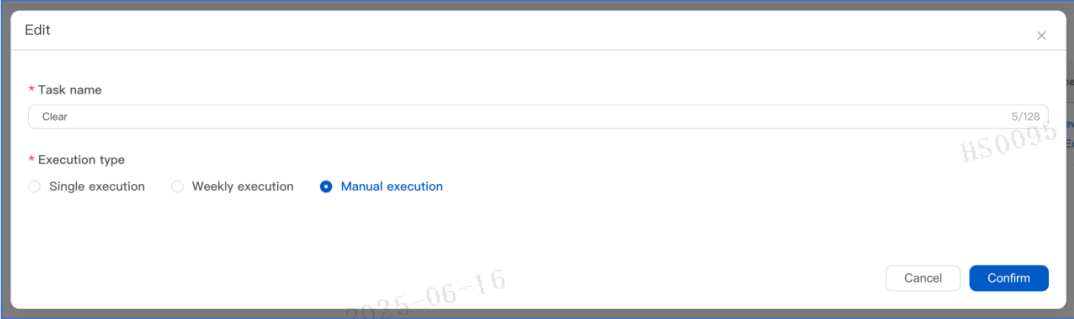
As shown in Figure 3-65, click Edit to modify the task name and execution method. Task execution methods consist of three types: single execution, weekly execution, and manual execution. Single execution and manual execution run the task once, and the task will only run again when the task status becomes accomplished.
3.6.3.4 Delete a Data Cleaning Task
A data cleaning task can be deleted by clicking Delete and then clicking Confirm. Only tasks that are unexecuted or accomplished can be deleted.
3.6.3.5 View Task Execution Logs
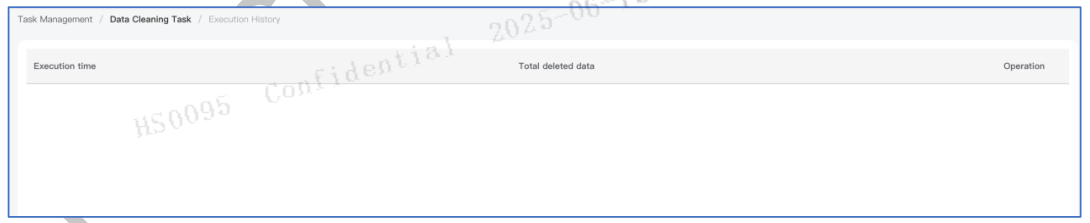
Click the Execution History button to open the execution record page. The execution records include the task’s execution time and the total number of ESLs deleted. The page also supports downloading and viewing detailed logs, as shown in Figure 3-66.
3.7 Data Statistics
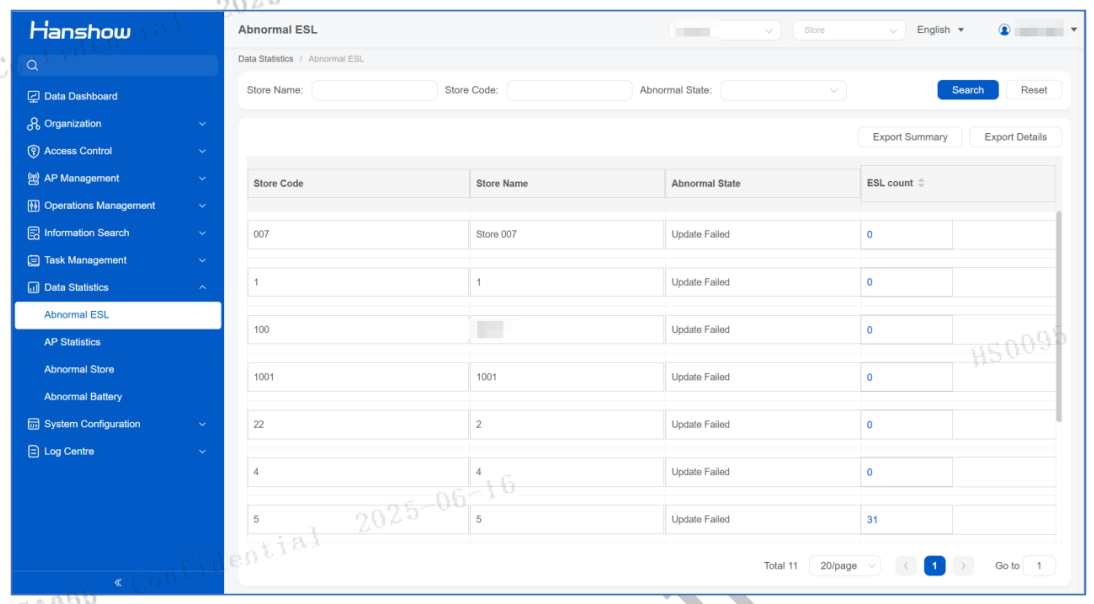
The data statistics module generates summary reports on abnormal Electronic Shelf Labels (ESLs) for all stores under the customer and for all AP data of all stores.
3.7.1 Abnormal ESL
3.7.1.1 View Abnormal ESLs
Supports querying by store name, store number, and abnormal status. The abnormal status is shown as follows:
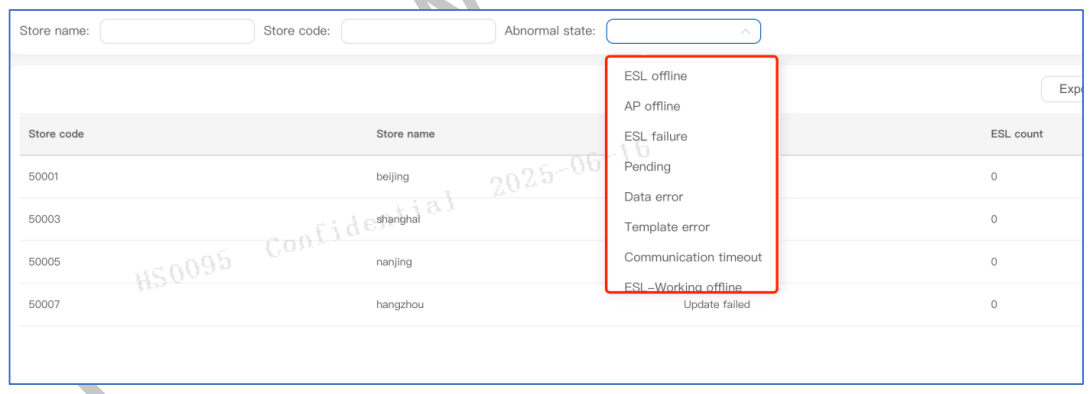
3.7.1.2 Export Summary of Abnormal ESLs
Supports exporting the summary of abnormal ESLs of all stores in CSV format. The exported fields include:
- Store number
- Store name
- Abnormal status
- Number of ESLs
3.7.1.3 Export Details of Abnormal ESLs
Click Export Details, choose which type of abnormal details to export, then click Confirm to export.
3.7.2 AP Statistics
Statistics of all APs under the customer, including:
- Total number of APs
- Number of online APs
- Number of offline APs
- Number of APs in exception status
All AP-related summaries support quick linking to the store’s APs.
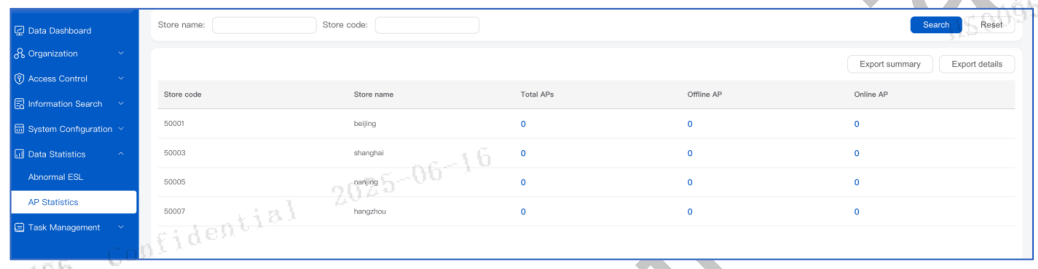
3.7.2.1 View AP Summary
Supports querying by store name and store number, allowing quick location of target stores.
3.7.2.2 Export AP Summary
Exports in CSV format. The exported information includes:
- Store number
- Store name
- Number of APs
- Number of online APs
- Number of offline APs
- Total number of APs
3.7.3 Abnormal Store
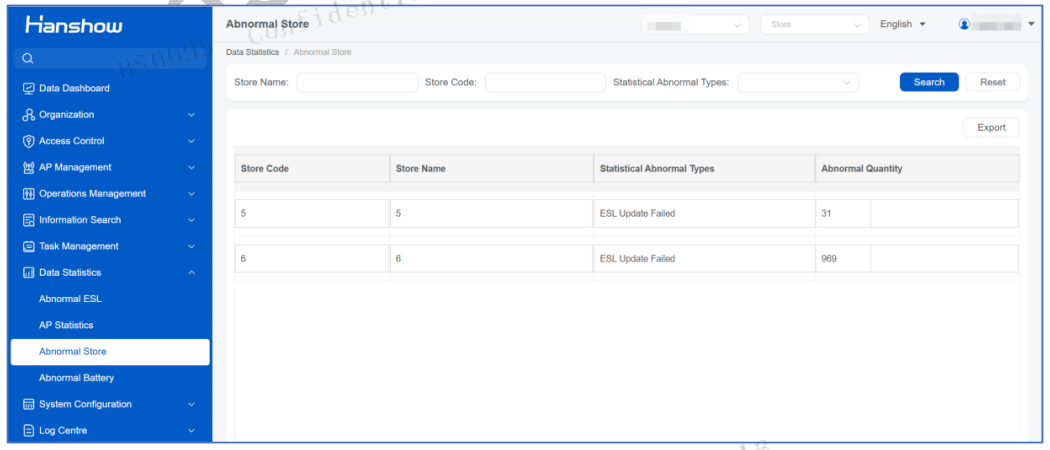
The Abnormal Store feature counts abnormal situations occurring in the same store. Three types of abnormalities are defined:
- AP offline in the store
- Indicates the AP detects the store is offline and cannot verify properly.
- Excessively high proportion of ESL update failures
- Occurs when the number of failed ESL updates exceeds the threshold of total updates.
- Excessively high proportion of ESL update failures (rate-based)
- Occurs when the failure rate exceeds the configured threshold.
3.7.3.1 Configure an Abnormal Store
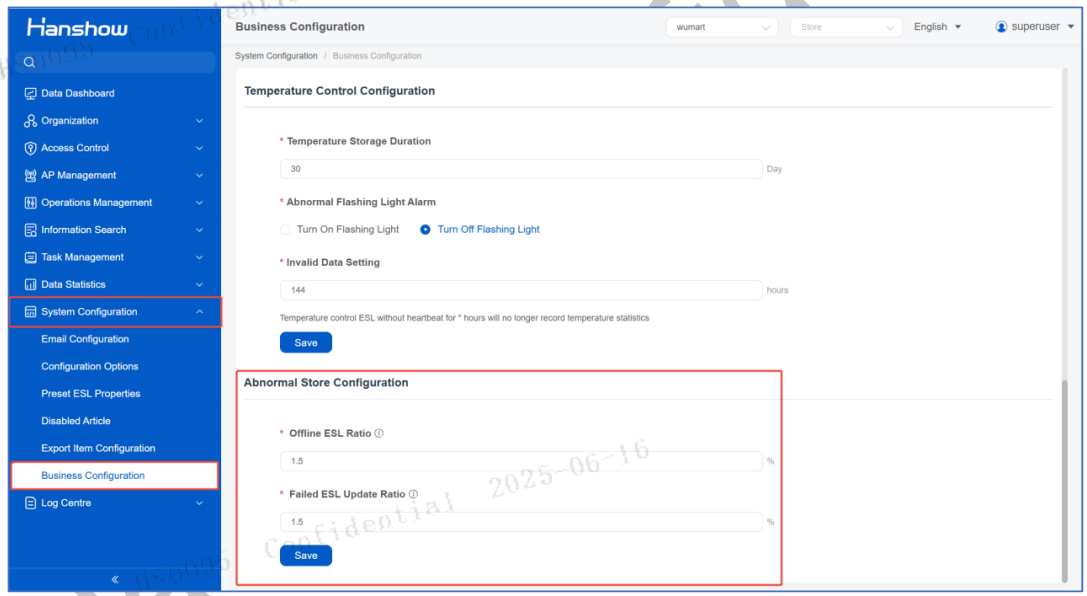
Configuration is done in:
System Configuration → Business Configuration → Abnormal Store Configuration
You can:
- Set different abnormal thresholds
- Adjust conditions according to customer needs
Steps:
- Enter the configuration page
- Set thresholds
- Click Save
Threshold types include:
- Offline ESL Rate
- Failed ESL Update Rate
Setting an offline ESL threshold (example): If threshold = 5%, store is marked abnormal when offline ESLs exceed 5% of all updated ESLs.
Note: Thresholds must match real operational conditions.
3.7.3.2 Statistics of Abnormal Stores
After setup, the system automatically identifies abnormal stores. The page shows:
- Abnormal statuses
- Types of abnormalities
- Update performance metrics
Note: Choose threshold values carefully to avoid false alarms or missed alarms.
3.7.4 Abnormal Battery
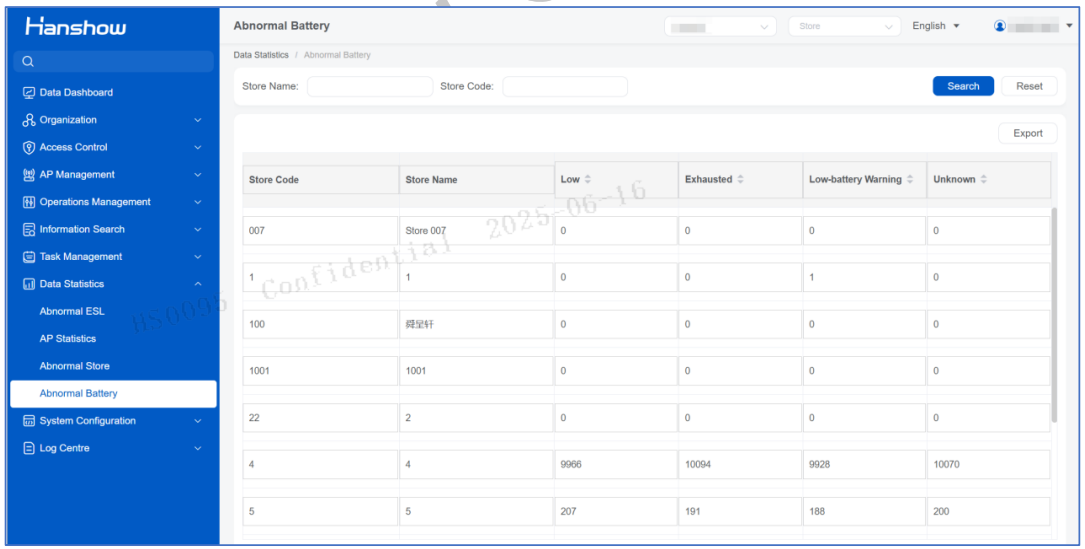
Abnormal Battery Level States
This feature aims to guide users on how to count the data of abnormal battery levels of all devices so users need to discover and handle potential battery-related problems in a timely manner. The battery levels of stores devices can be divided into the following 4 abnormal states:
- Low: The device’s battery level is lower than the minimum threshold required for normal operation.
- Exhausted: The device’s battery has become completely exhausted and cannot communicate with AP devices.
- Under/Stray Warning: The device’s battery level is lower than the preset warning threshold but has not reached the low-battery level yet.
- Unknown: The system cannot accurately determine the device’s battery level state.
Aggregated Battery Level State Data
The system will display the data of abnormal battery level state of all devices in the store. The data includes information such as store name, battery level states, device codes, threshold values currently configured for the battery level state.
Export
If you want to export the statistical results in the Excel or CSV files, you can click the Export button on the page. The system will present a downloadable file of abnormal battery level state data of the selected stores according to the query condition.
Advice
- Ensure that you have sufficient permissions to view and count the battery level state of the devices.
- If you find that the data of abnormal battery level states is abnormal, it is recommended to check the battery levels of the relevant devices in a timely manner.
3.8 System Configuration
Hanshow enables System providers preparing email configuration, ESLWorking management configuration, system log management, and ESL statistics.
Single click the System Configuration in navigation bar.
3.8.1 Email Configuration
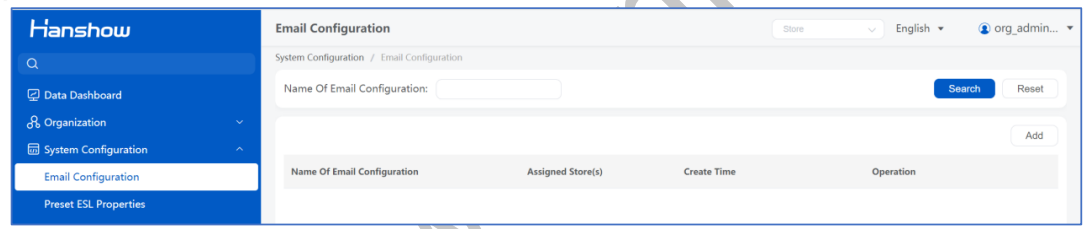
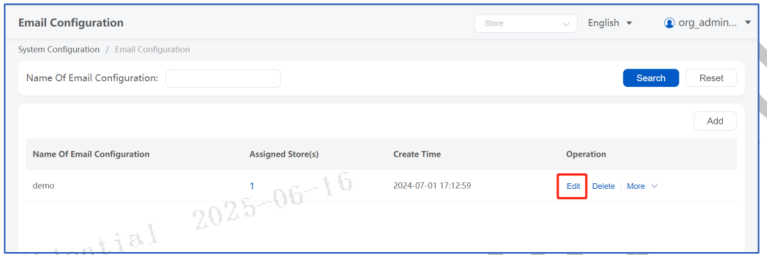
Click the Email Configuration > Email System Configuration in the navigation bar to add a new email alert item or edit event. Email configuration will be displayed in Figure 3-72.
Users can set the event type, mail template, reminder method, sending time and mail content. For example, users can set an alert cycle reminder email for all stores, and set sending times for battery reminder management. After message type and reminder method settings completed, users need to save the result so ESL’s mail settings can be effective, and further alert settings completed.
Clicking the email Configuration takes you to the reviewed email configuration list page, as shown in Figure 3-72.
3.8.1.1 Add a Mail Configuration Package
Click Add, and the "Edit Mail Configuration Settings" window appears, where you need to enter the name of the configuration package and the language of the email to be sent.
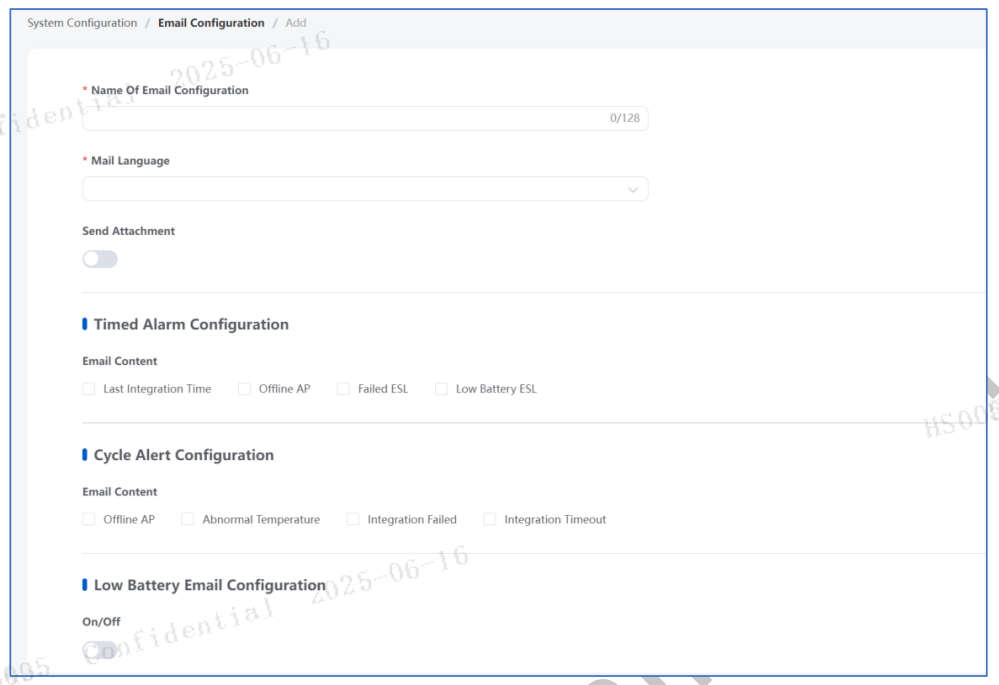
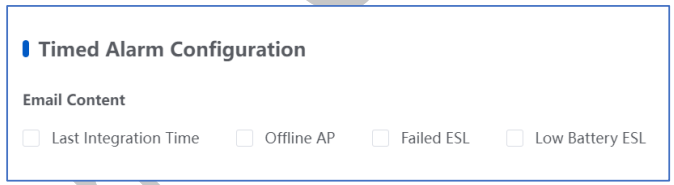
Timed Alarm Configuration
Timed Alarm Configurations Sends alerts on a regular schedule, including content such as the alerting operation time, offline APs, ESL failures, and battery levels ESLs.
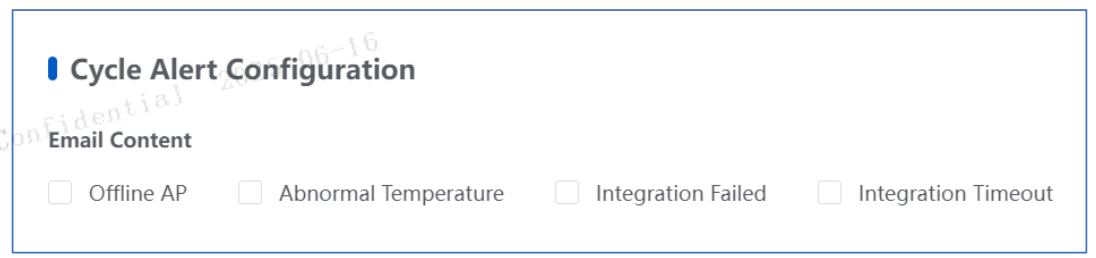
Cycle Alert Configuration
Cycle Alert Configurations Sends alerts at specified intervals, including content such as offline/online ESL statistics, low battery warnings, communication errors. The specified interval can be configured through CYCLE_ALARM_EMAIL_INTERVAL parameter in the cycle configurations options.
3.8.1.2 Cycle Alert Configuration
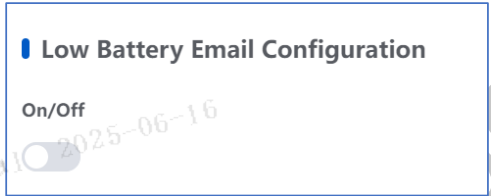
Low Battery Email Configuration
Sends alerts on a regular schedule, including content such as which ESLs have low battery.
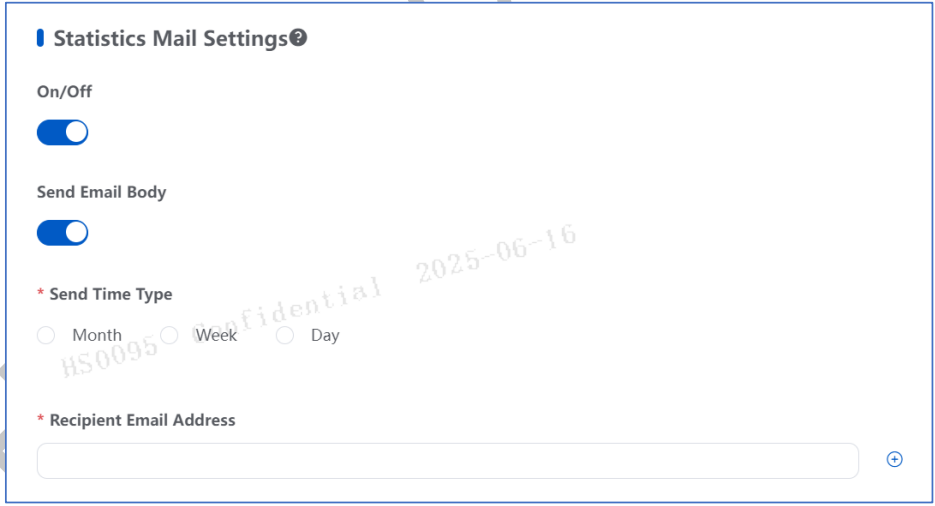
Statistics Email Settings
Statistics mail settings: Sends regularly, generating statistics on the number of times ESLs are bound, unbound, updated, offline and abnormal of each store.
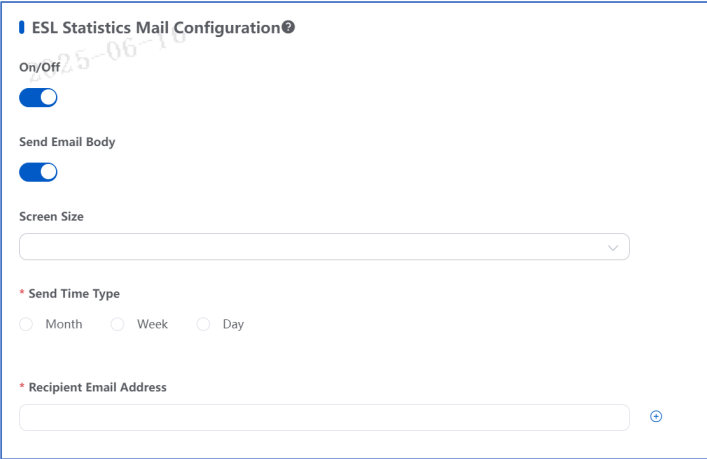
ESL Statistics Mail Configuration
Sends email regularly, summarizing the number of bindings for ESLs of each store and total binding for each store.
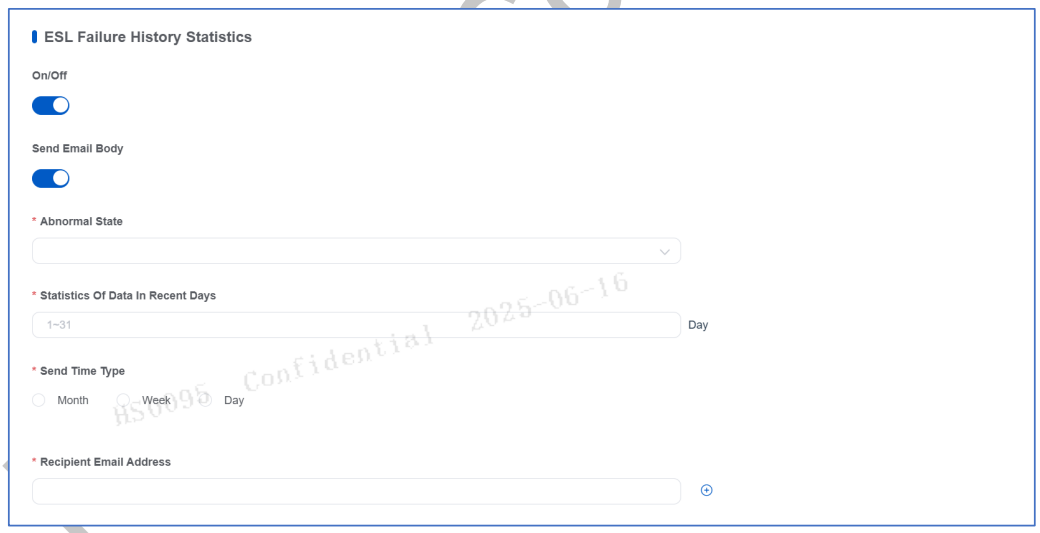
ESL Failure History Statistics
This feature enables users to query the historical record of failed ESL update events. Users can view historical update records of ESLs, failed ESL statuses, the time when update failures occurred, and related information. The update failure statistics can be exported to improve update efficiency and locate the root causes of update failures.
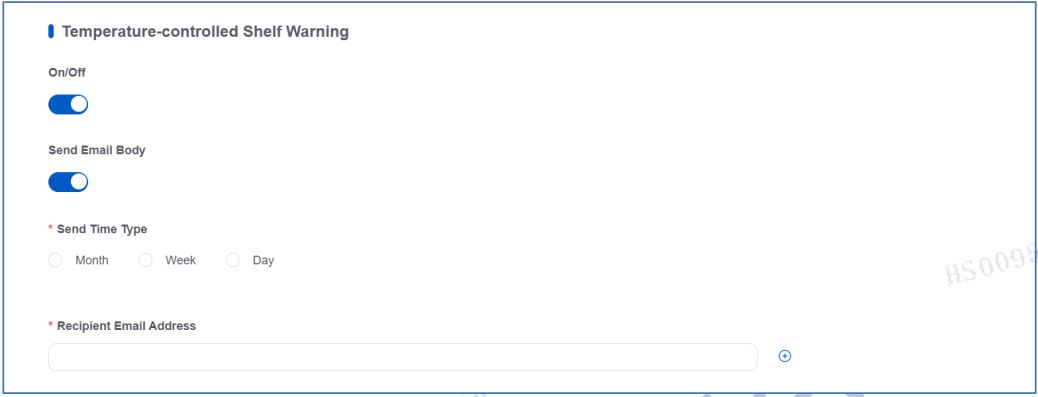
Temperature-controlled Shelf Warning
When a TCE (Temperature-controlled ESL) detects temperature changes different from the preset threshold, it will send a temperature warning alert email. Users can set the alert sender, email template, reminder mode, sending interval, etc. The sending interval can be configured in the TEMPERATURE_WARN_EMAIL_INTERVAL parameter.
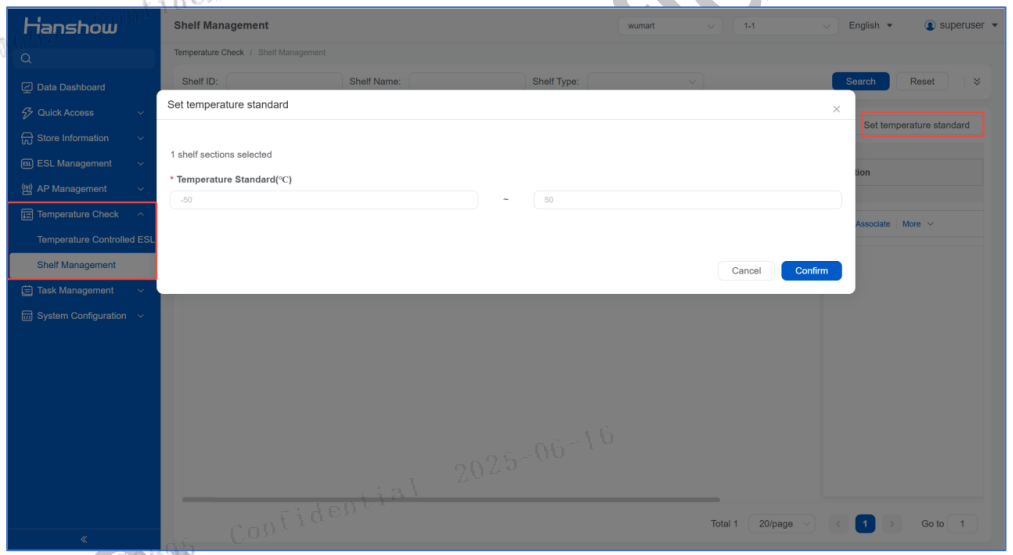
Users can select multiple recipients or forward the shelves to whom an alert needs. Set temperature standards in the upper right corner, as shown in Figure 3-83. The temperature standard can be customized in the popup window.
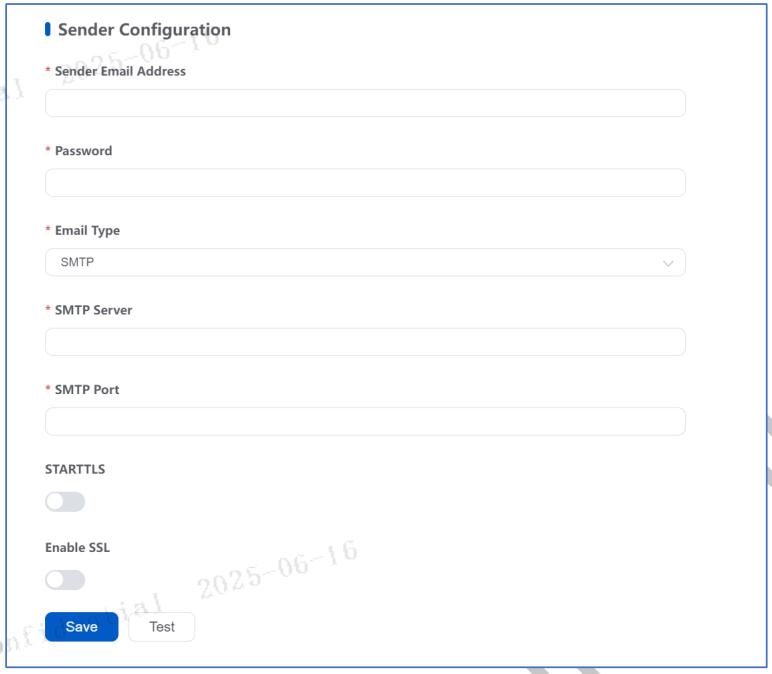
Sender Configuration
Select the type of email service (SMTP or Exchange) and configure sender settings:
- When selecting SMTP as the email type, configure:
- email sending server
- port number
- email address
- password
- choose whether to send testing ESL
Shown in Figure3-84.
When selecting Exchange as the email type, configure:
- email sending server
- employee mailbox
- username
- password
- choose whether to send testing ESL
Shown in Figure3-85.
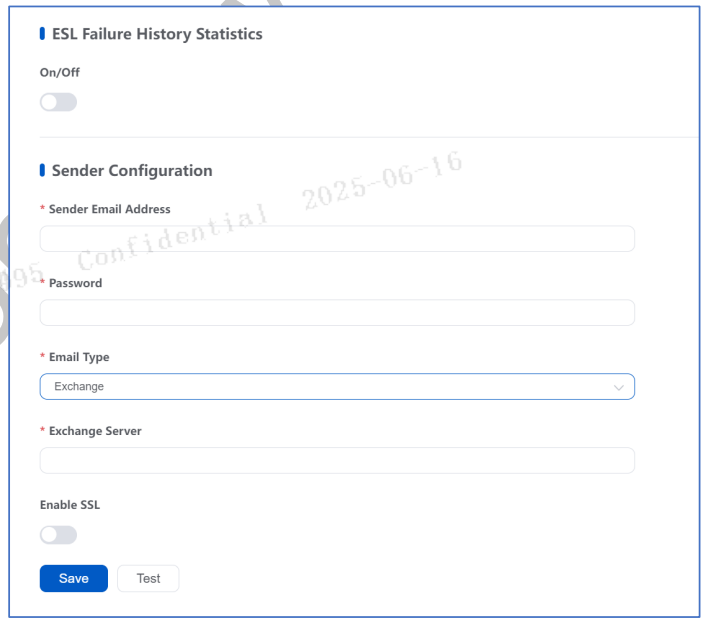
After completing email configuration, click Save. After successful creation, it will appear in the Email Configuration list. Click the task name to edit the configuration package. It is also easy to enable management and to toggle the task in statistical mail. The existing mail will be displayed in the list.
3.8.1.2 Edit an Email Configuration Package
Click the mail settings in the list to update the content of the configuration package, as shown in Figure3-86.
3.8.1.3 Delete a Mail Configuration Package
Click delete button to delete the current package.
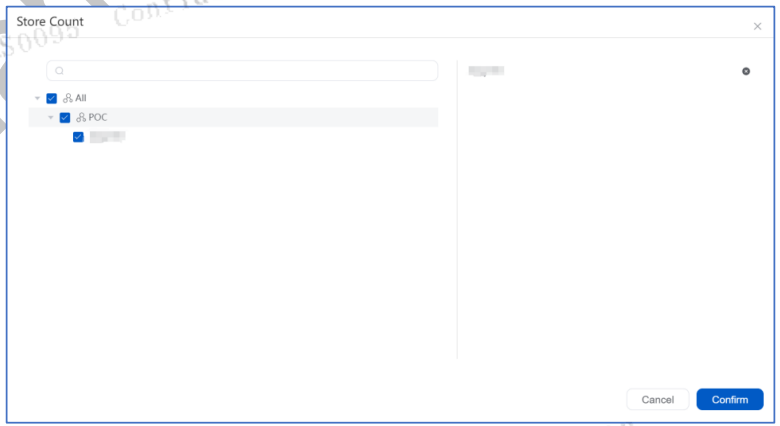
3.8.1.4 Store Count
Store count displays the stores under the user. The list view displays the operational stores that are under the user. Users can click the Store Count button to view the store list, and click the checkboxes before the stores to choose whether the alert email should be sent to the selected stores. Click Confirm to save the configuration settings, as shown in Figure3-87.
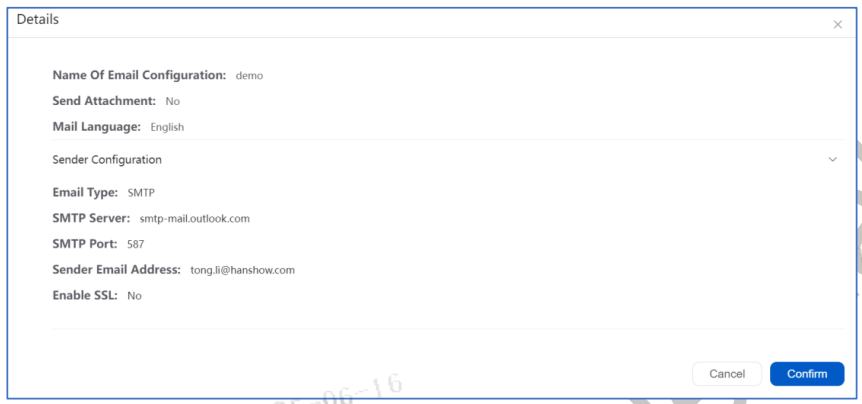
3.8.3.5 Details
Click the Details button in the ESL attribute package window and a popup window will appear where you can view the contents of the currently enabled attribute package, as shown in Figure 3-91.
3.8.3.6 Configuration Options
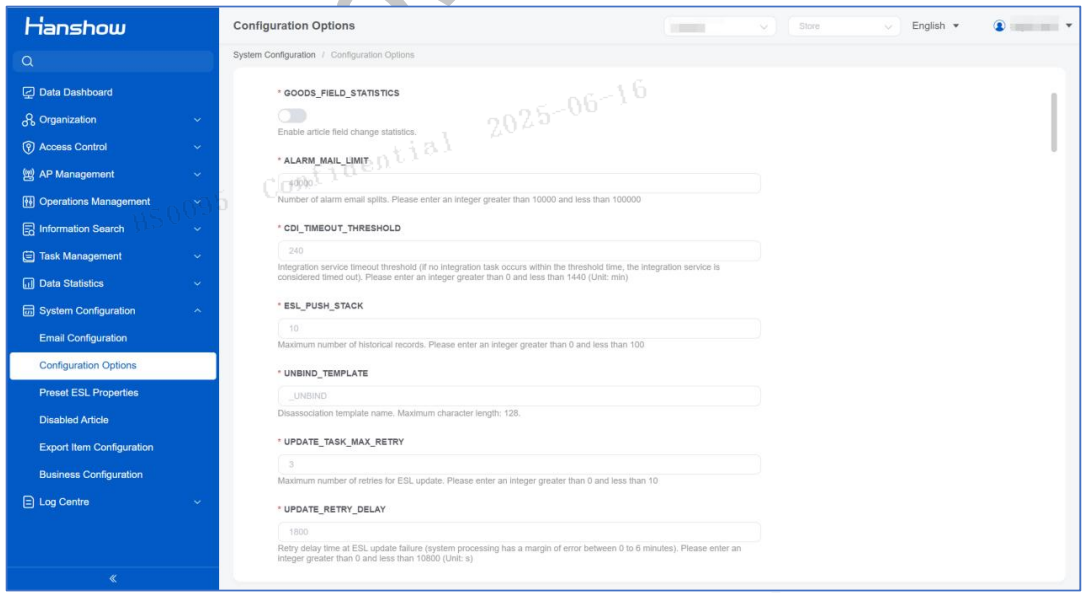
Configuration options refer to the setting of a series of configured parameters, such as content configuration, battery status, TMC signal strength, etc. Users can access configuration options by clicking Configuration Options under System Configuration in the navigation bar.
3.8.3 Preset ESL Properties
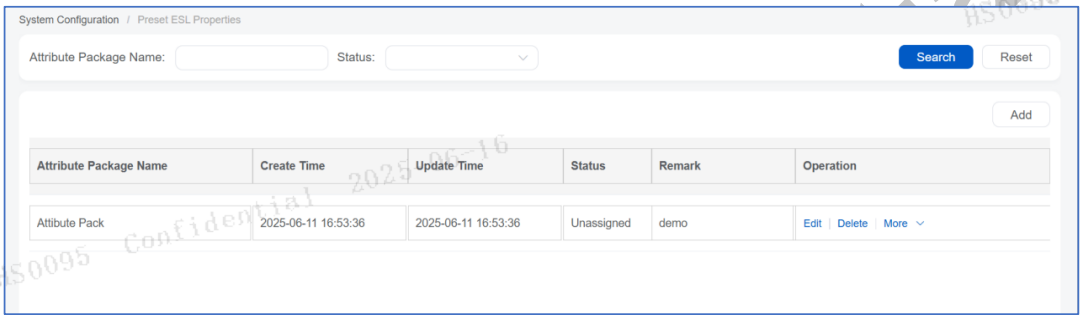
The customized preset ESL properties feature can issue attribute packages to ESLs, update ESL properties in batches, and support flexible property configuration. If no attribute package is configured, the system will publish a default attribute package. If the store does not have established configuration options, it will support the configuration of preset ESL properties.
To configure preset ESL properties, click System Configuration and enter Preset ESL Properties. The Preset ESL Properties page opens, as shown in Figure 3-93.
3.8.3.1 Add an Attribute Package
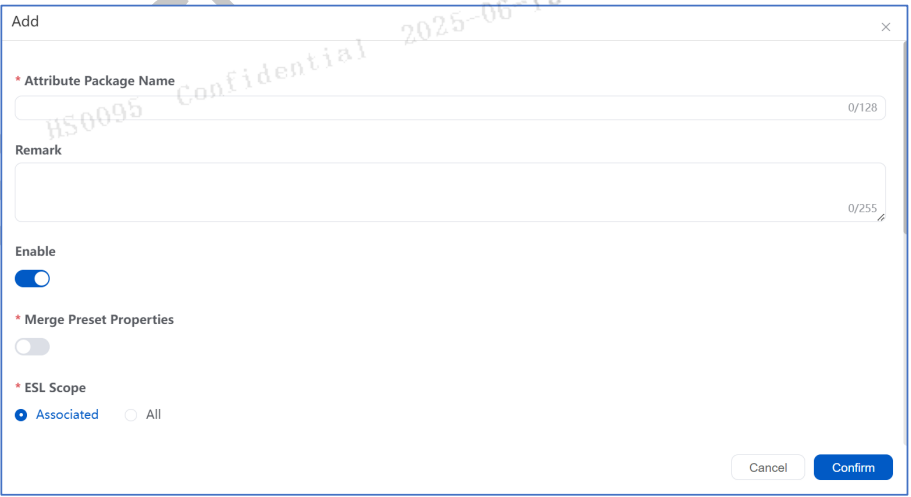
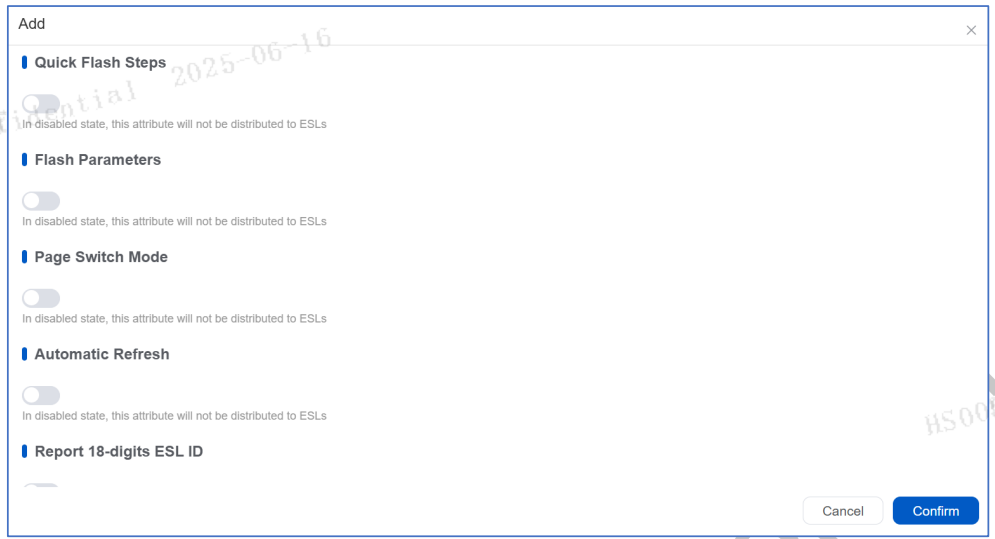
On the preset ESL property page, click Add to open the Add dialog box. Set the package name, select the attribute, and add the attribute. Attributes include:
- Refresh Interval
- Work Mode
- Automatic Refresh
- Report State
- Report State ESL battery
- Store Mode
3.8.3.2 Edit an Attribute Package
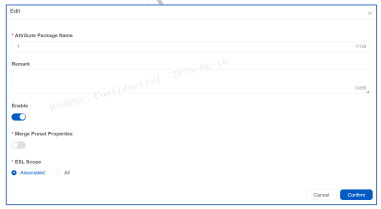
To edit the preset attribute package, click Edit. A popup window will appear. Modify the attributes and confirm the changes.
3.8.3.3 Assign an Attribute Package
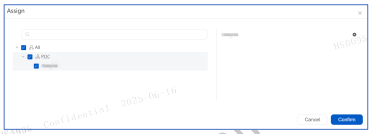
On the Preset ESL Properties page, in the row of the attribute package you want to assign, click Assign. Select the store you want to assign to the attribute package, and then click Confirm, as shown in Figure 3-96.
Note: If a store has the attribute package enabled, it will move the assigned organization into the attribute package.
3.8.3.4 Distribute an Attribute Package
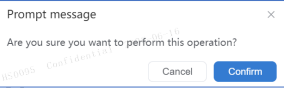
An attribute package needs to be distributed to the selected store for creation. On the Preset ESL Properties page, in the row of the attribute package you want to distribute, click Distribute to open a popup window. Click Confirm to distribute the attribute package, as shown in Figure 3-97.
3.8.4 Disabled Article
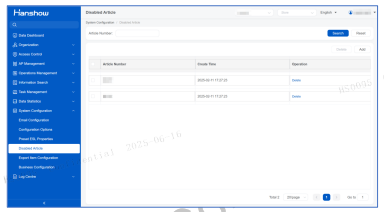
This subpage enables the customer management backend to set the restricted (banned) goods operations across all stores.
3.8.4.1 Add Disabled Article
Click Add next to input the listing and click confirm to add it globally. Banned SKUs will be cleared if exceeding daily limit.
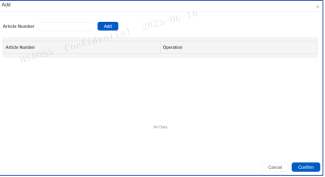
3.8.4.2 Delete Disabled Article
Deleted articles will be removed. Click Delete, confirm in the dialog to proceed.
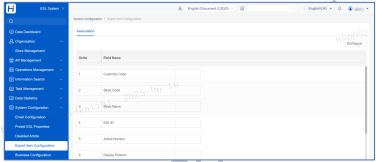
3.8.5 Export Item Configuration
This subpage aims to configure the fields when exporting articles from the Associating Information selected fields apply to all stores under the current account.
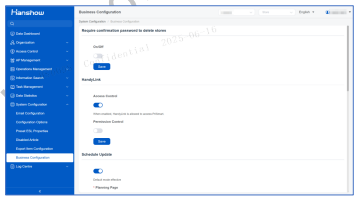
3.8.6 Business Configuration
Set passwords for store deletion and Handpick controls.
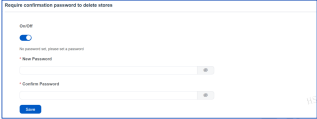
3.8.6.1 Password Confirmation for Store Deletion
For security, deletion requires a password meeting complexity rules with a dual confirmation.
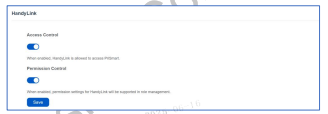
3.8.6.2 HandyLink Access Control
Enables Handpick to access PriSmart. Default is disabled. When enabled, HandyLink will be allowed to directly invoke PriSmart bankend, and role-based permissions for HandyLink can be configured.
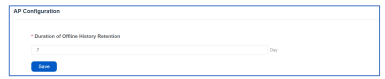
3.8.6.3 AP Configuration
AP offline history feature is added into the AP list to configure offline AP history retention (default: 7 days, max: 365 days).
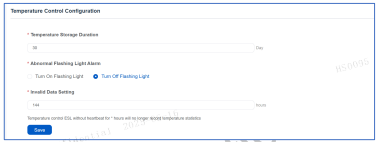
3.8.6.4 Temperature Control Configuration
This is the business options of Temperature-Controlled ESL (TC ESL) for configuring the temperature detection threshold (±2 to ±10 degrees) and alerts for the temperature-controlled ESLs.
Invalid Detection settings regulate stores not executing key items and self-led detection statuses.
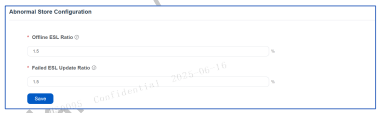
3.8.6.5 Abnormal Store Configuration
Configures thresholds for offline/low-battery ESL ratios (see the Abnormal Store data display in the Data Statistics)
3.9 Log Centre
3.9.1 Login Log
It records the login and logout information of users in the system, which is convenient for customers to conduct audits.
Recording Methods of Login/Logout Information:
- User Name
- Login and logout time
- Login IP address
- Login device information (such as browser type)
- Login source (such as direct access, single sign-on, API, etc.)
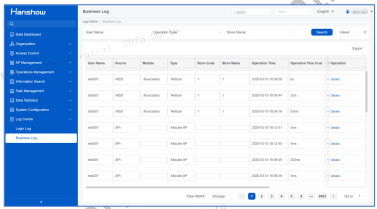
3.9.2 Business Log
This feature is used to record the business operation logs of users. For example, informationsuch as modifying products and creating users needs to be recorded.
4 Organization Administrator Operations
This chapter describes the operations an organization administrator can perform in thesystem.
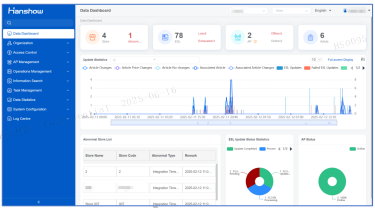
4.1 Data Dashboard
4.2 Organization
An organization administrator can manage organizations and stores of the organization.
4.2.1 Organization Management
Organization Management supports the management of stores by organizations. One ormore organizations can be created for the customer. Each organization can contain one ormore child organizations. When adding a store, an organization can be selected for the store.An existing store can also be assigned to an organization, so that stores can be managed byorganizations.
An organization administrator can also set ESL properties and assign the properties to thestores of the organization.
Organization administrators, who have jurisdiction over several stores, will only be able toview and manage data for these specific stores.
4.2.1.1 View Organization Information
On the navigation pane for the organization, click Organization, and then click Organization Management. The Organization Management page opens and displays the organization list and information, as shown in Figure 4-2
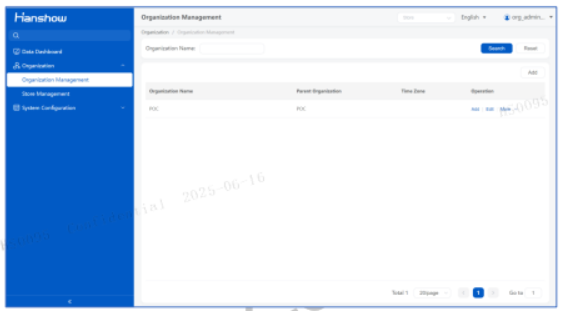
Figure 4-2 Organization Management page
4.2.1.2 Search Organizations
On the Organization Management page, enter the search criteria, and then click Search, as shown in Figure 4-3
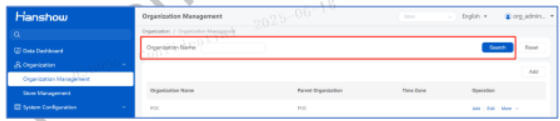
Figure 4-3 Search stores
4.2.1.3 Add an Organization
On the Organization Management page, click the Add button above the organization list or Add in the row of an organization, top open the Add dialog box, as shown in Figure 4-4 and Figure 4-5. The organization created by click the Add button above the organization list is the suborganization of the current organization, the organization created by click Add in the row of an organization is the suborganization of the organization in the row.
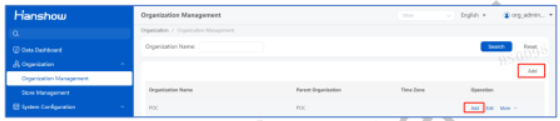
Figure 4-4 Add an organization-1
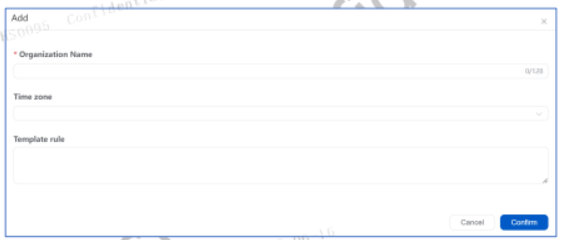
Figure 4-5 Add an organization-2
4.2.1.4 Edit an Organization
On the Organization Management page, in the row of the organization you want to modify,click Edit to open the Edit dialog box, as shown in Figure 4-6 and Figure 4-7.
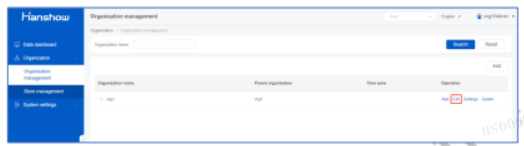
Figure 4-6 Edit an organization-1
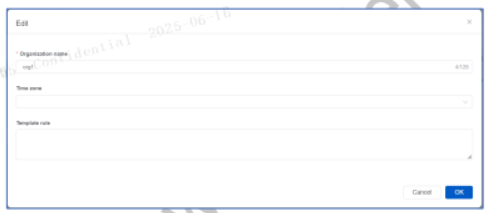
Figure 4-7 Edit an organization-2
4.2.1.5 Configure an Organization
On the Organization Management page, in the row of the organization that you want to set,click Configure to open the Configure page and set the organization parameters, as shownin Figure 4-8 and Figure 4-9. If a store has no store specific settings, it will use the settings ofits organization.
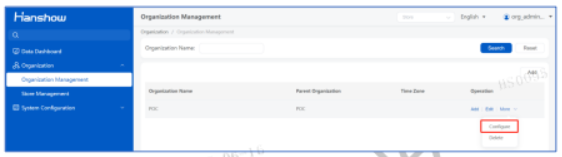
(Figure 4-8 Organization settings – 1)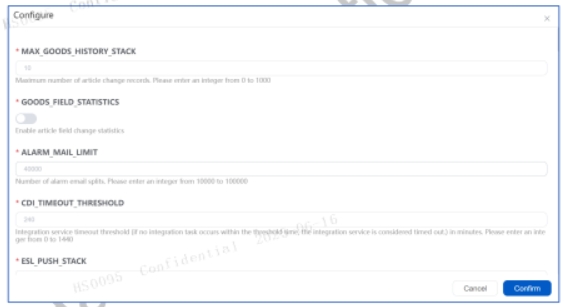
(Figure 4-9 Organization settings – 2)
4.2.1.6 Delete an Organization
On the Organization Management page, in the row of the organization you want to delete,click Delete to open the confirmation dialog box, as shown in Figure 4-10. Click Confirm toconfirm the deletion.
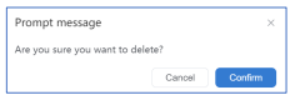
(Figure 4-10 Delete dialog box)
⚠️ Notice: Organizations in the following cases cannot be deleted directly:
- An organization that contains one or more stores cannot be deleted directly.Before deleting it, remove the stores from it.
- An organization that has been assigned to users cannot be deleted directly.Before deleting it, remove it from the users’ organization assignment.
- An organization that has scheduled tasks cannot be deleted directly. Beforedeleting it, remove the scheduled task from it.
4.2.2 Store Management
An organization administrator can manage the stores of the organization. Store Managementincludes viewing or editing store information, adding and searching stores, setting uporganizations, and enabling or disabling stores.
Store information includes ESU connection status and communication test, which can be used totest communications between a store and ESL-Working.
When a store is disabled, the store cannot be used and all operations for the store cannot beperformed.
When adding or editing store information, you can assign a time zone to the store. If a storeis assigned with a time zone, the page switch task, flash task, set-work task, and force-refreshtask for the store will be executed according to the time zone.
Store Management data are essential system data and are required for many basicoperations. Therefore, general Store Management operations do not include deletingstores.
4.2.2.1 View Store Information
On the navigation pane for the organization, click Organization, and then click StoreManagement. The Store Management page opens, as shown in Figure 4-11.
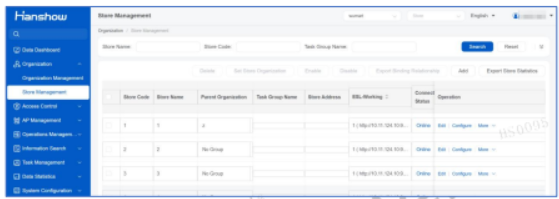
(Figure 4-11 Store Management page)
4.2.2.2 Search Stores
On the Store Management page, enter the search criteria such as store name and store code,and then click Search. As shown in Figure 4-12, you can click Expand to display more searchconditions.
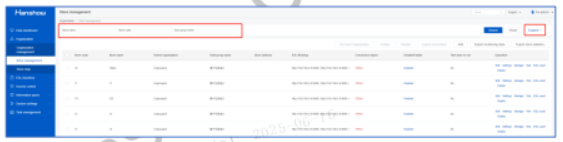
(Figure 4-12 Search stores)
4.2.2.3 Add a Store
On the Store Management page, click Add to open the Add dialog box, as shown in Figure4-13. The required fields are marked with asterisk "*".
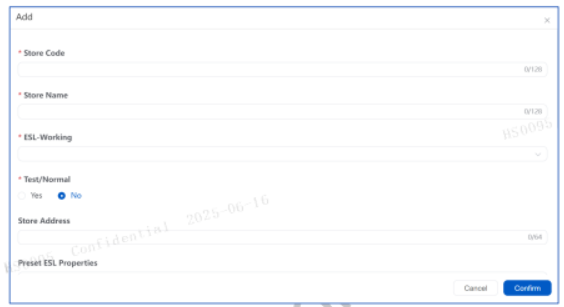
(Figure 4-13 Add a store)
4.2.2.4 Edit Store Information
On the Store Management page, in the row of the store you want to modify, click Edit toopen the Edit dialog box. The information that can be edited is the same as that described inAdd A Store.
4.2.2.5 View Store Status
On the Store Management page, in the row of the store that you want to view status for, clickManagement to open the store status page, as shown in Figure 4-14. The AP status summarythe store APs and corresponding IP addresses. You click the IP address of an AP to go to thesign-in page of the AP.
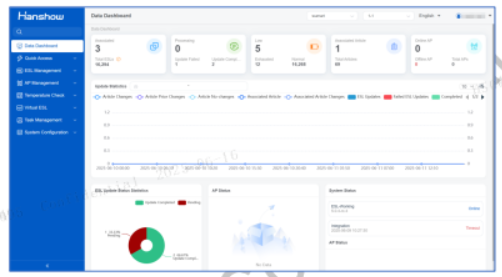
(Figure 4-14 Store status page)
4.2.2.6 Edit Store Configuration
On the Store Management page, in the row of the store that you want to view configurationfor, click Configure to open the store configuration dialog box, as shown in Figure 4-15. Youcan view or edit the system configuration items for the store.
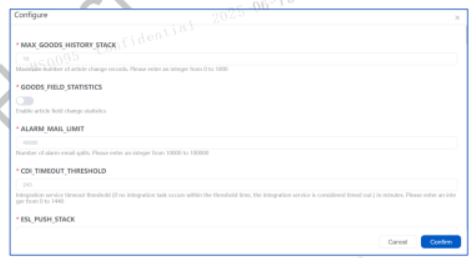
(Figure 4-15 Store settings dialog box)
4.2.3 Store Map
Store map management allows for the upload of one or more store-related images, such asdiagrams showing the deployment of store APs.
You can view a list of stores and see which maps each current store has, as well as performadd, modify, delete, and view operations. Supported formats include PDF, JPG, PNG, andBMP.
4.2.3.1 View Store MAP List
Click on Store MAP under Organization in the navigation bar. Enter the Store Map page,where you can see a list of stores and which maps each current store possesses, as shown inFigure 4-16:
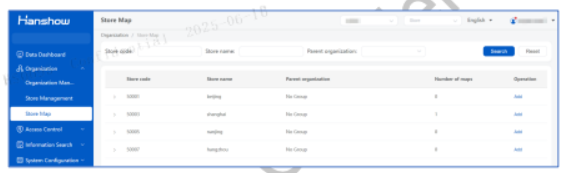
(Figure 4-16 Store MAP)
The table can display the current store, the organization to which the store belongs, and thenumber of maps the store has. Clicking the Expand button allows you to see specific detailsof the current store’s maps.
4.2.3.2 Add A Store Map
Click the Add button on the row where the store is listed to open a popup window, as shownin Figure 4-17. Maps can be uploaded in PDF, JPG, PNG, or BMP file formats. After entering therelevant map content, click Confirm to add the store map.
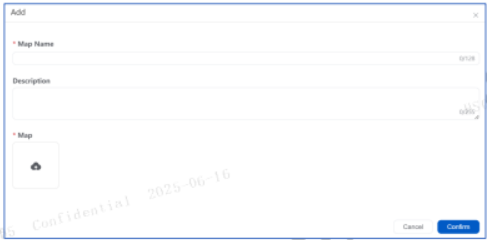
(Figure 4-17 Add a store map)
4.2.3.3 Edit A Store Map
Expand the store you need to modify. Click the Edit button on the row of the map you wantto change, and a popup window similar to the one for adding maps will appear. Whenmodifying the file, hover over the file thumbnail to delete and reselect, as shown in Figure4-18:
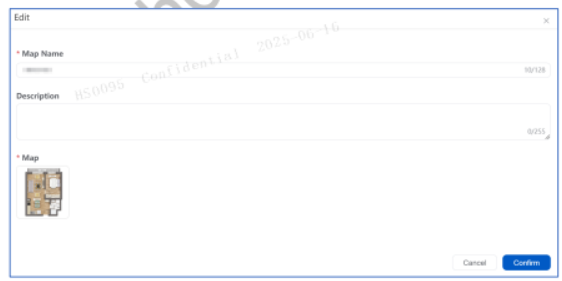
(Figure 4-18 Edit a store map)
4.2.3.4 Delete A Store MAP
When deleting a map, click the Delete button in the corresponding row to bring up acommand popup. To delete the map, you must enter the command YES and click Confirm toproceed with the deletion of the map, as shown in Figure 4-19:
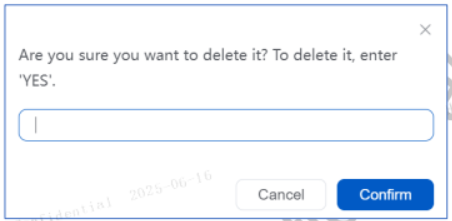
(Figure 4-19 Delete a store map)
4.2.3.5 View A Store MAP
Clicking the View button in the row of the map will open the corresponding file viewingwindow. You can click the buttons at the top to flip through pages and download.
If the file is an image, you can use the buttons below to rotate, zoom in/out, and download.
4.3 System Configuration
Organization-level System Configuration supports organization-level preset ESL properties.
4.3.1 Email Configuration
Click on Email Configuration under System Configuration in the navigation bar to set upemail alerts for that user level. Existing configurations will be displayed in the list as apackage named default, which is initially empty. When these items are reached, it will compileabnormal information according to the assigned range and send it to the specified recipients.You can configure the email sending server, the cycle for sending emails regularly, recipients,whether to send the failed ESL list as an attachment, and whether to use SSL, among others.
Clicking on Email configuration takes you to the email configuration list page, as shown inFigure 4-20:
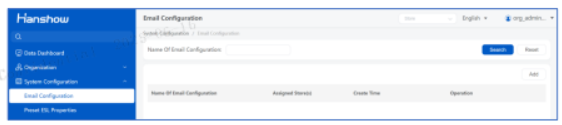
(Figure 4-20 Mail configuration list)
4.3.1.1 Add A Mail Configuration Package
Click Add, and the interface will switch to the editing page, where you need to enter the nameof the configuration package and the language of the email to be sent, as shown in Figure4-21:
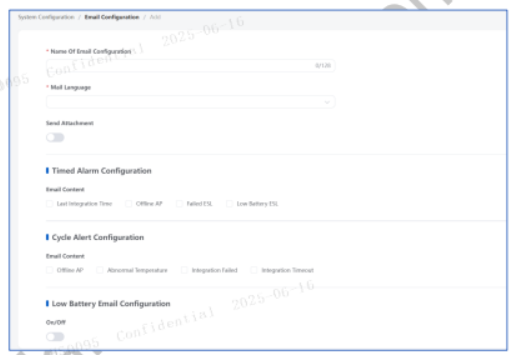
(Figure 4-21 Add a configuration package)
- Timed Alarm Configuration: Sends alerts on a regular schedule, including content suchas the last integration time, offline APs, abnormal ESLs, and low-battery ESLs.
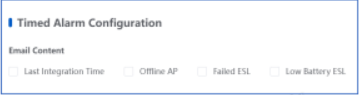
(Figure 4-22)
As shown in Figure 4-23, Cycle Alert Configuration: Sends alerts at specified intervals,including content such as offline APs, temperature anomaly ESLs, integration anomalies,and integration timeouts. Control whether to enable the functionality by checking thecorresponding content. The sending interval can be configured through theCYCLE_ALARM_EMAIL_INTERVAL property in the configuration options.
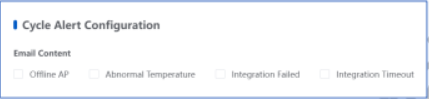
(Figure 4-23 Cycle Alert Configuration)
- Low Battery Email Configuration: Sends alerts on a regular schedule, including contentsuch as ESLs with low battery. As shown in Figure 4-24.
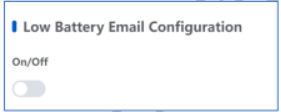
(Figure 4-24 Low Battery Email Configuration)
- Statistics Mail Settings: Sends regularly, compiling statistics on the number of timesESLs are bound, unbound, updated, successful, and abnormal for each store.
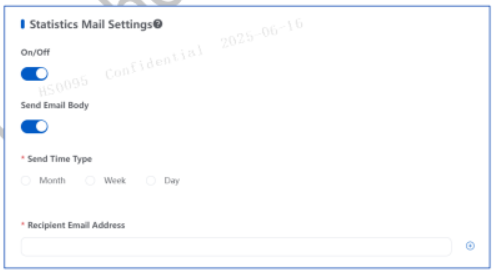
(Figure 4-25 Statistics mail settings)
- ESL Statistics Mail Configuration: Sends regularly, summarizing the number ofbindings for ESLs of each size and total bindings for each store. As shown in Figure 4-26.
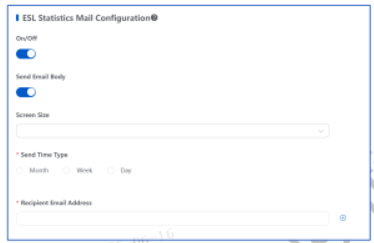
(Figure 4-26 ESL Statistics mail settings)
- ESL Failure History Statistics: This feature enables users to review historical records offailed ESL updates. By customizing monitored failure reasons and actively definingstatistical time ranges, users can retrieve critical information of interest. This facilitatestimely issue identification, root cause analysis, and implementation of corrective actionsto address update failures.
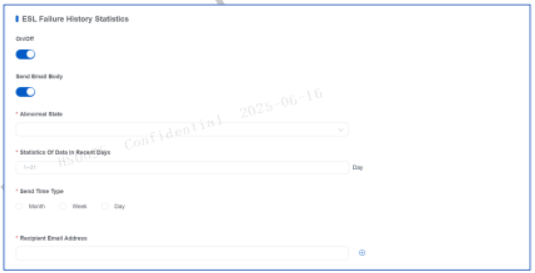
(Figure 4-27 ESL Failure History Statistics)
Temperature-controlled Shelf Warning: When a TCE (Temperature-controlled ESL)with a temperature capture function detects that the shelf it is on has exceeded the user-defined temperature range, a temperature-anomaly alarm will be triggered, and
warning email will be sent according to the user-defined email warning strategy (asshown in Figure 4-28). In the shelf list of Temperature Check > Shelf Management,users can select (multiple selections are allowed) the shelves on their own, and then click“set temperature standard” in the upper-right corner, as shown in Figure 4-29. Thetemperature standard can be customized in the pop-up window.
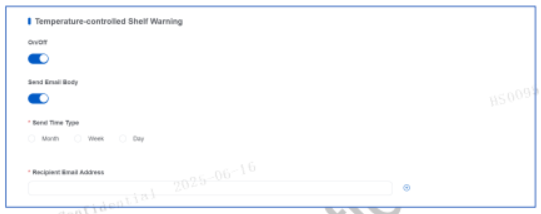
(Figure 4-28 Temperature-controlled Shelf Warning Email Configuration Interface)
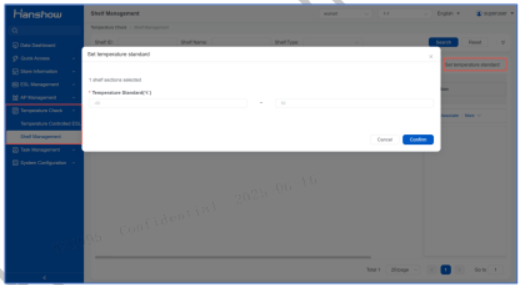
(Figure 4-29 User-defined Temperature Standard)
- Sender Configuration: Select the type of email service (SMTP or Exchange) andconfigure the sender’s email address.
- When selecting SMTP as the email type, configure the email sending server, portnumber, email address, and email password, and choose whether to send using SSL,as shown in Figure 4-30:
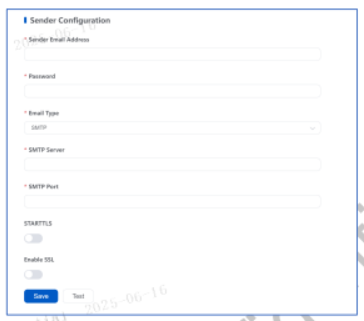
(Figure 4-30 Sender Configuration-SMTP)
- When selecting Exchange as the email type, configure the email sending server,email address, and email password, and choose whether to send using SSL, as shownin Figure 4-31:
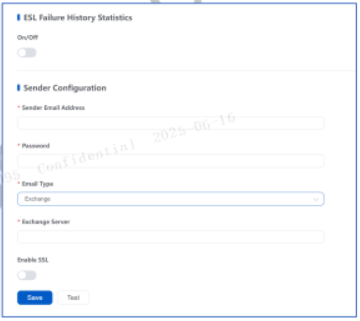
(Figure 4-31 Sender Configuration-Exchange)
After completing all configurations, click Save. After successful creation, it will return tothe list page. The default statistical range for the newly created configuration package
- Sender Configuration: Select the type of email service (SMTP or Exchange) andconfigure the sender’s email address.
includes all stores within the management scope of the logged-in user. The statisticalrange can be adjusted by modifying the stores included in the statistics.
4.3.1.2 Edit an Email Configuration Package
Click the modify button on the list page to edit the contents of the configuration package, asshown in Figure 4-32.
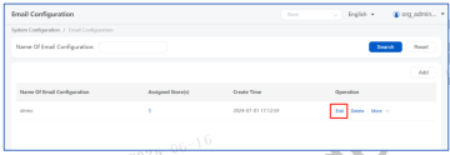
(Figure 4-32 Edit a configuration package)
4.3.1.3 Delete A Mail Configuration Package
Click Delete button to delete the current configuration package.
4.3.1.4 Store Count
Click the Store Count button, and a popup will appear showing the stores that are currentlybeing counted in the configuration package. The left side displays the organizationalstructure and stores managed by the current user, where you can search and filter relevantcontent in the input box. The right side lists the currently selected stores. Click Confirm tosave the configured statistical stores, as shown in Figure 4-33:
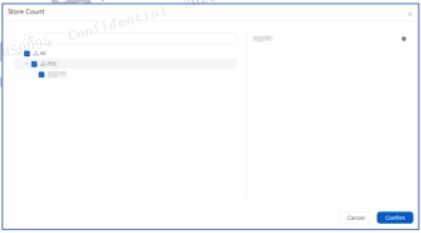
(Figure 4-33 Store Count Options)
4.3.1.5 Details
Click the “Details” button in the list, and a popup window will appear where you can view thecontents of the currently enabled attribute package, as shown in Figure 4-34:
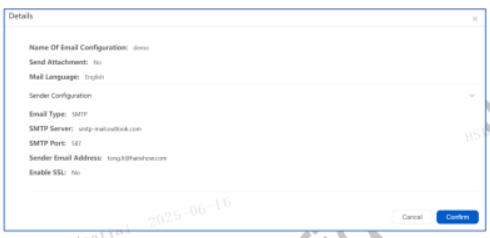
(Figure 4-34 View details)
4.3.2 Preset ESL Properties
With the organization-level preset ESL properties function, an organization administratorcan set and distribute attribute packages. By default, attribute packages are disabled. To usean attribute package, an organization administrator can enable it and assign it to stores. Anorganization administrator sets the property parameters including quick flash steps, flashparameters, page switch mode, 24H automatic refresh, and report 18-digits ESL ID.
On the navigation pane for the customer, click System Configuration, and then click PresetESL properties. The Preset ESL properties page opens, as shown in Figure 4-35.
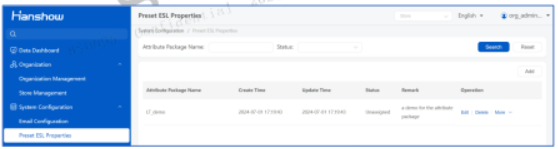
(Figure 4-35 Preset ESL properties page)
4.3.2.1 Add An Attribute Package
On the Preset ESL properties page, click Add to open the Add dialog box. Set the packagename and remarks, enable the attribute package, and set the property parameters, as shownin Figure 4-36.
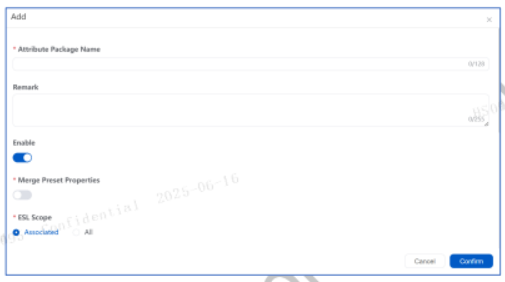
(Figure 4-36 Add attribute package)
4.3.2.2 Assign An Attribute Package
On the Preset ESL properties page, in the row of the attribute package you want to assign,click Assign. Select the store you want to assign to the attribute package, and then clickConfirm, as shown in Figure 4-37.
⚠️ Note: If a store has its own attribute package and the attribute package is enabled, it will not use the assigned organization-level attribute package.
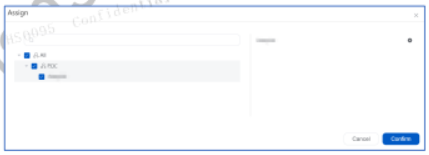
(Figure 4-37 Assign attribute package dialog box)
4.3.2.3 Distribute An Attribute Package
An attribute package needs to be manually distributed to take effect after creation. On thePreset ESL properties page, in the row of the attribute package you want to distribute, clickDistribute. In the confirmation dialog box, click Confirm, as shown in Figure 4-38.
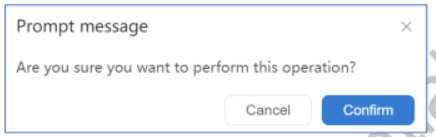
(Figure 4-38 Distribution confirmation dialog box)
4.3.2.4 View Attribute Package Details
On the Preset ESL properties page, in the row of the attribute package you want to viewdetails for, click View details of the package, as shown in Figure 4-39.
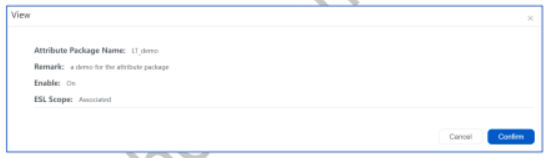
(Figure 4-39 View attribute package details)
4.4 Data Statistics
As shown in Figure 4-40, the data statistics module compiles a report on abnormal ESLs anda summary of AP data for all stores under the organization.
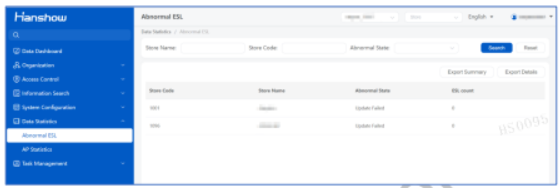
(Figure 4-40)
4.4.1 Abnormal ESLs
4.4.1.1 View Abnormal ESLs
Supports queries by store name, store number, and abnormal status, with the abnormalstatuses as shown in Figure 4-41:
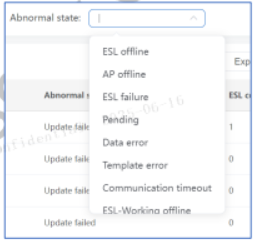
(Figure 4-41)
4.4.1.2 Export Summary of Abnormal ESLs
Supports exporting a summary of abnormal ESLs for all stores under an organization, in CSVfile format. The fields included in the export are store number, store name, abnormal status,and the quantity of ESLs.
4.4.1.3 Export Detailed Abnormal ESLs
Click Export details, and you can select which abnormal status of ESL details to export. Afterselection is complete, click Confirm to export the details for that particular reason foranomaly.
4.4.2 AP Statistics
Statistics on APs for all stores under an organization, including the total number of APs,offline, and online APs per store. The statistical data of the APs all support quick link accessto the store’s APs, as shown in Figure 4-42:
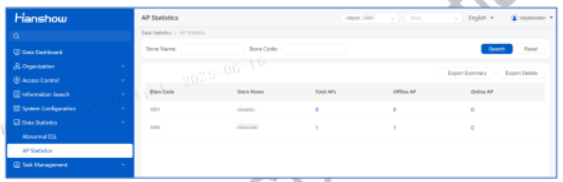
(Figure 4-42)
4.4.2.1 View AP Summary
Supports searching by store name and store number to quickly locate the store of interest.
4.4.2.2 Export AP Summary
Exports a CSV file containing information such as store number, store name, number ofonline APs, number of offline APs, and total APs.
5 Store Operator Operations
This chapter describes the operations a store operator can perform in the system.
5.1 Quick Access
On the navigation pane for the store you want to manage, click Quick Access.
5.1.1 ESLs
The ESLs function supports importing data for ESLs (usually 1st generation, fresh food ESLs),viewing, deleting, and searching ESL information, searching update result, using ESL internalcode to associate ESLs with articles or disassociate ESLs from articles, flashing and exportingESL information. All operations must be performed on the ESLs page of the correspondingstore.
ESL information are added and submitted by the ESL-Working system corresponding to thestore. The ESLs page shows basic ESL information including 11-character ESL ID, 18-character ESL barcode, firmware ID, battery status, freezer support, status, and lastheartbeat time. A single ESL can associate with one or more articles.
With the ESLs function, you can check whether an ESL is a freezer ESL and check the batterystatus. For associated low-battery ESLs, you can set low-battery alarm to send alarm emails.The low-battery policy only applies to ESL-Working 3.3.0 and higher version.
On the navigation pane for the store you want to manage, click Quick Access, and then clickESLs. The ESLs page opens, as shown in Figure 5-1.
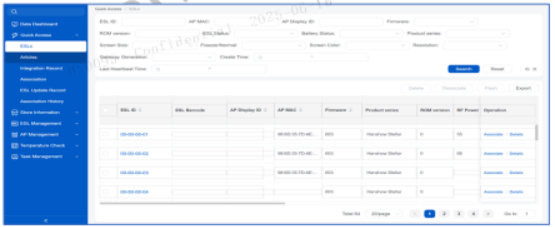
(Figure 5-1 ESLs page)
5.1.1.1 Search ESLs
On the ESLs page, you can search ESLs by ESL ID or barcodes. You can hover the cursor overthe ID of an ESL to view the resolution and color information of the ESL, as shown in Figure5-2.
Searching conditions can be configured by users.
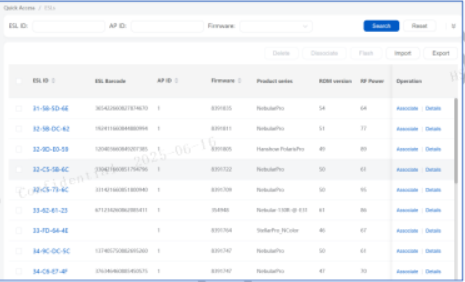
(Figure 5-2 Search ESLs)
(Figure 5-3 ESL searching conditions can be customized)
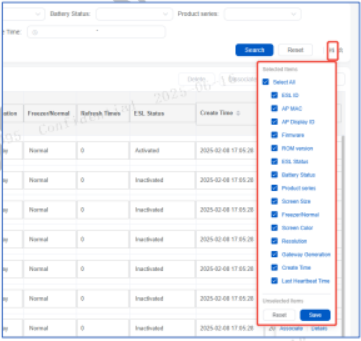
5.1.1.2 Delete ESLs
On the ESLs page, select the ESL(s) you want to delete, and then click Delete. If the selectedESL has been associated with an article, a dialog box will open and indicate that you mustfirst disassociate the ESL before deleting it. If the select ESL hasn’t been associated, aconfirmation dialog box will open, as shown in Figure 5-4. Click Confirm to confirm thedeletion.
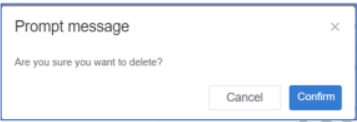
(Figure 5-4 Delete ESL)
5.1.1.3 Associate
On the ESLs page, select the ESL you want to associate, and then click Associate. TheAssociate dialog box opens, as shown in Figure 5-5. Enter the article number and clickConfirm. For an ESL supporting split screen, you can turn on split screen by turning off theFull screen switch, and then associate different split screens with different articles byselecting screens from the drop-down list, as shown in Figure 5-6.
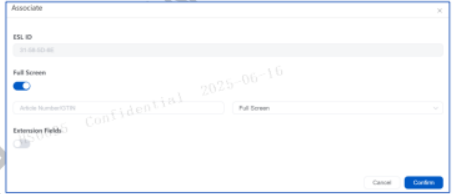
(Figure 5-5 Associate dialog box)
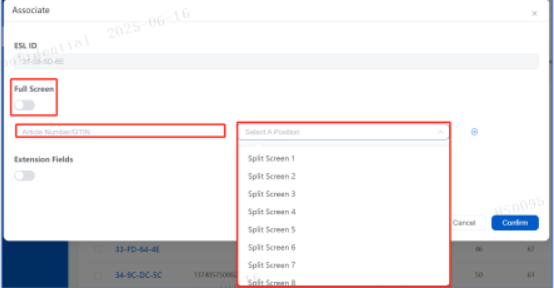
(Figure 5-6 Associate - split screen)
5.1.1.4 Disassociate
On the ESLs page, select the ESL(s) you want to disassociate, and then click Disassociate. Aconfirmation dialog box opens, as shown in Figure 5-7. Click Confirm to disassociate theESL(s) from article(s).
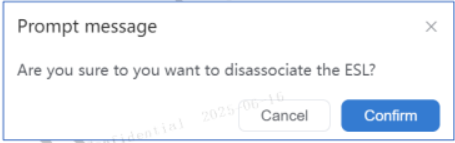
(Figure 5-7 Disassociate)
5.1.1.5 Flash
On the ESLs page, select the ESL(s) you want to turn on flash for, and then click Flash. A dialogbox opens, as shown in Figure 5-8. Set flashing time, select flash color, and then click Confirm.
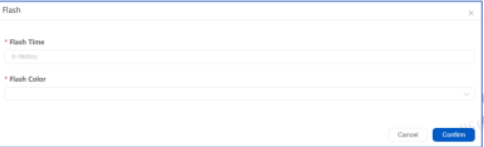
(Figure 5-8 Flash setting)
5.1.1.6 Import ESL Information
The ESL import function is usually used to import 1st generation fresh food ESLs that have notheartbeats, other 3rd/5th generation ESLs are not supported for importing.
On the ESLs page, click Import. The Import dialog box opens, as shown in Figure 5-9. Uploadthe correct ESL file, and then click Confirm to import the ESL information in batch.
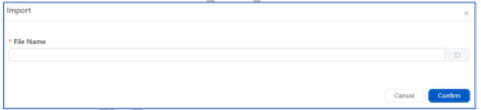
(Figure 5-9 Import dialog box)
The file should be in .csv format, as shown in the following example.
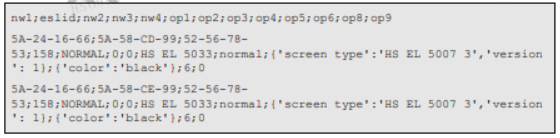
5.1.1.7 Export ESL Information
On the ESLs page, you can click Export to download the ESL information of the currentsearch result. If no conditional search is performed, all ESL information will be exported.
5.1.2 Articles
The Articles function supports viewing, adding, editing, deleting, or searching articles, usingarticle numbers to associate articles with ESLs or disassociate articles from ESLs, and viewingESL update history. Article data are usually imported from CDI integration.
On the navigation pane for the store you want to manage, click Quick Access, and then clickArticles. The Articles page opens, as shown in Figure 5-10. You can view article information,search, add, edit, delete, associate, or disassociate articles.
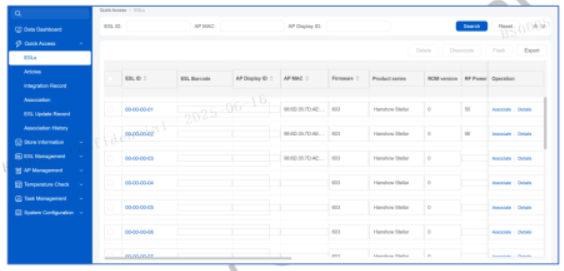
(Figure 5-10 Articles page)
5.1.2.1 Search Articles
On the Articles page, you can search articles by specified article content, as shown in Figure5-11. If no article content is specified, the information of all articles will be displayed.
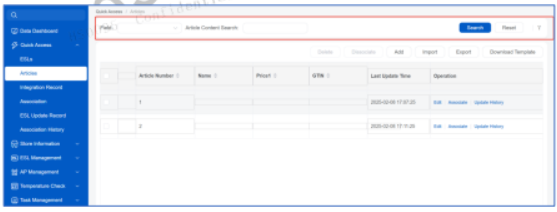
(Figure 5-11 Search articles)
5.1.2.2 View Article Details
On the Articles page, in the row of an article, you can click the arrow sign to view details ofthe article, as shown in Figure 5-12. Click the arrow sign again to collapse the detail list.
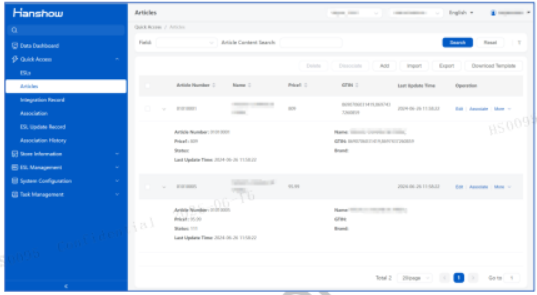
(Figure 5-12 View article details)
5.1.2.3 Add an Article
On the Articles page, click Add to open the Add dialog box. Enter the information of thearticle you want to add, and then click Confirm. The newly added article will be displayed inthe article information list. The required field is marked with asterisk “*”, and the articlenumber must be unique, as shown in Figure 5-13.
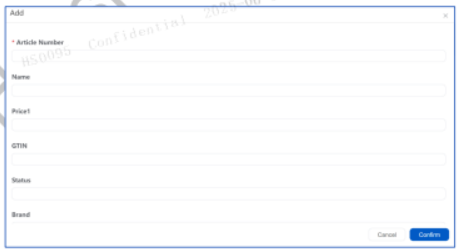
(Figure 5-13 Add article dialog box)
5.1.2.4 Edit Article Information
On the Articles page, select the check box of the article you want to edit, and then click Edit.Edit the article information on the dialog box, and then click Confirm, as shown in Figure 5-14.
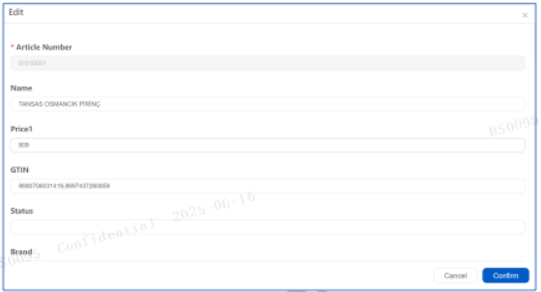
(Figure 5-14 Edit article information)
5.1.2.5 Delete Articles
On the Articles page, select the check box(es) of the article(s) you want to delete, and thenclick Delete. A confirmation dialog box opens, as shown in Figure 5-15. Click Confirm toconfirm the deletion. After the deletion, the Articles page will refresh. If an associated articleis deleted, the association relationship will end.
(Figure 5-15 Delete an article)
5.1.2.6 Associate
On the Articles page, in the row of the article you want to associate, click Associate. Enterthe correct ESL barcode and hit Enter, or select ESL barcode from the drop-down list. MultipleESL barcodes can be added. Click Confirm to complete the association, as shown in Figure5-16. The newly added association will be displayed on the Association page, as shown inFigure 5-17.
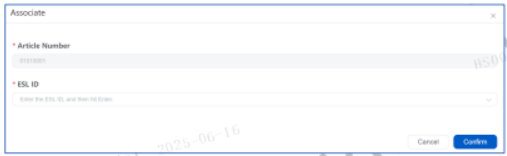
(Figure 5-16 Associate an article)
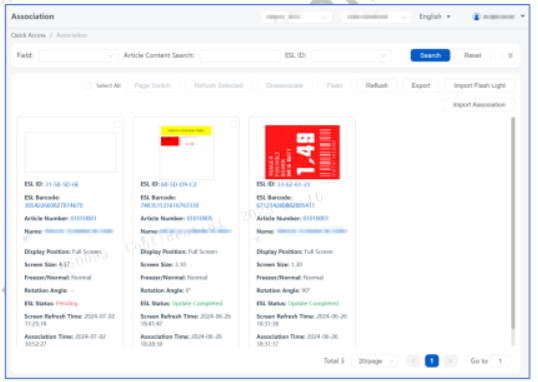
(Figure 5-17 Associating Information page)
⚠️ Note: The ESL barcode can be entered in one of the following formats:
- 6-character code: ESL barcode on the ESLs page, for example, 5A34A3; consists of numbers, lowercase letters a–f, or uppercase letters A–F.
- 11-character code: ESL ID on the ESLs page, for example, 54-04-6B-EE; consists of numbers, lowercase letters a–f, uppercase letters A–F, or “-”.
- 18-digit code: ESL barcode on the ESLs page, for example, 123456789012345678; consists of 18 numbers.
You can get the ESL barcode by scanning it from the ESL, as shown in Figure 5-18, Figure 5-19, and Figure 5-20.
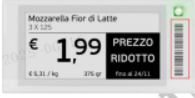
(Figure 5-18 ESL-L1)
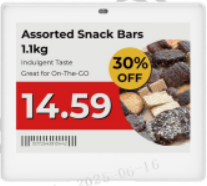
(Figure 5-19 ESL-L2)
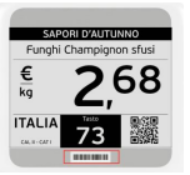
(Figure 5-20 ESL-L3)
5.1.2.7 Disassociate
On the Articles page, select the article(s) you want to disassociate, and then clickDisassociate. In the dialog box, select the ESL(s) you want to disassociate, and then clickConfirm to disassociate the article(s) from ESL(s), as shown in Figure 5-21.
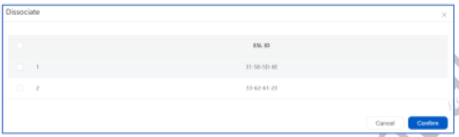
(Figure 5-21 Disassociate)
5.1.3 Integration Record
On the navigation pane for the store you want to manage, click Quick Access, and then clickIntegration record. The Integration record page opens, as shown in Figure 5-22. You canview search number of articles or ESLs updated in current (in the Integration Prompt tab),historical integrations (in the Integration History tab) and pended integrations (in theIntegration pending tab). You can also click an article quantity to view the integrationinformation (such as article number and status) of each article in that batch, as shown inFigure 5-23; or you can click an ESL quantity to view the integration information (such as ESLID and status) of each ESL in that batch, as shown in Figure 5-24.
(Figure 5-22 Integration Records page)
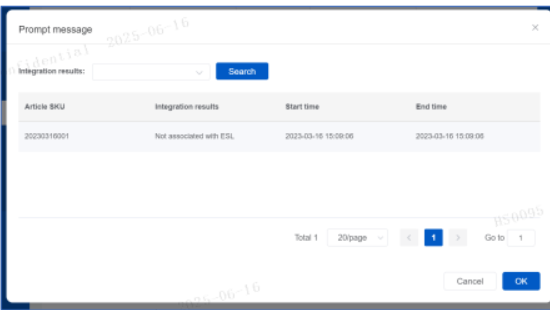
(Figure 5-23 Integration Record, Article Details)
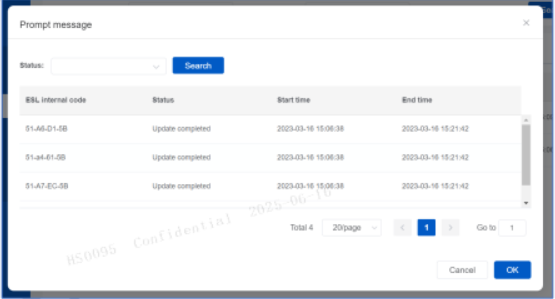
(Figure 5-24 Integration Record, ESL Details-2)
5.1.4 Association
On the navigation pane for the store you want to manage, click Quick Access, and then clickAssociation. The Association page opens, as shown in Figure 5-25. You can searchassociating information, flush, import flash, disassociate, flash, or export. Clicking an article’sname will open the Articles page displaying the information of the article; clicking an ESL IDwill open the ESLs page displaying the information of the ESL.
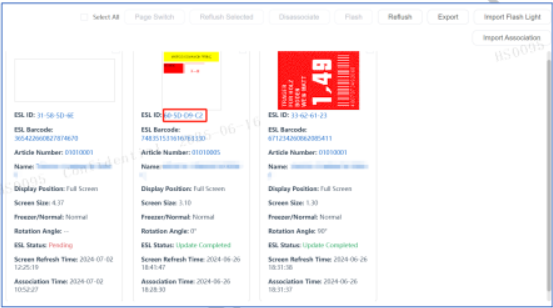
(Figure 5-25 Association page)
5.1.4.1 Search Associating Information
On the Association page, enter the search criteria, such as article field, correspondingcontent of article field, screen size, color, and resolution, and then click Search, as shown inFigure 5-26. Users can define their own searching conditions and hide those fields they don’tneed.

(Figure 5-26 Associating Information)
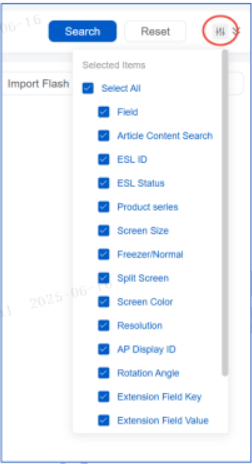
(Figure 5-27 Customized Searching Conditions)
The ESLs might be in the following status: all, update succeeded, updating, repushing, ESLoffline, low battery, data error, AP offline, ESL failure, pending, template error, ESL-Workingoffline, communication timeout, and no store in ESL-Working.
Update completed: The ESL has been successfully associated and updated.
Updating: The newly associated ESL is in the process of updating.
- Status descriptions: After the update completes, the update result will be displayed, forexample, update success or failure.
- Operation instructions: Wait for the system to update the status.
Repushing: The ESL is in the process of repushing.
- Status descriptions: After the repushing completes, the repushing result will be displayed,for example, update success or failure.
Operation instructions: Wait for the system to update the status.
Pending Update failed.
Status descriptions: Communication failed.
AP Offline: Update failed because the AP is offline.
Operation instructions: The association will be flushed when the AP is online.
Template error: There is an error in the template file.
Status descriptions: The coordinates exceed the boundary or the expression is incorrect.
Operation instructions: Check and correct the template file.
Data error: The type of parameters in the template file does not match the type ofissuance data, or there is an error in issuance data.
Operation instructions: Check and correct the template file and issuance dataparameters.
ESL failure/Low battery: ESL error.
Status descriptions: Problem of ESL hardware or heartbeat communication, or low ESLpower caused update failure.
Operation instructions: Check the ESL.
ESL offline: The system cannot communicate with the ESL.
Status descriptions: The ESL has no heartbeat for a long time.
Operation instructions: Check whether the ESL is in the correct location.
ESL-Working Offline: The system cannot communicate with ESL-Working.
Status descriptions: The system cannot send distribution message to ESL-Working.
Operation instructions: Check the network communication, and the ESL-Workingconfiguration in the PriSmart system.
Communication timeout: The time for communication between ESL and AP is too long.
Status descriptions: The AP didn’t receive the message reported by the ESL.
Operation instructions: Check whether the ESL and AP are normal.
No store in ESL-Working: The system cannot communicate with the store.
Operation instructions: Check whether the store is assigned to an AP.
Not-issued ESL: The ESL is in the Not-issued ESL list, it cannot be updated.
Associate Canceled Due To Heartbeat Timeout: If an ESL has no heartbeat, it will not beissued to ESL-Working.
⚠️ Notice: This function requires specific configuration options. The ESL will not beissued if there is no heartbeat for “H” time (i.e. the ESL_HB_TIMEOUT_UNPUSH_ENABLEand ESL_HB_TIMEOUT_UNPUSH options).
5.1.4.2 Page Switch
Select an ESL, and select a page to switch to, enter the duration of page stay duringswitching, whose measuring unit is minute, then click Confirm, to allow the ESL page switch.
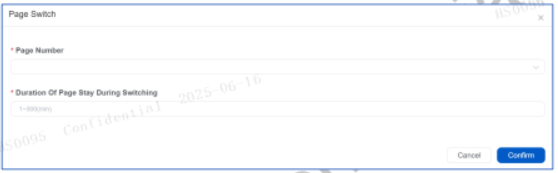
(Figure 5-28)
5.1.4.3 Reflush
On the Association page, click Reflush to open the Reflush dialog box, as shown in Figure5-29. Select update status (All, Update Failed, or Updating). To reflush ESL update to allarticles, select All. To reflush ESL update to only update-failed articles, select Update failed.
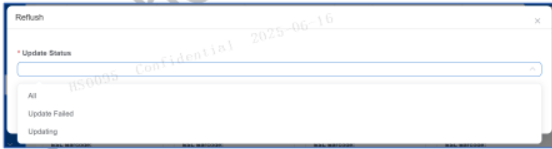
(Figure 5-29 Reflush dialog box)
On the Association page, you can select the check boxes of specific articles, and then clickReflush Selected to reflush ESL update for those articles.
⚠️ Please note that the selection here can only be made for ESLs on the current page andcannot span across pages.
5.1.4.4 Import Flash Light
On the Association page, click Import Flash Light. You can import the articles that requireflash, according to existing fixed file format. The flashing time can be set within the range of0–3600s, as shown in Figure 5-30.
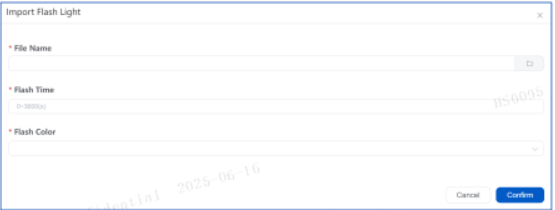
(Figure 5-30 Import Flash Light)
The imported file should be in .txt format. The file content is the list of SKUs (each SKU perline), as shown in the following example:

5.1.4.5 Disassociate
On the Association page, select the ESL(s) you want to disassociate, and then clickDisassociate. A confirmation dialog box opens, as shown in Figure 5-31. Click Confirm todisassociate the ESL(s) from article(s).
(Figure 5-31 Disassociate)
5.1.4.6 Flash
On the Association page, check the box of the ESL(s) you want to turn on flash for, and thenclick Flash. A dialog box opens, as shown in Figure 5-32. Set flashing time, select flash color,and then click Confirm.
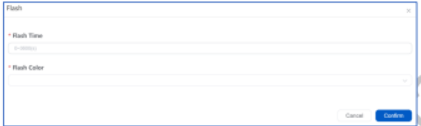
(Figure 5-32 Flash)
5.1.4.7 Export Associating Information
On the Association page, you can click Export to download the associating information ofthe current search result. If no search is performed, all associating information will beexported.
5.1.4.8 Import Association
As shown in Figure 5-33, the Import Association is applicable to those stores which does notuse PDAs. The associating information can be imported by files to trigger update. CSV filescan be imported, and an example file can be downloaded from the popup, as shown in Figure5-34.
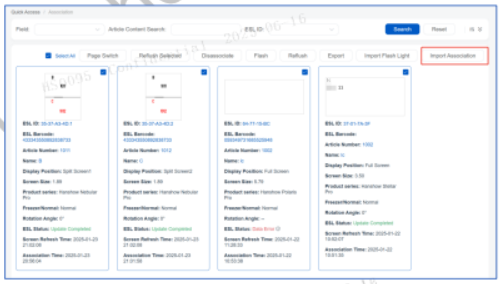
(Figure 5-33 Import Association)
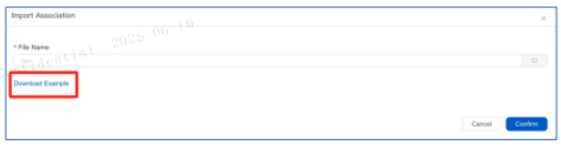
(Figure 5-34 Download Example)
5.1.5 ESL Update Record
ESL Update Record feature displays the ESL update process triggered by either theassociation between ESL and article, or the changes of associated articles. It records thecause, result, start time and end time of update process. The default retention time of anoperation record is 3 days and retention time can be configured by history.expire.hour inconfig.properties.
On the navigation pane for the store you want to manage, click Quick Access, and then clickOperation record. The Operation record page opens, as shown in Figure 5-35. On this page,you can view or search ESL update information, or export ESL update report. The Operationrecords will be retained for three days by default.
In the Operation record subpage, users can view operation records based on 3 differentOperation types, namely: Price change, Flash and switch page and Set frame listeningusing the search bar on the top left corner of the subpage. In addition, other searchconditions are also available, as shown in Figure 5-36.
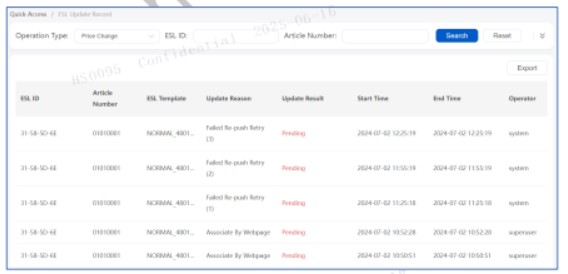
(Figure 5-35 Operation record page)
Clicking the Flash & page switch records tab will display the records of ESL flash and switchpage parameters, as shown in Figure 5-36.
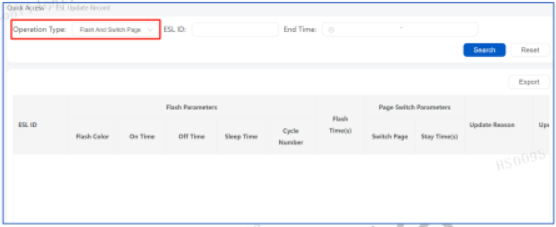
(Figure 5-36 Flash & page switch records)
Set frame listening is used for recording the changes of ESL frame listening number, that said,there will be operation records kept on this page once there is frame listening changes, thereare 3 update methods, please refer to the drop-down menu as shown in Figure 5-37.
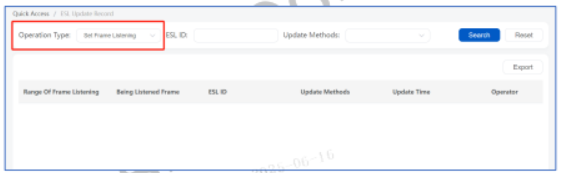
(Figure 5-37 Frame listening record)
5.1.6 Association History
The association history shows records of association/disassociation between ESLs andarticles. The records contain ESL IDs, operation types, article information, associationlocations and operator.
On the navigation pane for the store you want to manage, click Quick Access, and then clickAssociation History. The Association History page opens, as shown in Figure 5-38. You canview the historical association and disassociation information. You can also searchassociating information by article number or ESL ID.
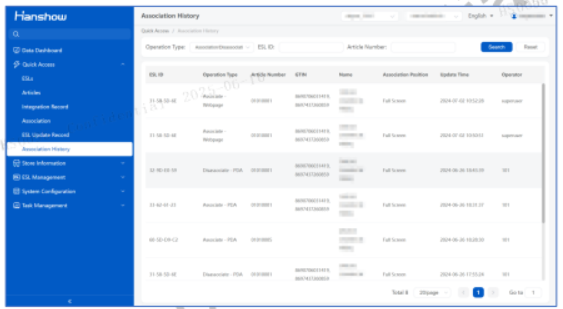
(Figure 5-38 Association History page)
5.2 ESL Management
On the navigation pane for the store you want to manage, click ESL Management.
5.2.1 Failure Record
The failure record function supports viewing, searching and exporting ESL update failurerecord.
On the navigation pane for the store you want to manage, click ESL Management, and thenclick Failure Record. The Failure record page opens, as shown in Figure 5-39. You can view,search, or export failure record.
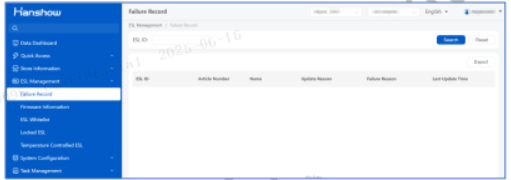
(Figure 5-39 Failure record page)
5.2.2 ESL Firmware Information
The ESL firmware information function supports viewing and searching basic ESL firmwaredata including firmware ID, multi-page support, and screen type.
On the navigation pane for the store you want to manage, click ESL Management, and thenclick Firmware information. The Firmware information page opens, as shown in Figure5-40. You can view or search ESL firmware information.
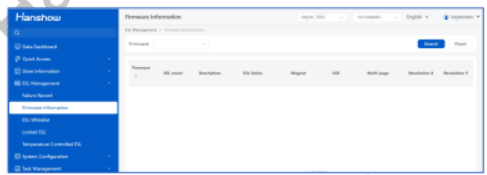
(Figure 5-40 Firmware information page)
5.2.3 ESL Whitelist (Store Level)
After the store-level whitelist is enabled, if the ESL is not included in the ESL whitelist, itcannot be viewed on the ESLs page. The toggle function for the store whitelist can beactivated in the Store Management settings.
When an ESL is associated, it will automatically be added to the whitelist. If the whitelistfeature is not enabled, binding will not add to the whitelist.
5.2.3.1 View ESL Whitelist
On the navigation pane for the store you want to manage, click ESL Management, and thenclick ESL Whitelist to open the ESL Whitelist page, as shown in Figure 5-41.
⚠️ Note: File import supports two formats: csv and txt, with each file needing to besmaller than 5MB.
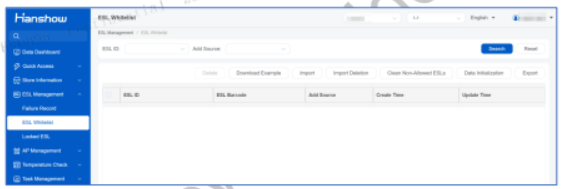
(Figure 5-41 ESLs Whitelist page)
5.2.3.2 Search ESL Whitelist
On the ESL Whitelist page, you can search for ESLs in the whitelist by ESL ID, as shown inFigure 5-42.
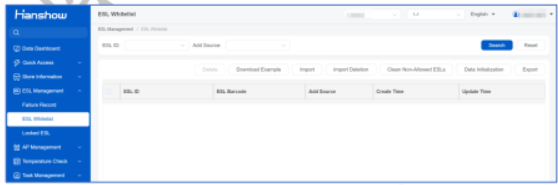
(Figure 5-42 Search ESL Whitelist)
5.2.3.3 Import ESL Whitelist
On the ESL Whitelist page, click Import to open the Import dialog box, as shown in Figure5-43. Select the file you want to export, and then click Confirm to complete the import.
⚠️ Note: File import supports two formats: csv and txt, with each file needing to besmaller than 5MB.
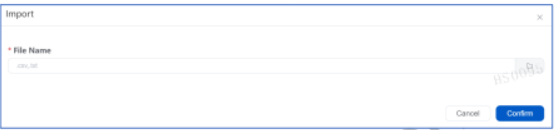
(Figure 5-43 Import ESL Whitelist)
5.2.3.4 Export ESL Whitelist
On the ESL Whitelist page, click Export to export the ESL whitelist.
5.2.3.5 Download ESL Whitelist Example
On the ESL Whitelist page, click Download example to download the import example filefor the whitelist.
5.2.3.6 Delete ESLs From ESL Whitelist
On the ESL Whitelist page, select the check boxes of the ESLs that you want to remove fromthe ESL whitelist, and then click Delete.
Upon clicking the Delete button, a prompt pop-up will appear: “Deleting the whitelist willalso remove the ESLs from the ESLs page. Are you sure you want to delete?” Clicking theConfirm button will delete the ESLs from both the whitelist and the ESLs page.
⚠️ Notice: Deleting a whitelist ESL will erase the ESL information and will also unbind theassociated relationship. The deletion of the ESLs will be reflected in the AssociationHistory.
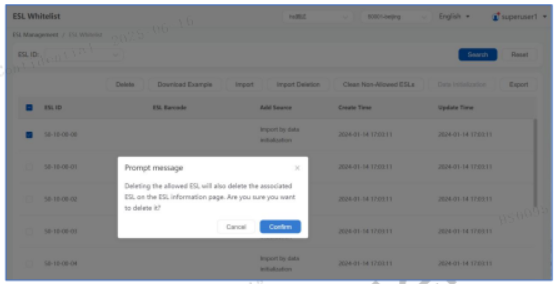
(Figure 5-44)
5.2.3.7 Data Initialization
Upon clicking the Data Initialization button, a pop-up will appear with two synchronizationoptions: synchronize all ESLs under the store, and synchronize only those ESLs that have abinding relationship. Users can choose according to the situation of the store.
The Data Initialization feature can only be selected once; after one initialization, the buttonwill become grayed out and unclickable.
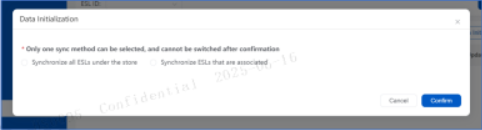
(Figure 5-45)
5.2.4 Locked ESL
As shown in Figure 5-46, Locked ESL Feature: The ESLs in the locked ESL list will not receiveupdate commands and will not accept reported heartbeats. If an ESL in the locked list alreadyexists in the reported ESL information table, these ESLs can be removed using the delete ESLsfunction. After deletion, they will no longer be able to receive heartbeats.
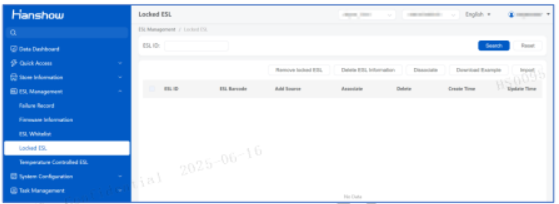
(Figure 5-46)
5.2.4.1 View Locked ESLs
Support for querying locked ESLs based on tag identifiers, with support for searching usingboth 18-digit and 11-digit ESL IDs.
5.2.4.2 Lock an ESL
As shown in Figure 5-47, you can batch import locked ESLs according to the format of thesample file. The import file should be in txt format, and the ESL barcodes in the import filesupport both 11-digit internal codes and 18-digit ESL barcodes.
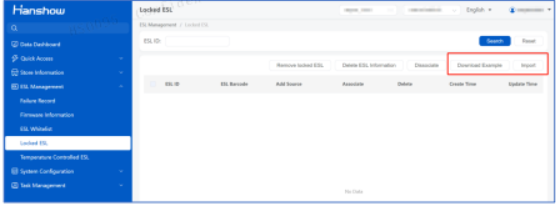
(Figure 5-47)
5.2.4.3 Delete A Locked ESL
The deletion of locked ESLs supports batch deletion. Deleting a locked ESL does not deletethe ESL itself.
(Figure 5-48)
5.2.4.4 Delete ESL Information
This function is used to delete locked ESL data from the ESL information table. Upon clicking,a pop-up will appear for confirmation before deletion. After deleting these ESLs, they will nolonger be able to report heartbeats. Additionally, the operation records will log the time ofthe ESL deletion and the reason for it. As shown in Figure 5-49, click Confirm before thedeletion.
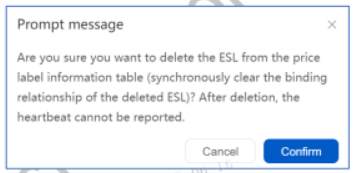
(Figure 5-49)
5.2.4.5 Disassociate
The Disassociate feature is used to disassociate the ESL binding relation. As shown in Figure5-50, click Confirm before the disassociation.
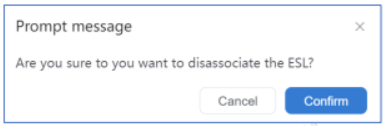
(Figure 5-50)
5.3 AP Management
5.3.1 AP List
The store AP function enables operations such as AP searching, deletion, removal, settingwhether to support first-generation Electronic Shelf Labels (ESLs), and changing the displayID.
Assigned means assigning an AP from the unassigned list to the current store. If an erroroccurs during the assignment process, the AP can be removed from the assigned store. Foran AP already assigned to a store, it is possible to set whether to support the first-generationESL function.
Unassigned refers to an effective AP that has sent a heartbeat but has not yet been assignedto a store. Operations such as deletion and assignment to a store can be carried out.
Click Store AP under Store Information in the navigation bar, as shown in Figure 5-51.
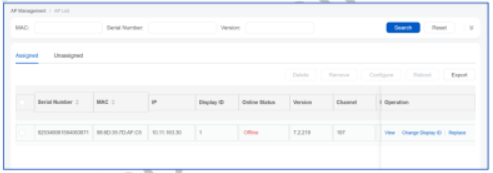
(Figure 5-51 AP List)
5.3.1.1 AP Search
APs can be queried according to the AP serial number, unique identification MAC, or onlinestatus, as shown in Figure 5-52.
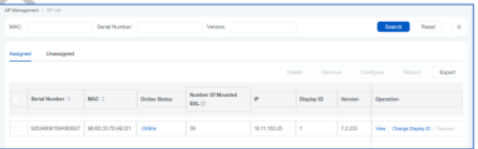
(Figure 5-52 AP Search)
5.3.1.2 Delete an AP
Check the AP, click Delete, and then click Confirm in the prompt box, as shown in Figure 5-53.The AP will be directly deleted from the PriSmart system and will not automatically jumpback to the store again.
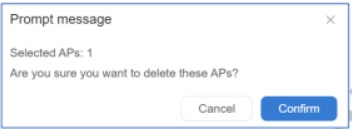
(Figure 5-53 Delete an AP)
5.3.1.3 Remove an AP
Check the AP, click Remove, and then click Confirm in the prompt box. The AP will betransferred to the unallocated list and can be re-assigned to a store, as shown in Figure 5-54.
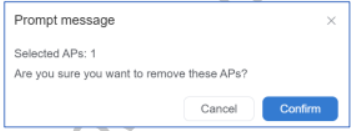
(Figure 5-54 Remove an AP)
5.3.1.4 Change Display ID
To modify the number displayed on the store AP, click the Change Display ID button for thechange, as shown in Figure 5-55.
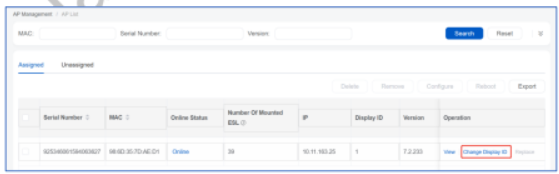
(Figure 5-55 Change AP Display ID)
If you submit without changing the content when changing the display ID, a prompt Thedisplay ID has not changed will appear. If the ID you are changing to already exists foranother AP, the ID of the existing AP will be changed to the ID of the currently modified AP,as shown in Figure 5-56.
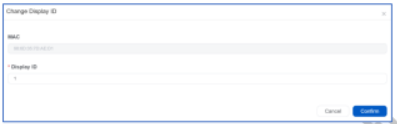
(Figure 5-56 Change Display ID)
⚠️ Notice: The function of changing the display ID requires the ESL-Working version to beESL-Working 3.0.5 or above.
5.3.1.5 Replace
Click the Replace button in the corresponding row of the table, select the AP to be replacedwith, and you can replace the MAC of the lower-version AP with the content of the selectedhigher-version AP. A higher-version AP cannot be replaced by a lower-version one, as shownin Figure 5-57 and Figure 5-58.
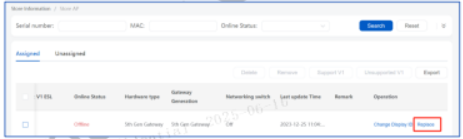
(Figure 5-57 AP Replacement–1)
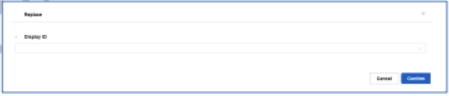
(Figure 5-58 AP Replacement–2)
⚠️ Note: The replacement function requires the ESL-Working version to be above ESL-Working 3.0.1, and only the offline APs can be replaced.
5.3.2 AP Version
This is where the AP upgrade package is uploaded. It is the AP’s version, not the sub-application version. The upgrade package uploaded by a store can only be used by that store.A store can use the customer-level upgrade package or the one it has uploaded itself.
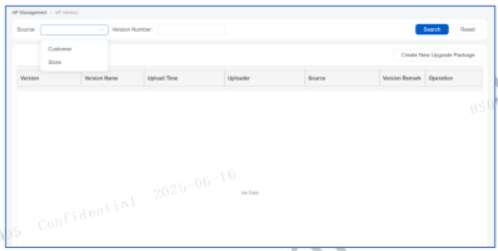
(Figure 5-59 AP Version)
5.3.2.1 Create New Upgrade Package
Select to upload the upgrade package, and the version number will be automatically parsed.The version description is optional. After clicking OK, all stores under the customer can usethis upgrade package to upgrade the APs (APs that meet the upgrade conditions).
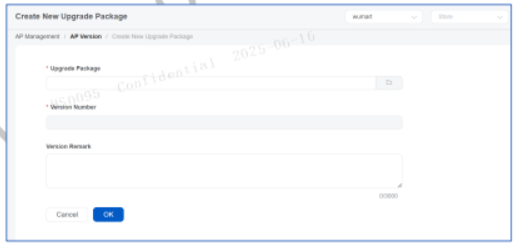
(Figure 5-60 Create New Upgrade Package)
5.3.3 AP Upgrade
The historical AP upgrade tasks of the store can be viewed.
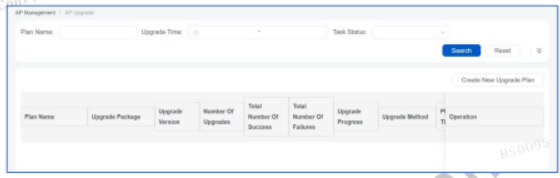
(Figure 5-61 AP Upgrade)
5.3.3.1 Create New Upgrade Plan
The plan name is required. After selecting the upgrade package, the APs that can be upgradedwill be automatically filtered.
After selecting the APs to be upgraded, you can choose the upgrade method, either executeimmediately or execute at a scheduled time.
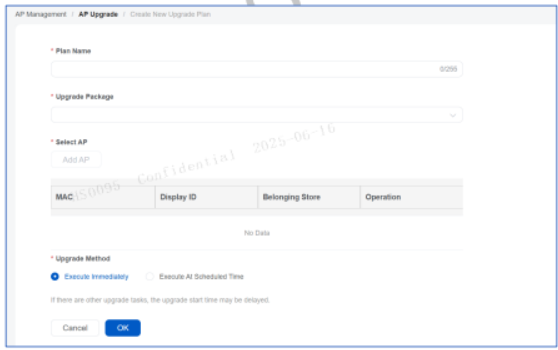
(Figure 5-62 Create New Upgrade Plan)
5.3.4 Operation Log
The system automatically records all AP operation behaviors, including operation time,operator, specific operation type, and content. It supports real-time query and traceability toensure transparent and controllable operations and maintenance.
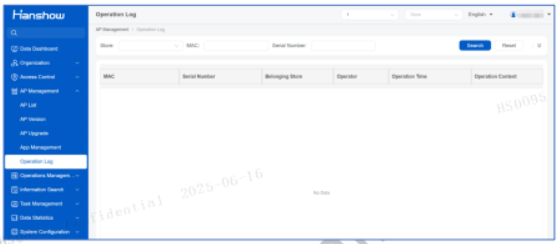
(Figure 5-63)
5.4 Temperature Check
5.4.1 Temperature Controlled ESL
Temperature Controlled ESLs are used to manage and view ESLs and the temperaturesreported by ESLs. Click ESL Management, then click Temperature Controlled ESL to displaythe ESL list, as shown in Figure 5-64.
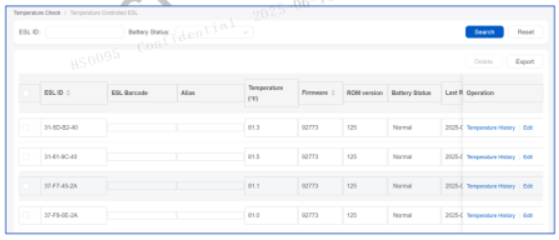
(Figure 5-64 Temperature Controlled ESL)
5.4.1.1 Search for ESLs
On the Temperature Controlled ESL interface, users can search by ESL ID and battery status,as shown in Figure 5-65.

(Figure 5-65 Temperature Controlled ESL)
5.4.1.2 Delete ESLs
Select one or more ESL entries, click Delete, and the system will prompt Are you sure youwant to delete? Click Confirm to delete the labels, as shown in Figure 5-66.
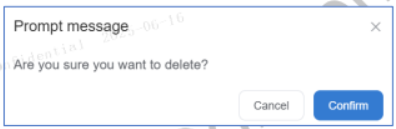
(Figure 5-66 Delete ESLs)
5.4.1.3 Export ESL Information
Click Export to download the ESL information corresponding to the current search results. Ifno conditional search has been performed, all ESL information will be downloaded.
5.4.1.4 Alias
Click the Edit button in the row corresponding to the ESL, and a pop-up window will appearwhere you can add an alias to the ESL, as shown in Figure 5-67.
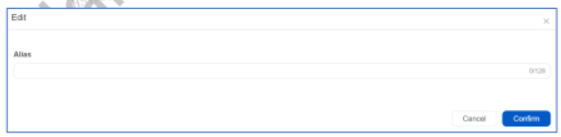
(Figure 5-67 Alias)
5.4.1.5 Change History
Click the Change History button in the row corresponding to the ESL to view the temperaturerecords reported by the ESL, as shown in Figure 5-68.
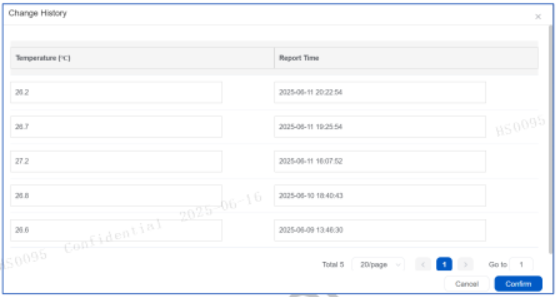
(Figure 5-68 Change History)
5.4.2 Shelf Management
The cabinets detected by Temperature Controlled ESL can be managed in the form of shelves.
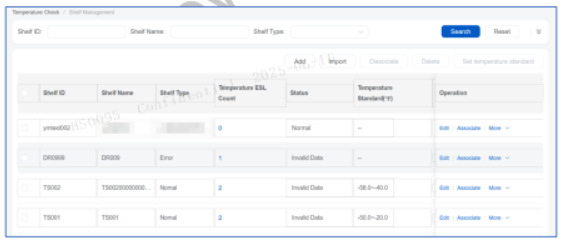
(Figure 5-69 Shelf List)
5.4.2.1 Add
Items marked with * are required. The shelf type is an input field. After manual input, the shelftype will be automatically added.
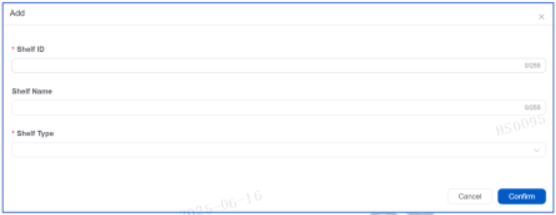
(Figure 5-70 Add A New Shelf)
5.4.2.2 Edit
When editing, the shelf number cannot be changed, while the name and type can be modified.
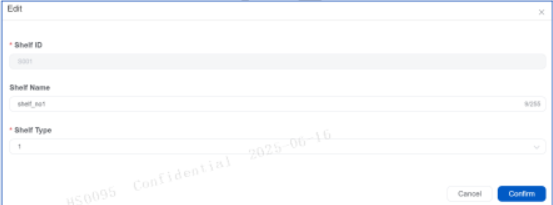
(Figure 5-71 Edit A Shelf)
5.4.2.3 Import
If you need to add shelves in batches, this can be easily achieved through the import function.This function supports the import of XLSX format files. You can download an example of thefile format. After getting fully familiar with the specifications, you can complete the operationmore efficiently, making the process of batch-adding shelves quick and accurate.
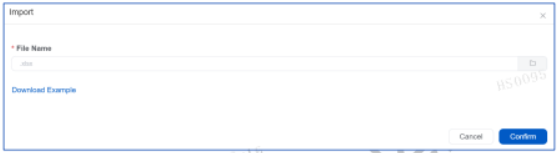
(Figure 5-72 Import)
5.4.2.4 Associate
The associate function aims to achieve precise association between Temperature ControlledESL and shelves. After the association is completed, the system will use the temperature datareported in real-time by the Temperature Controlled ESL to comprehensively monitor theoperating status of the shelves. Once there is an abnormal temperature fluctuation, it canpromptly detect whether there are any abnormal conditions on the shelves, thus ensuringthe stable operation of the shelves.
Click Associate to bring up the binding pop-up window.
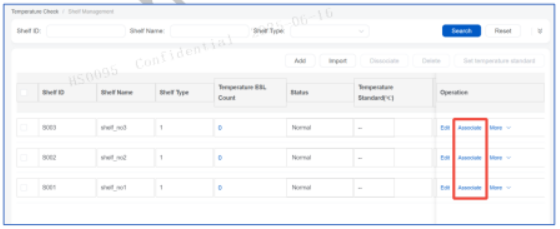
(Figure 5-73 Associate)
When entering temperature-controlled ESL information, the system will perform real-timedata verification. Once it detects that the input is not a valid temperature-controlled ESL, aprompt will immediately pop up in the upper-right corner of the page to remind you tocorrect it in an intuitive and eye-catching way, ensuring the accuracy of the input data.
Only the function of associating shelves on the web-end is introduced here. On HandyLink,you can directly scan ESLs to associate with shelves. For details, please refer to the HanshowHandyLink User Manual.
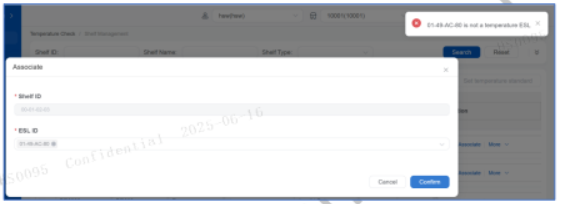
(Figure 5-74)
5.4.2.5 Set Temperature Standard
The temperature standard can be set for the shelves. The temperature unit is Celsius bydefault. If you want to use Fahrenheit, you can set it in the configuration options.
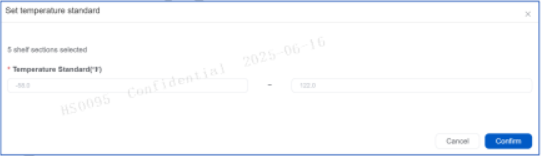
(Figure 5-75 Set Temperature Standard)
The configuration for enabling Fahrenheit is as follows

(Figure 5-76 Enable Fahrenheit)
5.4.2.6 Disassociate
Click the Disassociate function, and a disassociate pop-up window will appear. Afterconfirmation, the association between the shelf and the thermostatic label will be lifted.
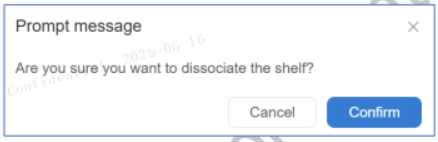
(Figure 5-77)
5.4.2.7 Delete
Click the Delete function, and a delete pop-up window will appear. After confirmation, theshelf will be deleted from the database.
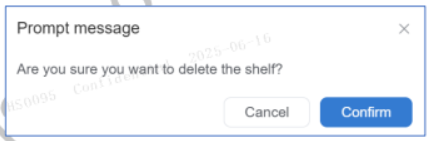
(Figure 5-78)
5.5 Virtual ESL
Virtual ESL feature is used for imitate Application scenario and test if ESL active link isoperational. This feature is only visible to test stores.
5.5.1 Virtual ESL
On the navigation pane for the store you want to manage, Single click Virtual ESL to view avirtual ESL list of current stores, as shown in Figure 5-79.
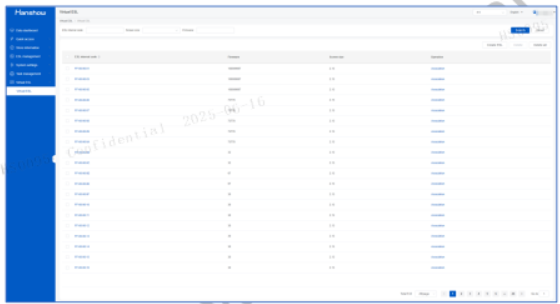
(Figure 5-79 Virtual ESL List)
5.5.1.1 Create a virtual ESL
Single click Create ESL and select available virtual ESL series in Firmware information inCreate ESL popup, then fill in number of ESL you want to create in ESL count, click Confirmto create virtual ESLs automatically. Mind that the total amount of virtual ESL for a storecannot exceed 5,000, as shown in Figure 5-80.
⚠️ Notice: 5th generation ESLs can only be generated when there are 5th generation ESLsexist in the system. Otherwise they cannot be generated if there wasn’t any 5thgeneration ESLs already in the system.
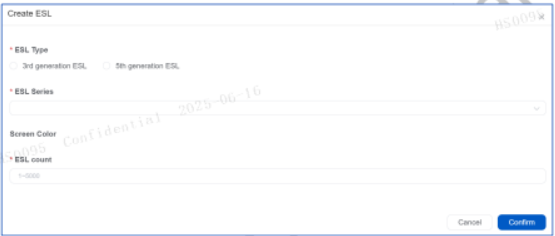
(Figure 5-80 Create virtual ESL)
5.5.1.2 Delete
Check the box of virtual ESLs you want to delete and then click Delete in top right.
5.5.1.3 Delete All
When a virtual store is converted into an ordinary store, it is required to remove virtual ESLs,therefore delete all feature is provided. Click Delete all in top right to delete all virtual ESLsof the store.
5.5.1.4 Associate
Virtual ESL can imitate association feature of an ordinary ESL. Check the box of the virtualESL you want to associate and click Association, then associate ESL with articles using theworkflow same as in the Association section.
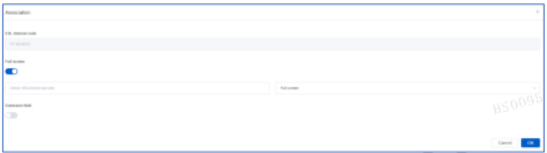
(Figure 5-81 Associate a virtual ESL with article(s))
5.6 Task Management
Click the Task Management in navigation bar. Task Management encompasses all tasksowned by the current store, divided into periodic tasks and repush tasks. Periodic tasksinclude task groups that are created within the system administrator’s periodic task groupoperations and assigned to that store, as well as periodic tasks created by the store itself.Repush tasks include tasks created within that store and repush tasks assigned by thecustomer. When there are no tasks enabled in the store’s tasks, the tasks within the assignedperiodic task group will be executed. If a store task is enabled, the tasks within the periodictask group will be disabled, and only the store tasks will be executed.
5.6.1 Periodic Task
On the navigation pane for the store you want to manage, click Task Management, thenPeriodic task to enter the periodic task subpage, as shown in Figure 5-82.
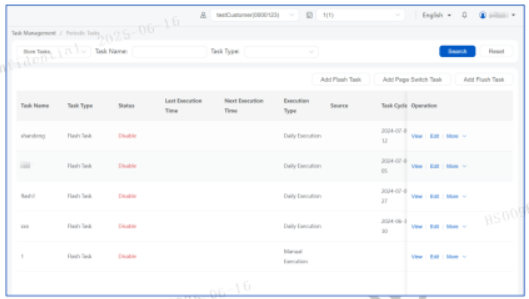
(Figure 5-82 Periodic task list)
5.6.1.1 Store Task
On the Task Management subpage, select Store tasks from the drop-down list at the topleft corner of the page. The store task list is displayed, as shown in Figure 5-83. You can add,edit, delete, enable, or disable tasks.
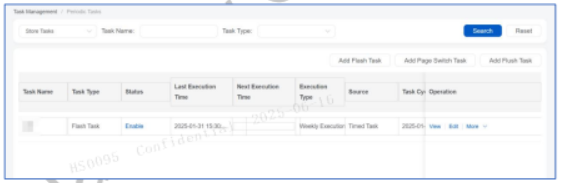
(Figure 5-83 Store Management page–Store Task)
In the store task list, you can Add Flash Task, Add Page Switch Task, Add Flush Task, orAdd forced refresh task to add a flash, page switch, repush, or forced refresh task.
5.6.1.1.1 Add Page Switch Task
On the Task Management page, click Add page switch task to open the Add dialog box, asshown in Figure 5-84. Set up the task name, start time, execution mode, retention time, andswitch page, and then click Confirm.
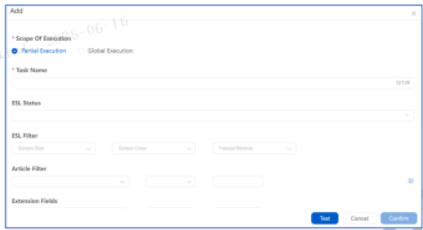
(Figure 5-84 Add a page switch task)
The newly added page switch task is disabled by default. To enable it, in the store task list,select the task, and then click Enable.
⚠️ Notice:
- The execution modes for page switch tasks include partial execution and globalexecution. Partial execution means to execute page switch tasks according toESL status, ESL properties, and article properties. Global execution means toexecute page switch tasks on all ESLs in the store.
- The ESL pages will switch at the specified time every day. If you want the ESL toswitch multiple pages a day, set and enable corresponding number of pageswitch tasks with different start times.
Extension field: fill in the blank with your expected conditions, so that qualified ESLs will befiltered. Page switch tasks can be executed once, daily, or weekly according to the specifiedcycle and time.
In the row of a page switch task, you can click Enable or Disable to enable or disable the task.
After the store uses a store task for the first time, the global task group will be enabled for thestore, as shown in Figure 5-85.
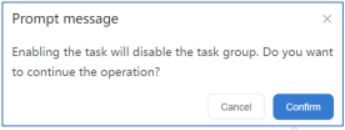
(Figure 5-85 Confirmation dialog box)
5.6.1.1.2 Flash Task
The flash task function supports partial or full execution for ESLs to flash at the specified time.
A store administrator can create, edit, delete, enable, or disable flash tasks. The same as pageswitch tasks, a newly created flash task is disabled by default. The task cannot be executeduntil it is enabled.
Flash tasks can be executed partially or fully.
5.6.1.1.2.1 Flash Task – Partial Execution
On the Task Management page, click Add Flash Task to open the Add dialog box, asshown in Figure 5-86. Set the execution mode to Partial Execution, which indicates to flashbased on status, ESL properties, or article properties, for example, update completed,processing, ESL size, screen color, freezer ESL, article name, and article number.
Flash tasks can be executed once, daily, or weekly according to the specified execution timeand flash color. The supported colors include red, green, and blue, as shown in Figure 5-86.
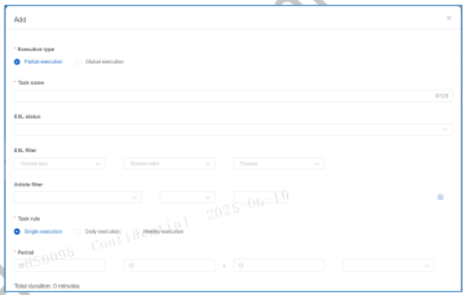
(Figure 5-86 Add a flash task in partial execution mode)
5.6.1.1.2.2 Flash Task – Global Execution
On the Task Management page, click Add Flash Task to open the Add dialog box, set theexecution mode to Global Execution, which indicates the flash task is applicable to all ESLsin the store. Flash tasks can be executed once, daily, or weekly according to the specifiedexecution time, as shown in Figure 5-87.
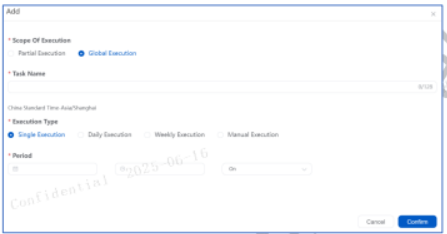
(Figure 5-87 Add a global flash task)
⚠️ Note: For the system upgraded to PriSmart 2.6.15, the flash task set in the RC taskscan still be executed, but cannot be edited.
5.6.1.1.3 Flush Task
A forced refresh task assigns the task of refreshing current page to ESL(s). It can be eitherglobally or partially executed.
To add a new forced refresh task, you need to firstly specify a store at the top right dropdownlist on the navigation pane, then single click Task Management and Periodic Task insequence, so as to enter the periodic task subpage. On the Periodic task subpage, single click Add Flush Task on top right, so that the Add popup will emerge.
Select Partial Execution, then fill in task name. The required field is marked with asterisk "*". ESL Status, ESL Filter, and Article Filter optional fields help filter your required ESLs for executing forced refresh task. Execution Type required field specifies task execution frequency, the task can beexecuted one time, once a day, once a week or manually. Period field specifies date and timeto execute the task, as shown in Figure 5-88.
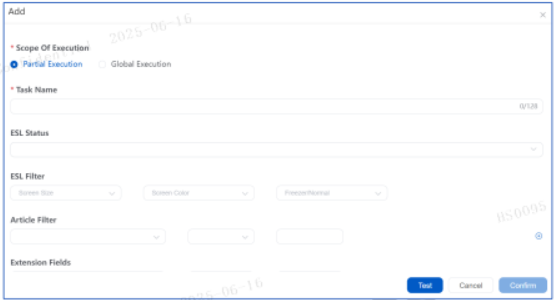
(Figure 5-88 Flush task – partial execution)
Single click Add Flush Task, then select Global Execution, fill in task name, the required fieldis marked with asterisk "*". Execution Type required field specifies task execution frequency,the task can be executed one time, once a day, once a week or manually. Period fieldspecifies date and time to execute the task, as shown in Figure 5-89.
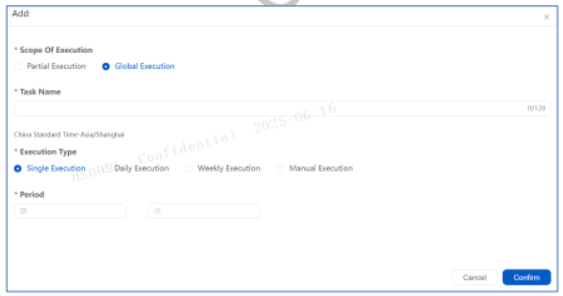
(Figure 5-89 Flush task – global execution)
5.6.1.2 Assign Tasks
Assign tasks refers to those tasks in customer’s periodic task group created by customer levelusers; they (flash, page switch and forced refresh) will be executed automatically when nostore tasks are enabled.
To view assign tasks, you need to firstly specify a store at the top right dropdown list on thenavigation pane, then single click Task Management and Periodic Task in sequence, so asto enter the Periodic task subpage. On the periodic task subpage, select Assign tasks fromthe dropdown list in top left corner of the page, as shown in Figure 5-90.
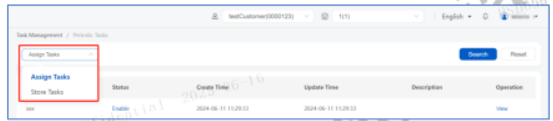
(Figure 5-90 Assign tasks group)
On Assign Tasks subpage, you can click View to view task details or click Manual Execution(if any) to execute the task, as shown in Figure 5-91.
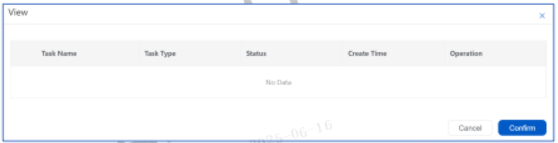
(Figure 5-91 Task group details)
5.6.2 Repush Task
On the navigation pane for the store you want to manage, click Task Management andRepush task in sequence to enter the repush tasks subpage, as shown in Figure 5-92. You canselect Store tasks or Assign tasks to switch pages from the dropdown box in top left corner.
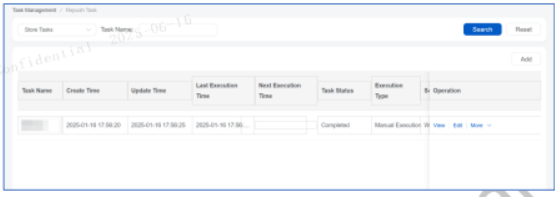
Figure 5-92 Repush task list
Repush tasks can be scheduled for execution or manually triggered, applying data repushing to filtered ESLs. Filter criteria include status categories, ESL filtering, and product filtering. After successful creation, the task status is disabled by default and requires manual enabling before execution. Task support operations such as add, edit, delete, search, enable, and disable.
5.6.2.1 Add
Single click Add on the top right corner of the page to add a repush task in the Add popup, as shown in Figure 5-93
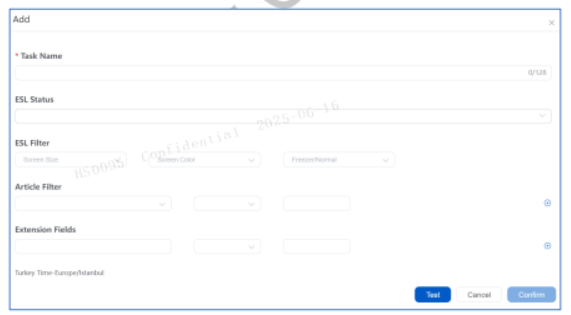
Figure 5-93 Repush task
5.6.2.2 Edit
Single click Edit in the corresponding row in task list to edit a task.
5.6.2.3 Delete
Single click Delete in the corresponding row in task list to delete a task.
5.6.2.4 Enable/Disable
Single click Enable/Disable in the corresponding row in task list to enable/disable a task.
5.7 System Configuration
On the navigation pane for the store you want to manage, click System Configuration.
5.7.1 Email configuration
On the navigation pane for the store you want to manage, click System Configuration, and then click Email configuration. The Mail Configuration page opens. Set up the items including mail recipient email address, send time, whether to send failed ESL list in attachment, and whether to use SSL. At the specified time, the exception information of the store will be collected and sent to specified recipient(s) according to the configuration.
Timed Alarm Configuration: Timed monitoring on Last integration time, Offline AP, Abnormal ESL and Low-battery ESL.
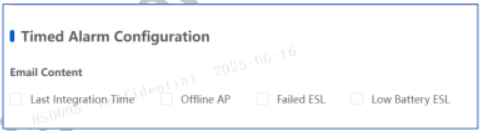
Cycle Alert Configuration: Periodically sending of alarm mails about offline AP, abnormal temperature, abnormal integration and integration timeout. Check the box to turn on or off the corresponding functions. Sending cycle can be set by the CYCLE_ALARM_EMAIL_INTERVAL attribute in the configuration options.
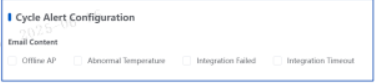
- Low Battery Email Configuration: Timed monitoring on associated lower-battery ESLs.
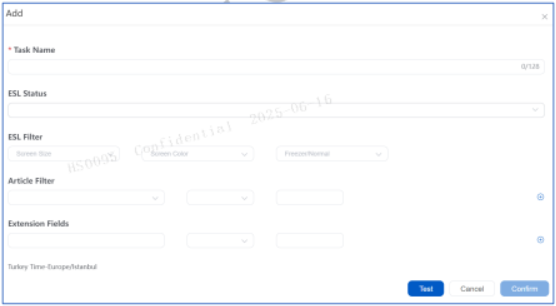
(Figure 5-96 Low Battery Email Configuration)
- Statistics mail settings: Timed sending of the statistics of ESL association times, disassociation times, update times, success times, and abnormal times.
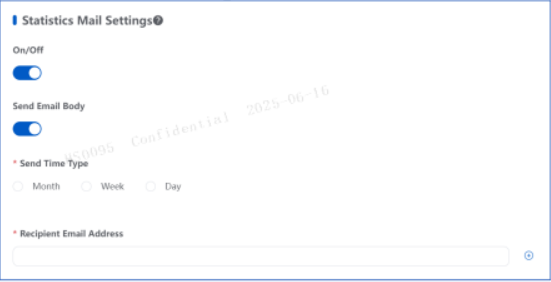
(Figure 5-97 Statistics mail settings)
- ESL Statistics Mail Configuration: Timed sending of the statistics of number of ESLs associated for each size and total number of associations. If you don’t want to send all ESLs, you can turn to select ESLs by size.
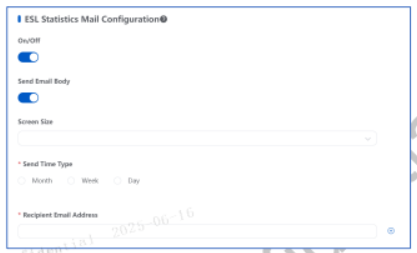
(Figure 5-98 ESL Statistics Mail Configuration)
- ESL Failure History Statistics: This feature enables users to review historical records of failed ESL updates. By customizing monitored failure reasons and actively defining statistical time ranges, users can retrieve critical information of interest. This facilitates timely issue identification, root cause analysis, and implementation of corrective actions to address update failures.
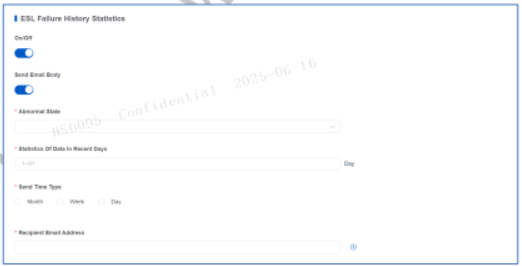
(Figure 5-99 ESL Failure History Statistics)
Temperature-controlled Shelf Warning: When a TCE (temperature-controlled ESL) with a temperature capture function detects that the shelf it is on has exceeded the user-defined temperature range, a temperature-anomaly alarm will be triggered, and a warning email will be sent according to the user-defined email warning strategy (as shown in Figure 5-100). In the shell list of Temperature Check >> Shelf Management, users can select multiple shelves, then click Set temperature standard in the upper-right corner, as shown in Figure 5-101. The temperature standard is set in a pop-up window.
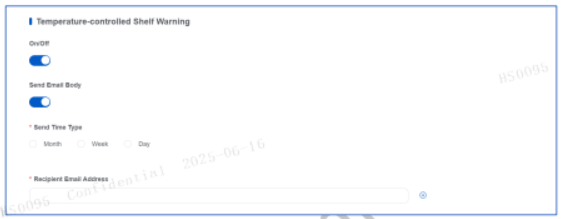
(Figure 5-100 Temperature-controlled Shelf Warning Email Configuration Interface)
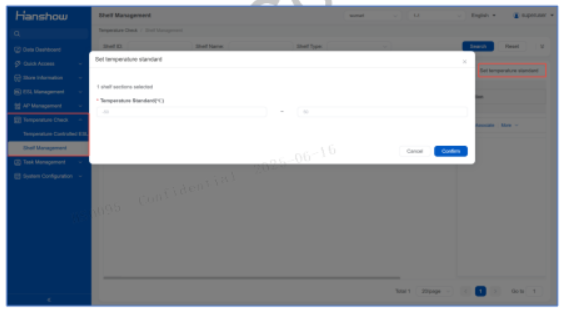
(Figure 5-101 User-defined Temperature Standard)
Sender Configuration: Select the email type (SMTP or Exchange) and set the sender’s email address information.
If the email type is SMTP, set the SMTP server, port number, email address, and password, and select whether to use SSL, as shown in Figure 5-102.
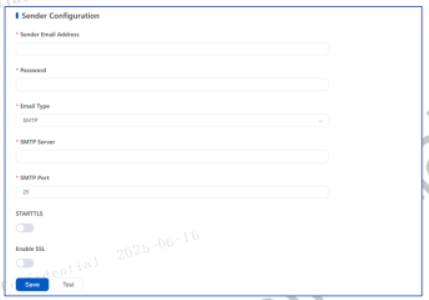
(Figure 5-102 Sender Configuration – SMTP)
- If the email type is Exchange: set the Exchange server, email address, and password, and select whether to use SSL, as shown in Figure 5-103.
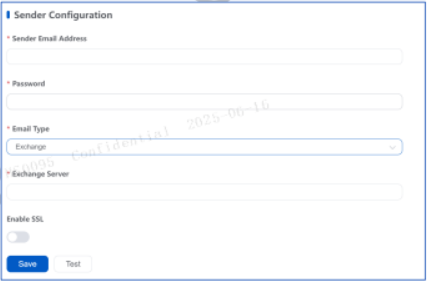
(Figure 5-103 Sender Configuration – Exchange)
Click Save to complete the configuration.
Note: The store-level alarm email configuration is independent from the customer-level alarm email configuration.
5.7.2 Set-wor Settings
Set-wor settings are used to send wake-up cycle change commands to ESLs.
On the navigation pane for the store you want to manage, click System Configuration, then click Set-wor settings. The Set-wor settings page opens, as shown in Figure 5-104. You can select a Set-wor mode: no task, standard, fast, or custom.
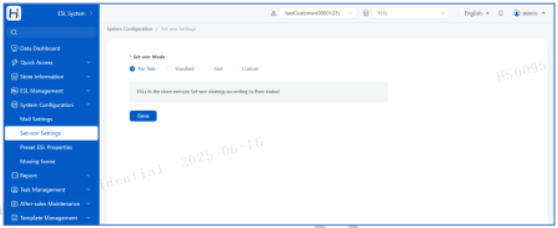
(Figure 5-104 Set-wor settings page)
- No task: No change to the Set-wor setting of the store.
- Standard: Executes 16s Set-wor once a day.
- Fast: Executes 16s Set-wor once a day at a faster rate.
- Custom: Allows adding a customized Set-wor time slot.
⚠ Notice: The Set-wor mode change will not take effect until the timed execution time.
5.7.3 Preset ESL Properties
If the store has its own attribute package, it will use that package. Otherwise, the store can use a customer-level or organization-level attribute package.
On the navigation pane, click System Configuration, then click Preset ESL properties. The Preset ESL properties page opens, as shown in Figure 5-105. To distribute the attribute package, click Save and update. The attribute package will take effect within the selected ESL scope (associated ESLs or all ESLs).
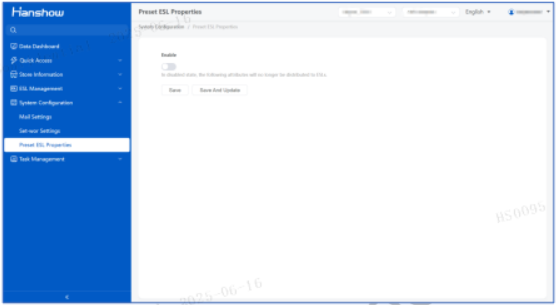
(Figure 5-105 Preset ESL properties page)
Note: The following ESL properties can be set:
• ESL scope :Choose whether to apply settings to associated ESLs or all ESLs.
• Quick flash steps Set the step size for the ESLs supporting quick flash in the store. The default ESL step size is 5. You can click Save and update to make the setting effective. ESL-Working and the ESL need to support this function
• Flash parameters : The store's flash parameters including total flash time, Flash color, LED light-on time LED light-off time , and loop interval time. The flash color can be red, green, or blue. If both loop interval time, and loop interval time and total flash time are set, the total flash time will be used. The loop interval time can be set within 0-65535; the total flash time can be set within 0-3600. You can click Save and update to preset the settings to the ESLs. In the time of global flash or magnet touch, the ESLs will flash according to the flash parameter settings.
• Page switch mode : Page switch hold mode or standard page switch mode. To make the setting effective, you need to click Save and update.
• 24h automatic refresh : Turn on or off this function. To make the setting effective, you need to click Save and update.
• Report 18-digit ESL ID : If you turn on this function and click Save and update, the ESLs will escalate the 18-digit extension ID (ESL barcode on the ESLs page). ESL-Working and the ESL need to support this function.
6 Language Setting
6.1 Add A Language Pack
Follow the steps below to add a language pack.
- Search out the ISO 639-1 code of the language that you want to add.
- Copy the zh-cn.js file to the prismart/webroot/static/locales folder, and then rename the file to targetISO 693-1 code.js
- Replace the Chinese characters with the corresponding translations in the target language. Change the ISO 693-1 code in the first line to that of the target language. Remove any "-" symbols from the ISO 693-1 code when adding the code in the first line as shown in Figure6-1
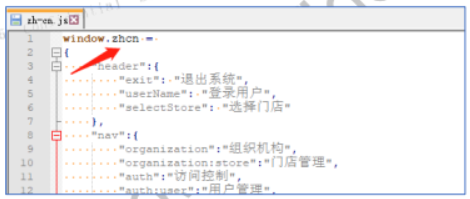
Figure 6-1 zh-cn.js
- In the prismart/webroot/static/const.js file, add the target language option to languageArr in the format of other existing language options, as shown in Figure 6-2. The value of label is the language name displayed as a language option in PriSmart, as shown in Figure6-3. The value of value is the ISO 693-1 code of the target language.
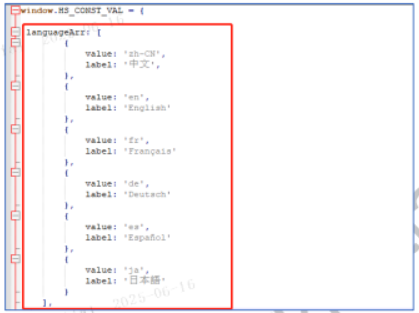
Figure6-2 Add a language to languageArr
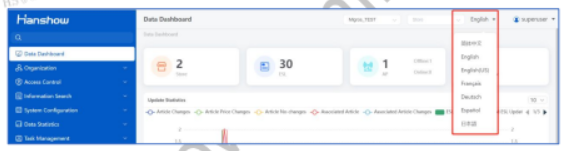
Figure 6-3 Language selection in PriSmart
In the locales/language.js file, add a new language mapping under language. Name the key to the corresponding ISO 693-1 code. Set its value to the string (windows.****) in the first line of the js file created in step 2. Ensure to quote the key as shown in Figure 6-4
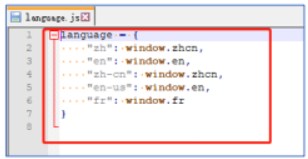
Figure 6-4 language.js
in the webroot/index.html file, import the js file created in step 2 according to the format shown in Figure6-5
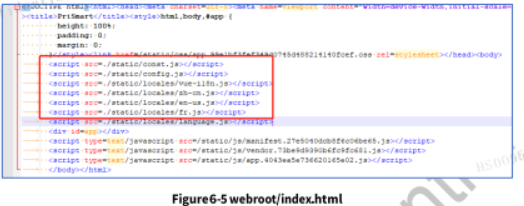
6.2 Add A Customer Language Pack
Follow the steps below to add a customer language pack.
Searchout the ISO 639-1 code of the language that you want to add.
Under the prismart/webroot/static/locales folder, create a folder named customers, and then create a folder in the name of the customer under the customers folder. Copy the zh-cn.js file to the folder, and then rename it to target language's ISO 639-1 code.js
Replace the Chinese characters with the corresponding translations in the target language. Change the first line in the format of window.customer name + target ISO 693-1 code, as the example shown in Figure 6-6, which uses Chinese as the target language and changes the organization name.
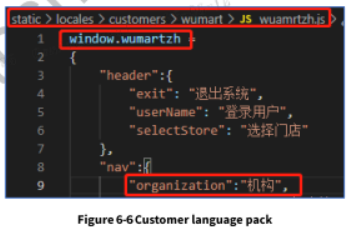
In the const.js file, under custLanguageObj, add the language in the format of customer name {"ISO 693-1 code": 'string after window in the first line of the js file'}, as shown in Figure6-7
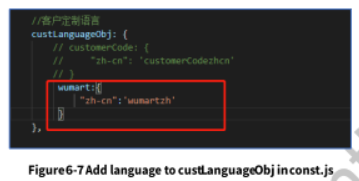
In the webroot/index.html file, import the JS file created in step 2.
The change effect is as shown in Figure6-8