Appearance
ESL USB Controller HS_C09978 Product Manual
ESL USB Controller HS_C09978 Product Manual
V1.0.3 HS-AP-USB001
STATEMENT
This document and all its contents contained remain the proprietary material of Hanshow Technology Co., Ltd. (hereinafter referred to as Hanshow) and the copyrights are protected by Chinese laws and applicable international conventions. Any reproduction, transmission, disclosure, revision, modification or use of the whole or part of this document, in whatever form and by whatever means, is not permitted without prior written authorization from Hanshow. Offenders will be liable for any and all damages caused by their offence hereof and will be subject to all remedies that Hanshow is entitled to seek under applicable laws.
ABOUT THE DOCUMENT
Product Manual (HS-AP-USB001): This manual describes an instruction for ESL controller HS_C09959 involved in its features, specifications, the related configurations and precautions. Help you quickly understand all information for this device.
Installation Manual (HS-AP-USB002): Guides an instruction on how to plan the installation, select the installation-site, and give the detailed operations and precautions during installation, so as to reach the optical performance.
Upgrade Manual (HS-AP-USB003): Gives the guidance on how to upgrade to a new version, and also involved in FAQ troubleshooting.
Release Notes (HS-AP-USB010): Outlines the software version changes and fixed bugs, including new, updated, and deleted performance.
Please read this manual carefully before using the device, retain the manual for subsequent use or for the next owner. If the instructions contained in this manual are insufficient to resolve issues that occur during device operation or maintenance, please contact Hanshow Technical Customer Service Center (China: 400-0365-305; Netherlands: 0800-022-5037; Belgium: 0800-71-335; France: 0800-91-7602; Thailand: 1800-011-185) directly, we will provide you with multi-channel technical services.
TARGET USERS
This document provides engineers with necessary data and related guidelines. Users have to master the basic knowledge on communication, DSP, network and so on. This manual is applicable for the below engineers:
- Testing engineer
- Technical support engineer
- After sales engineer
- Installation Engineer
SYMBOL DESCRIPTION
| Icon | Description |
|---|---|
.jpg) | Information indicated with this icon should be paid special attention and attached great importance by the reader. |
.jpg) | Information indicated with this icon is the explanation on the formal text for the readers to comprehend the text better. |
| [X-X] | It means special noun definition is provided here. |
EXPLANATION OF TERMS
| Term | Expanded form | Description |
|---|---|---|
| ESL Controller | ESL Controller | Also called AP that is used for data interaction between ESL-Working and ESL Controller. |
| ESL | Electronic Shelf Label | Used for displaying product information like promotion information, price and grade, etc. |
| Wi-Fi | Wireless Fidelity | Wi-Fi |
| RF | Radio Frequency | Electromagnetic frequency that can radiate into space. |
1 Overview
HS_C09978 is an Hanshow’s third-generate ESL controller. HS_C09978 adopts USB physical interface embedded micro-PCB, which is dedicated to WLAN device that has USB virtual network function, known as USB integration AP. Its major advantage is to provide Wi-Fi access and ESL service simultaneously, servicing a better user experience.
HS_C09978 works in 2.4GHz wireless frequency band for data transmission and information interaction between ESL-Working and ESLs. HS_C09978 adopts modular and omnidirectional in-board antenna design. And it is equipped with an ARM A7 processor, RF and other modules, supporting all Hanshow products. HS_C09978 appearance is shown in Figure 1-1*.*
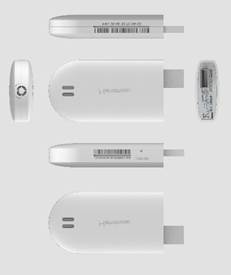
Figure 1-1 Six views for HS_C09978
Figure 1-2 shows an appearance example of USB integration AP.
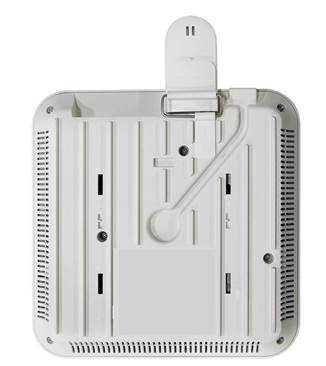
Figure 1-2 USB integration AP
1.1 System architecture
Hanshow ESL system includes PriSmart/ShopWeb, ESL-Working, ESL controller (AP), Electronic Shelf Label (ESL) and Handheld Terminal (PDA), as shown in Figure 1-3. Specifically, ESL controller acts as data transmission link to forward data between ESL- Working and ESLs.
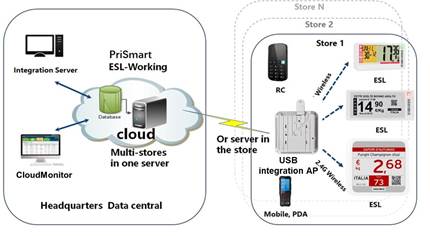
Figure 1-3 System architecture
HS_C09978 builds TCP connection with ESL-Working system via USB virtual Ethernet port and bi-directional 2.4GHz wireless communication with ESLs.
- Downlink: HS_C09978 receives downlink packets from ESL-Working system and transmits the data like price, inventory and template to ESLs.
- Uplink: HS_C09978 forwards ESLs’ heartbeat packets or other information to the ESL-Working system.
1.2 Features
The features include:
- Operating System (OS): Embedded Linux, which is responsible for data interaction with ESL-Working system, including the registration of ESL controller system, heartbeat packet transmission and so on. Supports OTA upgrade.
- RF system: Two RF modules. Each has the independent antenna, with concurrent communication.
- Intelligent dual-system: Supports dual-system, with automatic disaster tolerance.
- Memory: Supports 256MB FLASH + 512MB RAM
- Compatibility: Supports all Hanshow ESLs, including LCD and EPD ESLs.
- Management configuration: Support Web configuration.
- Hardware interface: USB port as virtual Ethernet port, power port or serial interface.
- LED indicator: Real-time display working status.
2 Hardware performance
This chapter consists of:
- Specifications
- Hardware interface
- Key instruction
- LED meaning
- Nameplate information
2.1 Specifications
The basic configurations of HS_C09978 are as shown in Table 2-1.
Table 2-1 HS_C09978 specifications
| Item | Description |
|---|---|
| Input voltage | DC 5V |
| Rated current | 240mA |
| Rated power | 1.2W |
| Other | Over-load/over-voltage/over-heat protection |
| Processor | 528MHz ARM A7 processor |
| Memory | 256MB FLASH + 512MB RAM |
| OS | Linux4.1.15 |
| Working frequency | 2402MHz ~ 2480MHz |
| Output power | 6dBm by default |
| Antenna gain | 0.5dBi |
| Antenna characteristics | Omni-directional antenna |
| Sensitivity | 500Kbps: -95dBm |
| Connection rate | 10/100M from USB virtual network port (Adaptive) |
| Auto-negotiation | Support |
| MAC address | Unique legal MAC address in the world |
| Power consumption when idle | 0.8W |
| Maximum power consumption | 2W |
| Operating temperature | 0℃ ~ 50℃ |
| Storage temperature | -40℃ ~ 70℃ |
| LWH (mm) | 408816 |
| Net weight (g) | 40.2 |
| - | White |
2.2 Hardware interface
HS_C09978’s physical interfaces and each description is as shown in Figure 2-1 and Table 2-2.
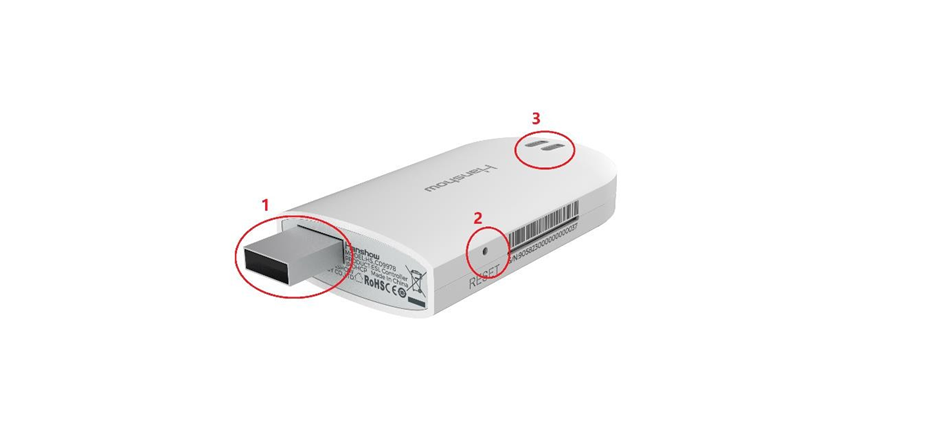
**Figure 2-1 Hardware interface of HS_C09978 **
Table 2-2 Function description for each interface
| No. | Interface name | Description |
|---|---|---|
| 1 | USB interface | Used for power port and virtual network port. |
| 2 | RESET hole | Used for system software reset. Supports for press and hold operation. For more information, see the section of 2.3. |
| 3 | LED indicator | System status indicator. For more information, see the section of 2.4. |
2.3 Key instruction
RESET hole supports press and hold operations, each owns different features.
2.3.1 Press
Press is used to switch IP address acquisition mode. This feature is limited to operate when AP is offline because it can disrupt business operations. AP address will be switched between DHCP and Static IP with each press.
- AP IP gets from DHCP server when AP works at DHCP client mode
- The following are default settings when AP works at static IP mode: IP -- 192.168.1.199, Subnet mask -- 255.255.255.0, and Gateway -- 192.168.1.1.
 Note: The protection interval between two operations should be at least 30s, that is, if you press again within 30s after last successful operation, your operation will be invalid.
2.3.2 Press and hold
Press and hold RESET for more than 5s, AP will restore factory setting and reboot. Restore factory setting includes the contents below:
- Restore to DHCP client mode.
- Restore to auto search mode of ESL-Working.
- Clear custom description.
- Restore web login password to admin.
- NTP restores to disable by default.
2.4 LED meaning
Table 2-3 shows the LED indicators meaning.
Table 2-3 Status indicator meaning for HS_C09978
| Status | Description |
|---|---|
| Steady on green | Ethernet is running normally, but the system is disconnected to ESL-Working. |
| Blinking green | The system does not get IP address when AP powered-on. |
| Blinking green slowly | Ethernet is running, and the system is connected to ESL- Working normally. |
2.5 Nameplate information
The nameplate of HS_C09978 contains the following implications, as shown in Figure2-2.
- IP and MAC address are the default configuration of HS_C09978.
- IP address can be modified through configuration page.
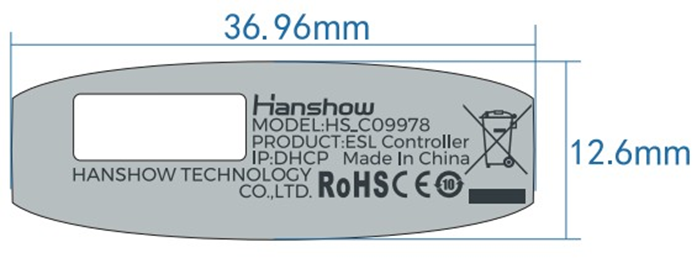
Figure 2-2 Nameplate of HS_C09978
 Note: The SN and MAC address are all on the side of HS_C09978.
3 Installation
The USB integration AP supports the following four installation modes:
- Horizontal hanging suspension from the ceiling
- Wall mounting
- Threaded hanger mounting
- Cross bar mounting
The installation height may be affect AP wireless coverage. Generally, HS_C09978 is installed in a higher position to achieve better transmission and coverage, as shown in Figure 3-1.
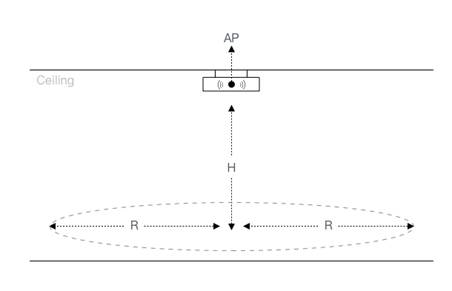
Figure 3-1 HS_C09978 installation diagram
Recommended installation scenarios are as follows:
- If the shelf height is ≤3m, H in Figure 3-1 is recommended to 3m ~ 5m, and the coverage radius R is 10m ~ 13m. It is recommended that the radius R is 10m, installation distance of two Hanshow APs is about 22m, and at least 5m.
- If the shelf height is 3m ~ 5m, H in Figure 3-1 is recommended to 5m ~ 8m, and the coverage radius R is 7m ~ 10m. It is recommended that the installation distance of two Hanshow APs is about 18m and at least 5m.
- If the shelf height exceeds 5m, the AP installation height needs to be determined according to actual situation of on-site engineering result.
- The installation height of AP should be higher than shelf height to avoid signal shielding.
- For the horizontal hanging suspension from the ceiling, keep the distance more than 6cm away from the ceiling.
 Note: For more information about Wi-Fi AP, see the related Wi-Fi AP Installation Manual or Instruction.
4 Parameter configuration
Make sure Wi-Fi AP runs normally before HS_C09978 parameters configuration.
4.1 Association parameters configuration
HS_C09978 needs to be configured the association parameters with Wi-Fi AP before HS_C09978 is running properly. About the detailed configurations, see the related Wi- Fi AP configuration manuals.
4.2 HS_C09978 parameter configuration
Users can configure and manage HS_C09978 parameters via Web interface.
4.2.1 Log in
Enter HS_C09958 IP address on browser address bar, go to the configuration page. For example: If HS_C09978 IP is 192.168.51.100, IP address is: https://192.168.51.100. Enter your sign-in password. The default password is admin.
A pop-up prompts you to change your password. The password includes 12 18 digits, letters and special symbols (!@#) to improve the strength. Click OK after resetting it, or click Cancel to proceed to next step, as shown in Figure 4-1 and Figure 4-2.
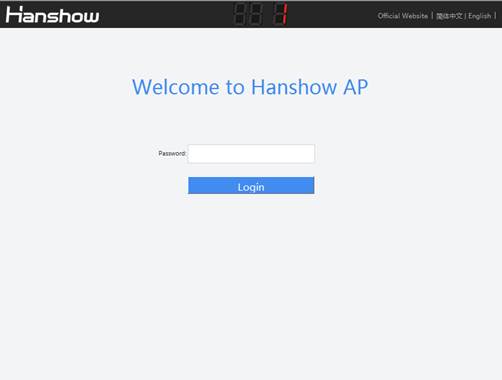
Figure 4-1 Login page
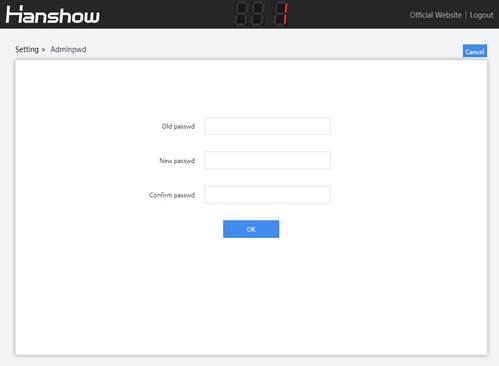
Figure 4-2 Password setting
 Note:
Note:
- Both of Chinese and English are supported, switch the language you want in upper-right corner.
- If the password does not meet the security rules or is set incorrectly, a prompt message appears; if the password strength is not strong enough, a pop-up prompts to reset your password.
4.2.2 Homepage
HS_C09978’s configuration homepage is as shown in Figure 4-3.
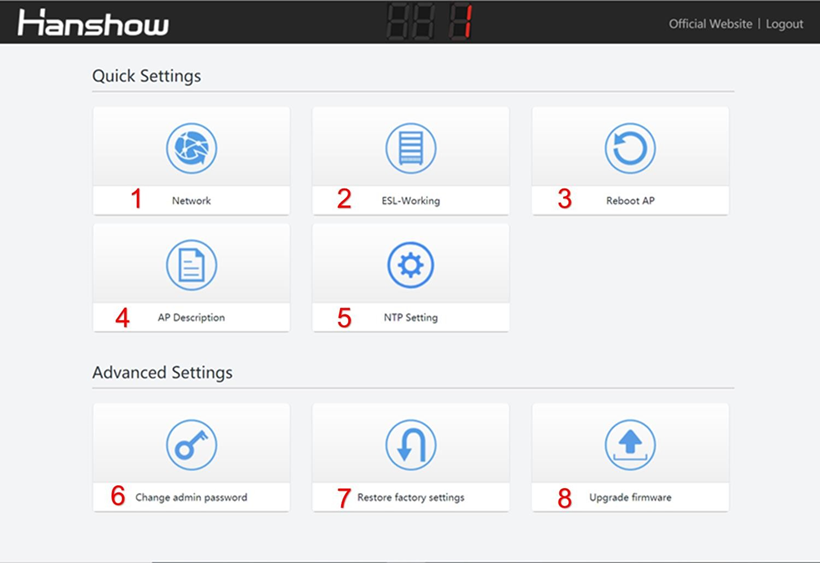
Figure 4-3 Configuration homepage
The configuration item description is shown in Table 4-1.
Table 4-1 Configuration item description
| No. | Configuration item | Description |
|---|---|---|
| 1 | Network | Used to set network parameters such as DHCP, IP address, subnet mask, etc. |
| 2 | ESL-Working | Used to configure ESL-Working parameter. |
| 3 | Reboot AP | Reboot AP device. |
| 4 | AP Description | To add description information. |
| 5 | NTP Setting | Used to configure NTP service. |
| 6 | Change admin password | Used to change the password. |
| 7 | Restore factory settings | Used to restore default settings. |
| 8 | Update firmware | Used to upgrade for main system and RF subsystem. |
4.2.3 Network setting
Network setting is used for setting network parameters of HS_C09978. It supports two IP types: IPv4 and IPv6; two IP address acquisition modes: DHCP or static IP.
If IP type is IPv4, the configuration page is shown in Figure 4-4.
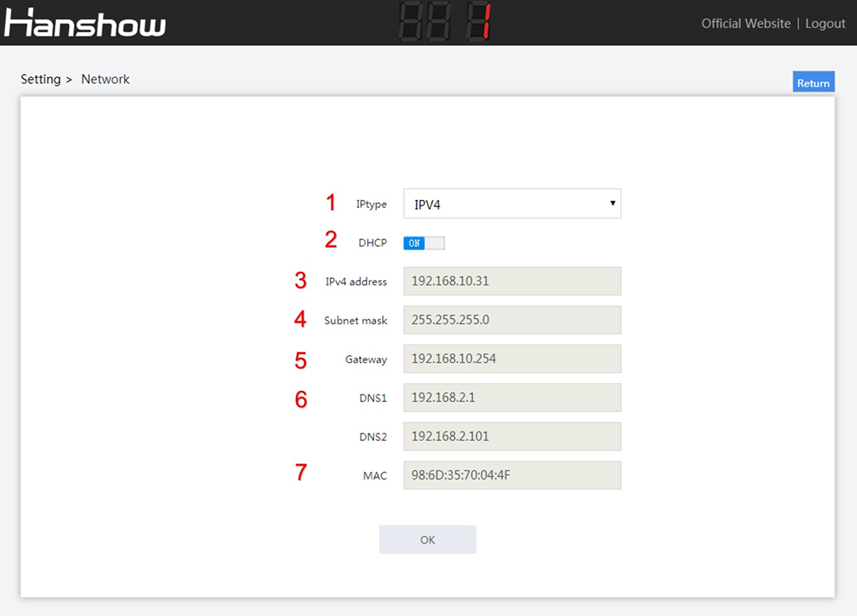
Figure 4-4 Network configuration page 1
The configuration items are illustrated as shown in Table 4-2.
Table 4-2 Configuration item description
| No. | Configuration item | Description |
|---|---|---|
| 1 | IP type | Support IPv6/IPv4 dual protocol stacks. To configure the parameters when selecting IPv4. |
| 2 | DHCP | l When set to OFF, IP address should be configured manually. l When set to ON, the device is DHCP client, and IP address should be get from DHCP server. |
| 3 | IPv4 address | Configurable when DHCP is OFF. |
| 4 | Subnet mask | Configurable when DHCP is OFF. |
| 5 | Gateway | It is able to configure when DHCP is OFF. |
| 6 | DNS | Domain Name Server (DNS), DNS1: Primary DNS server; DNS2: Secondary server. Must be set when the ESL-Working address is configured as domain name address; Enable DHCP, to get DNS from DHCP. |
| 7 | MAC | Unique MAC address, refer to the nameplate. |
- If IP type is IPv6, the configuration page is shown in Figure 4-5.
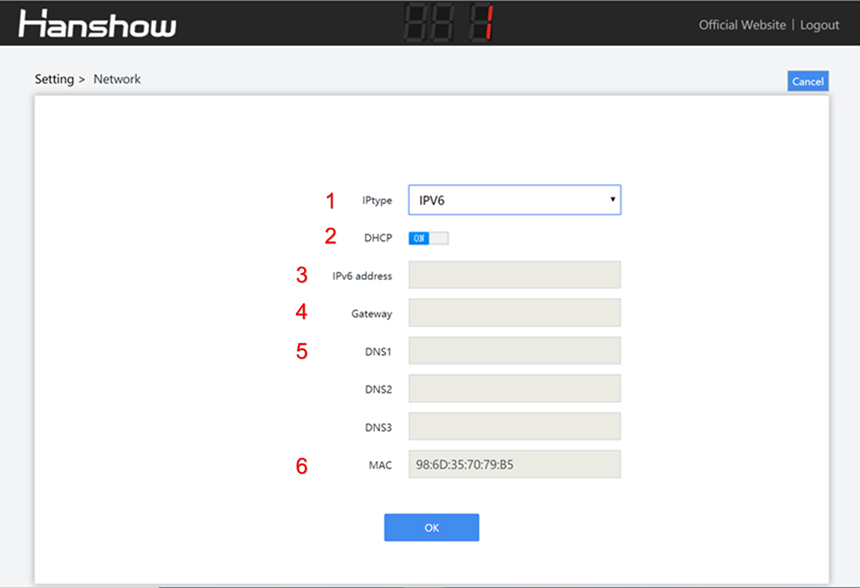
Figure 4-5 Network configuration page 2
The configuration items are illustrated as shown in Table 4-3.
Table 4-3 Configuration item description
| No. | Configuration item | Description |
|---|---|---|
| 1 | IP type | Support IPv6/IPv4 dual protocol stacks. To configure the parameters when selecting IPv6. |
| 2 | DHCP | l When set to OFF, IP address should be configured manually. l When set to ON, the device is DHCP client, and IP address should be get from DHCP server. |
| 3 | IPv6 address | Configurable when DHCP is OFF. |
| 4 | Gateway | Configurable when DHCP is OFF. |
| 5 | DNS | Domain Name Server (DNS), DNS1: Primary DNS server; DNS2: Secondary server; DNS3: Secondary server. Must be set when the ESL-Working address is configured as domain name address; Enable DHCP, to get DNS from DHCP. |
| 6 | MAC | Unique MAC address, refer to nameplate. |
 Note: The modified network settings take effect immediately, you need to re-enter the set URL to access the web.
4.2.4 ESL-Working setting
This can set IP address and port number of ESL-Working, as shown in Figure 4-6.
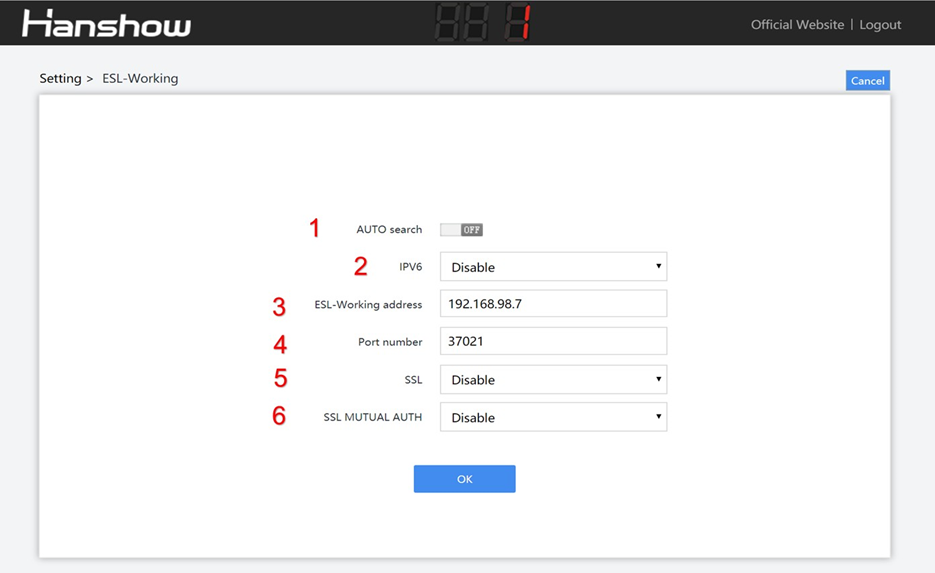
Figure 4-6 ESL-Working setting
Each configuration item is illustrated as shown in Table 4-4.
Table 4-4 Configuration items description
| No. | Configuration item | Description |
|---|---|---|
| 1 | AUTO search | When set to OFF, you need to set the related ESL- Working parameters manually. When set to ON, the AP will automatically search and connect to ESL-Working address in local area network (LAN). |
| 2 | IPv6 | Disable represents ESL-Working address can be configured as IPv4 format address (It is configurable when AUTO search is off). And an error will be reported if the configuration format is incorrect. Enable represents ESL-Working address can be configured as IPv6 format address (It is configurable when AUTO search is off). And an error will be reported if the configuration format is incorrect. |
| 3 | ESL-Working address | The IPv4 or DNS in ESL-Working is configurable when AUTO search is OFF. |
| 4 | Port number | Port number of ESL-Working: When AUTO search is set to ON, it presents the target ESL-Working address searched by the AP. When AUTO search is set to OFF, it presents the target ESL-Working address accessed by the AP. |
| 5 | SSL | Whether to use SSL to connect to ESL-Working securely. |
| 6 | SSL MUTUAL AUTH | Whether to verify the ESL-Working certificate. This feature is valid only when SSL is enabled. |
 Note:
Note:
- After the ESL-Working domain name address is set, you need to check if DNS server in Network setting is configured correctly.
- If SSL is enabled, check if the port number is correct. Generally, the port number is different when SSL is enable or disable.
- The modified ESL-Working information will take effect about 30s later, no need to reboot AP.
 Notice: You need to configure ESL-Working address manually when ESL controller and ESL-Working are used in different network.
4.2.5 Reboot AP
Click Reboot AP, click OK on pop-up box, the device will reboot. Reboot AP takes about 1min, as shown in Figure 4-7.
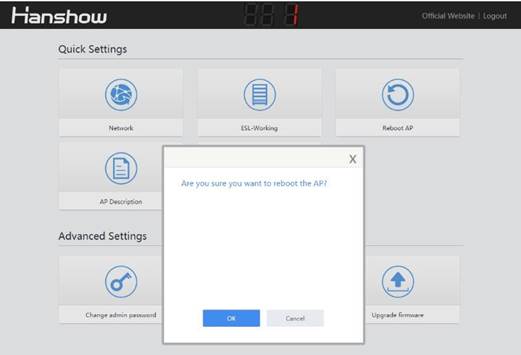
Figure 4-7 Reboot device
4.2.6 AP description
This can add custom information for AP record and recognition, as shown in Figure 4-8.
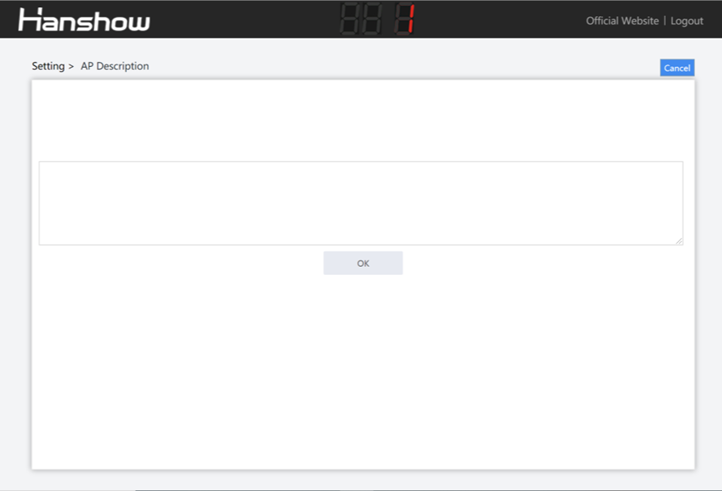
Figure 4-8 AP description
4.2.7 NTP setting
NTP setting can add custom device acquisition time, easy to synchronize time in time zone, as shown in Figure 4-9.
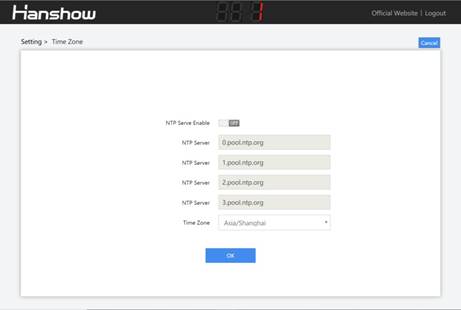
Figure 4-9 NTP setting
4.2.8 Change admin password
This is used for changing login password, as shown in Figure 4-10.
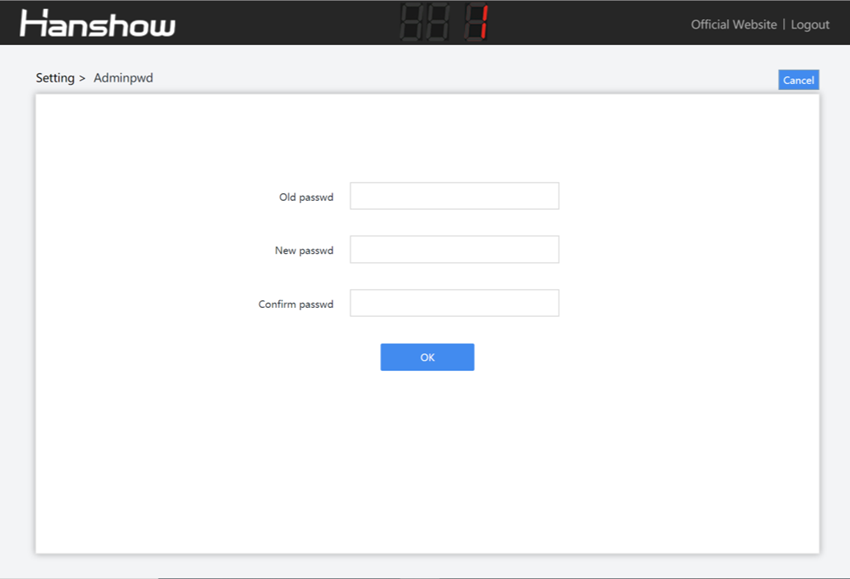
Figure 4-10 Change password
4.2.9 Restore factory settings
Click Restore factory settings, click OK on pop-up box, the device will restore factory settings and reboot. Restore factory settings takes about 1min, as shown in Figure 4-11.
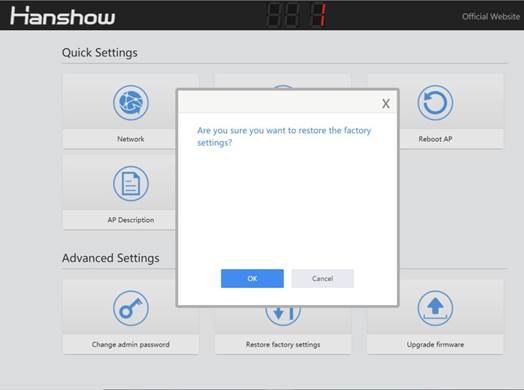
Figure 4-11 Restore factory settings
 Note:
Note:
- The effect is the same as the key action.
- Don’t cut off the power during the process, otherwise the device will be damaged.
4.2.10 Upgrade firmware
HS_C09978 upgrade is used to online upgrade for main system and RF subsystem. It supports local upgrade and remote upgrade.
- Local upgrade: Do not use other AP models’ upgrade package in our company for upgrade testing, avoiding incorrect upgrade.
- Remote upgrade: Currently, it is only available to LAN environment. If cross-network segment upgrade, you need to do port mapping in advance.
In order to avoid OS failure, the backup system is immediately activated. When using web upgrade, it is recommended to upgrade twice to ensure that dual system upgrade is successful.
 Notice:
- Don’t cut off the power during the upgrade, otherwise the AP will be rendered inoperable.
- To upgrade main PCB and two-way RF sub-PCB during the upgrade.
- The entire upgrade process takes about 5min.
For more details, see (HS-AP-USB003) Hanshow ESL controller HS_C09978 Upgrade Manual.
5 Workflow
To ensure that Wi-Fi AP works normally before HS_C09978 powered-on. Specifically, the workflow of USB integration AP is as shown in Figure 5-1.
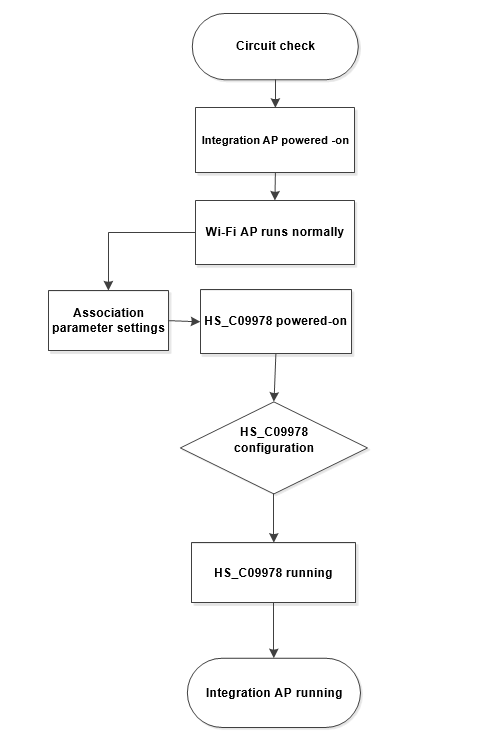
Figure 5-1 Wi-Fi AP workflow
Follow the steps:
- Before starting HS_C09978, check if the USB interface of Wi-Fi AP meets 5V/500mA and USB 2.0 and higher, and the system is whether to support USB virtual network port.
- Check if power cable and network cable are connected properly.
- HS_C09978 device does not start until the Wi-Fi AP is officially started (about 5min).
- HS_C09978 startup takes about 1min. After the system startup is complete, the LED indicators turn green that indicates working status.
- Follow the section of 4.2 to configure the relevant parameters accordingly.
- HS_C09978 will automatically connect to ESL-Working after the correct configurations. If success, the indicators will flash green; if failed, the prompt messages appear. HS_C09978 will connect to ESL-Working regularly.
- HS_C09978 will perform data communications such as heartbeat packet reception, data transceiver and ESLs inquiry.
6 Packaging
Figure 6-1 shows the HS_C09978’s packaging, and the packaging list is:
- HS_C09978 (ESL Controller) *1
- Fixed accessory *1
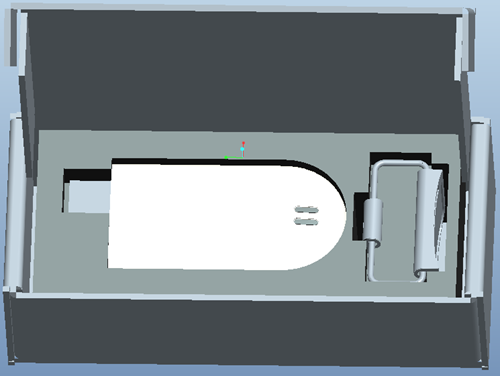
Figure 6-1 Packaging of HS_C09978
 Note: The above is only for reference. See the real.
7 Precautions and suggestions
During USB integration AP (Hereinafter referred to as AP), please note the following precautions and suggestions.
Table 7-1 Precautions and suggestions
| Item | Description |
|---|---|
| Environment requirements | Keep AP operating in standard temperature and humidity. The AP operates best in normal indoor conditions. To prevent circuit damage, avoiding poor ventilation or other extreme conditions. Do not install the AP in an environment with dust, poisonous gases, flammable or explosive objects, or electromagnetic interference. |
| Safe precautions | Take proper measures to avoid AP damaged and installer injuries. Keep the AP clean. Clean the device with a dry or damp soft cloth. Do not clean the device with wet cloth or liquid directly. Ensure the ventilation hole is not blocked. Unplug the power first when you need to move or clean the device. Place the AP in a dry and flat position away from any liquid. Keep the device away from water or damp places to avoid water or moisture entering the case. |
| Pre-installation check | Use network cable tester to check the network cable is normal. All power cables are not short-circuited or reversely connected and must be intact with no damage. Labels on cables are clear and correct. Ensure the ground conductor is intact. The Wi-Fi AP used should have USB interface that has virtual network function. The Wi-Fi AP used should not have structural interference with HS_C09978. Confirm Wi-Fi AP is able to support at least 500mA, and USB virtual Ethernet function. |
| Installation scenario | Try to reduce the number of obstacles such as walls, between the AP and user terminals. Limit the metal shielding around the AP to prevent cage interference effect. |
| Installation distance | If the shelf height is ≤3m, recommended the installation distance of two Hanshow APs is about 22m, and at least 5m. If the shelf height is 3m ~ 5m, it is recommended that the installation distance of two Hanshow APs is about 18m and at least 5m. If shelf height exceeds 5m, the installation height of AP is determined according to the actual situation. The installation height of AP should be higher than shelf height to avoid signal occlusion. For Horizontal hanging suspension from the ceiling, recommended the installation distance is more than 6cm away from the ceiling. |
| Network settings | Wi-Fi AP 5GHz frequency band is suggested to replace 2.4GHz frequency band for Wi-Fi coverage. If Wi-Fi AP is 2.4GHz, recommended to set Wi-Fi channel to 1, 6 or 11. If Wi-Fi AP is 2.4GHz, recommended to stagger the update time with ESLs to achieve optimal performance. Hanshow AP may be limited or affected by other IoT devices that share the 2.4GHz frequency-band such as Wi-Fi, BT or Zigbee. |
| Post-installation check | Install the AP firmly on the ceiling to avoid AP falling off and damaged. The power cable or network cable is intact and not spliced. The AP runs properly. |