Appearance
ESL USB Controller HS_C09978 Installation Manual
ESL USB Controller HS_C09978 Installation Manual
V1.0.2
HS-AP-USB002
STATEMENT
This document and all its contents contained remain the proprietary material of Smart Label Solutions Inc. (SLS) and are protected by British Columbia laws and applicable international conventions on copyrights. Any reproduction, transmission, disclosure, revision, modification or use otherwise of this document or the whole or part of its contents, in whatever form and by whatever means, is not permitted without prior express written authorization from SLS. Offenders will be liable for any and all damages caused by their offence hereof and will be subject to all remedies that SLS is entitled to seek under applicable laws.
ABOUT THE DOCUMENT
This manual guides how to install HS_C09978 involved in installation mode selection, installation precautions, etc. Fix the issues encountered during the installation process and unify the AP installation acceptance standards.
TARGET USERS
This document provides engineers with necessary data and related guidelines. Users have to master the basic knowledge on network, communication and installation and maintenance. This manual is applicable for the below engineers:
- Testing Engineer
- Technical Support Engineer
- After Sales Engineer
- Installation Engineer
SYMBOL DESCRIPTION
| Icon | Description |
|---|---|
.jpg) | Information indicated with this icon should be paid special attention and attached great importance by the reader. |
.jpg) | Information indicated with this icon is the explanation on the formal text for the readers to comprehend the text better. |
| [X-X] | It means special noun definition is provided here. |
EXPLANATION OF TERMS
| Acronym | Expanded form | Description |
|---|---|---|
| ESL Controller | ESL Controller | Also called AP that is used for data interaction between ESL-Working and ESL Controller. |
| ESL | Electronic Shelves Label | Used for displaying product information like promotion information, price and grade, etc. |
| RF | Radio Frequency | Electromagnetic frequency that can radiate into space. |
1 Introduction
This manual is a guide for planning and installing Hanshow’s third generation ESL con- troller HS_C09978.
2 Installation planning
A detailed installation plan must be set up before installing. The goal is to find out a reasonable place where to install HS_C09978 without reducing the system performance. Figure 2-1 shows the entire installation process of HS_C09978.

Figure 2-1 HS_C09978 installation process
2.1 Prerequisites
The installation plan and installation record must be prepared before HS_C09978 installation. All installation work must be done by experienced staff or locally authorized electricians, complying with local laws and regulations.
2.2 Preparations
Please read the preparations below carefully, to ensure HS_C09978 can work properly.
2.2.1 Installation site
HS_C09978 is for indoor use only, with recommended installation mode as horizontal hanging suspension from the ceiling. For more installation distance, see 3.3.
2.2.2 Temperature and humidity
The temperature and humidity range available for HS_C09978 is shown in Table 2-1.
Table 2-1 Temperature and humidity standard
| Temperature | 0℃ ~ 50℃ |
|---|---|
| Humidity | 10% ~ 90% (Non-condensing) |
 Notice: HS_C09978 operates best in normal indoor conditions. To prevent circuit damage, avoiding poor ventilation or other extreme conditions.
2.2.3 Ventilation
There should be no obvious obstruction to the vent opening on HS_C09978 device to facilitate heat dissipation.
2.2.4 Avoid signal interference
The signal strength has a greater impact on the efficient communication between HS_C09978 and ESLs. Follow the items below to get better wireless communication:
- Maintain at least 1m of space around the HS_C09978 for optimal performance.
- If Wi-Fi AP is 2.4GHz, recommended to set the channel to 1, 6 or 11.
- If Wi-Fi AP is 2.4GHz, recommended to stagger the update time with ESLs to achieve high-performance.
- HS_C09978 may be limited or affected by other IoT devices that share the 2.4GHz frequency-band such as Wi-Fi, BT or Zigbee.
For more signal information, see the chapter of 3.
2.2.5 Precautions
Follow the precautions below to avoid AP damaged and installer injuries caused by improper operations.
- Ensure your Wi-Fi AP is equipped with a USB interface that has virtual network feature.
- Install Hanshow AP firmly on the ceiling to avoid falling off and damage.
- Do not disassemble Hanshow AP.
- Power off Hanshow AP before moving or cleaning it.
- Clean Hanshow AP with a dry or damp soft cloth. Do not clean it with wet cloth or liquid directly.
- Keep Hanshow AP away from water or damp area to prevent water or moisture from entering the case.
2.3 Required supplies
Perform the inspections below before installation.
2.3.1 Unpacking the equipment
Before unpacking the carton, ensure that the packing carton is intact and not damaged or soaked. If the equipment is rusted or wet, please contact the supplier immediately.
After unpacking, check items in the carton against the packing list. If any item is missing, contact the supplier or agent.
Usually, the packing list contains the following items.
- ESL controller (HS_C09978) *1
- Fixed accessory *1
2.3.2 Installation tools
The following tools might be needed during installation: marker pen, knife, wire clamp, impact drill and supporting drills, rubber hammer, cross screwdriver, ladder, M8 screw, etc.
The above tools are not provided and should be prepared by the installation teams.
 Note: About Wi-Fi AP installation mode, see the related installation manual or product manual of Wi-Fi AP.
2.3.3 AP powered-on check
Check if the AP powered-on runs normally before installing. Follow the steps below:
- Connect HS_C09978 to a Wi-Fi AP, make USB integration AP powered-on to check if the Wi-Fi AP works properly.
- Configure the association parameters with the Wi-Fi AP. For more configuration details, see the related Wi-Fi AP configuration documents.
- After the Wi-Fi AP starts officially (about 5min), HS_C09978 boots.
- Two red LED indicators on the HS_C09978 come on, 1min later, they may change to one of the following cases:
- Steady on green: The Ethernet is running normally, but is not connected to ESL- Working system.
- Green flashing instantly: Instant flashing when HS_C09978 powered-on, which means the system does not get the IP address.
- Green flashing slowly: The Ethernet is running normally, and is connected to ESL-Working system.
- HS_C09978 works normally when the green flashing slowly.
2.4 Networking
By default, each AP will get its IP address through DHCP mode via the LAN. The AP will search and connect to ESL-Working automatically.
 notice: If you need to install the AP across network segments or manually configure AP IP, see the section of 2.5.
2.5 Parameter configuration
Below describes how to deploy network environment and configure AP parameters before installing.
2.5.1 network environment deployment
The network environment deployment includes two modes: Local deployment and cen- tralized deployment.
- Local deployment: The extranet is not required, and the system is deployed to a store’s server.
- Centralized deployment: All systems are centrally deployed and managed, and server resources can be reused for implementation, upgrade and maintenance.
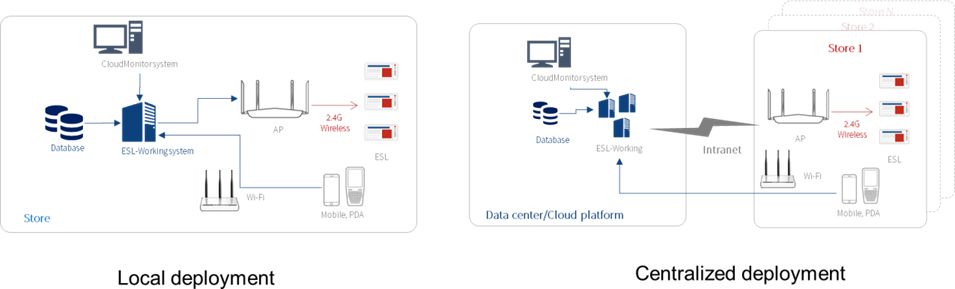
Figure 2-2 Network environment deployment
Take local deployment as an example, the operational steps are as follows:
- Connect a Wi-Fi AP to a configure terminal (a PC or laptop) using an Ethernet cable.
- Plug HS_C09978 device into the USB interface of Wi-Fi AP.
- Power on a router and HS_C09978.
- Obtain an IP address assigned by HS_C09978 from the router.
- Configure the HS_C09978 communication parameters through the web page on a PC or laptop.
 note: Google Chrome browser is recommended to use for best compatibility.
2.5.2 Web logon
AP IP obtained via the section of 2.5.1. For example, AP IP is 192.168.1.100. Visit https://192.168.1.100 in the browser address bar, as shown in Figure 2-3. The default password: admin.
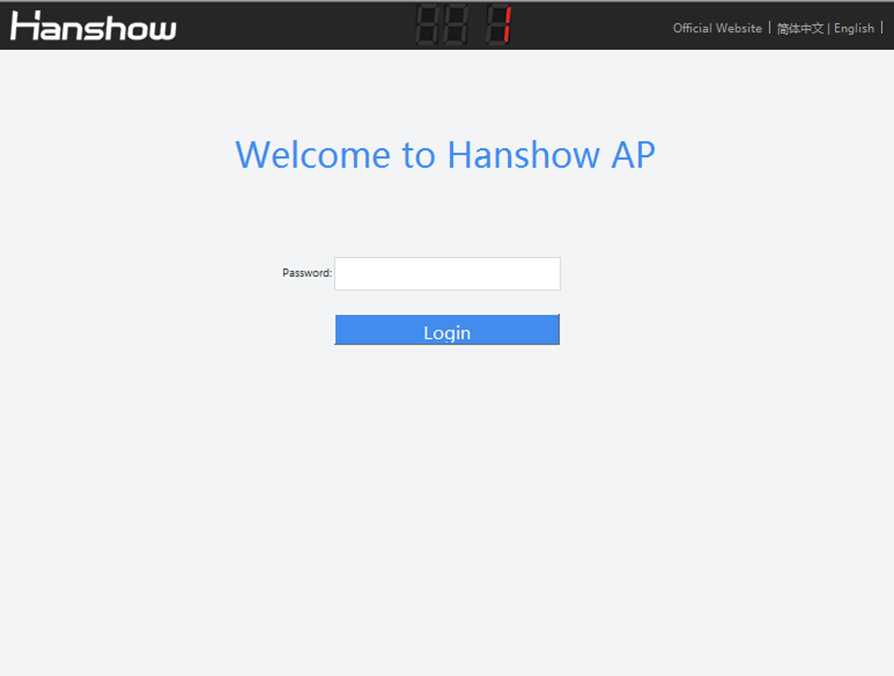
Figure 2-3 AP logon page
Enter the password to go to the configuration homepage, as shown in Figure 2-4.
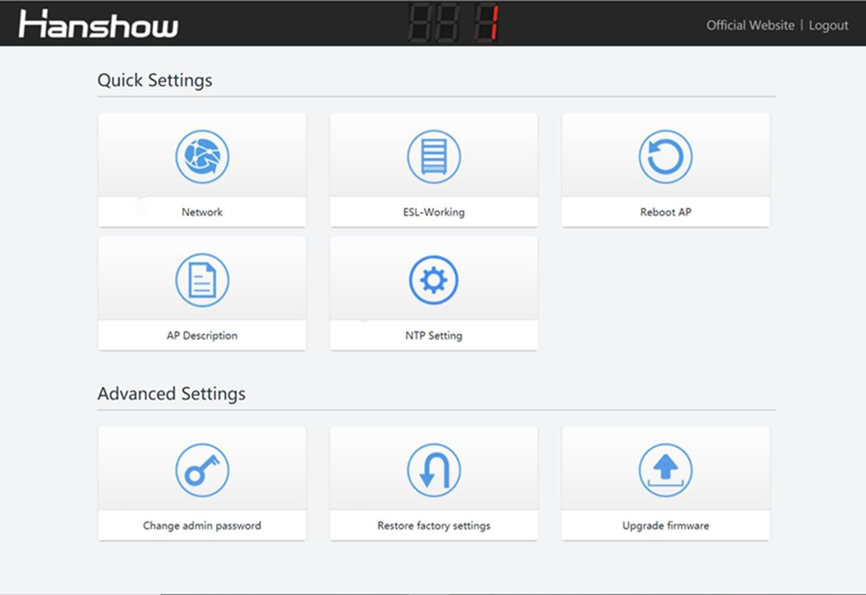
Figure 2-4 AP configuration homepage
2.5.3 IP configuration
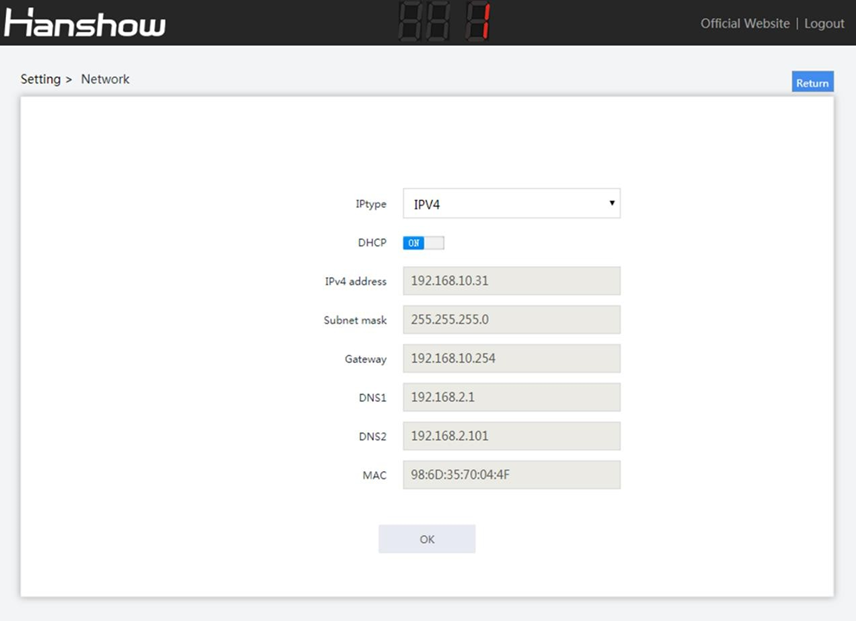
This supports two IP types: IPv4 and IPv6; two IP acquisition modes: DHCP or static IP, as shown in Figure 2-5
 Note:
Note:
Figure 2-5 Network configuration
- DHCP is ON: The default mode, represents IP acquisition mode is DHCP, and IP address and other parameters cannot be configured.
- DHCP is OFF: Represents the parameters such as IP address, subnet mask, gateway need to be configured manually.
2.5.4 ESL-Working configuration
This function is used to configure the parameters of connecting ESL-Working, as shown in Figure 2-6.
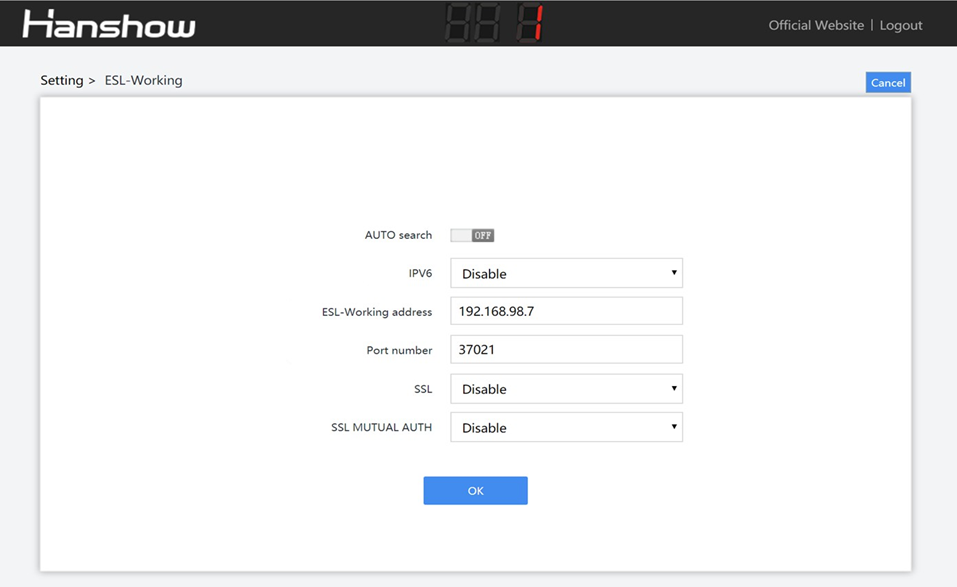
Figure 2-6 ESL-Working configuration
 Note:
Note:
- AUTO search is ON: This is the default mode, and the AP will auto search and connect to ESL-Working on the same subnet. ESL-Working address cannot be configured, and Port number is target one from auto-search.
- AUTO search is OFF, ESL-Working address is configurable, and Port number is the listening port of ESL-Working.
- SSL represents secure transmission between the AP and ESL-Working. The SSL connection in some software versions may not be shown because these versions don’t support this feature.
- If the AP and ESL-Working work in different networks, please configure ESL- Working address manually.
For more details, please see Hanshow ESL Controller HS_C09978 Product Manual.
3 Wireless signal coverage
This chapter offers reference for AP installation site selection.
3.1 Signal coverage
Once the installation distance between APs has been determined for a store, follow these steps below to optimize signal coverage:
- Calculate the number of APs needed to cover the store.
- Mark the mounting heights and orientations of the AP.
An example signal coverage effect is shown in Figure 3-1.
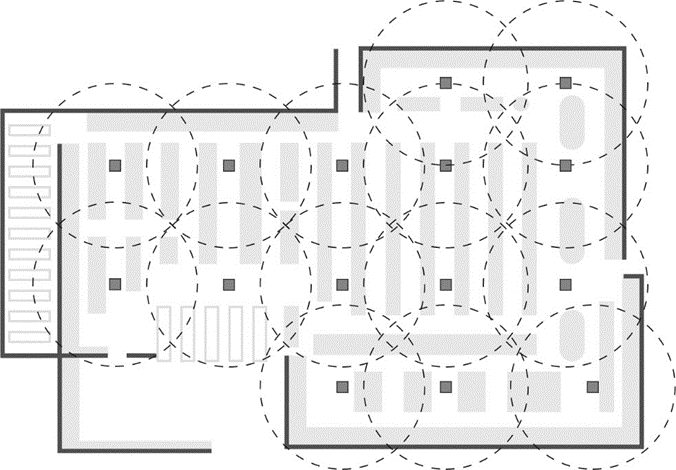
Figure 3-1 An example of AP signal coverage
 Notice: In the actual installation process, the adjacent APs should maintain a certain overlap of signal coverage to ensure full coverage.
3.2 Signal penetration
The signal attenuates differently depending on various wall thickness, materials, etc., as shown in Figure 3-2.
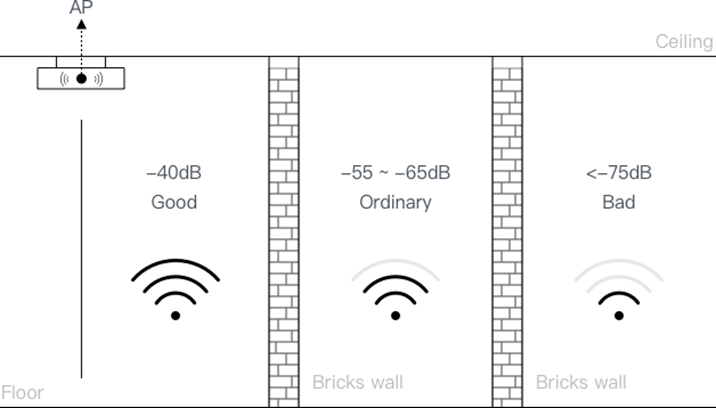
Figure 3-2 Signal attenuation diagram
Table 3-1 Empirical value for wireless signals attenuation of common barriers
| Barriers | Attenuation Value |
|---|---|
| Red concrete brick wall (15cm ~ 25cm) | 13dB ~ 18dB |
| Hollow clay brick wall | 4dB ~ 6dB |
| Wooden wall (5cm ~ 10cm) | 5dB ~ 6dB |
| Plasterboard wall | 3dB ~ 5dB |
| Glass, Glass window (3cm ~ 5cm) | 6dB ~ 8dB |
| Wooden door | 3dB ~ 5dB |
3.3 Installation and signal
- Installation location
For the best AP performance, keep the AP within sight of the ESLs and minimize obstructions between AP and ESLs, and install the AP suspended from the ceiling with 6 cm between the AP and ceiling base, as shown in Figure 3-3.
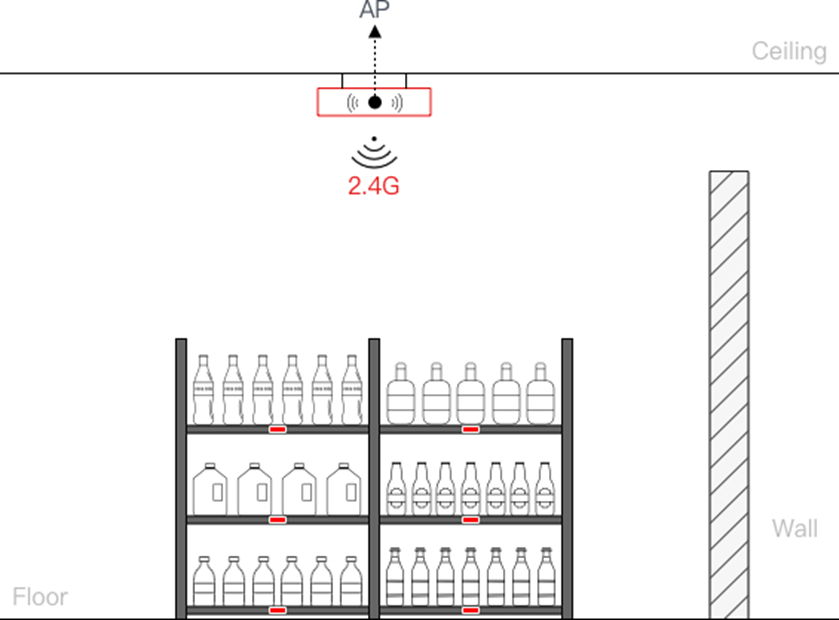
Figure 3-3 AP installation reference
- Recommended AP layout as follows:
For the 1st, 2nd, and 3rd generations of EPD, 3rd generation LCD and e-fresh segment ESLs, it is best to install at a 13m coverage radius. Follow the recommendations below during the actual installation:
- If the shelf height is less than 3m, H in Figure 3-4 is recommended to 3m ~ 5m, and the coverage radius R should be 10m ~ 13m. The distance between the two Hanshow APs should be at least 5m, and the recommended installation distance is 22m.
- If the shelf height is 3m ~ 5m, H in Figure 3-4 is recommended to 5m ~ 8m, and the coverage radius R is 7m ~ 10m. It is recommended that the installation dis- tance of two Hanshow APs is about 18m and at least 5m.
- If shelf height exceeds 5m, the installation height of AP should be determined according to on-site engineering results.
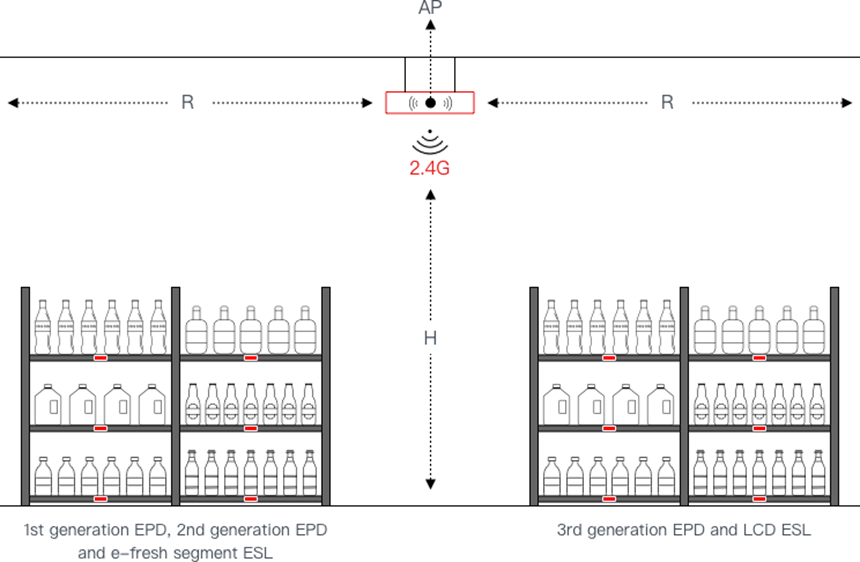
Figure 3-4 AP coverage reference diagram
 Notice: The installation height of AP should be higher than shelf height to avoid signal shielding.
- Avoid the following installation mistakes.
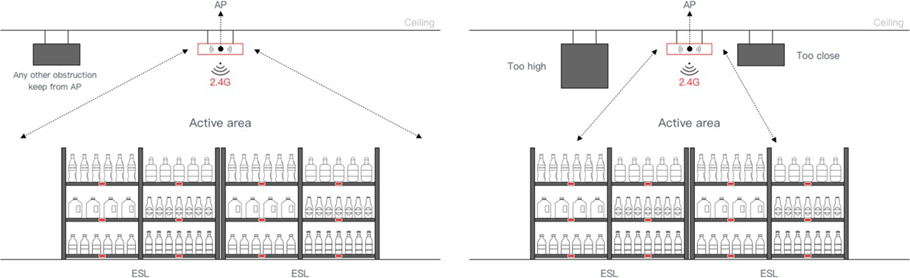
The metal or shielding on the ceiling should be more than 1m from the APs.
There should no obstacles such as metal or shielding in the visible area between APs and ESLs (Except for shelves, try to minimize the shelf shelter), as shown in Figure 3-5.
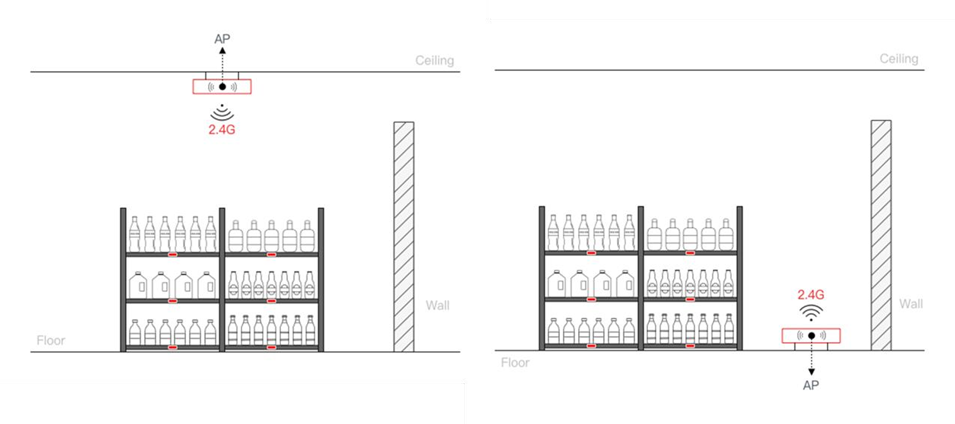
It is not recommended to install the AP on the side wall or on the floor, as shown in Figure 3-6.
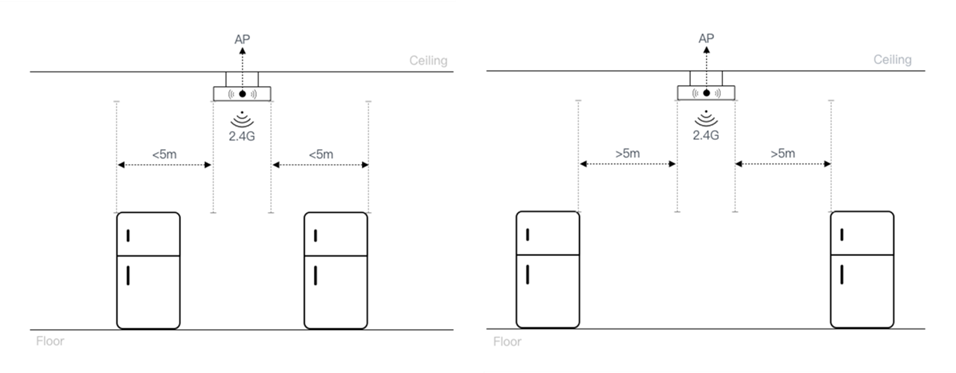
For ESLs in metal-door or glass-door refrigerators, the AP should be no more than 5m away. Because there is about 3dB ~ 6dB signal attenuation due to metal or glass shielding, as shown in Figure 3-7 and Figure 3-8.
Avoid installing the AP and ESLs on partition wall, because there is more than 10dB signal attenuation due to brick wall, as shown in Figure 3-9.
(a) Proper installation method (b) Improper installation method
Figure 3-5 Visual range reference for AP
(a) Proper installation method (b) Improper installation method
Figure 3-6 AP installation reference 1
(a) Proper installation method (b) Improper installation method
Figure 3-7 AP installation reference 2
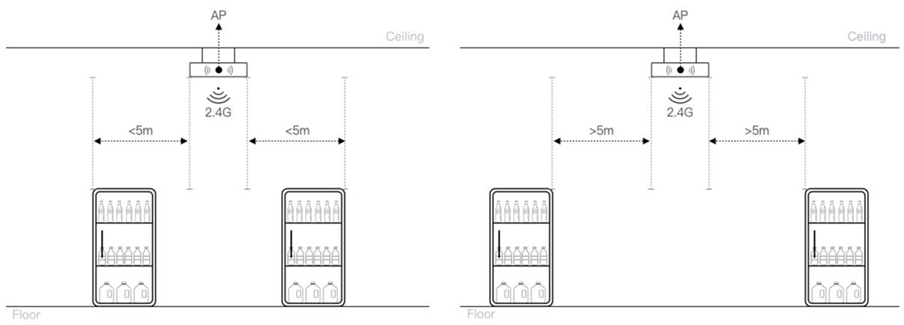
(a) Proper installation method (b) Improper installation method
Figure 3-8 AP installation reference 3
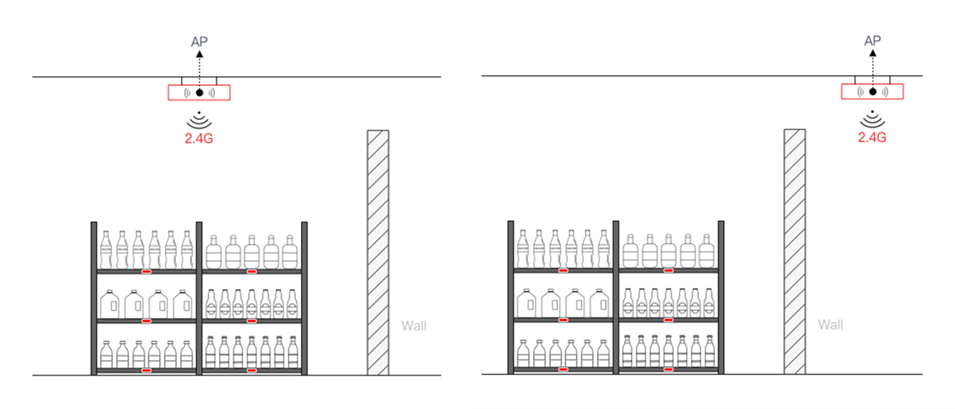
(a) Proper installation method (b) Improper installation method
Figure 3-9 AP installation reference 4
4 Installation
This chapter details how to install the HS_C09978 and perform post-installation checks.
4.1 Installation steps
HS_C09978 needs to work with Wi-Fi AP that has USB virtual network function. Take an Extreme integration AP as an example to describe how to install HS_C09978.
Follow the steps below:
- Plug HS_C09978 into USB port of an Extreme AP that supports USB virtual network function in place.
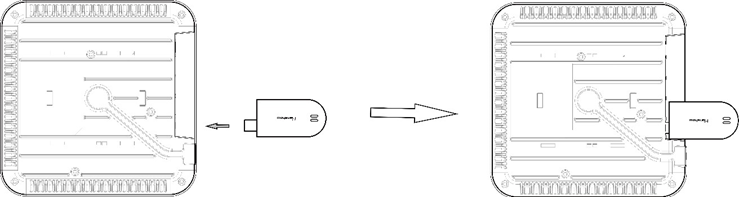
- Paste the fixture to a proper position on Extreme AP as shown below firmly.
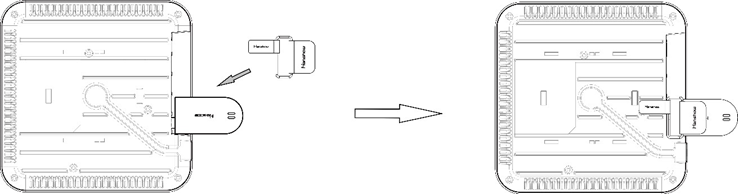
 Note: For more information about Wi-Fi AP installation, please see the relevant Wi- Fi AP installation documents.
4.2 Post-installation check
Table 4-1 shows the items to be checked after installation is complete.
Table 4-1 Installation checklist
| No. | Check Item |
|---|---|
| 1 | The device is installed by strictly following the design draft. The installation position meets space requirements, also allowing for maintenance space. |
| 2 | The device is securely installed. |
| 3 | The cables are intact and not spliced. |
| 4 | Terminals of the cables are cramped firmly. |
| 5 | All cables are not short-circuited or reversely connected and must be intact with no damage. |
| 6 | The Ethernet cables and electric cables, and other cables are separated and bun- dled accordingly. |
4.3 AP start-up
For start-up procedure and status for AP, please see the section of 2.3.3.
4.4 network check
Using ping command to detect network connectivity and test network status after AP starts to work, as shown in Figure 4-1.
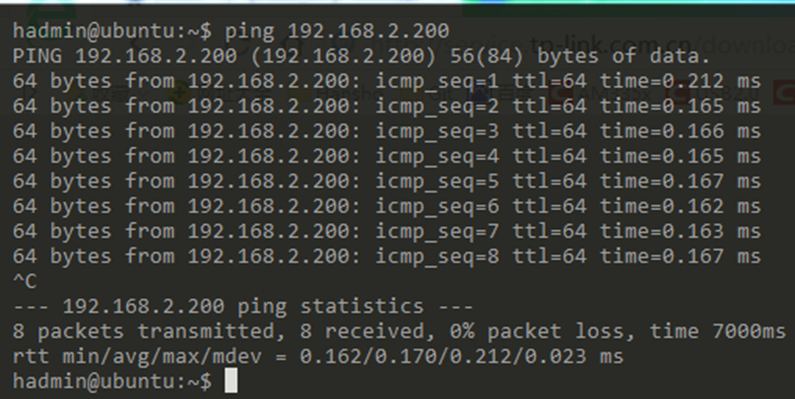
Figure 4-1 network checking
 notice: If Wi-Fi AP is 2.4GHz, recommended to set the channel to 1, 6 or 11.
5 Software upgrade
HS_C09978 supports Web upgrade and smart upgrade.
For more information, see Hanshow ESL Controller HS_C09978 Upgrade Guide.