Appearance
Handy Link 2.0.0 User Manual
Handy Link 2.0.0 User Manual
V1.0.0
HS-HANDYLINK-V210003
STATEMENT
This document and all its contents contained remain the proprietary material of Smart Label Solutions Inc. (SLS) and are protected by British Columbia laws and applicable international conventions on copyrights. Any reproduction, transmission, disclosure, revision, modification or use otherwise of this document or the whole or part of its contents, in whatever form and by whatever means, is not permitted without prior express written authorization from SLS. Offenders will be liable for any and all damages caused by their offence hereof and will be subject to all remedies that SLS is entitled to seek under applicable laws.
ABOUT THE MANUAL
This document describes Handy Link functions and operations, including ESL association and disassociation.
Please read this document carefully before using the product, retain the document for subsequent use or for the next owner. If the instructions contained in this document are insufficient to resolve issues that occur during device operation or maintenance, please contact SLS Technical Customer Service Center (1-888-389-8989) directly, we will provide you with multi-channel technical services.
TARGET USERS
This document is applicable to:
- Technical support engineers
- After sales engineers
- Test engineers
- Installation engineers
SYMBOL DESCRIPTION
| Icon | Description |
|---|---|
 | Information indicated with this icon should be paid special attention and attached great importance by the reader. |
 | Information indicated with this icon is the explanation on the formal text for the readers to comprehend the text better. |
| [X-X] | It means special noun definition is provided here. |
EXPLANATION OF TERMS
| Acronym | Expanded form | Description |
|---|---|---|
| ESL | Electronic Shelf Label | Electronic shelf label, used to display product information such as promotion information, price, and specifications |
| ESL Controller | ESL Controller | ESL controller, all called access point (AP), used for data interaction between ESL-Working and ESLs |
| ESL-Working | ESL-Working system | Manages all ESL controllers and ESL devices in store, versions above 3.0 supports multiple stores |
| Handy Link | Handy Link | A handheld terminal App. |
| PriSmart | PriSmart Smart Retail System | Manages product data of all stores and distribute price changes, supports multi-store management |
1 Overview
Handy Link is an ESL management app for smart phones and personal digital assistants (PDAs) running in iOS or Android. On EPD ESLs, it can implement basic functions such as: association, disassociation, LED flash and page switch; while on the Lumina ESLs, it can implement association and disassociation functions. Working with the latest version of PriSmart and All-Star, Handy Link can help effectively manage Hanshow ESLs.
2 Function list
This chapter describes basic functions of Handy Link.
2.1 Signing in/out
As for All-Star users who have configured their accounts in All-Star server, they can set sign-in using Google authentication and select a store after signing in; PriSmart users can sign in directly via PriSmart account ID and password, select a store and perform operations including association and disassociation for the articles and ESLs of the store. After signing out, you can sign in with another account.
2.2 Language setting
Default language for Handy Link can be set. Multiple languages can be selected. Currently, the system supports Chinese, English, German, French and Japanese.
2.3 Configuration
You can use Handy Link to configure the IP address of the PriSmart or All-Star server, and test whether the server address is valid. Valid server address will be saved and take effect.
2.4 Change password
You can verify or change the password for your account. The password should be 6-18 digits long, consisting of letters, numbers, and special symbols.
2.5 Auto submission
You can set whether to automatically submit association data on the association page.
If the auto submission function is enabled on the settings page, after association and disassociation settings are complete, the system will automatically submit the operation data.
If the auto submission function is disabled, association and disassociation will not take effect until the Submit button is tapped.
2.6 Version
This function displays the current version information of Handy Link App.
2.7 Associate
Handy Link supports split-screen association of EPD and Lumina ESLs. By default, the current version supports 1 and 2 split screens. The number of split screens can be set in the profile.
With the associate function, you can associate articles and ESLs. Tapping the upper right button to set the number of split screens. The default setting is 1 split screen. Get the ESL ID by entering or scanning the ID or using the NFC function, associate the entered or scanned article EAN (or SKU), and then tap Submit to complete the association. If the auto submission function is enabled, the association will be automatically submitted after the ESL and article EAN (or SKU) are entered/scanned.
 Notice: obtaining ESL ID using NFC is not supported by Lumina ESL.
2.8 Disassociate
With the disassociate function, you can disassociate articles from ESLs. Get the ESL ID by entering or scanning the ID or using the NFC function, the ESL will be disassociated from articles after the submission.
 Notice: obtaining ESL ID using NFC is not supported by Lumina ESL.
 Note: To use the NFC function to get ESL IDs for association and disassociation, iOS 13.0 or above, and iPhone 7 or above devices; while there isn’t requirement on Android OS version number.
2.9 Page switch
With the page switch function, page switch command can be sent to ELSs at the specified time, and page retention time and the page to switch to can be set. After entering or scanning the ESL ID, you can set the page to switch to and the page retention time. The page retention time can be set up to 300min. By default, up to 4 pages can be switched, which can be set in the profile.
Flashing
With the flashing function, flashing command can be sent to ESLs, flashing duration (up to 3600s) and colors (red, green, and blue are supported currently) can be configured. The flashing configuration takes effect after submission.
2.10 Edit articles
After article fields are configured in All-Star, you can edit and modify article fields in Handy Link’s Edit articles function subpage.
When configuring Edit articles function in All-Star, users can define their own article fields, editing approaches and the sequence to display fields when editing articles in Handy link.
2.11 Search for ESL
With the search for ESL function, you can search ESLs by entering or scanning ESL IDs, to view ESL details, including battery status, associated articles, firmware ID, connection status, update reason, update failure reason, refresh times, screen size, ROM version, last heartbeat time, and last update time, as well as the template bound to the ESL.
 Note: the current version does not support viewing assocated template of Lumina ESL.
2.12 Search for AP
With the search for AP function, you can search APs by serial numbers of APs. Fuzzy search is supported. In the search result, the AP status might be online or offline. You can tap the AP search result to view AP details, including AP ID, IP, MAC, SIN, and status.
3 User operation guide
This chapter describes software environment, preparation, and interface operations for Handy Link.
3.1 Software environment
Handy Link can run in iOS and Android devices with the following prerequisites:
- iOS: iPhone in iOS 11.0 or above. To use the NFC function to get ESL ID, iOS 13.0 or above, and iPhone 7 or above devices are required.
- Android: Android phones or handheld PDA devices in Android 5.1 (API 21) or above
3.2 Preparation
Before using Handy Link, you need to install Handy Link and ensure PriSmart access.
- iOS: In App Store, search and install Handy Link.
- Android: Search for Handy Link in Google Play or contact installation engineers to get and install the APK.
- Ensure that PriSmart or All-Star has been successfully deployed and can be accessed through web browser.
 Note: Handy Link supports PriSmart 1.3.2-rc.1 and above and All-Star 2.1.0.
3.3 Operation guide
3.3.1 Set server address
Follow the steps below to set the server address.
- In the Handy Link app, tap the
 icon on the upper right corner to open the Settings page, as shown in Figure 3‑1.
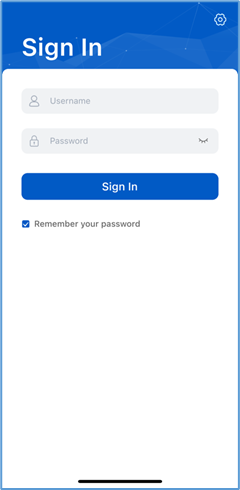
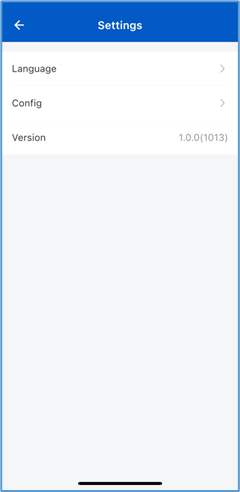
Figure 3‑1 Config path
- Tap Config to open the Config page. Select service platform and configure server address, server address can be configured either using manually input or using scan function.
- Manual input
Input your selected PriSmart or All-Star server address in the server address input box, as shown in Figure 3‑2.
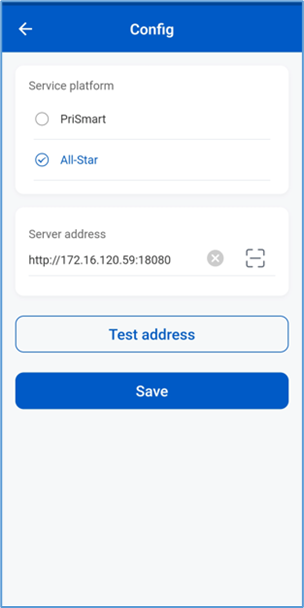
Figure 3‑2 Configure the server
- Scan configuration
Click the scan icon at the back of the server address input box to enter the scan subpage and scan the server address QR code, so that the server address will be written back to the input box.
 Note: The server address QR code can be generated using a QR code generation tool.
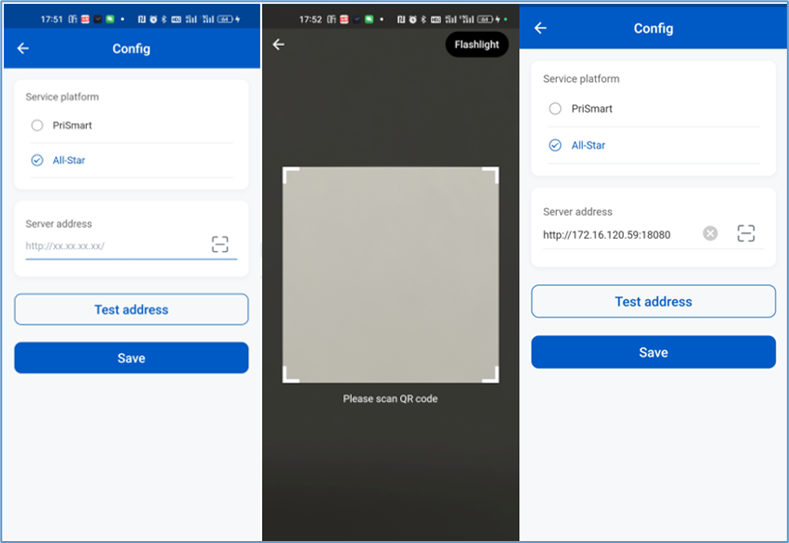
Figure 3‑3 Configure server address by scanning QR code
- Tap Test address to test whether the configured PriSmart or All-Star address can be properly connected. If PriSmart cannot be connected, check the network setting or upgrade PriSmart.
- After the test is passed, tap Save.
3.3.2 Switch language
Select language in either of the following ways:
- Before signing in, tap the
 icon on the upper right corner to open the settings page, select Language to open the language setting page, and then select the display language for Handy Link.
 - After signing in, in the navigation bar at the bottom of the page, tap Settings to open the settings page, select Language, and then select the display language for Handy Link.
Currently, available languages include Chinese, English, German, French and Japanese, as shown in Figure 3‑4.
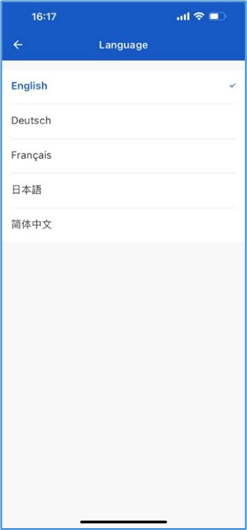
Figure 3‑4 Switch language
3.3.3 Sign in
- Sign in using Account created on Prismart or Allstar
Sign in to Handy Link using your user name and password. Newly created user account will be prompted to change the password, as shown in Figure 3‑5. If the Remember your password check box is selected, the password will be automatically saved after the user account signs in to Handy Link.
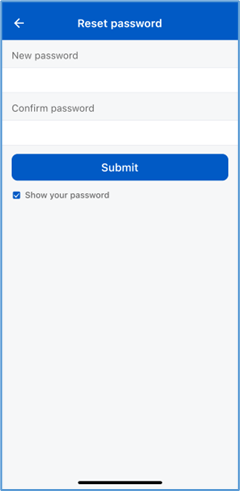
Figure 3‑5 Reset password
- Select or switch store
Enter your user name and password to sign in to Handy Link. The store selection page will open, listing all the stores that have been configured in PriSmart or All-Star for the user account so that the user account has access to. Select a store to open the main interface of the store.
In the store’s main interface, you can also tap the store name to open the store switch page to select a store, as shown in Figure 3‑6.
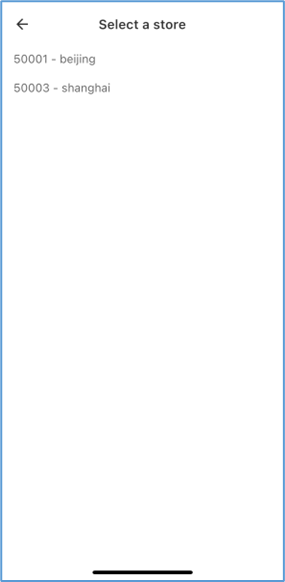
Figure 3‑6 Select a store
3.3.4 Home page
The home page contains two tabs: Function and Search, as shown in Figure 3‑7. On the Function tab, you can perform operations including association, disassociation, page switch, and flashing. On the Search tab, you can perform article, ESL, or AP search.
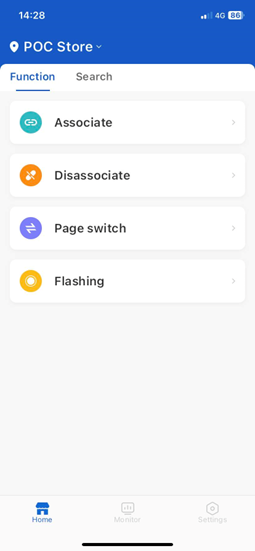
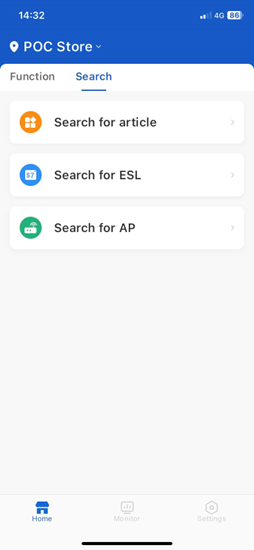
Figure 3‑7 Home page
3.3.5 Associate
With the associate function, you can associate EPD and Lumina ESLs with articles.
Specific steps are as follows:
- On the Function tab of the home page, tab Associate, as shown in Figure 3‑8. The Associate page opens.
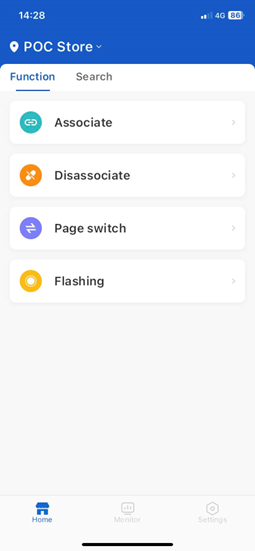
Figure 3‑8 Associate entry
- In the ESL ID box, enter or scan the ESL ID, or move your phone close to the upper left corner (Lumina ESL does not support identifying ID using NFC.) of the ESL to use the NFC function to get the ESL ID (for iOS phone, tab the NFC button on the bottom of the page to trigger the NFC function; for Android phone, just move the phone close to the ESL), as shown in Figure 3‑9.
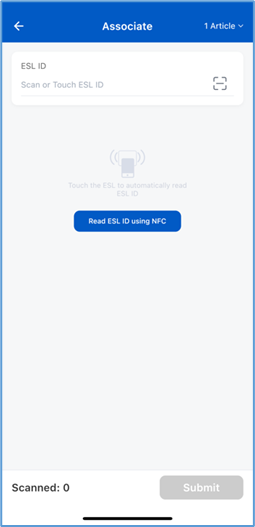
Figure 3‑9 Associate – ESL ID
The system can automatically distinguish EPD and Lumina ESLs after identifying ESL ID. As for EPD ESL, an Associate popup will show up as shown in Figure 3‑10; as for Lumina ESL, options for screen layout (either landscape or portrait) will show up, choose the right screen layout, input or scan EAN to complete association, as shown in Figure 3‑11.
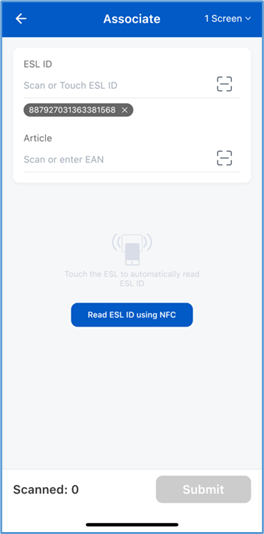
Figure 3‑10 Association – EPD
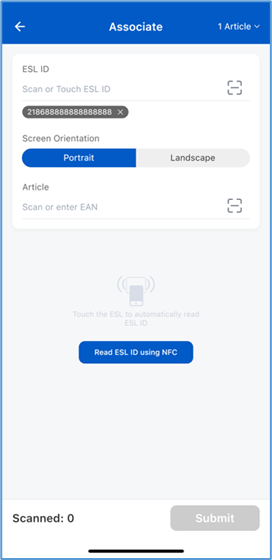
Figure 3‑11 Association – Lumina
- In the Article box, enter or scan the article barcode. The association between the ESL and article will be added to the lower list, as shown in Figure 3‑12 and Figure 3‑13. Before associating Lumina ESLs in batch, you can switch ESL screen layout (either landscape or portrait) from below list.
 Note:
Note:  indicates switching from landscape to portrait;
  indicates vice versa
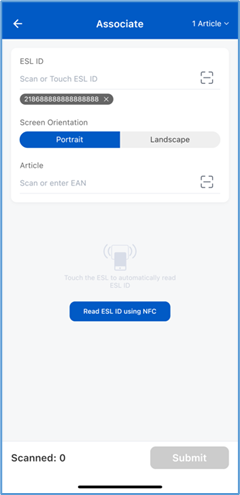
Figure 3‑12 EPD ESL association
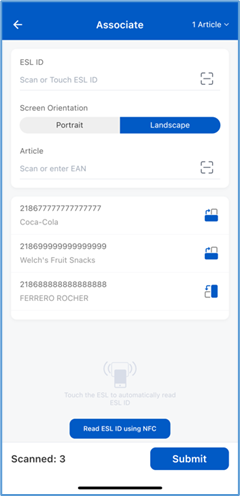
Figure 3‑13 Lumina ESL association
- After adding all associations, tap Submit to submit them in batch.
 Note:
Note:
- If the auto submission function is enabled, after an association is created, the app will automatically submit the association.
- If the auto submission function is disabled, to remove an association from the list, tap and hold the association item, can then delete it.
- To set split-screen association, on the upper right corner, tap and select the number of screens.
3.3.6 Disassociate
With the disassociate function, you can disassociate ESLs from articles.
- On the Function tab of the home page, tab Disassociate, as shown in Figure 3‑14. The Disassociate page opens.
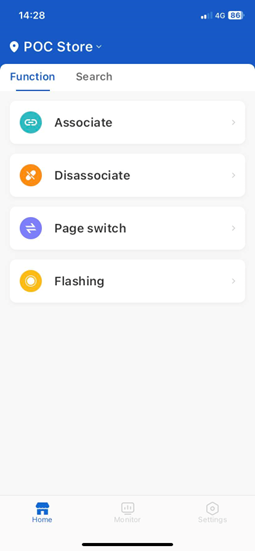
Figure 3‑14 Disassociation entry
- In the ESL ID box, enter or scan the ESL ID, or move your phone close to the upper left corner of the ESL to use the NFC function to get the ESL ID (Lumina ESL does not support identifying ESL ID using NFC).
- After adding all the ESLs you want to disassociate, tap Submit to disassociate them in batch, as shown in Figure 3‑15.
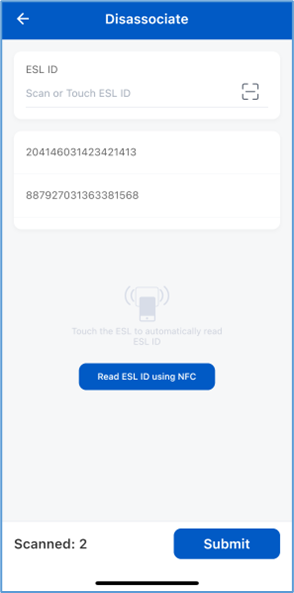
Figure 3‑15 Disassociation subpage
 Note:
Note:
- To remove a disassociation from the list, tap and hold the disassociation item, can then delete it.
- The auto submission function also applies to disassociation.
3.3.7 Switch page
Follow the steps below to switch ESL page.
- On the Function tab of the home page, tab Page switch, as shown in Figure 3‑16. The Page switch page opens.
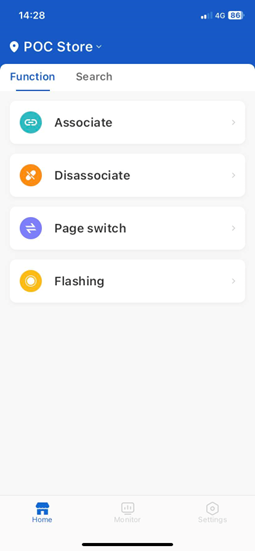
Figure 3‑16 Page switch entry
- On the page switch page, in the ESL ID box, enter or scan the ESL ID. The ESL ID will be displayed below the ESL ID box, as shown in Figure 3‑17.
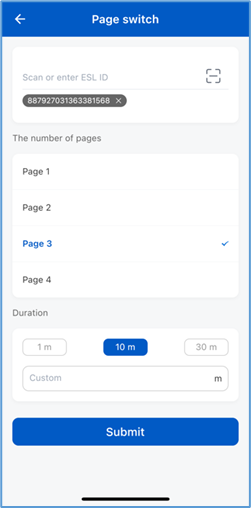
Figure 3‑17 Page switch subpage
- Select the page number to switch to.
- Select the retention time (1min, 10min, or 30min can be selected currently), or enter a custom time, which cannot exceed 300min.
- Tap Submit to submit the page switch setting.
3.3.8 Flashing
After receiving the flashing command, the article associated ESL will flash according to the command to indicate its location.
- On the Function tab of the home page, tab Flashing, as shown in Figure 3‑18. The Flashing page opens.
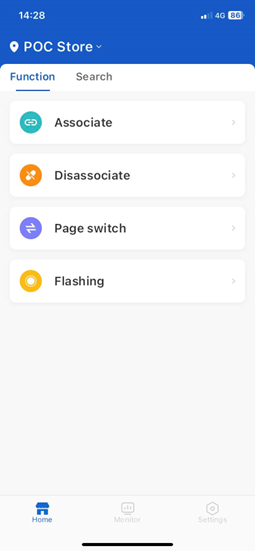
Figure 3‑18 Flashing entry
- In the Article box, enter or scan the article’s EAN or SKU. The article name will be displayed below the Article box, as shown in Figure 3‑19.
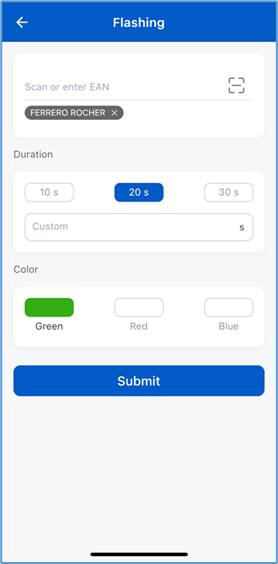
Figure 3‑19 Flashing subpage
- Select the flashing duration (10s, 20s, or 30s can be selected currently), or enter a custom time, which cannot exceed 3,600s.
- Select the LED color. Currently supported colors include red, green, and blue.
- Tap Submit to submit the flashing setting.
3.3.9 Search for articles
With the search for article function, you can search articles by article SKU, EAN and name.
- On the Search tab of the home page, tab Search for article, as shown in Figure 3‑20. The Search for article page opens.
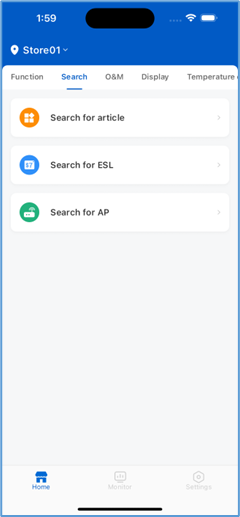
Figure 3‑20 Search entry
- In the input box, enter the EAN or SKU you want to search. Fuzzy search is supported, as shown in Figure 3‑21.
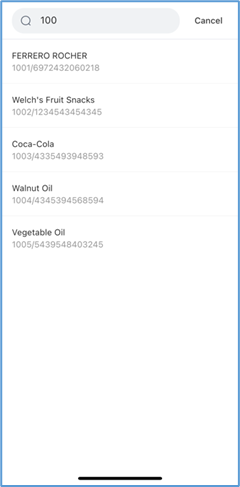
Figure 3‑21 Search for article
- Select the article you want to view information for. Tap the corresponding tab to view the article’s basic information or template information of the ESL associated with the article, as shown in Figure 3‑22. The fields displayed in the basic article information can be customized in the profile.
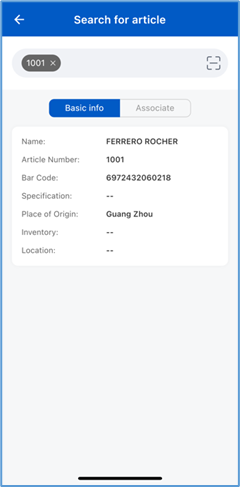
Figure 3‑22 Search for article result subpage
3.3.10 Search for ESL
Follow the steps below to search EPD and Lumina ESLs.
- On the Search tab of the home page, tab Search for ESL, as shown in Figure 3‑23. The Search for ESL page opens.
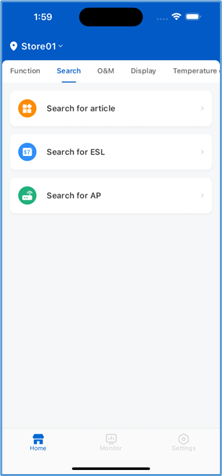
Figure 3‑23 Search entry
- Enter or scan the ESL ID, or move your phone close to the upper left corner of the ESL to use the NFC function to get the ESL ID. On the Basic info tab, the page shows basic ESL information such as battery status, associated articles, and heartbeat time, as shown in Figure 3‑24.
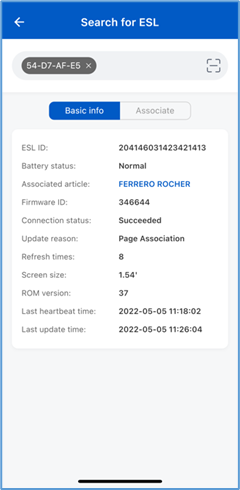
Figure 3‑24 Search for ESL – Basic Info
- On the search result page, tap the Associate tab to view the ESL’s article association template information, as shown in Figure 3‑25.
 Note: the current version does not support viewing assocated template of Lumina ESL.
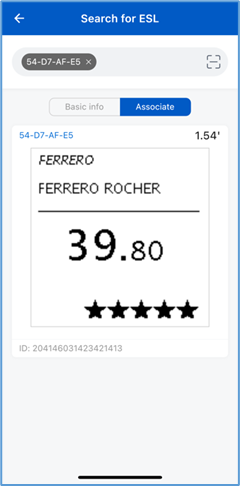
Figure 3‑25 Search for ESL - Associate
3.3.11 Search for AP
Follow the steps below to search APs.
- On the Search tab of the home page, tab Search for AP, as shown in Figure 3‑26. The Search for AP page opens.
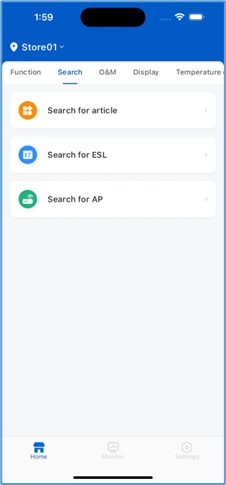
Figure 3‑26 Search for AP entry
- Enter the AP ID. Fuzzy search is selected. All matched APs will be listed and sorted into online or offline category, as shown in Figure 3‑27.
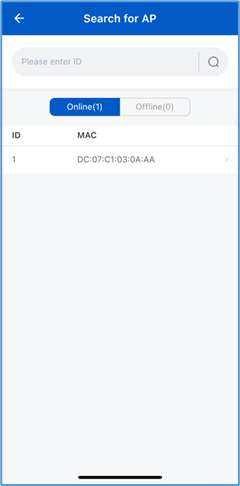
Figure 3‑27 Search for AP subpage
- Tap the AP ID item to view the detailed information of the AP, as shown in Figure 3‑28.
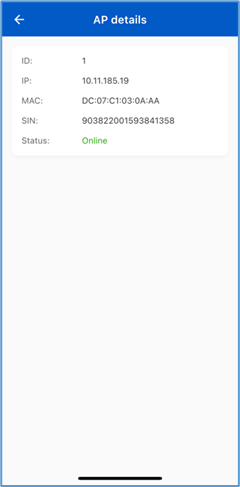
Figure 3‑28 Search for AP – AP details
3.3.12 Monitor
You can monitor the quantity and status of store devices.
Tap Monitor on the lower navigation bar to open the Monitor page, which shows statistical information of the store, including ESL quantity, AP quantity, offline APs, low battery, associated ESLs, update failed ESLs, update completed ESLs, and real-time update chart of the day, as shown in Figure 3‑29.
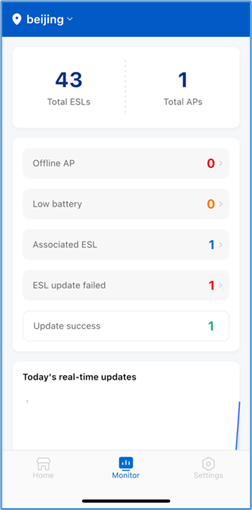
Figure 3‑29 Monitor
- You can tap to view detailed information of offline APs, low battery, associated ESLs, and update failed ESLs, as shown in Figure 3‑30.
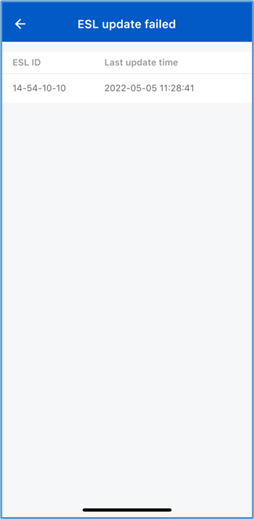
Figure 3‑30 Details of ESLs who have failed update
3.3.13 Settings
Follow the steps below to set Handy Link.
- Tap Settings on the lower navigation bar to open the settings page, as shown in Figure 3‑31.
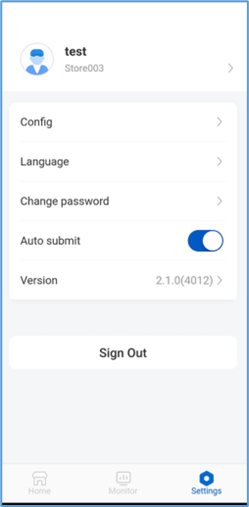
Figure 3‑31
- You can modify the server address, switch language, change password, set the auto submission function, or view the version information of the app. You can also tap the store name below the user name to switch store.
- To enable or disable the auto submission function, turn on or off the Auto submit switch. If the auto submission function is enabled, after association and disassociation settings are complete, the system will automatically submit the operation data and the Submit button does not need to be tapped.
3.3.14 Change password
Follow the steps below to change password for the current account.
- Tap Settings on the lower navigation bar to open the settings page, as shown in Figure 3‑32.
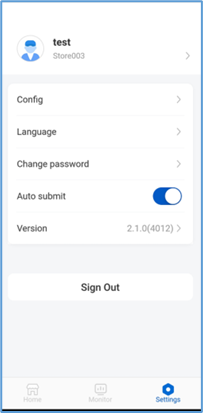
Figure 3‑32 Settings – Change password
- Tap Change password to enter, as shown in Figure 3‑33.
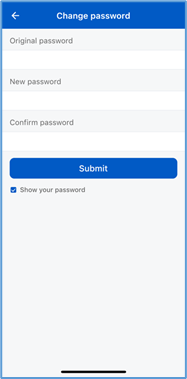
Figure 3‑33 Change password
- Enter the current password and new password, confirm the new password. The password must be 6-18 digits long, consisting of letters, numbers, and special symbols.
- Tap Submit to submit the new password.