Appearance
Hanshow ESL Controller HS_C09960 Product Manual
V1.0.8
Document Code:
HS-AP-GEN5001
ABOUT THE MANUAL
This document describes the features, specification, configuration and precautions of Hanshow ESL controller HS_C09960, helps you quickly understand all information of this device.
Before using the device for the first time, please read this document carefully and understand all the content in it. If the instructions contained in this manual are insufficient to resolve issues that occur during device operation or maintenance, please contact Hanshow Technical Customer Service Center (China: 400-0365-305; Netherlands: 0800-022-5037; Belgium: 0800-71-335; France: 0800-902-530; Thailand: 1800-011-185; Germany: 0800-182-7358; Australia: 0061-1800-953-008) directly, we will provide you with multi-channel technical services.
TARGET USERS
This document provides necessary data and related guidelines for using the ESL controller. Users need to master the basic knowledge on communication, DSP, network and so on. This manual is applicable for the below engineers.
Test Engineer
Technical Support Engineer
After sales Engineer
Installation Engineer
SYMBOL DESCRIPTION
| Icon | Description |
|---|---|
| ⚠️ | Information indicated with this icon should be paid special attention and attached great importance by the reader. |
| 📖 | Information indicated with this icon is the explanation on the formal text for the readers to comprehend the text better. |
| [X-X] | It means special noun definition is provided here. |
EXPLANATION OF TERMS
| Acronym | Expanded form | Description |
|---|---|---|
| ESL Controller | ESL Controller | Also called AP that is used for data interaction between ESL-Working and ESL Controller. |
| ESL | Electronic Shelves Label | Used for displaying product information like promotion information, price and grade, etc. |
| CAT5E | Enhanced Category 5 cabling | CAT5E network cabling. |
| RF | Radio Frequency | Electromagnetic frequency that can radiate into space. |
1 Product Introduction
1.1 Appearance and naming
HS_C09960 is the fifth generation ESL controller developed by Hanshow. This new generation ESL controller has implemented such advantages as fast transmission speed, high performance and low power consumption etc. and can therefore deliver better user experiences in data businesses.
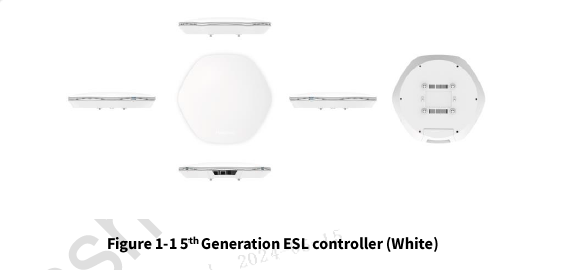
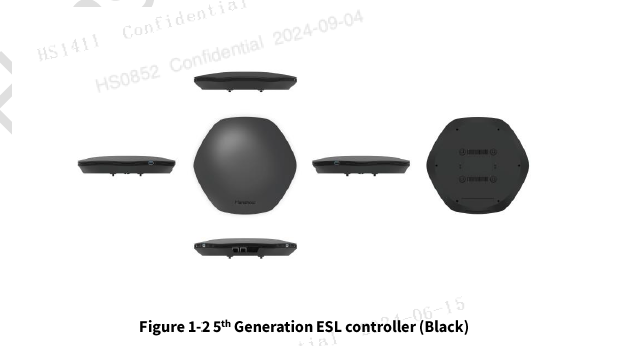
HS_C09960 is used for the data transmission and information exchange between ESL-Working system and ESLs in the 2.4 GHz RF band. Utilizing the modular omni-antenna design, HS_C09960 comes with ARM processor and has integrated RF etc. modules. In addition, it can support all the ESL products currently sold by Hanshow. The appearance designs are as shown in Figure 1-1 and Figure 1-2:
1.2 Product characteristics
1.2.1 Hardware characteristics
- Multiple power supply: Support power supply by POE and AC/DC power adapter. Choose one of the two, they cannot be used to supply power simultaneously.
- RF system: Four-channel RF, supports parallel communication.
- LED indicator: Displays working status in real-time manner.
- Physical interfaces and indicators
Physical interfaces are shown in Figure 1-3; indicators are shown in Figure 1-4; functions of interfaces are shown in Table 1-1:
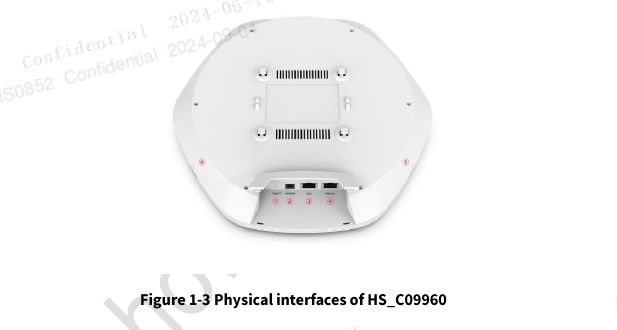
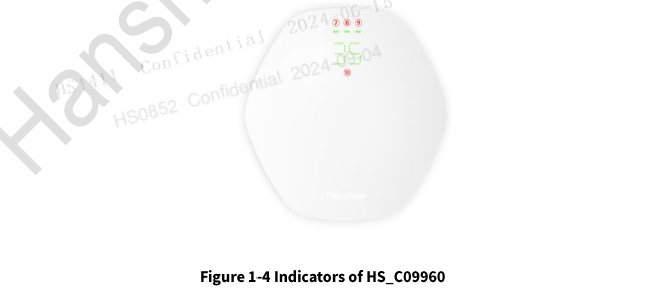
📖NOTE: The above figures are only for reference and the actual product shall prevail.
Table 1-1 Interface function descriptions of ESL controller HS_C09960
| No. | Interface name | Description |
|---|---|---|
| 1 | RESET |
|
| 2 | POWER | Hanshow standard 12V/1A DC power adapter. |
| 3 | AUX | This interface is reserved for CONSOLE. |
| 4 | POE IN | 10MB/100MB adaptive Ethernet, it supports the IEEE 802.3af/at standard for powering network devices via Ethernet cable (POE). |
| 5 | USB INTERFACE 1 | Support USB2.0, Max. output current is 5V/500mA, by default, this interface is off. |
| 6 | USB INTERFACE 2 | Support USB2.0, Max. output current is 5V/500mA, by default, this interface is off. |
| 7 | LED INDICATOR | System status indicator:
|
| 8 | LED INDICATOR | Network status indicator:
|
| 9 | LED INDICATOR | Power supply status indicator:
|
| 10 | 2BIT LED NIXIES | Green.
|
⚠️ NOTICE: Once booted (about 1 minute), the ESL controller will enter self-checking status, all bicolor lights are supposed to flash alternatively and mono-color light shall be on. After this stage, the system will start to run, lights will stop flash. In case of exception, 2 red lights will be on for 5s, the LED nixies will display "Ex" (in which the "x" indicates the minimum abnormal sub-board number). 5s later, the system will enter normal status and the red lights will be off.
1.2.2 Software characteristics
- Operating System (OS): Embedded Linux handles data interaction with ESL-working system, including the registration of ESL controller system, heartbeat reception, data transmission and so on. The OS can be upgrade online.
- Smart dual system: support dual system and have automatic disaster recovery capacity.
- Compatibility: Support all the ESL products currently sold by Hanshow.
- Administration configuration: Support Web configuration mode.
1.3 Product specifications
Product specifications are shown in Table 1-2:
| Item | Description | |
|---|---|---|
| Power supply method | DC input | DC12V |
| POE input | POE 802.3af/at | |
| RF module (2.4 GHz module) | Work frequency | 2,402MHz ~ 2,480MHz 2,478MHz ~ 2,493MHz (Only apply to Japan) |
| Output power | Default as 6dBm | |
| Antenna gain | ≥ 1dBi | |
| Antenna characteristics | 4-way omnidirectional antenna | |
| Ultra-high sensitivity | -95dBm at 500Kbps -97dBm at 100Kbps | |
| System throughput | Up to 60,000 pieces of ESLs per set/hour | |
| Ethernet module | Connection rate | 10/100M (Adaptive) |
| Auto-negotiation | support | |
| Automatic flip | support | |
| DHCP | support | |
| Power consumption | Rated power | 1.9W |
| Max. power | 4W | |
| Temperature | Operating temperature | 0°C ~ 50°C (32°F ~ 122°F) |
| Storage temperature | -30°C ~ 70°C (-22°F ~ 158°F) | |
| Humidity | Relative humidity (%RH) | 10% ~ 90% (Non-condensing) |
| Dimension | L*W*H (mm) | 264.5*249.5*51.5 |
| Weight | Net weight | 631g |
| Color | N/A | Black or white |
2 Ex-factory state description
2.1 Nameplate description
The information in the nameplate of HS_C09960 as shown in Figure 2-1:
Product model: HS_C09960.
QR code contains MAC address and serial number information.
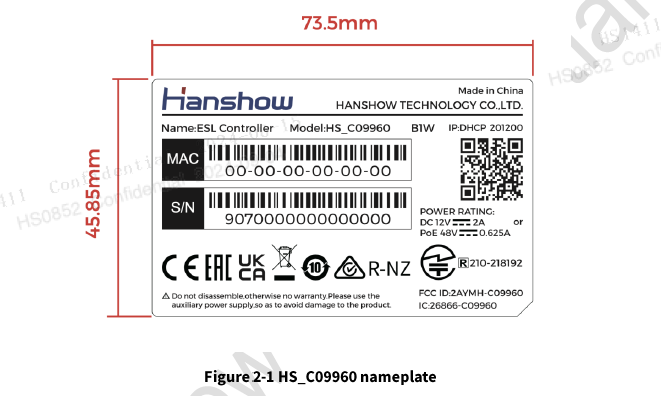
📖 NOTE: The above nameplate is only for reference, the actual nameplate received shall prevail.
2.2 Ex-factory packaging
HS_C09960 ESL controller is packaged by brown paper. The package contains:
- ESL controller (HS_C09960) *1.
- Installation bracket *1
- Expansion bolt screw *1
- Expansion screw *4
- M8 hanging rail screws *2
- 304 stainless steel cable ties *2
- ESL Controller HS_C09960 Quick Start Guide*1
3 Product features
3.1 System architecture
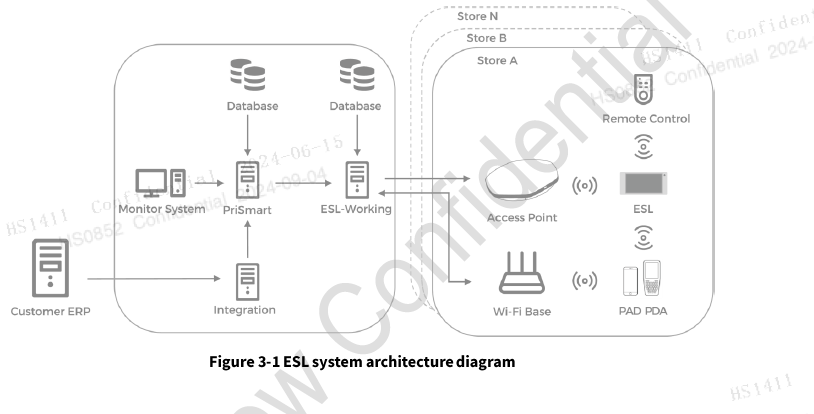
Hanshow ESL system is composed by Electronic Shelf Label (ESL), ESL controller, ESL-Working, PriSmart, database (DB), integration server, monitor system and handheld Terminals (e.g. PDA, PAD, RC), as shown in Figure3-1:
3.2 ESL Controller Product features
ESL controller is an integral part of Hanshow ESL system, handling data transmission and control information exchange between ESL-Working and ESLs. ESL-Working implements ESL administration, business control and obtains ESL reported information via ESL controller. ESL controller connects to ESL system and establish bidirectional RF communication at 2.4 GHz via Ethernet interface (POE). It has the following features:
- Downlink: ESL controller receives downlink packets from ESL-working via wireless network, to execute updating, networking, upgrading, fast flash and global etc. businesses on ESLs.
- Uplink: ESL controller forwards ESL heartbeat packet etc. information to ESL-Working based on the ESL wireless protocol standard.
- Utilize cellular networking technology, network radius can reach 30m.
- Financial grade security chip: support AES-256, AES-128 and RSA1024/2048 encryption algorithm, SHA digest algorithm, TRNG true random integers to guarantee system safety and reliability.
- Utilize multi-antenna technology to improve single ESL controller capacity.
- Support remote upgrade.
- Support real-time status report and monitoring.
- Assisting ESL administration.
3.3 Feature list
ESL system features are shown in Table3-1:
| NO. | FEATURE | DESCRIPTION |
|---|---|---|
| 1 | Webpage configuration | Users can configure network, set ESL-Working, reboot ESL controller, describe the device, set NTP server, password modification, restore factory setting and system upgrade. |
| 2 | Heartbeat reception | Periodically collect ESL heartbeat. ESL heartbeat data contain ESL basic information, such as: ID, firmware version number, wake up cycle, work frequency point, battery volume etc. |
| 3 | Update | Once there is change(s) of commodity information, such as: price change, release of promotion information etc., update feature shall be enabled by the system to refresh corresponding ESL(s). |
4 Product operation
4.1 Key operation
Reset button supports press and hold and press, each owns different function.
4.1.1 Press
Press is used to switch IP address acquisition mode. This feature is strictly limited and just to operate when ESL controller is not connected to network. ESL controller address will switch between DHCP and static IP with each press.
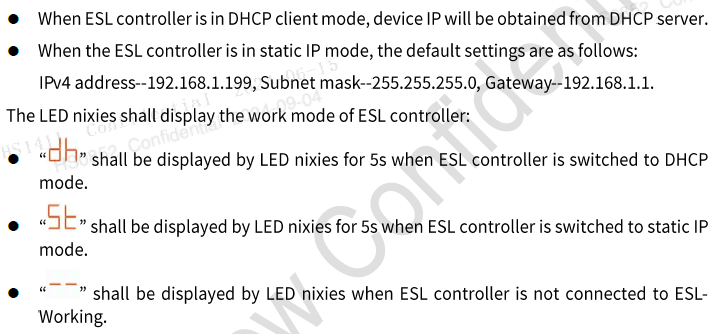
📖 NOTE: The protection interval between two operations should be at least 30s, that is, if you press again within 30s after last successful operation, your operation will be invalid.
4.1.2 Press and hold
Press and hold reset button is more than 5s, ESL controller will restore factory setting. The nixie light on front panel lights is off, ESL controller will restore factory setting and reboot. Restore factory setting contains the following contents:
- Restore to DHCP client mode.
- Restore to auto search mode of ESL-Working.
- Clear custom description.
- Restore web login password to "admin".
- NTP restores to disabled by default.
4.2 Parameter setting
HS_C09960 supports Web configuration mode. Users can manage ESL controller configuration via Web.
4.2.1 Homepage
You can access HS_C09960 IP address to enter configuration page. For example: If HS_C09960 IP is 192.168.51.100, IP address is: https://192.168.51.100, that is, enter logon page and configuration homepage to configure HS_C09960. Default password is: admin.
A pop-up prompts you to change your password. The password includes 8 ~32 digits, letters and special symbols (~!@#) to enhance safety intensity. Click OK after resetting it, or click Cancel, as shown in Figure4-1 and Figure4-2:
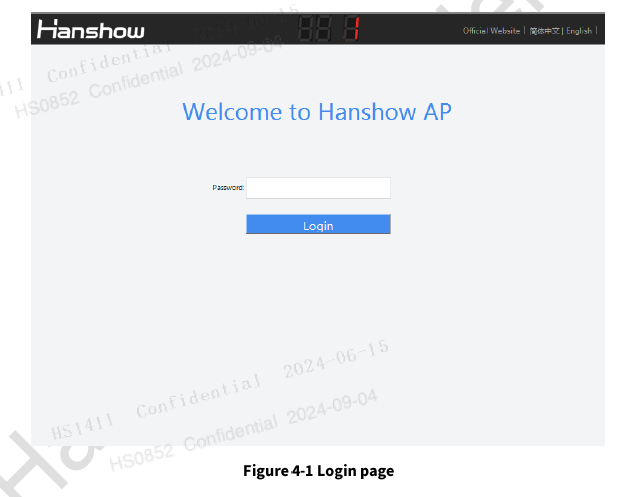
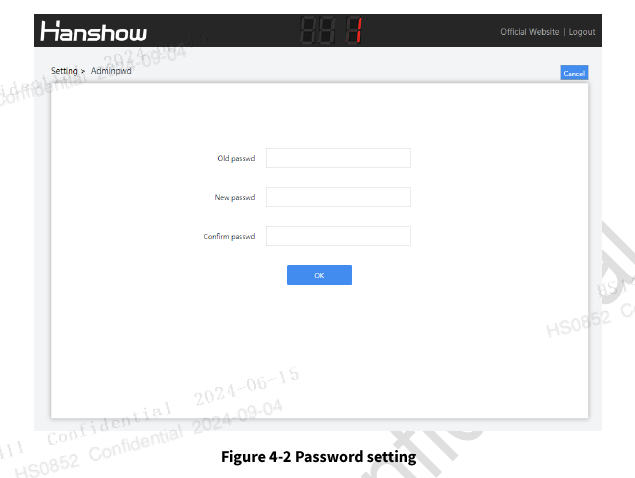
If the password does not meet the security rules, a password rules prompt message appears.
📖 NOTE:
Both Chinese and English are supported, switch the language you want in upper-right corner of the login page.
If the password strength is not strong enough, a pop-up prompts to reset your password. If you don't want to reset, click Cancel to skip.
HS_C09960's configuration homepage is as shown in Figure4-3.
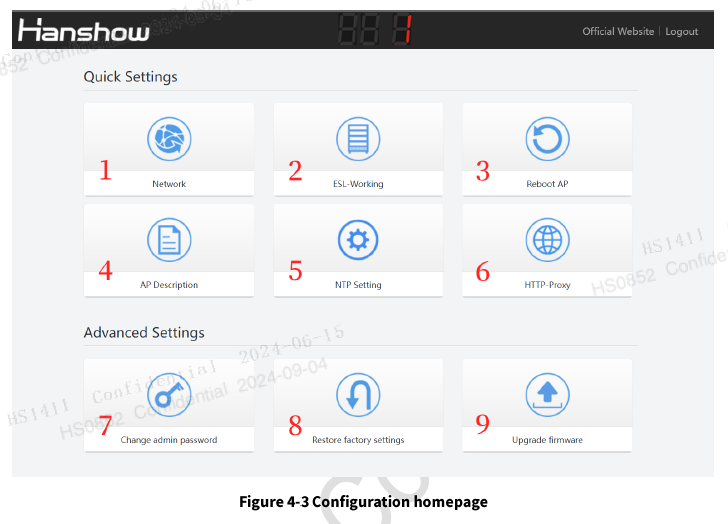
The configuration items are illustrated as shown in Table4-1.
Table 4-1 Configuration option description
| No. | Configuration item | Description |
|---|---|---|
| 1 | Network | Set network parameters. |
| 2 | ESL-Working | Configure ESL-Working parameters. |
| 3 | Reboot AP | Reboot ESL controller device. |
| 4 | AP Description | Add description information. |
| 5 | NTP Setting | Configure NTP service. |
| 6 | HTTP-Proxy | Set Proxy parameters. |
| 7 | Restore factory settings | Restore default settings. |
| 8 | Update firmware | Upgrade for main system and RF subsystem. |
4.2.2 Network setting
Network setting is used for setting network parameter of HS_C09960. It supports two IP types: IPv4 and IPv6; two IP address acquisition modes: DHCP or static IP.
If IP type is IPv4, the configuration page is shown in Figure4-4:
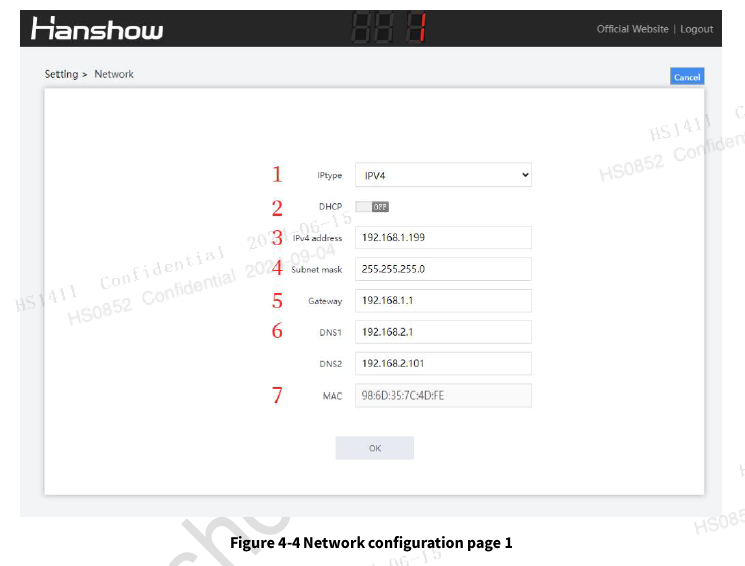
The configuration options are illustrated as shown in Table 4-2:
Table 4-2 Configuration option description
| No. | Configuration option | Description |
|---|---|---|
| 1 | IP type | Support IPv6/IPv4 dual protocol stacks. To configure the parameters when selecting IPv4. |
| 2 | DHCP |
|
| 3 | IPv4 address | Configurable when DHCP is OFF. |
| 4 | Subnet mask | Configurable when DHCP is OFF. |
| 5 | Gateway | Configurable when DHCP is OFF. |
| 6 | DNS | Domain Name Server (DNS), DNSl: Primary DNS server; DNS2: Secondary server. Must be set when the ESL-Working address is configured as domain name address; Enable DHCP, to get DNS from DHCP. |
| 7 | MAC | Unique MAC address, refer to the nameplate. |
If IP type is IPv6, the configuration page is shown in Figure4-5:
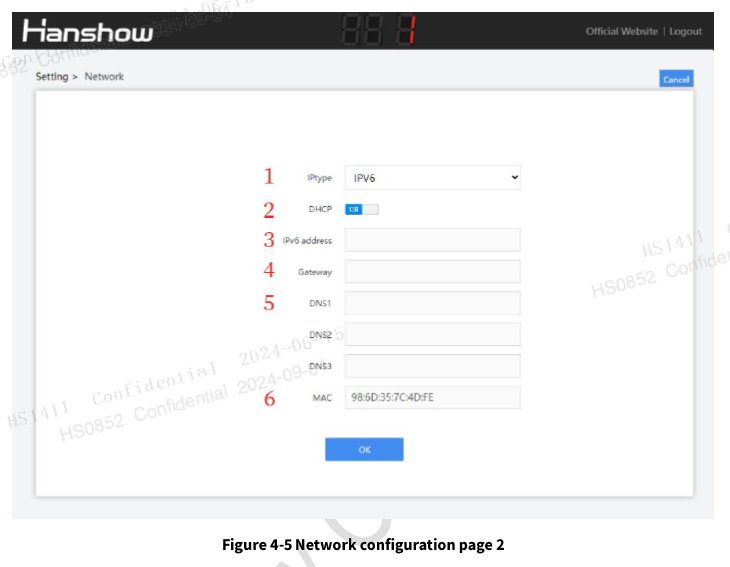
The configuration items are illustrated as shown in Table4-3:
Table 4-3 Configuration option description
| No. | Configuration | Description |
|---|---|---|
| 1 | IP type | Support IPv6/IPv4 dual protocol stacks. To configure the parameters when selecting IPv6. |
| 2 | DHCP |
|
| 3 | IPv6 address | Configurable when DHCP is OFF. |
| 4 | Gateway | Configurable when DHCP is OFF. |
| 5 | DNS | Domain Name Server (DNS), DNSl: Primary DNS server; DNS2: Secondary server; DNS3: Secondary server. Must be set when the ESL-Working address is configured as domain name address; Enable DHCP, to get DNS from DHCP. |
| 6 | MAC | Unique MAC address, refer to nameplate. |
📖 NOTE: The modified network settings take effect immediately; you need to re-enter the set URL to access the web.
4.2.3 ESL-Working setting
This can set IP address and port number of ESL-Working, as shown in Figure 4-6:
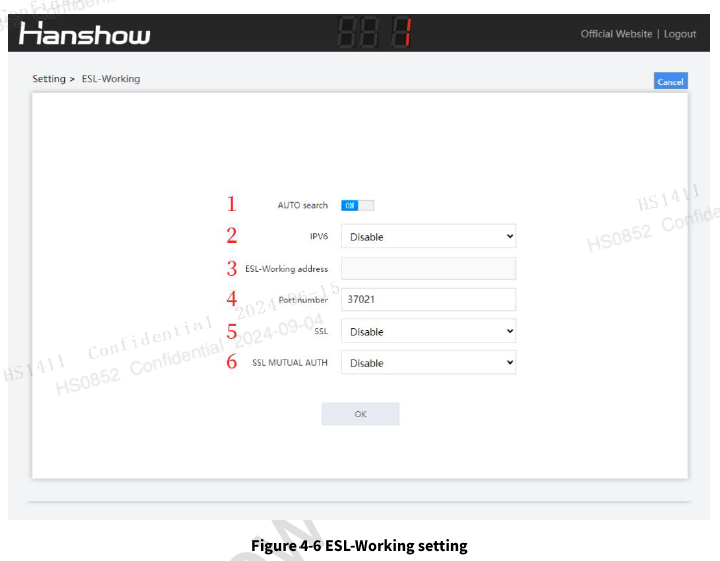
Each configuration item is illustrated as shown in Table4-4:
Table 4-4 Configuration option description
| No. | Configuration item | Description |
|---|---|---|
| 1 | AUTO search |
|
| 2 | IPv6 |
|
| 3 | ESL-Working address | The IPv4 or DNS in ESL-Working is configurable when AUTO search is OFF. |
| 4 | Port number | Port number of ESL-Working:
|
| 5 | SSL | Whether to use SSL to connect to ESL-Working securely. |
| 6 | SSL MUTUAL AUTH | Whether to verify the ESL-Working certificate. This feature is valid only when SSL is enabled. |
📖 NOTE:
Confirm whether the DNS server in Network setting is correct after changing the DNS of ESL-Working.
Confirm whether the port number is correct after SSL is enabled. Generally, the port number connected by SSL or non-SSL is different.
The modified ESL-Working information will take effect about 30s later, no need to restart the ESL controller.
⚠️ NOTICE: You need to configure ESL-Working address manually when ESL controller and ESL-Working are used in different network.
4.2.4 Reboot ESL controller
Click Reboot ESL controller, click OK on pop-up box, the device will reboot. Reboot ESL controller takes about 1min, as shown in Figure 4-7:
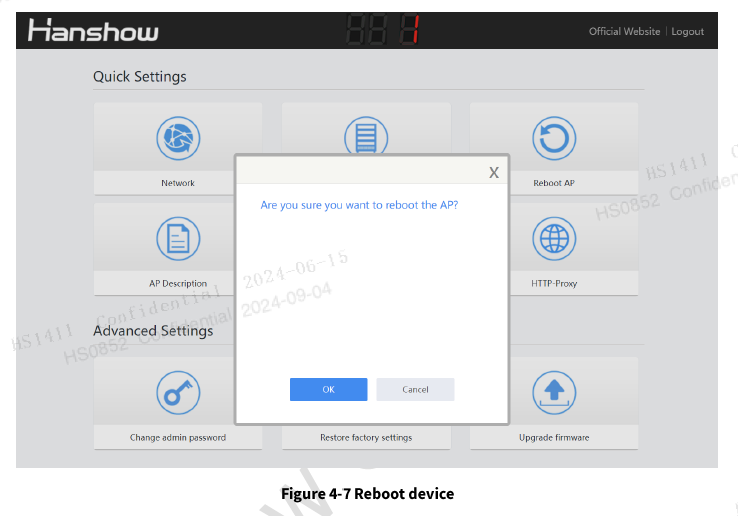
4.2.5 ESL controller description
This can add custom information for ESL controller record and recognition, as shown in Figure4-8:
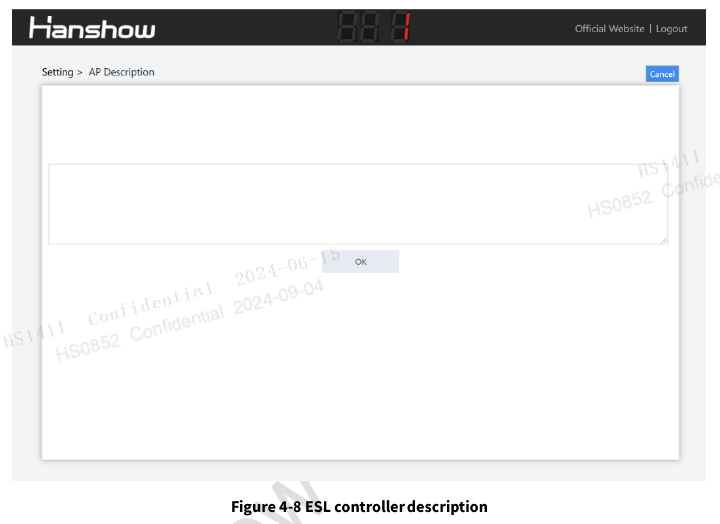
4.2.6 NTP settings
NTP setting can add custom device acquisition time, easy to synchronize time in time zone, as shown in Figure4-9:
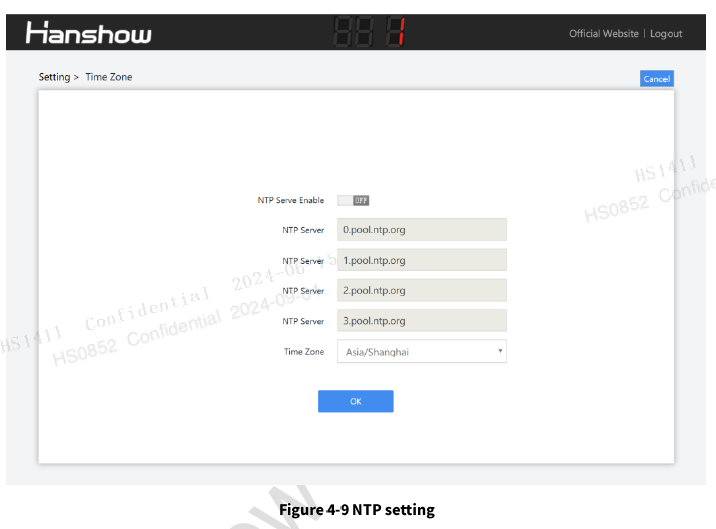
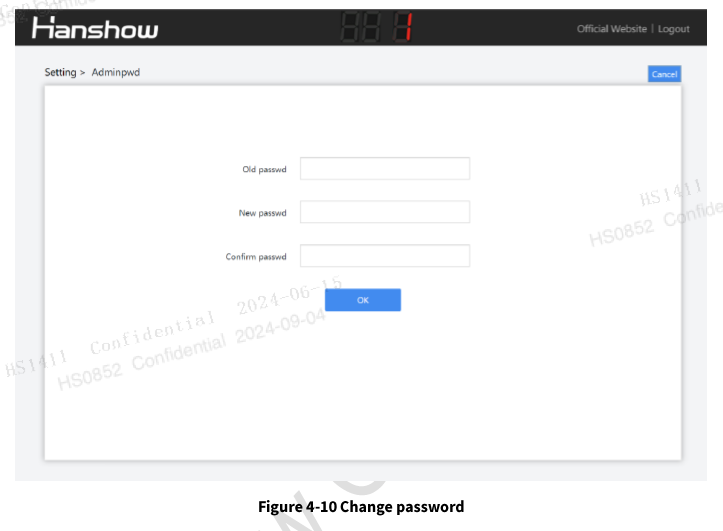
4.2.7 Change admin password
This is used for changing login password, as shown in Figure4-10:
4.2.8 Restore factory settings
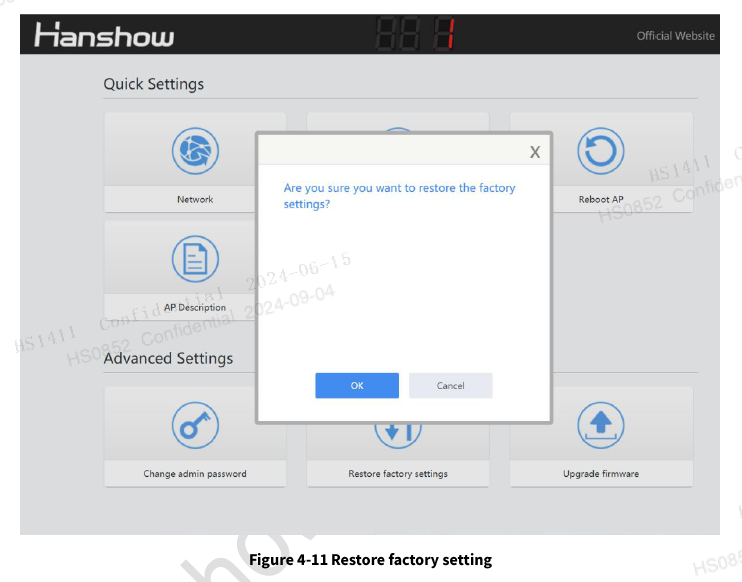
Click Restore factory settings, click OK on pop-up box, the device will restore factory settings and reboot. Restore factory settings takes about 1min, as shown in Figure4-11:
📖 NOTE:
The effect is the same as the key action.
During the process of restoring factory settings, do not disconnect the power supply to the device, as this may cause system abnormalities.
4.2.9 Upgrade firmware
HS_C09960 upgrade is used to online upgrade for main system and RF subsystem. It supports local upgrade and remote upgrade.
Local upgrade: Upgrade package with the specified version number is required for upgrading.
Remote upgrade: It is only available to LAN environment. If cross-network segment upgrade is required, you need to do port mapping in advance.
⚠️ **NOTICE:**
Don't cut off the power during the upgrade, as this may cause system abnormalities.
The entire upgrade procedure takes about 5 minutes.
For more information, please refer to (HP-AP-GEN5003) Hanshow ESL Controller HS_C09960 Upgrade Manual.
4.3 Workflow
Specific workflow is as follows:
- Check if power cable and network cable are connected properly before using the ESL controller.
- Confirm whether to use Hanshow standard 12V adapter or POE power supply.
- The power indicator on front panel lights on after the ESL controller is powered-on, and then HS_C09960 system starts to take about 1 minute.
- After successful startup, the system status indicator and network status indicator light on, the ESL controller enters working state.
- Follow the section of Parameter setting to configure relevant parameters accordingly.
- The ESL controller will automatically connect to ESL-Working after the correct configurations. If success, the indicators will flash green; if failed, the prompt messages appear. The ESL controller will connect to ESL-Working regularly.
- Two LED nixies will display the ESL controller ID after successful connection in the previous step.
5 FAQ
5.1 Hardware FAQ
5.1.1 The power indicator light is not on
Handling procedure:
- Confirm whether the ESL controller is powered.
- Confirm whether the ESL controller power cable is firmly plugged.
- Check if the power source can support POE, if there is malfunction.
- Check if the network cable is correctly plugged into the POE IN interface.
- Confirm whether the POE network cable or 12V adapter is faulty. Replace it with a POE network cable or 12V adapter from a working ESL controller to cross-verify and identify the fault point.
After confirming the above steps, if the ESL controller still cannot be powered on normally, please contact technical support personnel or the agent from whom you purchased the ESL controller for assistance.
5.1.2 The red light of system status indicator is constantly on
Handling procedure:
- Once booted, the ESL controller will enter self-checking status, the system status indicator is supposed to flash alternatively and mono-color light shall be on. After this stage, the system will start to run, lights will stop flash. In case of exception, 2 red lights will be on for 5s, the LED nixies will display "Ex" (in which the "x" indicates the minimum abnormal sub-board number). 5s later, the system will enter normal status and the red lights will be off.
After confirming the above steps, if the ESL controller still cannot be powered on normally, please contact technical support personnel or the agent from whom you purchased the ESL controller for assistance.
5.1.3 The red light of network status indicator is constantly on
Handling procedure:
- The device supports 10MB/100MB adaptive Ethernet, please confirm the device capacity and configuration of your side.
- Check if the network cable is correctly plugged into the POE IN interface.
- Determine the fault point using cross validation method.
After the above steps, if the indicator light does not turn green, please first eliminate the possibility of a network cable issue and test with a different switch port. If the functionality is still abnormal, please contact technical support personnel or the agent from whom you purchased the ESL controller for assistance.
5.1.4 What are the appropriate Ethernet cable type and power supply distance for POE power supply?
Select CAT5E or above.
According to the transmission distance rules in IEEE 802.3af and IEEE 802.3at standards, the length limit of CAT5E cable should not exceed 100m.
6 Return and repair instruction
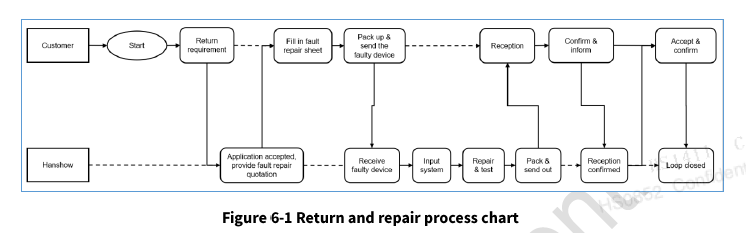
6.1 Return and repair process
6.2 Repair time limit
Repair of faulty device: since the faulty device is received by Party B and Party B confirms that the faulty device is within repair range; or since Party B receives repair expense, the faulty device shall be repaired within 30 days. After that, the repaired device shall be sent to the designated place by Party A. In case Party B fails to repair the faulty device, Party B shall provide substitute with the same capacities.
7 Maintenance
Please follow below advices when installing and using the ESL controller.
Table 7-1 Precautions and suggestions
| Items | Description |
|---|---|
| Environment requirements |
|
| Safe precautions |
|
| Pre-installation check |
|
| Installation scenario |
|
| Installation distance |
|
| Network settings |
|
| Post-installation check |
|
8 Contact information
Table 8-1 Hanshow after-sales contact information table
| Service method | Description |
|---|---|
| Hotline |
|
| |
| Work order system | https://rma.hanshow.online/rma |
9 FCC ID warning
9.1 Warning for nameplate
This device complies with Part 15 of the FCC Rules. Operation is subject to the following two conditions:
(1) This device may not cause harmful interference, and (2) This device must accept any interference received, including interference that may cause undesired operation. (3) The distance between user and device should be no less than 20cm.
9.2 Warning for User Manual
Changes or modifications not expressly approved by the party responsible for compliance could void the user's authority to operate the equipment.
This equipment has been tested and found to comply with the limits for a Class B digital device, pursuant to Part 15 of the FCC Rules. These limits are designed to provide reasonable protection against harmful interference in a residential installation. This equipment generates, uses and can radiate radio frequency energy and, if not installed and used in accordance with the instructions, may cause harmful interference to radio communications. However, there is no guarantee that interference will not occur in a particular installation. If this equipment does cause harmful interference to radio or television reception, which can be determined by turning the equipment off and on, the user is encouraged to try to correct the interference by one or more of the following measures:
- Reorient or relocate the receiving antenna.
- Increase the separation between the equipment and receiver.
- Connect the equipment into an outlet on a circuit different from that to which the receiver is connected.
- Consult the dealer or an experienced radio/TV technician for help.
10 IC STATEMENT
This device complies with Industry Canada's licence-exempt RSSs. Operation is subjectto the following two conditions:
(1) This device may not cause interference; and (2) This device must accept any interference, including interference that may cause undesired operation of the device. (3) The distance between user and device should be no less than 20cm.
Le present appareil est conforme aux CNR d'lndustrie Canada applicables aux appareils radio exempts de licence. L'exploitation est autorisee aux deux conditions suivantes:
(1) l'appareil ne doit pas produire de brouillage, et
(2) l'utilisateur de l'appareil doit accepter tout brouillage radioelectrique subi, meme si le brouillage est susceptible d'en compromettre le fonctionnement
(3) la distance entre l'utilisation et l'appareil ne doit pas etre inferieure a 20 cm.